
plustek SmartOffice PS286 Plus
Plustek SmartOffice PS286 Plus Document Scanner User Manual
Eredua: SmartOffice PS286 Plus
Marka: Plustek
1. Sarrera
The Plustek SmartOffice PS286 Plus is a compact and efficient document scanner designed for fast and reliable digitization of various documents. It is ideal for office environments requiring quick processing of paper documents and rigid cards.
Ezaugarri nagusiak:
- Advanced image enhancement for automatic straightening, rotation, brightness adjustment, and cropping.
- Ability to scan rigid cards, including ID cards and driver's licenses.
- Equipped with a 50-sheet Automatic Document Feeder (ADF) for batch scanning.
- Supports duplex scanning (scanning both sides of a document simultaneously).
- Fast scan speed of up to 25 pages per minute (50 images per minute for duplex).
- Daily duty cycle of 1500 pages.
- Single-touch customizable buttons for automating up to 9 frequent scanning jobs.

Figure 1.1: Plustek SmartOffice PS286 Plus Document Scanner (Closed)
2. Konfigurazioa
2.1 Paketearen edukia
Hasi aurretik, ziurtatu elementu guztiak paketean daudela:
- Plustek SmartOffice PS286 Plus Scanner
- AC Potentzia Egokitzailea
- USB kablea
- Gida Azkarra
- Installation CD (or download instructions for drivers/software)
2.2 Konfigurazio fisikoa
- Jarri eskanerra gainazal egonkor eta lau batean, dokumentuak elikatzeko eta ateratzeko leku nahikoa duena.
- Open the Automatic Document Feeder (ADF) cover and extend the output tray.
- Konektatu eskanerretik USB kablea ordenagailuko USB ataka libre batera.
- Connect the AC power adapter to the scanner's power input, then plug it into a power outlet.
- Press the power button to turn on the scanner.

Figure 2.1: Scanner with ADF Open and Output Tray Extended
2.3 Software-instalazioa
To use the scanner, you must install the necessary drivers and software. The SmartOffice PS286 Plus is TWAIN compliant, ensuring compatibility with various imaging applications.
- Insert the Installation CD into your computer's optical drive. If your computer does not have an optical drive, download the latest drivers and software directly from the official Plustek webgunea (www.plustek.com).
- Follow the on-screen instructions to complete the installation process. This typically includes installing the scanner driver, Plustek's scanning utility, and any bundled software.
- Berrabiarazi ordenagailua instalazioa egin ondoren eskatzen bazaizu.
3. Funtzionamendu-argibideak
3.1 Dokumentuak kargatzea
The scanner's Automatic Document Feeder (ADF) can hold up to 50 sheets of paper. It also supports scanning of rigid cards up to 1.2mm thick without additional adjustments.
- Dokumentu estandarrak: Fan the edges of the paper stack to prevent misfeeds. Place the documents face down into the ADF, ensuring they are aligned with the paper guides.
- Rigid Cards: Insert rigid cards (e.g., ID cards, driver's licenses) one at a time into the designated card slot or feed them through the ADF if supported for mixed batches.

Figure 3.1: Loading Documents into the ADF
3.2 Dokumentuak eskaneatzea
The SmartOffice PS286 Plus offers one-touch scanning for convenience.
- Kargatu dokumentuak ADFn goian azaldu bezala.
- On the scanner's control panel, select a pre-configured scan job using the function buttons (1-9). These jobs can be customized via the scanning utility software to define scan settings such as destination, file formatua, eta bereizmena.
- Press the 'Scan' button to initiate the scanning process. The scanner will automatically feed and scan the documents.
- Scanned images will be processed and saved to the specified location on your computer.
3.3 Image Enhancement Features
The scanner includes several built-in image processing functions to improve scan quality and reduce manual adjustments:
- Koloreen detekzio automatikoa: Automatically detects and scans documents in color, grayscale, or black and white.
- Auto Rotate for Text Orientation: Automatically rotates scanned pages so text is correctly oriented.
- Multi-image Output: Allows saving multiple images from a single scan.
- Blank Pages Removal: Automatically deletes blank pages from duplex scans.
- Punch Holes Removal: Digitally removes punch hole marks from scanned images.
- Remove Background: Cleans up background noise for clearer images.
- Denoise: Reduces image noise for cleaner scans.
- Character Enhancement: Improves the readability of text.
Figure 3.2: Smart Archiving and Labeling Solution
4. Mantentzea
4.1 Eskanerra garbitzea
Regular cleaning ensures optimal performance and extends the life of your scanner.
- Kanpoaldea: Garbitu eskanerraren kanpoaldea oihal leun, lehor eta lihorik gabeko batekin. Ez erabili garbitzaile edo disolbatzaile urratzailerik.
- Beirazko gainazalak: Gently clean the glass scanning surfaces with a soft cloth dampened with a non-abrasive glass cleaner. Ensure no residue is left behind.
- Arrabolak: Periodically clean the paper feed rollers with a lint-free cloth lightly dampIsopropil alkoholarekin bustita. Horrek paperaren elikadura egokia mantentzen laguntzen du.
Eskanerra beti itzali eta deskonektatu garbiketa egin aurretik.
4.2 Kontsumigarriak
Over time, certain parts of the scanner, such as the feed rollers, may wear out and require replacement. Refer to the Plustek website or contact customer support for information on purchasing replacement parts and service kits.
5. Arazoak
This section addresses common issues you might encounter with your Plustek SmartOffice PS286 Plus scanner.
5.1 Ohiko arazoak eta irtenbideak
| Arazoa | Balizko Kausa / Irtenbidea |
|---|---|
| Scanner not recognized by computer / "Program was unable to allocate enough memory" error. | Ensure USB cable is securely connected. Try a different USB port. Verify scanner is powered on. Close other demanding applications to free up system memory. Reinstall the latest drivers from the official Plustek webgunea. |
| Papera maiz trabatzen da. | Ensure documents are fanned and aligned correctly in the ADF. Do not overload the ADF. Check for any foreign objects in the paper path. Clean the feed rollers as described in the Maintenance section. |
| Scanned images are black or blank. | Check if the scanner's light source is active. Ensure the document is placed correctly (face down). Reinstall scanner drivers. If the issue persists, contact technical support. |
| Scanner freezes or makes unusual noises during scanning. | Power off the scanner, unplug it, and check for any jammed paper or obstructions. Clean the scanner. Ensure drivers are up to date. Reboot your computer. |
| Eskaneatze-kalitate eskasa (marrak, irudi lausoak). | Clean the scanner's glass surfaces and rollers. Adjust scan resolution and image enhancement settings in the software. Ensure original documents are clean and flat. |
5.2 Laguntza Teknikoa
If you encounter issues that cannot be resolved using the troubleshooting steps above, Plustek offers comprehensive customer support.
- Lineako laguntza: Visit the official Plustek webgunea (www.plustek.com) for FAQs, driver downloads, and online support resources.
- Telefono-laguntza: Contact Plustek's US-based customer support for direct assistance. Refer to the Plustek website for current contact numbers and operating hours.
- Posta elektronikoko laguntza: Bidali zure kontsultak posta elektronikoz laguntza zehatza jasotzeko.
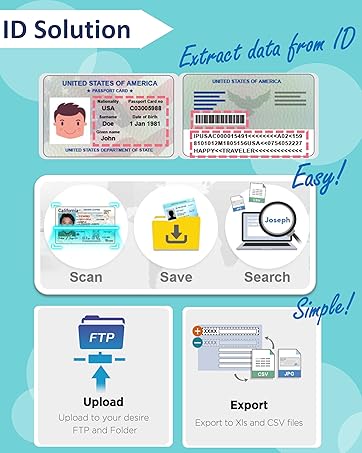
Figure 5.1: Plustek US-Based Customer Support
6. Zehaztapenak
Detailed technical specifications for the Plustek SmartOffice PS286 Plus Document Scanner:
| Zehaztapena | Balioa |
|---|---|
| Produktuaren neurriak | 14.2 x 9.9 x 11.8 hazbete |
| Elementuaren pisua | 3.66 kilo |
| Ereduaren izena | SmartOffice PS286 Plus |
| Eskaner mota | Dokumentua |
| Konektibitate Teknologia | USBa |
| Ebazpena | 600 dpi (Optikoa) |
| Wattage | 18 watt |
| Orri-tamaina | A4, Letter, Legal |
| Kolore-Sakonera | 24 bpp |
| Eskaneatzeko abiadura | 25 ppm (50 ipm duplex) at 200dpi, LTR |
| Eguneroko lan-zikloa | 1500 orrialde |
| Sistema eragileen bateragarritasuna | Windows XP / Vista / 7 / 8 / 10, Mac 10.8.x ~ 10.14.x, Linux (SANE for Systems Integrator) |

6.1. irudia: Eskaneraren neurriak
7. Bermearen informazioa
Plustek provides a limited warranty for the SmartOffice PS286 Plus scanner. The warranty period and terms may vary by region. Please refer to the warranty card included with your product or visit the official Plustek webwebgunea bermearen informazio zehatza eta erregistro-prozedurak lortzeko.
Gorde erosketa-agiria erosketaren frogagiri gisa, berme-erreklamazioetarako.
Erlazionatutako dokumentuak - SmartOffice PS286 Plus
 |
Plustek SmartOffice PS286 Plus dokumentu eskanerra - Ezaugarriak eta zehaztapenak Discover the Plustek SmartOffice PS286 Plus, a versatile 25ppm document scanner designed for both PC and Mac environments. Featuring advanced OCR capabilities, robust paper handling for various document types including business cards and ID cards, and one-touch scanning to popular formats like searchable PDF, Word, and Excel. Streamline your workflow with DocAction and MacAction software, and integrate with cloud services. |
 |
Plustek SmartOffice PS30D dokumentu eskanerra - Abiadura handiko, OCR, lan-taldeentzako irtenbidea Ezagutu Plustek SmartOffice PS30D, lan-talde ertainentzat diseinatutako dokumentu-eskaner trinkoa eta indartsua. Abiadura handiko eskaneatzea, ABBYY-rekin OCR gaitasun aurreratuak eta DocAction bezalako software erabilerraza eskaintzen ditu dokumentuak digitalizatzeko modu eraginkorrerako. |
 |
Plustek SmartOffice PS186 Hasiera Azkarreko Gida Plustek SmartOffice PS186 eskanerra konfiguratzeko eta erabiltzeko gida laburra, muntaketa, dokumentuen eskaneatzea, eskaneatzea azkarra eta testu osoko bilaketa bezalako softwarearen funtzioak eta oinarrizko arazoak konpontzea jorratzen dituena. |
 |
Plustek SmartOffice PS188 Hasiera Azkarreko Gida A concise, SEO-optimized HTML guide for the Plustek SmartOffice PS188 document scanner. It covers setup, connection, scanning operations, software features like Quick Scan and Full Text Search, and basic troubleshooting, with detailed textual descriptions replacing diagrams. |
 |
Plustek OpticSlim eskanerra macOS-erako erabiltzailearen gida Erabiltzailearen gida honek Plustek OpticSlim eskanerrarentzat argibide osoak eskaintzen ditu, instalazioa, konfigurazioa, eskaneatze prozedurak, mantentze-lanak, arazoak konpontzea, sistemaren eskakizunak, zehaztapenak eta macOS erabiltzaileentzako bermeari buruzko informazioa barne hartzen dituena. |
 |
Plustek MobileOffice D430 eskanerra erabiltzailearen eskuliburua Eskuliburu honek Plustek MobileOffice D430 eskanerra instalatzeko, erabiltzeko eta mantentzeko argibideak eskaintzen ditu. Konfigurazioa, eskaneatze prozedurak, garbiketa, arazoak konpontzea eta zehaztapenak biltzen ditu. |
Ask a question about this manual
Ask about setup, troubleshooting, compatibility, parts, safety, or missing instructions. Manuals+ will review the question and use this page’s manual context to help answer it.