
1. Produktua amaitu daview
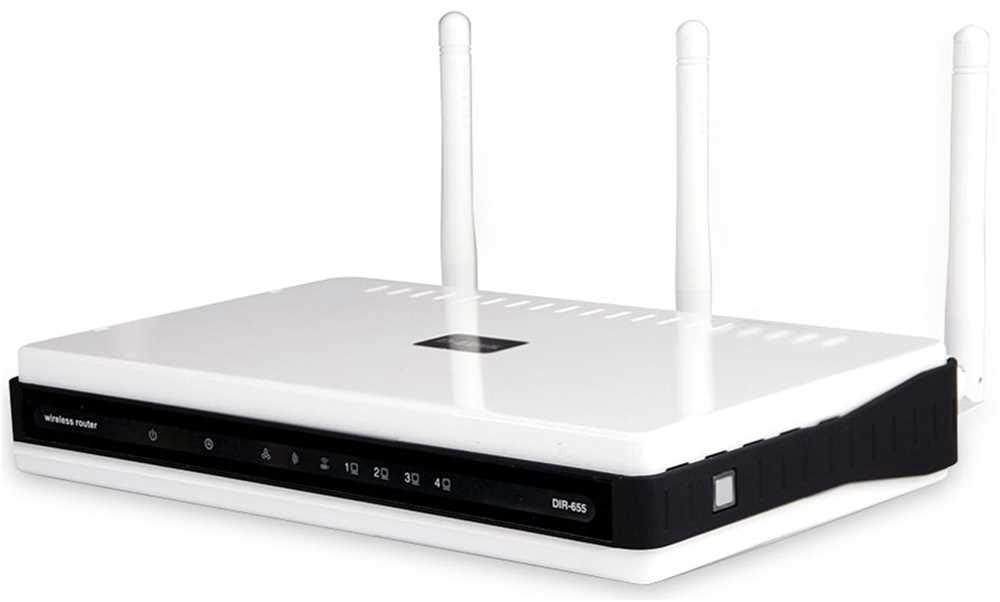
The D-Link DIR-655 Xtreme N Gigabit Router is an IEEE 802.11n (draft) compliant device designed to deliver faster speeds and extended range compared to IEEE 802.11g, while maintaining backward compatibility with IEEE 802.11g and IEEE 802.11b devices. This router enables high-speed internet access for multiple computers, game consoles, and media players when connected to a cable or DSL modem. It facilitates the creation of a secure wireless network for sharing photos, files, music, videos, printers, and network storage.
2. Konfigurazio gida
Follow these steps to set up your D-Link DIR-655 Xtreme N Wireless Router:
2.1. Desontziratzea eta kokatzea
- Kontu handiz kendu elementu guztiak paketetik.
- Place the router in a central location in your home or office for optimal wireless coverage. Avoid placing it near large metal objects, concrete walls, or devices that emit radio frequency interference (e.g., microwave ovens, cordless phones).
- Ensure proper ventilation around the router.
2.2. Hardware konexioa
- Konektatu antenak: Attach the three external antennas to the connectors on the back of the router. Ensure they are securely tightened.
- Modemera konektatu:
- Power off your cable or DSL modem.
- Connect one end of an Ethernet cable to the Internet (WAN) port on the back of the DIR-655 router.
- Connect the other end of this Ethernet cable to the Ethernet port on your cable or DSL modem.
- Power on your modem and wait for its indicator lights to stabilize (usually indicating an active internet connection).
- Konektatu energia: Plug the power adapter into the power port (12V===2A) on the back of the router, then plug the other end into a wall outlet or power strip. The power LED on the front of the router should illuminate.
- Connect Devices (Optional Wired): For wired connections, connect Ethernet cables from your computers or other network devices to any of the four LAN ports (1-4) on the back of the router.
1. Irudia: Atzealdea view of the D-Link DIR-655 router, highlighting the LAN, Internet, USB, Reset, and Power ports, along with the three external antennas.

2. irudia: Aurrealdea view of the D-Link DIR-655 router, displaying the D-Link logo and various status indicator lights.
2.3. Initial Configuration (Wireless)
To connect wirelessly and configure your router:
- Bilatu sarearen izena (SSID): Look for the Wi-Fi network name (SSID) printed on a label on the bottom or back of your router.
- Konektatu wifira: On your computer or mobile device, search for available Wi-Fi networks and select the SSID of your D-Link DIR-655.
- Sartu pasahitza: Enter the Wi-Fi password (also known as the network key or passphrase) found on the same label as the SSID.
- Sarbide bideratzailearen interfazea: Ireki a web arakatzailea eta idatzi
http://dlinkrouter.localor192.168.0.1(default IP address) into the address bar. - Saioa hasi: Sartu erabiltzaile-izen lehenetsia (normalean
admin) and password (often blank oradmin). Refer to your router's label for default login credentials. - Exekutatu konfigurazio-morroia: Follow the on-screen instructions of the D-Link setup wizard to configure your internet connection and personalize your Wi-Fi network name and password.
3. Funtzionamendu-argibideak
The D-Link DIR-655 is designed for high-performance wireless networking:
- Wireless N Technology: Utilizes IEEE 802.11n (draft) for enhanced speed and range, ideal for streaming HD video, online gaming, and large file transferentziak.
- Gigabit Ethernet portuak: Four LAN ports provide 10x faster wired connections than standard Ethernet, ensuring high-speed data transfer for connected devices.
- Banda bikoitzeko euskarria: The router supports dual-band operation, allowing for flexible network configurations and reduced interference.
- Multiple Antennas: Three external antennas help to optimize wireless signal strength and coverage throughout your home or office.
- USB SharePort: The USB port allows you to connect a USB storage device or printer and share it across your network.
4. Mantentzea
Zure routerraren errendimendu eta iraupen optimoa bermatzeko:
- Firmware eguneraketak: Regularly check the D-Link support webfirmware eguneratzeetarako gunea. Firmwarea eguneratzeak errendimendua hobetu, funtzio berriak gehitu eta segurtasun ahultasunak konpondu ditzake.
- Garbiketa fisikoa: Mantendu bideratzailea garbi eta hautsik gabe. Erabili zapi leun eta lehor bat kanpoaldea garbitzeko. Ziurtatu aireztapen-zuloak ez daudela blokeatuta.
- Berrabiarazi aldian-aldian: Zure bideratzailea aste batzuetan behin berrabiarazteak memoria garbitzen eta sareko arazo txikiak konpontzen lagun dezake, errendimendu orokorra hobetuz.
- Kokapen segurua: Ensure the router is placed in a secure location where it won't be easily knocked over or exposed to extreme temperatures or moisture.
5. Arazoak
If you encounter issues with your D-Link DIR-655 router, try these common troubleshooting steps:
- Ez dago Interneteko konexiorik:
- Check all cable connections (power, Ethernet to modem, Ethernet to devices).
- Restart your modem, then your router, and then your connected devices.
- Egiaztatu zure Interneteko zerbitzu hornitzailearen (ISP) konexioa aktibo dagoela.
- Haririk gabeko abiadura motela:
- Ensure your devices are within optimal range of the router.
- Gutxitu beste gailu elektronikoen interferentziak.
- Consider changing your Wi-Fi channel in the router settings to avoid congestion.
- Eguneratu zure gailuaren haririk gabeko kontrolatzaileak.
- Ezin da bideratzailearen ezarpenetara sartu:
- Ziurtatu zure gailua bideratzailearen sarera konektatuta dagoela (kable bidez edo haririk gabe).
- Try using the default IP address
192.168.0.1orhttp://dlinkrouter.local. - Garbitu arakatzailearen cachea eta cookieak, edo saiatu beste arakatzaile bat erabiltzen.
- If you forgot your password, perform a factory reset (see below).
- Fabrikaren berrezarpena: To restore the router to its factory default settings, locate the "Reset" button on the back of the router. With the router powered on, use a paperclip or similar pointed object to press and hold the reset button for about 10 seconds. Release the button and wait for the router to restart. Oharra: This will erase all custom settings, including your Wi-Fi name and password.
6. Zehaztapenak
| Ezaugarri | Xehetasuna |
|---|---|
| Ereduaren izena | DIR 655 |
| Haririk gabeko mota | 802.11n |
| Marka | D-Link |
| Elementuaren eredu-zenbakia | DIR-655/E |
| Sistema eragilea | ZyNOS |
| Elementuaren pisua | 2.65 ontza (75 gramo) |
| Produktuaren neurriak | 47.44 x 77.95 x 12.6 hazbete |
| liburukiatage | 110 Volt |
| Ezaugarri Berezia | WPS |
| Maiztasun Banda Klasea | Banda Bikoitza |
| Haririk gabeko komunikazio estandarra | 802.11n |
| Gailu bateragarriak | Gaming Console, Printer |
| Gomendatutako Erabilerak | Negozioak, Jokoak, Etxea |
| Konektibitate Teknologia | Ethernet |
| Antena Mota | Finkoa |
7. Bermea eta Laguntza
For detailed warranty information and technical support, please refer to the official D-Link website or the documentation included with your product. You can also visit the D-Link support portal for FAQs, firmware downloads, and contact options.
Lineako laguntza: www.dlink.com/laguntza