
1. Sarrera
This manual provides detailed instructions for the installation, operation, and maintenance of your Actiontec C1000A Modem and Wireless-N Router. The C1000A is designed to deliver robust internet connectivity, featuring a powerful Wireless-N radio, Gigabit Ethernet switch, and a dual-core 32-bit processor. It supports a wide range of demanding multimedia applications, including IPTV, media sharing, and online gaming, making it suitable for various home networking needs.
2. Produktua amaitu daview
The Actiontec C1000A integrates a DSL modem and a Wireless-N router into a single device, providing a comprehensive solution for internet access and local network connectivity. It features multiple ports for wired connections and supports wireless communication standards for flexible device integration.
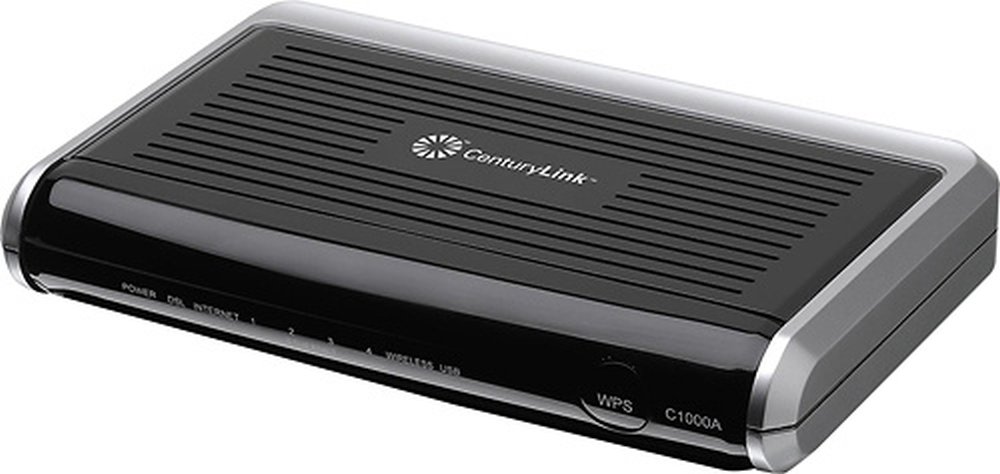
Figure 2.1: Rear Panel of Actiontec C1000A
This image displays the rear panel of the Actiontec C1000A, highlighting its various connectivity ports. From left to right, you can see the green DSL port for connecting to your telephone line, a black Phone port, four yellow Ethernet ports (labeled 1 through 4) for wired network devices, a blue USB port, a small red Reset button, and a black Power input port.
Ezaugarri nagusiak:
- Integrated DSL Modem and Wireless-N Router
- Abiadura handiko kable bidezko konexioetarako Gigabit Ethernet atakak
- 802.11n Wireless for broad coverage and speed
- Supports WPA, WEP, and WPA2 encryption for enhanced security
- TR-069 Remote Management support for easier management and troubleshooting
- Compatible with CenturyLink DSL services
3. Konfigurazioa
Follow these steps to set up your Actiontec C1000A Modem and Wireless-N Router.
- Connect to the DSL Line: Connect one end of the provided DSL cable to the green DSL port on the back of the C1000A and the other end to your telephone wall jack. If you have a phone connected to the same line, use a DSL filter (not always included, may be provided by your ISP).
- Konektatu energia: Plug the power adapter into the Power port on the back of the C1000A and then into an electrical outlet. The power indicator light on the front of the device should illuminate.
- Konektatu gailuak (aukerakoa):
- Kable bidezko konexioa: For a wired connection, connect an Ethernet cable from one of the yellow Ethernet ports (1-4) on the C1000A to the Ethernet port on your computer or other network device.
- Haririk gabeko konexioa: To connect wirelessly, locate the Wi-Fi network name (SSID) and password (WPA/WPA2 Key) printed on the label on the bottom or side of your C1000A. Select this network on your wireless device and enter the password.
- Hasierako konfigurazioa: Ireki a web browser on a connected computer. The router should automatically redirect you to the setup wizard or the login page. Follow the on-screen instructions to configure your internet connection, which typically involves entering your DSL username and password provided by your Internet Service Provider (ISP), such as CenturyLink.
4. Funtzionamendu-argibideak
Once set up, your C1000A operates as both a modem and a wireless router. Here are some operational aspects:
- Interneterako sarbidea: The C1000A provides internet access to all connected devices, both wired and wireless, after successful DSL synchronization and authentication.
- Haririk gabeko sarea: The device broadcasts a Wi-Fi network (SSID) for wireless devices. You can manage wireless settings, including the network name and password, through the router's web interfazea.
- Segurtasuna: The C1000A supports WEP, WPA-PSK, and WPA2-PSK security protocols to protect your wireless network from unauthorized access. It is recommended to use WPA2-PSK for the strongest security.
- Gigabit-Ethernet: The four Ethernet ports support Gigabit speeds (10/100/1000 Mbps), allowing for fast data transfer rates for wired devices like desktop computers, gaming consoles, or network-attached storage (NAS).
- Urruneko kudeaketa (TR-069): This feature allows your ISP to remotely manage and troubleshoot your device, which can simplify support and maintenance.
5. Mantentzea
Proper maintenance ensures the longevity and optimal performance of your C1000A.
- Aireztapena: Ensure the device is placed in a well-ventilated area. Avoid placing it in enclosed spaces or stacking other heat-generating equipment on top of it, as this can lead to overheating and reduced performance.
- Firmware eguneraketak: Periodically check the Actiontec support website or your ISP's support page for firmware updates. Keeping the firmware updated can improve performance, add new features, and address security vulnerabilities.
- Ohiko berrabiarazpenak: Occasionally rebooting the modem/router (by unplugging the power for 30 seconds and plugging it back in) can resolve minor connectivity issues and improve overall stability. Note that after a reboot, you may need to re-enter your network password on some devices.
- Fabrikaren berrezarpena: In case of persistent issues or when reconfiguring the device, a factory reset can be performed by pressing and holding the Reset button on the back panel for about 10-15 seconds. This will revert all settings to their factory defaults, requiring re-configuration.
6. Arazoak
If you encounter issues with your C1000A, refer to the following troubleshooting tips:
- Ez dago Interneteko konexiorik:
- Check all cable connections (DSL, Ethernet, Power).
- Verify that the DSL light on the modem is solid, indicating a stable DSL connection. If it's blinking, there might be an issue with your DSL line; contact your ISP.
- Ensure you have correctly entered your ISP-provided DSL username and password in the modem's web interfazea.
- Berrabiarazi modema/routerra.
- Interneteko abiadura motela:
- Ensure your device is connected to the 802.11n wireless network or via a Gigabit Ethernet port.
- Check for interference if using Wi-Fi. Move the router away from other electronic devices.
- Perform a speed test to confirm the actual speed you are receiving. Compare it with your subscribed plan.
- Contact your ISP if speeds are consistently below expectations.
- Wi-Fi estaldura eskasa:
- Relocate the router to a central location in your home, away from obstructions.
- Consider using a Wi-Fi extender for larger homes or areas with weak signals.
- Ezin da bideratzailearen ezarpenetara sartu:
- Ziurtatu gailua routerrarekin konektatuta dagoela (kable bidez edo haririk gabe).
- Try accessing the router's default IP address (e.g., 192.168.0.1 or 192.168.1.1) in your web arakatzailea.
- If you forgot the login credentials, a factory reset will restore the default username and password (usually printed on the device label).
7. Zehaztapenak
| Ezaugarri | Zehaztapena |
|---|---|
| Marka | Actiontec |
| Ereduaren izena | C1000A |
| Maiztasun Banda Klasea | Banda Bakarra |
| Haririk gabeko komunikazio estandarra | 802.11bgn |
| Gailu bateragarriak | Ordenagailu pertsonala |
| Produkturako gomendatutako erabilerak | Hasiera |
| Konektibitate Teknologia | Haririk gabekoa |
| Kolorea | Beltza distiratsua |
| Antena Mota | Barnekoa |
| Elementuaren pisua | 1.4 kilo |
| Sistema eragilea | Linux |
| Segurtasun Protokoloa | WEP, WPA-PSK, WPA2-PSK |
| Portu kopurua | 8 (4 Ethernet, 1 DSL, 1 Phone, 1 USB, 1 Power) |
| Kontrol-metodoa | Aplikazioa (Web Interfazea) |
| Datuen transferentzia-tasa | 40 Megabits Per Second (DSL) |
| LAN ataka banda-zabalera | 10/100/1000 megabits per second (Gigabit Ethernet) |
| Maximum Upstream Data Transfer Rate | 100 Megabit segundoko |
| RAM memoria instalatuta | 64 MB |
| Antena kopurua | 2 (Barne) |
| Is Modem Compatible | Bai |
| Konektibitate-protokoloa | Wi-Fi |
| Estaldura | Home network (multiple devices and applications) |
8. Bermea eta Laguntza
For specific warranty information, please refer to the documentation included with your purchase or visit the official Actiontec website. For technical support, troubleshooting assistance, or service-related inquiries, it is recommended to contact your Internet Service Provider (ISP), especially if the device was provided by them (e.g., CenturyLink). They can offer tailored support for your specific service configuration.