
1. Sarrera
The Canon PIXMA MX922 is a versatile Energy Star Wireless Inkjet Office All-in-One Printer designed for various office and business needs. It offers printing, scanning, copying, and faxing functionalities, along with advanced features like wireless and mobile printing, automatic duplex printing, and direct disc printing.
Ezaugarri nagusiak hauek dira:
- Wireless LAN, AirPrint, Google Cloud Print: Enables convenient wireless and mobile printing from various devices.
- USB 2.0 Hi-Speed: Provides a fast wired connection for data transfers.
- Fully-Integrated, 35-sheet Duplex Auto Document Feeder: Facilitates efficient copying, scanning, and faxing of multiple pages.
- Integratutako inprimaketa automatikoa alderantzizko alderantzizko aldea: Automatically prints on both sides of the page, reducing paper consumption.
- Bereizmen handiko inprimaketa: Achieves up to 9600 x 2400 color dpi for borderless photos.
- Built-in Disc Tray: Allows for direct printing on compatible CDs, DVDs, and Blu-rays.
- HD osoko filmaren inprimaketa: Extracts and prints still images from compatible Canon HD movie clips.
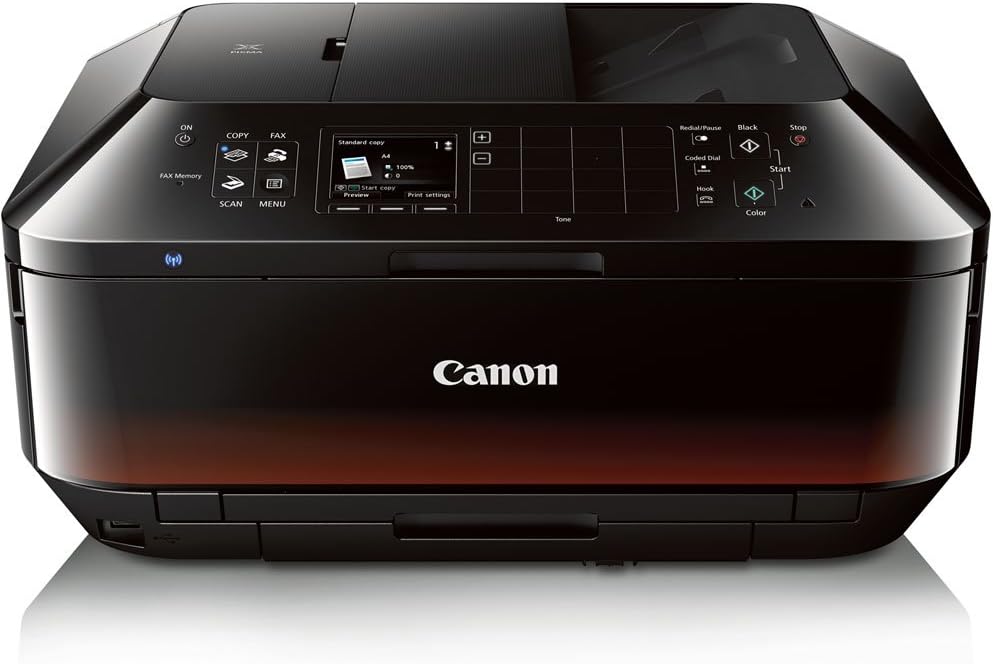
1. irudia: Aurrealdea view of the Canon PIXMA MX922 All-in-One Printer, showcasinbere diseinu trinkoa eta kontrol panela direla eta.
2. Zer dago kutxan
Upon unboxing your Canon PIXMA MX922, verify that all the following components are included:
- PIXMA MX922 Wireless Inkjet Office All-In-One Printer
- CD/DVD inprimatzeko erretilua
- Manuals and other documents (including this user guide)
- Matte Photo Paper (for Automatic Print Head Alignment)
- Konfiguratu CD-ROMa
- Setup Ink Tanks (initial set)
- Elikatze kablea
- Telephone Line Cable
3. Konfigurazioa
3.1 Hasierako hardware konfigurazioa
- Inprimagailua deskonprimitu: Carefully remove the printer from its packaging and remove all protective tapes and packing materials.
- Konektatu energia: Plug the power cord into the printer and then into a wall outlet.
- Install Ink Tanks: Open the printer cover and install the provided setup ink tanks into their respective slots. Ensure they click into place.
- Kargatu papera: Load plain paper into the main paper cassette.
- Connect Telephone Line (for Fax): If you intend to use the fax function, connect the telephone line cable from the printer to your telephone wall jack.
- USB konektatu (aukerakoa): For a wired connection, connect a USB 2.0 cable (not included) from the printer to your computer.

Figure 2: Loading paper into the lower paper cassette.

Figure 3: Installing ink cartridges into the printer.
3.2 Software-instalazioa
Insert the Setup CD-ROM into your computer's optical drive and follow the on-screen instructions to install the necessary drivers and software. This includes the PIXMA MX922 Printer Driver, Easy-WebPrint EX, Quick Menu, and My Image Garden (for image management, correction, and scanning functions).
Sistema eragilearen bateragarritasuna:
- Windows: Windows 10, Windows 8, Windows RT, Windows 7, Windows 7 SP1, Windows Vista SP1, Vista SP2, Windows XP SP3 32-bit
- Mac: Mac OS X v10.6.8 - 10.9.x
3.3 Haririk gabeko konfigurazioa
The MX922 supports Wireless LAN connectivity. Refer to the on-screen manual or the Setup CD-ROM for detailed instructions on connecting your printer to your wireless network. This typically involves selecting your network (SSID) and entering the network password (WPA/WPA2-PSK).
4. Inprimagailuaren funtzionamendua
4.1 Inprimaketa
The MX922 offers high-quality printing for both documents and photos. It prints in black and white at approximately 15 images per minute (ipm) and in color at 10 ipm. A borderless 4.0 x 6.0-inch photo can be printed in approximately 21 seconds.
- Mugarik gabeko inprimaketa: Achieve professional-looking photos with 9600 x 2400 color dpi.
- Duplex inprimaketa automatikoa: Save paper by automatically printing on both sides of the page.
- Mugikorreko inprimaketa: Utilize AirPrint, Google Cloud Print, and other mobile printing features to print directly from your smartphone or tablet.

Figure 4: The printer actively printing a document with paper in the output tray.

Figure 5: Demonstrating mobile printing capabilities from a smartphone to the printer.
4.2 Eskaneatzea
The MX922 features a flatbed scanner and a 35-sheet Duplex Auto Document Feeder (ADF). It offers a scan resolution of up to 2400 x 4800 dpi optical.
- ADF Usage: Place multiple documents in the ADF for continuous scanning.
- Flatbed Usage: For single pages, books, or delicate items, use the flatbed scanner.
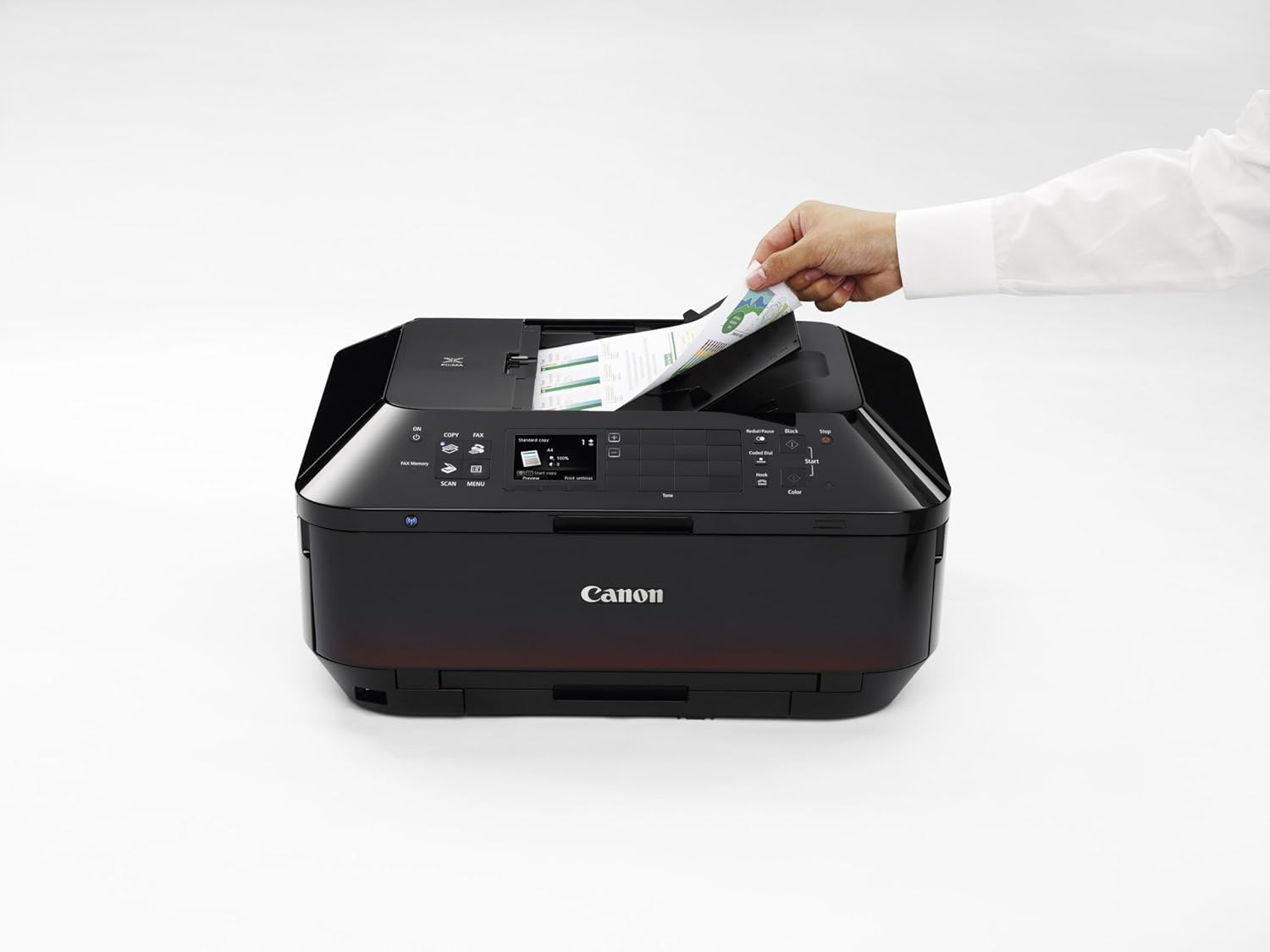
Figure 6: Loading documents into the Auto Document Feeder for scanning or copying.
4.3 Kopiatzea
The built-in copy function allows you to duplicate documents and photos. Use the ADF for multi-page documents or the flatbed for single items. The maximum copy speed for black and white is 15 ppm, with a resolution of 2400 dpi.
4.4 Faxa bidaltzea
The MX922 includes a fax function. Ensure the telephone line cable is connected as described in the setup section. You can send and receive faxes directly from the printer's control panel or via your computer.
4.5 Disc Printing
Design and print custom labels directly onto compatible CDs, DVDs, and Blu-ray discs using the built-in disc tray. This feature requires specific printable discs.

Figure 7: Inserting the disc printing tray for direct disc label printing.
4.6 Full HD Movie Print
This unique feature allows you to capture and print individual frames from HD movies recorded on compatible Canon EOS, PowerShot, or VIXIA cameras or camcorders. Use the My Image Garden software to access and utilize this function.
5. Mantentzea
5.1 Tinta-kartutxoaren ordezkapena
The MX922 uses individual/combo CLI-251 XL Ink Tanks (Cyan, Magenta, Yellow, Black) and PGI-250 XL or PGI-255 XXL Pigment Black Ink Tanks. Replace ink tanks when prompted by the printer or software. Always use genuine Canon ink tanks for optimal performance and print quality.
5.2 Garbiketa
Regular cleaning helps maintain print quality and extends the life of your printer. Refer to the on-screen manual for detailed instructions on cleaning the print head, platen glass, and exterior of the printer.
6. Arazoak
If you encounter issues with your Canon PIXMA MX922, consider the following common troubleshooting steps:
- Potentziarik gabe: Ziurtatu elikatze-kablea ondo konektatuta dagoela inprimagailura eta funtzionatzen duen entxufe elektriko batera.
- Inprimatzeko arazoak: Check ink levels, ensure paper is loaded correctly, and verify printer drivers are installed and up-to-date. Perform a print head alignment or nozzle check if print quality is poor.
- Konektibitate arazoak: For wireless issues, ensure the printer is connected to the correct Wi-Fi network and that your computer/device is on the same network. For USB, check the cable connection.
- Paper-atalak: Follow the on-screen instructions or refer to the user guide for clearing paper jams from all access points.
- Errore-mezuak: Consult the printer's LCD display for specific error codes and refer to the comprehensive user manual for solutions.
Konponketa-informazio zehatzagoa lortzeko, jo ezazu ofizialera Erabiltzailearen gida (PDF) or Arazoak konpontzeko gida (PDF) sarean eskuragarri.
7. Zehaztapenak
| Ezaugarri | Zehaztapena |
|---|---|
| Produktuaren neurriak | 9.1" L x 19.4" W x 15.6" H |
| Elementuaren pisua | 25.7 kilo |
| Konektibitate Teknologia | Wi-Fia, USB 2.0 |
| Inprimatzeko Teknologia | Inkjet |
| Inprimagailuaren irteera | Kolorea |
| Inprimatzeko abiadura maximoa (monokromoa) | 15 ppm |
| Inprimatzeko abiadura maximoa (koloretan) | 10 ppm |
| Gehienezko koloretako inprimatze-bereizmena | 9600 x 2400 ppp |
| Gehienezko zuri-beltzeko inprimatze-bereizmena | 2400 ppp |
| Eskaner mota | Photos/Documents (Flatbed & ADF) |
| Max Scan Resolution (Optical) | 2400 x 4800 ppp |
| Kopiatzeko abiadura maximoa (txuri-beltzean) | 15 ppm |
| Gehienezko kopia-bereizmena | 2400 dpi (Color & B/W) |
| Gehienezko sarrera-orriaren edukiera | 35 (ADF) |
| Bi aldeetatik inprimatzea | Bai (Automatikoa) |
| Bistaratzeko mota | LCDa |
| Memoria Biltegiratzeko Ahalmena | 64 MB |
| Dakarten osagaiak | Printer, CD/DVD Printing Tray, Manuals, Setup Ink Tanks, Power Cord, Telephone Line Cable |
8. Bermea eta Laguntza
The Canon PIXMA MX922 All-in-One Printer comes with a limited warranty. For specific warranty terms, duration, and conditions, please refer to the warranty documentation included with your product or visit the official Canon support webgunea.
For technical assistance, troubleshooting, or to inquire about warranty service, please contact Canon customer support. You may also find additional resources, drivers, and software updates on the official Canon support portal.
Baliabide erabilgarriak:
- Erabiltzailearen eskuliburu ofiziala (PDF): Erabiltzailearen eskulibururako esteka
- Erabiltzailearen gida (PDF): Erabiltzailearen Gidarako esteka
- Arazoak konpontzeko gida (PDF): Arazoak konpontzeko gidarako esteka