
1. Sarrera
This manual provides essential information for the safe and efficient operation of your InFocus IN2126a WXGA Network Projector. Please read this manual thoroughly before using the projector and retain it for future reference. The InFocus IN2126a is designed for versatile use in various environments, offering high brightness and network capabilities.
2. Segurtasun informazioa
Proiektoreari kalterik ez egiteko eta erabiltzailearen segurtasuna bermatzeko, jarraitu segurtasun neurri hauek:
- Ez blokeatu aireztapen-irekidurak. Ziurtatu aire-fluxu egokia dagoela proiektorearen inguruan.
- Ez begiratu zuzenean proiektorearen lenteari l dagoenean.amp piztuta dago. Argi biziak begietan kalteak eragin ditzake.
- Saihestu proiektorea eguzki-argitan zuzenean, bero-iturrien ondoan edo hezetasun handiko edo hauts gehiegizko inguruneetan jartzea.
- Erabili proiektorearekin batera datorren elikatze-kablea soilik.
- Konponketa guztiak zerbitzu-langile kualifikatuei eskatu. Ez saiatu proiektorea zeuk irekitzen edo konpontzen.
3. Produktua amaitu daview
Familiarize yourself with the components and features of your InFocus IN2126a projector.
3.1 Proiektorearen osagaiak
1. irudia: Aurrealdea view of the InFocus IN2126a projector, showing the lens and ventilation.

2. irudia: Aldea view of the InFocus IN2126a projector, highlighting the ventilation grilles.
3.2 Atzeko panelaren konexioak
Atzeko panelak kanpoko gailuak konektatzeko hainbat sarrera eta irteera ataka eskaintzen ditu.
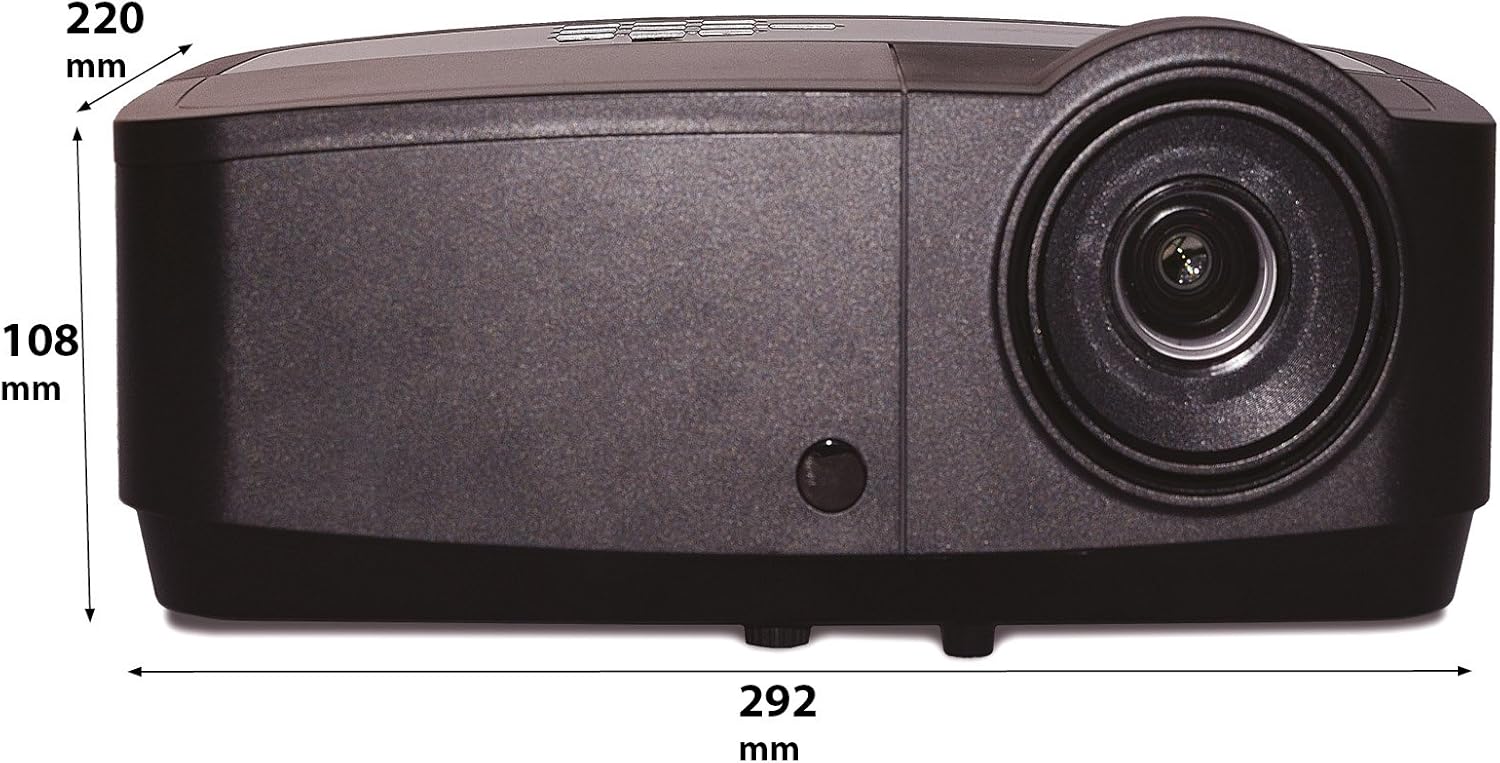
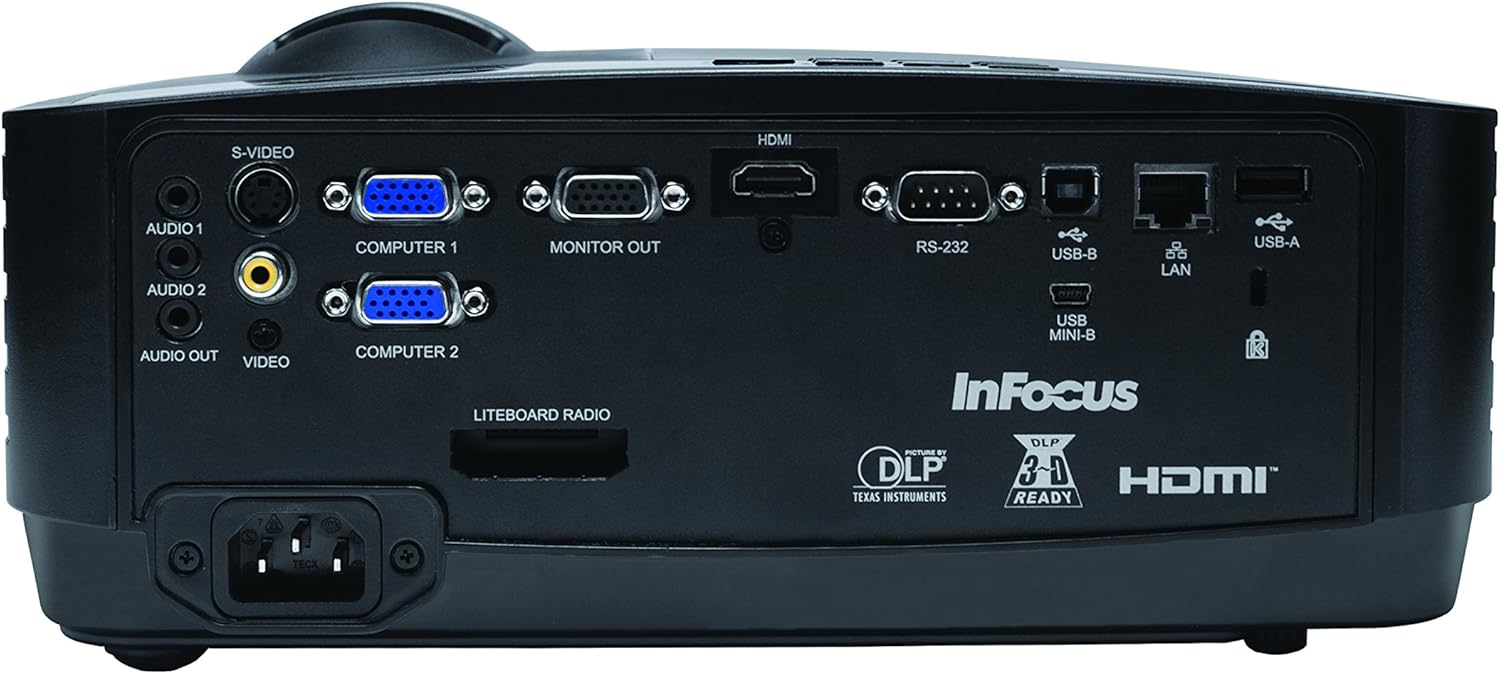
Figure 3: Rear panel of the InFocus IN2126a projector, displaying various connectivity ports including HDMI, VGA, USB, and LAN.
- HDMI: Bideo eta audio sarrera digitalerako.
- COMPUTER 1 / COMPUTER 2 (VGA): Ordenagailuetatik datorren bideo sarrera analogikorako.
- MONITOR OUT (VGA): Kanpoko monitore bat konektatzeko.
- USB-B / USB Mini-B: For service or specific USB functions.
- USB-A: For connecting USB devices, such as a wireless adapter.
- LANa (RJ45): Sarearen konexiorako.
- RS-232: Serieko kontrolerako.
- AUDIO 1 / AUDIO 2 (RCA): Audio sarrerarako.
- AUDIOA: Kanpoko audio sistemak konektatzeko.
- VIDEO (RCA): Bideo konposatuaren sarrerarako.
- S-BIDEOA: For S-Video input.
- Energia Sarrera: Kable elektrikoa konektatzeko.
3.3 Goiko paneleko kontrolak
The top panel features controls for basic projector functions and image adjustments.

Figure 4: Top panel of the InFocus IN2126a projector, showing the control buttons and focus/zoom rings.
- Pizteko botoia: Proiektorea pizten edo itzaltzen du.
- Menu/Irteera botoia: Accesses or exits the on-screen display (OSD) menu.
- Nabigazio botoiak (Gora, Behera, Ezkerra, Eskuina): Menu aukeren artean nabigatzen du.
- Sartu botoia: Menuko hautaketak berresten ditu.
- Iturriaren botoia: Sarrera-iturriak hautatzen ditu.
- Blank Button: Temporarily blanks the screen.
- Auto botoia: Irudiaren ezarpenak automatikoki doitzen ditu.
- Fokatzeko eraztuna: Irudiaren zorroztasuna doitzen du.
- Zoomaren eraztuna: Irudiaren tamaina doitzen du.
3.4 Neurriak
Understanding the physical dimensions is important for installation and placement.

Figure 5: Diagram illustrating the dimensions of the InFocus IN2126a projector (292mm length, 220mm width, 108mm height).
4. Konfigurazioa
4.1 Proiektorearen kokapena
Place the projector on a stable, flat surface or mount it securely. Ensure the projector is positioned at an appropriate distance from the screen to achieve the desired image size. Maintain sufficient space around the projector for proper ventilation.
4.2 Gailuak konektatzea
- Potentzia-konexioa: Connect the power cord to the projector's power inlet and then to a grounded electrical outlet.
- Bideoaren iturria:
- For digital sources (e.g., Blu-ray player, laptop), use an HDMI cable to connect to the HDMI port.
- For analog computer sources, use a VGA cable to connect to the COMPUTER 1 or COMPUTER 2 port.
- For other video sources, use the appropriate S-VIDEO or VIDEO (RCA) connections.
- Audio iturria: If your video source does not transmit audio via HDMI, connect audio cables to the AUDIO 1 or AUDIO 2 ports.
- Sare-konexioa: For wired network access, connect an Ethernet cable to the LAN port.
- Haririk gabeko konektagarritasuna: If using a compatible wireless adapter (sold separately), insert it into the USB-A port.
4.3 Piztu/Itzaltzea
- Pizteko: Press the Power button on the projector's top panel or the remote control. The power indicator light will illuminate.
- Itzaltzeko: Press the Power button again. The projector will enter a cooling cycle before shutting down completely. Do not unplug the projector during the cooling cycle.
5. Proiektorearen funtzionamendua
5.1 Iturria hautatzea
After powering on, the projector may automatically detect an active input source. If not, or to switch sources:
- Sakatu Iturria Proiektorearen edo urrutiko agintearen botoia.
- Use the navigation buttons to highlight the desired input source (e.g., HDMI, Computer 1, Video).
- Sakatu Sartu iturria hautatzeko.
5.2 Irudiaren doikuntza
- Fokua: Biratu Fokua ring on the projector lens until the image appears sharp and clear.
- Zooma: Biratu Zoomatu ring on the projector lens to adjust the image size to fit your screen.
- Keystone zuzenketa: Irudia trapezoidala dirudienez, erabili OSD menuko trapezoi-zuzenketa funtzioa irudia karratu ahal izateko.
5.3 Pantailan bistaratzeko (OSD) menua
The OSD menu allows you to configure various projector settings.
- Sakatu Menua botoia sakatu OSD menua irekitzeko.
- Erabili Gora/Behera navigation buttons to select a menu category.
- Erabili Ezker/Eskuin navigation buttons to adjust settings or enter sub-menus.
- Sakatu Sartu aldaketak baieztatzeko.
- Sakatu Irten OSD menua ixteko.
5.4 Haririk gabeko konexioa
The IN2126a is wireless-ready. To enable wireless display, a compatible InFocus wireless adapter (sold separately) must be connected to the USB-A port. Refer to the wireless adapter's specific instructions for setup and connection procedures.
5.5 3D funtzionalitatea
Proiektoreak 3D edukia onartzen du. view 3D content, you will need a compatible 3D source, 3D glasses, and appropriate 3D content. Refer to the projector's OSD menu for 3D settings and ensure your source device is configured for 3D output.
6. Mantentzea
Mantentze-lan erregularrak proiektorearen errendimendu optimoa bermatzen du eta bizitza luzatzen du.
6.1 lamp Ordezkoa
Proiektorea lamp has a limited lifespan (approximately 4000 hours). When the lamp adierazlea pizten bada edo irudiaren distira nabarmen jaisten bada, lamp needs replacement. Always use an authorized InFocus replacement lampInformazio zehatza lortzeko, kontsultatu zerbitzu-eskuliburu osoa.amp replacement instructions or contact customer support.
6.2 Iragazkien garbiketa
Dust accumulation on the air filter can impede airflow and cause overheating. Regularly clean the air filter to maintain proper ventilation. Turn off and unplug the projector before cleaning. Use a soft brush or vacuum cleaner to remove dust from the filter cover.
6.3 Garbiketa orokorra
- C proiektoreaasing: Erabili lipurrik gabeko zapi leun bat dampGarbitzaile leun eta ez-urratzaile batekin garbitu. Ez erabili produktu kimiko gogorrik.
- Lentea: Use a lens cleaning cloth and specialized lens cleaning solution. Avoid touching the lens surface with your fingers.
7. Arazoak
Proiektorearekin arazoak badituzu, jo ezazu honako arazo eta irtenbide ohikoenei:
| Arazoa | Kausa posiblea | Irtenbidea |
|---|---|---|
| Ez dago irudirik pantailan | Sarrera-iturri okerra hautatu da; Kablearen konexioa soltea; Proiektorea itxarote-moduan. | Verify input source; Check all cable connections; Press power button to wake from standby. |
| Irudia lausoa da | Fokua ez dago doituta; Proiektorea pantailatik gertuegi/urrunegi dago. | Adjust the focus ring; Reposition the projector and adjust zoom. |
| Irudia trapezoidala da | Proiektorea ez dago pantailarekiko perpendikularra. | Erabili trapezoiaren zuzenketa OSD menuan. |
| Audiorik ez | Audio cables not connected; Volume too low; Muted. | Check audio cable connections; Adjust volume; Unmute projector. |
| Proiektorea gehiegi berotu eta itzali egiten da | Aireztapena blokeatuta; Aire-iragazki zikina. | Ensure clear airflow around projector; Clean the air filter. |
For more detailed troubleshooting, consult the complete user manual or contact InFocus customer support.
8. Zehaztapenak
Key technical specifications for the InFocus IN2126a WXGA Network Projector:
- Ereduaren izena: IN2126a
- Bistaratzeko mota: DLP
- Berezko ebazpena: 1280 x 800 (WXGA)
- Distira: 3500 lumen
- Kontraste-erlazioa: 15000:1
- Koloreen erreprodukzioa: 1.07 Billion Colors (30-bit)
- Argi iturriaren funtzionamendu-bizitza: 4000 ordu
- Konektibitate Teknologia: Wireless-ready, HDMI 1.4, VGA (x2), USB (Type-A, Mini-B, Type-B), LAN (RJ45), RS-232, Audio In (x2), Audio Out, Video (RCA), S-Video
- Ezaugarri bereziak: 3D-Ready, Network Projector
- Forma-faktorea: Eramangarria
- Muntatze mota: Mahai gaineko muntaia
- Elementuaren pisua: 7.1 kilo
9. Bermea eta Laguntza
For information regarding your product's warranty, please refer to the warranty card included with your purchase or visit the official InFocus website. For technical support, service, or to purchase accessories, please contact InFocus customer service through their official channels.