
Sarrera
The Philips Hue Bridge (2nd Generation) is the central hub for your Philips Hue smart lighting system. It allows you to connect and control up to 50 Philips Hue lights and accessories, enabling smart features such as scheduling, remote control, and integration with smart home platforms like Apple HomeKit.
Ezaugarri nagusiak hauek dira:
- The heart of your Philips Hue system.
- Connects up to 50 Philips Hue lights.
- New connectivity system compatible with Apple HomeKit.
Konfigurazioa
1. Unboxing and Initial Connection
Carefully remove the Philips Hue Bridge from its packaging. The box contains the Bridge unit, a power adapter, and an Ethernet cable.
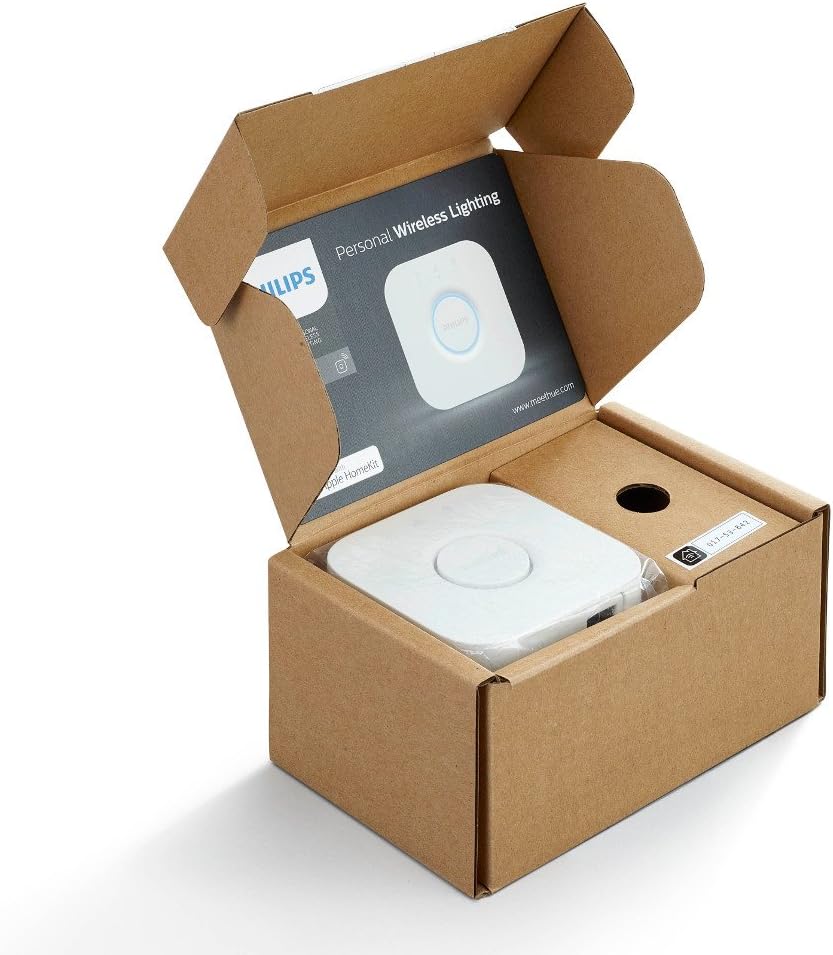
The Philips Hue Bridge (2nd Generation) as it appears when unboxed, showing the device and initial documentation.
- Connect one end of the provided Ethernet cable to the Philips Hue Bridge and the other end to an available LAN port on your Wi-Fi router.
- Connect the power adapter to the Bridge and plug it into a power outlet.
- Wait for the three indicator lights on the Bridge to illuminate steadily. This indicates that the Bridge is powered on and connected to your network.

This image illustrates the process of connecting the Ethernet cable to the Philips Hue Bridge, which is necessary for network connectivity.
2. Aplikazioaren instalazioa eta parekatzea
- Download the official Philips Hue app from your smartphone's app store (available for iOS and Android).
- Open the Philips Hue app and follow the on-screen instructions to set up your Bridge. The app will search for your Bridge on the network.
- When prompted, press the large circular button on the top of the Philips Hue Bridge to pair it with the app.
- Once paired, you can begin adding your Philips Hue lights and accessories within the app.

The Philips Hue Bridge is shown mounted on a wall, demonstrating its compact size and how it can be discreetly placed in a home environment.
Operating the Philips Hue System
Controlling Lights via the App
The Philips Hue app provides comprehensive control over your lighting. You can:
- Piztu/itzali argiak.
- Adjust brightness and color (for color-capable lights).
- Create custom scenes and routines.
- Set schedules for lights to turn on or off automatically.
- Group lights into rooms for easier control.

A woman stands in a living room, using her smartphone to adjust the Philips Hue lighting, demonstrating app-based control.
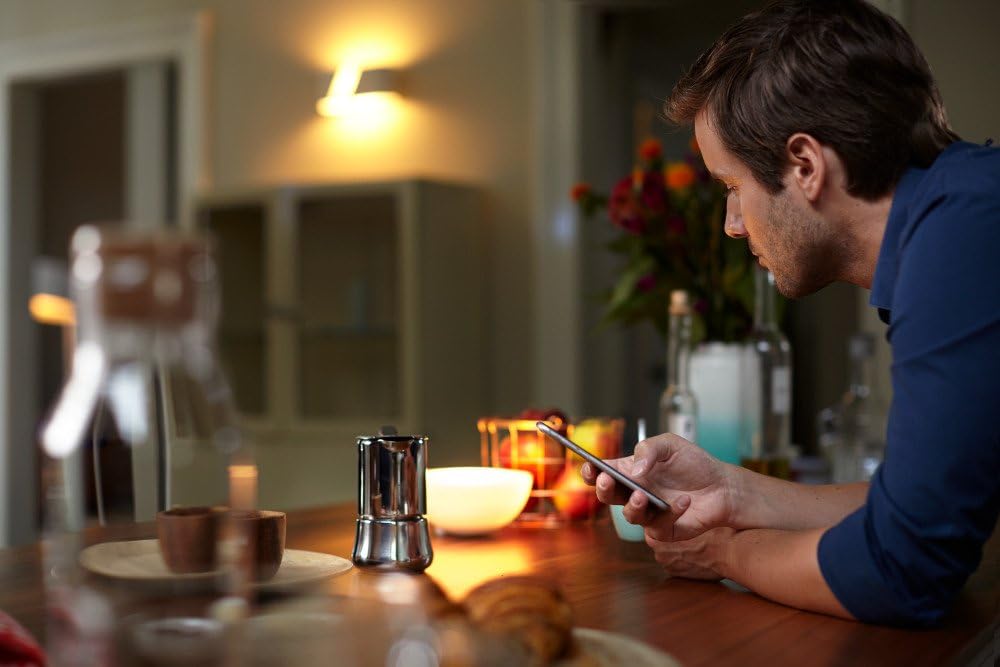
A man is shown at a kitchen table, interacting with his smartphone, which can be used to manage the Philips Hue lighting system.
Voice Control and Smart Home Integration
The Philips Hue Bridge (2nd Generation) supports integration with various smart home ecosystems, including Apple HomeKit. This allows for voice control of your lights using virtual assistants like Siri.
- Apple HomeKit: Use the Apple Home app to add your Hue Bridge and control lights with Siri commands.
- Beste plataformak: The Bridge is compatible with other smart home platforms. Refer to the respective platform's documentation for integration instructions.

A family celebrating a birthday, with the room illuminated by various colorful Philips Hue lights, showcasing the ambiance possibilities.
Mantentzea
To ensure optimal performance of your Philips Hue Bridge:
- Software eguneraketak: Regularly check the Philips Hue app for available software updates for your Bridge. Updates often include new features, performance improvements, and security enhancements.
- Garbiketa: Keep the Bridge clean and free from dust. Use a soft, dry cloth to wipe its surface. Do not use liquid cleaners.
- Lekua: Ensure the Bridge is placed in a well-ventilated area, away from direct heat sources or moisture.
- Sarearen egonkortasuna: A stable internet connection is crucial for the Bridge's functionality. Ensure your router is working correctly.
Arazoak konpontzea
If you encounter issues with your Philips Hue Bridge, try the following steps:
- Bridge Not Found:
- Ensure the Bridge is powered on and connected to your router via Ethernet.
- Check that all three indicator lights on the Bridge are steadily lit.
- Restart your Wi-Fi router and the Philips Hue Bridge by unplugging them for 10 seconds and then plugging them back in.
- Ensure your smartphone is connected to the same Wi-Fi network as the Bridge.
- Argiak ez dute erantzuten:
- Verify that the lights are powered on and within range of the Bridge.
- Try resetting the individual light (refer to the light's specific manual for instructions).
- Check the Philips Hue app for any error messages or connectivity issues.
- Aplikazioen konexio-arazoak:
- Close and reopen the Philips Hue app.
- Berrabiarazi telefonoa.
- Ziurtatu zure aplikazioa azken bertsiora eguneratuta dagoela.
For further assistance, please visit the official Philips Hue support webwebgunean edo jarri harremanetan bere bezeroarentzako zerbitzuarekin.
Zehaztapenak
| Fabrikatzailea | Philips Argiztapena |
| Zati zenbakia | 458489 |
| Estiloa | Hue zubia |
| liburukiatage | 240 Volt |
| Elementu pakete kopurua | 1 |
| Ezaugarri bereziak | Motion Sensor (Note: This feature refers to compatibility with Hue motion sensors, not built-in to the Bridge itself.) |
| Beharrezko bateriak | Ez |
| Produktuaren neurriak | 18.21 x 11.61 x 8.1 cm; 158.76 g (7.17 x 4.57 x 3.19 inches) |
| Modelo zenbakia | 466516 |
| ASIN | B014H2P42K |
Bermea eta Laguntza
For information regarding the product warranty, please refer to the warranty card included in the product packaging or visit the official Philips Hue webgunea. Philipsek bere produktuen bezeroarentzako laguntza eskaintzen du.
Lineako laguntza: Visit the Philips Hue support page for FAQs, troubleshooting guides, and contact options.
Jarri harremanetan Bezeroarentzako Zerbitzuarekin: Details for contacting customer service can be found on the official Philips webgunea.


