
1. Sarrera
This manual provides detailed instructions for installing, configuring, and maintaining your GIGABYTE GA-B150M-D3H Micro ATX motherboard. The GA-B150M-D3H is designed to support 6th Generation Intel Core Processors and features Dual Channel DDR4 memory, PCIe Gen3 x4 M.2 connector, SATA Express, and 8-channel HD audio with Audio Noise Guard.
Please read this manual thoroughly before beginning installation to ensure proper setup and operation.
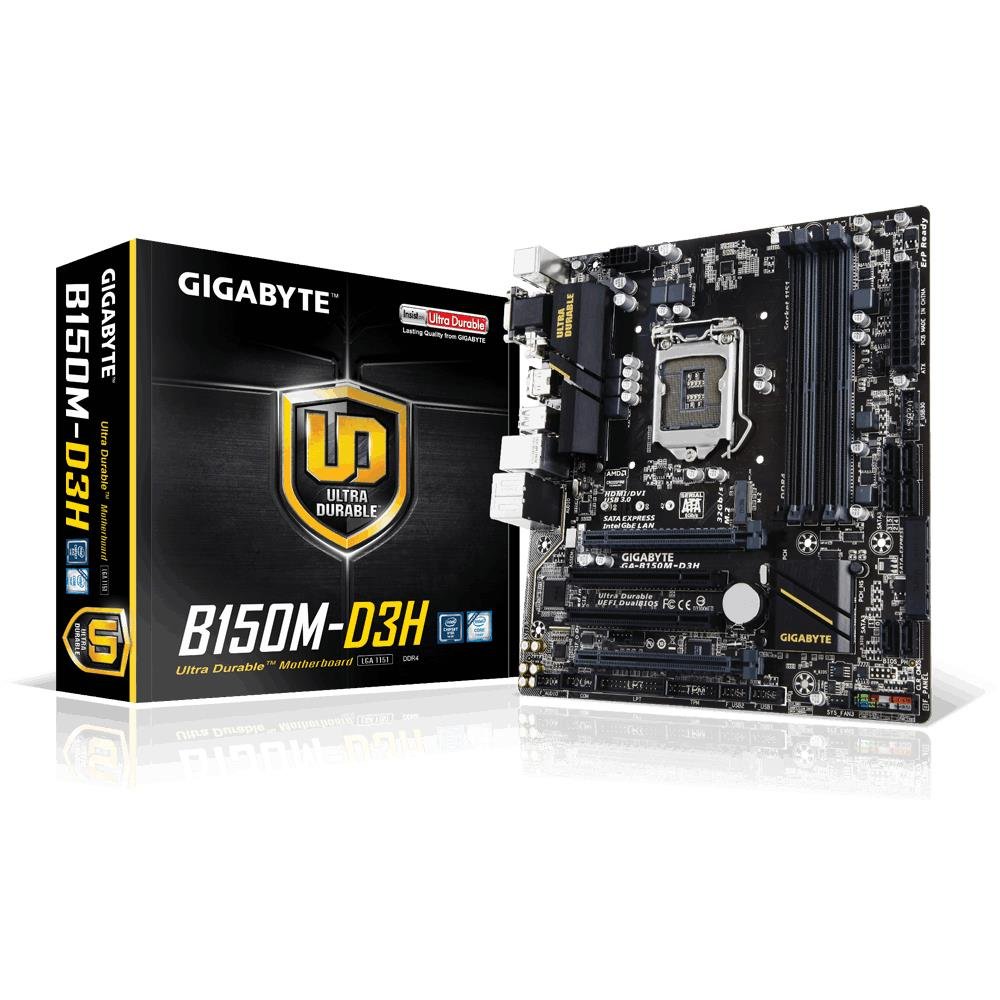
Image 1.1: GIGABYTE GA-B150M-D3H Micro ATX Motherboard. This image displays the overall layout of the motherboard, highlighting its compact Micro ATX form factor and various component slots.
2. Segurtasun informazioa
Observe the following safety precautions to prevent damage to the motherboard and injury to yourself:
- Deskonektatu beti kablea hormako entxufetik edozein osagai ukitu aurretik.
- Erabili eskumuturreko uhal antiestatiko bat edo ukitu maiz lurrera konektatutako metalezko objektu bat elektrizitate estatikoa deskargatzeko.
- Osagai sentikorrak ez ukitzeko, heldu plaka nagusiari ertzetik.
- Mantendu plaka nagusia hezetasunetik eta muturreko tenperaturetatik urrun.
- Ziurtatu ordenagailuaren karkasaren barruko aireztapen egokia dagoela gehiegi berotzea saihesteko.
3. Paketearen edukia
Egiaztatu elementu guztiak zure plaka basearen paketean daudela:
- GIGABYTE GA-B150M-D3H Motherboard
- Erabiltzailearen eskuliburua
- I / O ezkutukoa
- SATA kableak
- Driver CD/DVD
Note: Contents may vary slightly depending on region or revision.
4. Plakaren diseinua
Familiarize yourself with the various components and connectors on the GA-B150M-D3H motherboard.
Image 4.1: GIGABYTE GA-B150M-D3H Motherboard Layout. This image provides a visual reference for the location of key components such as the CPU socket, DIMM slots, PCIe slots, SATA ports, and M.2 connector.
Funtsezko osagaiak:
- LGA 1151 CPU Socket: For 6th Generation Intel Core Processors.
- DDR4 DIMM Slots (4): Supports Dual Channel DDR4 memory up to 2133 MHz.
- PCIe zirrikituak: Includes PCIe Gen3 x16 for graphics cards and PCIe x1 slots for expansion.
- M.2 Connector: Supports PCIe NVMe & SATA SSDs with up to 32Gb/s data transfer.
- SATA Express Connector: For up to 16Gb/s data transfer.
- SATA 6Gb/s atakak: For connecting traditional SATA storage devices.
- 24-Pin ATX Power Connector: Energia-sarrera nagusia.
- 8-Pin ATX 12V Power Connector: CPU power input.
- Aurrealdeko paneleko goiburuak: For power button, reset button, LED indicators, and USB ports.
- Audio-konektoreak: 8-channel HD Audio with high quality capacitors and Audio Noise Guard.
5. Konfigurazioa eta instalazioa
Jarraitu urrats hauek zure plaka basea eta osagaiak behar bezala instalatzeko.
5.1. CPUa instalatzea
- Bilatu LGA 1151 CPU socket-a.
- Ireki CPUaren socket-aren palanka eta altxa karga-plaka.
- Carefully align the CPU with the socket, ensuring the gold triangle on the CPU matches the triangle on the socket. Do not force the CPU into the socket.
- Jaitsi karga-plaka eta finkatu palankarekin.
5.2. Installing the CPU Cooler
Refer to your CPU cooler's instruction manual for specific installation steps. Ensure thermal paste is applied correctly between the CPU and cooler base.
5.3. Memoria (RAM) instalatzea
- Ireki DDR4 DIMM zirrikituen bi muturretan dauden klipak.
- Lerrokatu memoria-modulua zirrikituarekin, moduluko koska zirrikituan dagoen giltzarekin bat datorrela ziurtatuz.
- Sakatu gogor memoria-moduluaren bi muturretan, klipak bere lekuan sartu arte.
- For dual-channel performance, install memory modules in matching colored slots (e.g., DIMM1 and DIMM2).
5.4. Installing Expansion Cards
- Remove the metal bracket from the desired PCIe slot on your computer case.
- Align the expansion card with the PCIe slot and press down firmly until it is seated correctly.
- Txartela torloju batekin ordenagailuaren kaxan finkatu.
5.5. Connecting Storage Devices
- SATA gailuak: Connect one end of the SATA data cable to a SATA 6Gb/s port on the motherboard and the other end to your hard drive or SSD. Connect the SATA power cable from your power supply to the device.
- M.2 SSD: Insert the M.2 SSD into the M.2 slot at an angle, then gently push it down and secure it with the provided screw.
- SATA Express: If using a SATA Express device, connect it to the designated SATA Express connector.
5.6. Connecting Front Panel Connectors
Connect the cables from your computer case's front panel (power button, reset button, HDD LED, power LED, front USB, front audio) to the corresponding headers on the motherboard. Refer to the motherboard layout diagram for exact locations and pin assignments.
5.7. Energia-iturria konektatzea
- Connect the 24-pin ATX main power connector from your power supply to the 24-pin power socket on the motherboard.
- Connect the 8-pin ATX 12V CPU power connector to the 8-pin socket near the CPU.
- Ziurtatu energia-konexio guztiak seguruak direla.
6. Funtzionamendu-argibideak
6.1. Lehenengo abioa
After assembling all components, connect your monitor, keyboard, and mouse. Power on the system. The system should display the GIGABYTE splash screen and then enter the BIOS/UEFI setup or attempt to boot from a connected storage device.
6.2. BIOS/UEFI konfigurazioa
BIOS/UEFI konfigurazioan sartzeko, sakatu DEL key repeatedly during the boot process when the GIGABYTE logo appears. Here you can configure system settings, boot order, and monitor hardware status. The GA-B150M-D3H features GIGABYTE UEFI Dual BIOS for enhanced reliability.
6.3. Gidariaren instalazioa
After installing your operating system, install the necessary drivers for the motherboard components. These can be found on the included driver CD/DVD or downloaded from the official GIGABYTE website. Key drivers include chipset, audio (Realtek ALC892 codec), LAN, and any integrated graphics drivers.
6.4. Sistema eragilearen instalazioa
Insert your operating system installation media (USB drive or DVD) and configure the boot order in the BIOS/UEFI to boot from it. Follow the on-screen instructions to install your preferred operating system (e.g., Windows 8.1, Windows 10).
7. Mantentzea
7.1. Garbiketa
Regularly clean the interior of your computer case to prevent dust buildup, which can lead to overheating. Use compressed air to remove dust from fans, heatsinks, and motherboard components. Ensure the system is powered off and unplugged before cleaning.
7.2. BIOS eguneraketak
GIGABYTE periodically releases BIOS updates to improve system stability, compatibility, and performance. Visit the official GIGABYTE website for your motherboard model (GA-B150M-D3H) to check for the latest BIOS version and follow the provided instructions for updating. Exercise caution during BIOS updates, as an interruption can render the motherboard inoperable.
8. Arazoak
Atal honek aurki ditzakezun arazo ohikoenei heltzen die.
8.1. No Power / System Does Not Turn On
- Check if the power supply is connected correctly to the motherboard (24-pin and 8-pin connectors).
- Ziurtatu energia-iturri etengailua ON posizioan dagoela.
- Verify that the front panel power button cable is correctly connected to the motherboard header.
- Probatu elikatze-iturria beste sistema batekin edo elikatze-iturri probatzaile batekin.
8.2. Ez dago pantaila-irteerarik
- Ensure the monitor is connected to the correct graphics output (either integrated graphics on the motherboard or a dedicated graphics card).
- Berriro jarri grafiko-txartela eta memoria-moduluak.
- Try booting with only one memory module installed.
- Check if the monitor is powered on and set to the correct input source.
8.3. Sistemaren ezegonkortasuna / Matxura
- Check CPU and GPU temperatures to ensure they are within safe operating limits.
- Verify that all drivers are installed and up to date.
- Exekutatu memoriaren diagnostiko tresnak RAM akastuna egiaztatzeko.
- Ensure the power supply provides sufficient and stable power to all components.
9. Zehaztapenak
Detailed technical specifications for the GIGABYTE GA-B150M-D3H motherboard:
| Ezaugarri | Zehaztapena |
|---|---|
| Ereduaren izena | GA-B150M-D3H |
| Forma-faktorea | Mikro ATX (24.4 cm x 22.5 cm) |
| CPU Socketa | LGA 1151 |
| Prozesadore bateragarriak | 6. belaunaldiko Intel Core prozesadoreak |
| Chipset | Intel B150 Express Chipset |
| Memoriaren Teknologia | DDR4 |
| Memoria zirrikituak | 4 x DDR4 DIMM sockets (Dual Channel) |
| Gehienezko memoria-ahalmena | 16 GB |
| Memoria Erlojuaren Abiadura | 2133 MHz |
| PCIe zirrikituak | 1 x PCI Express x16, 1 x Total PCIe Ports |
| Biltegiratze interfazeak | PCIe Gen3 x4 M.2, SATA Express, SATA 6Gb/s |
| Audio-kodeka | Realtek ALC892 codec, 8-channel HD Audio |
| USB atakak | Total 8 USB Ports (including USB 2.0) |
| Energia konektore nagusia | 24-Pin ATX |
| PUZaren konektorea | 8-Pin ATX 12V |
| Ezaugarri bereziak | GIGABYTE UEFI Dual BIOS, Audio Noise Guard with LED Trace Path Lighting, App Center (Easy Tune, Cloud Station) |
10. Bermea eta Laguntza
For warranty information, please refer to the warranty card included in your product package or visit the official GIGABYTE webgunea. Bermearen baldintzak eta zehaztapenak eskualdearen arabera alda daitezke.
For technical support, driver downloads, BIOS updates, and further product information, please visit the GIGABYTE official support webgunea:
https://www.gigabyte.com/Support
When contacting support, please have your motherboard model (GA-B150M-D3H) and serial number ready.