
1. Sarrera
This manual provides essential information for the safe and efficient use of your InFocus IF195a Touch Pad. Please read this manual thoroughly before operating the device and retain it for future reference.
2. Segurtasun informazioa
- Ez jarri gailua tenperatura altuen, eguzki-argiaren eraginpean edo hezetasun handiaren eraginpean.
- Saihestu gailua kolpe gogorrak erortzea edo jasaten.
- Use only the charger provided or approved by InFocus.
- Ez saiatu gailua zeuk desmuntatzen edo konpontzen. Mantendu mantentze-lan guztiak langile kualifikatuen esku.
- Mantendu gailua uretatik eta beste likidoetatik urrun.
- Tokiko araudien arabera bota gailua eta bateria arduraz.
3. Produktua amaitu daview
The InFocus IF195a is a 20-inch Android-powered touch pad designed for interactive use. Familiarize yourself with its components.
3.1 Aurrealdea View

1. irudia: Aurrealdea view of the InFocus IF195a Touch Pad. This image shows the large 20-inch display with the Android operating system interface, including various app icons and the Google search bar. The device features a sleek bezel around the screen.
- Pantaila: 20-inch multi-touch screen.
- Aurrealdeko kamera: Located at the top center bezel.
- Mikrofonoa: Ahots-sarrerarako integratua.
3.2 Aldea View eta Portuak
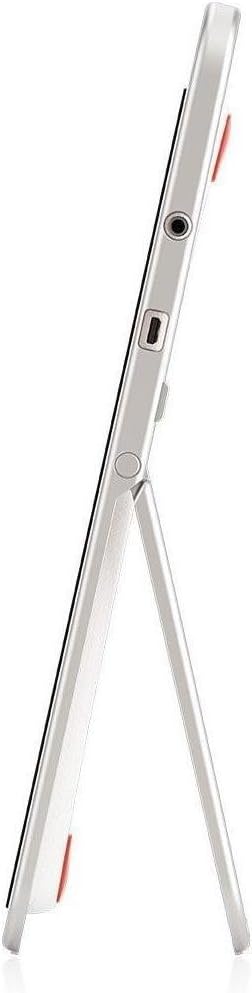
2. irudia: Aldea view of the InFocus IF195a Touch Pad. This image highlights the device's slim profile and the integrated kickstand, which allows for upright positioning. Visible ports include a headphone jack and a USB port.
- Pizteko botoia: Gailua pizteko/itzaltzeko edo lo moduan jartzeko erabiltzen da.
- Bolumen-botoiak: Adjust the device's audio output.
- Aurikularretarako Jack (3.5 mm): Kanpoko audio gailuak konektatzeko.
- Mikro-USB ataka: Kargatzeko eta datuak transferitzeko.
- Euskarri integratua: Allows the device to stand upright.
4. Konfigurazioa
4.1 Kutxatik ateratzea eta hasierako kargatzea
- Carefully remove the InFocus IF195a Touch Pad and all accessories from the packaging.
- Connect the provided power adapter to the Micro-USB port on the device and plug it into a power outlet. Allow the device to charge fully before first use. The charging indicator will typically show a full battery when complete.
4.2 Piztu/Itzaltzea
- Pizteko: Press and hold the Power button until the InFocus logo appears on the screen.
- Itzaltzeko: Sakatu eta eutsi pizteko botoia itzaltzeko menua agertu arte. Hautatu "Itzali" eta baieztatu.
- Lo egiteko/esnatzeko: Sakatu labur pizteko botoia gailua lo moduan jartzeko edo esnatzeko.
4.3 Hasierako konfigurazio-morroia
Lehenengo aldiz piztean, gailuak hasierako konfigurazio prozesu batean gidatuko zaitu:
- Hizkuntza hautaketa: Aukeratu zure hizkuntza hobetsia.
- Wi-Fi konexioa: Select your Wi-Fi network from the list and enter the password. A stable internet connection is required for many features.
- Google kontua: Sign in with an existing Google account or create a new one. This is necessary to download apps from the Google Play Store and access Google services.
- Data eta ordua: Set the correct date and time or allow the device to set it automatically via the network.
- Pribatutasun ezarpenak: Review eta nahi duzun bezala egokitu pribatutasun-ezarpenak.
5. Gailuaren funtzionamendua
5.1 Ukipen-keinuak
- Sakatu: Ukitu pantaila behin elementu bat hautatzeko edo aplikazio bat irekitzeko.
- Eduki sakatuta: Press and hold an item to access contextual menus or drag items.
- Pasatu hatza: Arrastatu hatza pantailan zehar zerrendetan zehar mugitzeko edo hasierako pantailaren artean aldatzeko.
- Zoom egiteko apur bat egin: Erabili bi hatz irudiak, mapak edo web orrialdeak.
5.2 Hasierako pantaila eta nabigazioa
- Hasierako botoia: Returns you to the main home screen.
- Atzera botoia: Returns to the previous screen or closes the current application.
- Azken aplikazioen botoia: Displays a list of recently used applications for quick switching.
- Jakinarazpen panela: Irristatu hatza pantailaren goialdetik behera jakinarazpenak eta ezarpen azkarrak atzitzeko.
5.3 Installing and Managing Applications
- Google Play Store: Open the "Play Store" app to browse and download applications. A Google account is required.
- Aplikazioak instalatzea: Select an app and tap "Install." Follow on-screen prompts for permissions.
- Aplikazioak desinstalatzea: Joan zaitez Ezarpenak > Aplikazioak, select the desired app, and tap "Uninstall." Alternatively, touch and hold an app icon on the home screen and drag it to the "Uninstall" option (if available).
5.4 Kanpoko gailuetara konektatzea
- Entzungailuak: Konektatu 3.5 mm-ko entzungailuak entzungailuen konektorean.
- USB gailuak: Connect compatible USB devices (e.g., flash drives, keyboards) to the Micro-USB port using an appropriate adapter if necessary. The device supports USB On-The-Go (OTG).
6. Mantentzea
6.1 Gailua garbitzea
- Erabili lipurrik gabeko zapi leun bat gailuaren pantaila eta gorputza garbitzeko.
- Marka egoskorretarako, apur bat dampGarbitu oihal bat urarekin edo elektronikarako bereziki diseinatutako pantaila-garbitzaile batekin.
- Saihestu produktu kimiko gogorrak, garbitzaile urratzaileak edo aerosolak erabiltzea.
6.2 Bateria zaintzea
- Bateriaren iraupena luzatzeko, saihestu bateria maiz erabat deskargatzea.
- Ez utzi gailua kargagailura konektatuta denbora luzez guztiz kargatu ondoren.
- Store the device in a cool, dry place if not used for a long time, with the battery charged to about 50%.
6.3 Software eguneraketak
Aldian-aldian egiaztatu softwarearen eguneraketak errendimendu eta segurtasun optimoa bermatzeko. Joan honera Settings > About tablet > System updates to check for and install available updates. Ensure your device is connected to Wi-Fi and has sufficient battery charge before starting an update.
7. Arazoak
| Arazoa | Irtenbide posiblea |
|---|---|
| Gailua ez da pizten. | Ensure the device is charged. Connect the charger and wait a few minutes before attempting to power on again. If unresponsive, perform a hard reset by holding the power button for 10-15 seconds. |
| Wi-Fi konexio arazoak. | Egiaztatu Wi-Fia gaituta dagoen ezarpenetan. Berrabiarazi Wi-Fi bideratzailea. Ahaztu sarea eta konektatu berriro. Ziurtatu Wi-Fi seinalearen eremuan zaudela. |
| Applications are crashing or freezing. | Close and restart the application. Clear the app's cache (Ezarpenak > Aplikazioak > [Aplikazioaren izena] > Biltegiratzea > Garbitu cachea). If the problem persists, uninstall and reinstall the app. |
| Pantailak ez du erantzuten. | Restart the device. Ensure the screen is clean and free of debris. If the issue continues, contact support. |
| Errendimendu motela. | Close unnecessary background applications. Clear cache for frequently used apps. Check available storage (Ezarpenak > Biltegiratzea) and free up space if needed. Consider a factory reset as a last resort. |
7.1 Fabrika berrezarri
Fabrika berrezartzeak gailuko datu guztiak ezabatuko ditu eta jatorrizko fabrika ezarpenetara leheneratuko du. Jarraitu aurretik, egin datu garrantzitsu guztien babeskopia.
- Joan zaitez Ezarpenak > Babeskopia eta berrezarri > Fabrika datuak berrezarri.
- Read the warning message carefully.
- Tap "Reset tablet" and then "Erase everything" to confirm.
- Gailua berrabiaraziko da eta berrezartze prozesua hasiko da.
8. Zehaztapen Teknikoak
| Ezaugarri | Zehaztapena |
|---|---|
| Eredua | IF195a |
| Marka | Infocus |
| Bistaratzeko tamaina | 20 hazbete |
| Gehieneko Ebazpena | 1600 x 900 |
| Prozesadorea | ARM Cortex-A15 Quad-Core 1.8 GHz |
| RAM Edukiera | 2 GB |
| Biltegiratze Ahalmena | 16 GB |
| Sistema eragilea | Android 4.4 KitKat |
| Atzeko kameraren bereizmena | 5 MP |
| Neurriak (L x W x H) | 61.6 x 47 x 8.6 cm |
| Pisua | 3.7 kg |
| Kolorea | Grisa |
9. Bermea eta Laguntza
For warranty information, please refer to the warranty card included with your product or visit the official InFocus website. For technical support, product registration, or service inquiries, please contact InFocus customer service through their official channels.
Please note that warranty terms may vary by region and retailer. Keep your proof of purchase for warranty claims.