
1. Sarrera
This manual provides instructions for the VIZIO XRT500 dual-sided TV remote control with an integrated keyboard. It covers setup, operation, maintenance, and troubleshooting to ensure optimal use of your remote with compatible VIZIO televisions.
2. Produktua amaitu daview
The VIZIO XRT500 remote is designed to enhance your television viewing experience by offering both traditional remote functions and a full QWERTY keyboard. This dual-sided design allows for easy navigation and text input on compatible VIZIO Smart TVs.

Irudia: Aurrealdea eta atzealdea view of the VIZIO XRT500 remote control, showcasing the main control buttons on one side and the full QWERTY keyboard on the reverse side.
2.1 Compatible VIZIO TV Models
The XRT500 remote is compatible with various VIZIO TV models, including but not limited to:
- M-Series: M43-C1, M49-C1, M50-C1, M55-C2, M60-C3, M65-C1, M70-C3, M75-C1, M80-C3
- M-Series (Older): M322I-B1, M422I-B1, M492I-B2, M502I-B1, M552I-B2, M602I-B3, M652I-B2, M702I-B3
- P-Series: P502UI-B1, P502UI-B1E, P552UI-B2, P602UI-B3, P652UI-B2, P702UI-B3
- Other: RS65-BL
3. Konfigurazioa
3.1 Bateriaren instalazioa
The remote requires two (2) AAA batteries for operation. Follow these steps to install them:
- Aurkitu bateriaren konpartimentuaren estalkia urrutiko agintearen atzealdean.
- Irristatu estalkia beherantz edo sakatu pestilloa eta altxatu irekitzeko.
- Sartu bi AAA pila, ziurtatu terminal positiboa (+) eta negatiboa (-) konpartimentuaren barruko adierazleekin lerrokatuta daudela.
- Jarri bateriaren konpartimentuaren estalkia berriro bere lekuan, ondo klik egin arte irristatuz.

Image: The VIZIO XRT500 remote with its battery compartment open, showing the placement for two AAA batteries.
3.2 Hasierako parekatzea
The VIZIO XRT500 remote typically operates via infrared (IR) and should function immediately with compatible VIZIO TVs once batteries are installed. No manual pairing is usually required. If the remote does not respond, ensure there is a clear line of sight to the TV's IR receiver and that the batteries are correctly inserted and charged.
4. Funtzionamendu-argibideak
4.1 Front Side Controls
The primary side of the remote features standard television control buttons:
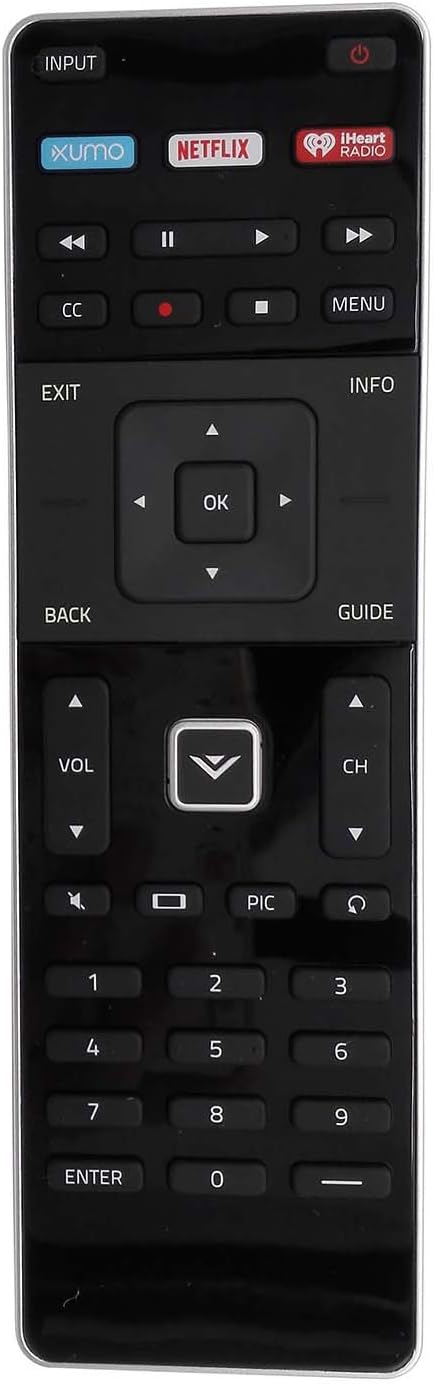
Irudia: Aurrealdea view of the VIZIO XRT500 remote control, highlighting the main navigation, volume, channel, and dedicated app buttons.
- Pizteko botoia (U): telebista pizten edo itzaltzen du.
- Sarrera botoia: Cycles through available input sources (HDMI, AV, etc.).
- Aplikazio Botoi Dedikatuak (Xumo, Netflix, iHeartRadio): Provides direct access to these streaming applications.
- Erreprodukzio kontrolak (Rewind, Play/Pause, Fast Forward, Stop, Record): Used for media playback.
- CC (azpitituluak): Azpitituluak aktibatu edo desaktibatzen ditu.
- Menua: Telebistaren menu nagusira sartzen da.
- Irten: Exits current menu or application.
- Info: Uneko programari edo sarrerari buruzko informazioa bistaratzen du.
- Nabigazio Pad (Up, Down, Left, Right, OK): Used to navigate menus and select options.
- Itzuli: Aurreko pantailara edo menura itzultzen du.
- Gida: Opens the TV program guide.
- VOL (Volume Up/Down): Adjusts the television volume.
- CH (Channel Up/Down): Telebistako katea aldatzen du.
- Isildu: Telebistako audioa aktibatzen edo isilarazten du.
- PIC (Picture Mode): Cycles through picture modes.
- Number Pad (0-9, Enter, -): For direct channel entry or numerical input.
4.2 Rear Side Keyboard
Flip the remote over to access the full QWERTY keyboard for text input in smart TV applications, search functions, and web arakatzen.
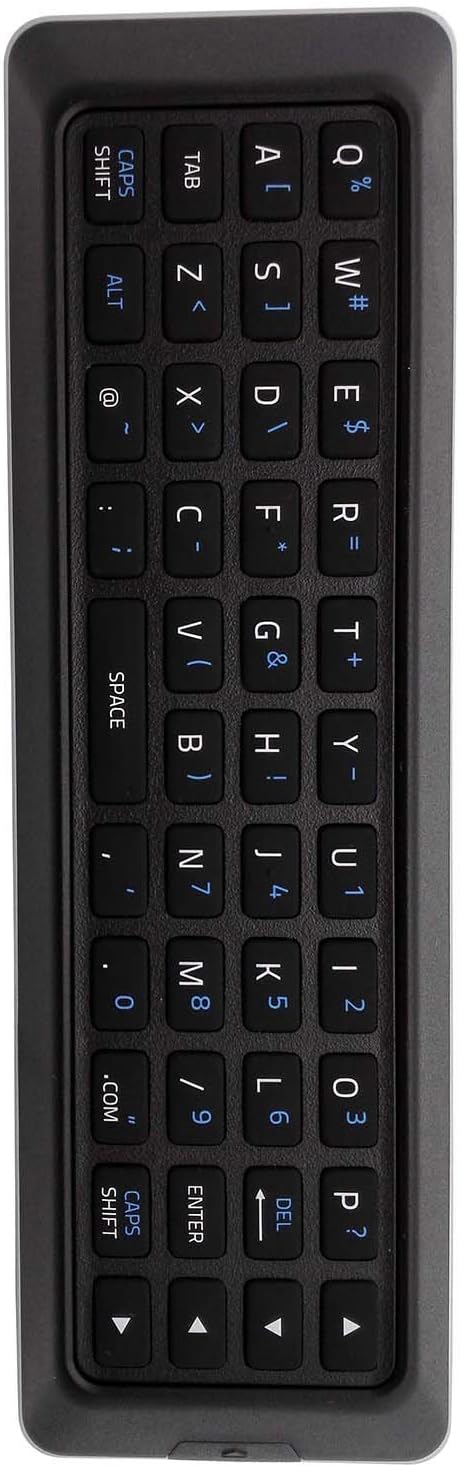
Irudia: Atzealdea view of the VIZIO XRT500 remote control, displaying the full QWERTY keyboard layout for text input.
- Idazketa: Press individual keys to input letters, numbers, and symbols.
- Caps Shift: Toggles uppercase and lowercase letters.
- Alt: Accesses alternative characters (e.g., symbols above numbers).
- Espazioa: Inserts a space.
- Sartu: Confirms input or selects an option.
- DEL (Ezabatu): Deletes the character to the left of the cursor.
- Norabide-geziak: Used for cursor movement within text fields.
5. Mantentzea
5.1 Bateria ordezkatzea
Replace batteries when the remote's response becomes inconsistent or stops working. Always replace both AAA batteries simultaneously with new ones. Do not mix old and new batteries or different types of batteries.
5.2 Garbiketa
Urrutiko agintea garbitzeko, garbitu gainazala oihal leun eta lehor batekin. Zikinkeria egoskorra bada, garbitu apur batampGarbitu zapi bat urarekin. Saihestu produktu kimiko gogorrak, garbitzaile urratzaileak edo gehiegizko hezetasuna erabiltzea, hauek urrutiko agintearen elektronika edo akabera kaltetu baitezakete.
6. Arazoak
- Urrunekoek ez dute erantzuten:
- Ziurtatu AAA bateria berriak behar bezala instalatuta daudela.
- Verify there is a clear line of sight between the remote and the TV's infrared sensor. Obstructions can block the signal.
- Zuzendu urrutiko agintea zuzenean telebistara.
- Teklatua ez dabil:
- Ensure the remote is flipped to the keyboard side. The remote typically detects which side is facing up.
- Check battery levels. Low batteries can affect keyboard functionality.
- Confirm your VIZIO TV model supports the keyboard feature. Refer to your TV's user manual for details.
- Botoi espezifikoak ez dira funtzionatzen:
- Clean the remote's surface, especially around the unresponsive buttons, to remove any debris.
- If only certain buttons fail, the remote may be damaged. Consider replacing the remote.
7. Zehaztapenak
| Modelo zenbakia | VIZIO XUMO XRT500-1 |
| Produktuaren neurriak | 7 x 5 x 2 hazbete |
| Elementuaren pisua | 3 ontza |
| Beharrezko bateriak | 2 AAA bateria |
| Konektibitate Teknologia | Infragorriak (IR) |
| Gailu bateragarriak | VIZIO Televisions (specific models listed in Section 2.1) |
8. Bermea eta Laguntza
This VIZIO XRT500 remote control is typically covered by a manufacturer's warranty. Please refer to the warranty information provided at the time of purchase for specific terms and conditions. For further assistance or if issues persist, contact the retailer or VIZIO customer support. When contacting support, have your TV model number and the remote's model number (XRT500) available.