
1. Sarrera
This manual provides essential information for the safe and efficient operation of your Argox OX-330 Barcode Monochrome Printer. Please read this manual thoroughly before using the printer and retain it for future reference. The Argox OX-330 is designed for direct thermal and thermal transfer printing, offering a resolution of 203 dpi for clear and precise label output.
2. Segurtasun informazioa
- Elikatze-iturria: Use only the power adapter supplied with the printer. Ensure the power outlet matches the voltage eskakizunak.
- Lekua: Place the printer on a stable, level surface. Avoid locations with excessive dust, humidity, or direct sunlight.
- Aireztapena: Ez blokeatu aireztapen-irekidurak. Ziurtatu aire-fluxu egokia dagoela inprimagailuaren inguruan.
- Manipulazioa: Saihestu inprimatze-burua inprimatu ondoren berehala ukitzea, bero egon daitekeelako.
- Garbiketa: Disconnect the power cord before cleaning the printer. Use a soft, dry cloth. Do not use liquid or aerosol cleaners.
- Konponketak: Do not attempt to repair the printer yourself. Refer all servicing to qualified service personnel.
3. Produktua amaitu daview
The Argox OX-330 is a compact desktop thermal label printer capable of both direct thermal and thermal transfer printing. It features 8MB DRAM (5MB user available) and 4MB Flash ROM (2MB user available) for efficient data processing and storage.
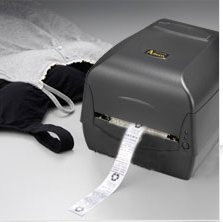
3.1. irudia: Argox OX-330 Barcode Monochrome Printer. This image shows the printer actively producing a label, demonstrating its primary function.
Funtsezko osagaiak:
- Inprimatzeko burua: Responsible for transferring the image onto the label.
- Media Guides: Ensure proper alignment of labels.
- Kontrol-panela: Includes buttons and indicator lights for printer status and basic operations.
- Potentzia ataka: Korronte-egokigailua konektatzeko.
- Datu-atatuak: For connecting to a computer (e.g., USB, Wi-Fi).
- Media Compartment: Where label rolls and ribbons (for thermal transfer) are loaded.
4. Konfigurazioa
4.1 Paketatzea
- Kontu handiz atera inprimagailua eta osagarri guztiak paketetik.
- Verify that all components listed in the package contents are present.
- Remove any protective films or packing materials from the printer.
4.2 Potentzia konektatzea
- Konektatu korronte-egokitzailea inprimagailuaren korronte-atakara.
- Entxufatu korronte-kablea entxufe elektriko egoki batean.
- Do not power on the printer until all other connections are made.
4.3 Ordenagailu batera konektatzea
The Argox OX-330 supports Wi-Fi connectivity for seamless integration with your PC.
- Wi-Fi konexioa: Refer to the separate Wi-Fi setup guide for detailed instructions on connecting your printer to a wireless network. This typically involves installing the printer driver and utility software on your PC.
- USB Connection (if applicable): If using a USB cable, connect one end to the printer and the other to an available USB port on your PC.
4.4 Loading Labels and Ribbon
The OX-330 supports both Direct Thermal and Thermal Transfer printing methods. The loading procedure varies slightly depending on the method.
- Ireki inprimagailuaren goiko estalkia.
- Adjust the media guides to the width of your label roll.
- Place the label roll onto the media spindle, ensuring the labels feed correctly.
- Izan ere Transferentzia Termikoa printing, also load the ribbon according to the diagrams inside the printer's media compartment. Ensure the ribbon is taut and correctly threaded.
- Itxi goiko estalkia.
5. Funtzionamendu-argibideak
5.1 Piztu/Itzaltzea
- Pizteko: Press the power button located on the printer. The indicator light will illuminate.
- Itzaltzeko: Sakatu eta eutsi pizteko botoiari inprimagailua itzali arte.
5.2 Gidariaren eta softwarearen instalazioa
Before printing, install the appropriate printer drivers and label design software on your PC. These are typically provided on a CD with the printer or available for download from the Argox official webgunea. Jarraitu pantailan agertzen diren argibideei instalaziorako.
5.3 Etiketa bat inprimatzea
- Ensure the printer is powered on and connected to your PC (via Wi-Fi or USB).
- Open your label design software or application from which you wish to print.
- Create or open your label design.
- Go to the 'Print' option in your software.
- Select the Argox OX-330 as your printer.
- Configure print settings such as label size, print quantity, and printing method (Direct Thermal or Thermal Transfer) if applicable. The printer supports a resolution of 203 dpi.
- Click 'Print'. The printer will begin printing your labels.
6. Mantentzea
Regular maintenance ensures optimal performance and extends the life of your Argox OX-330 printer.
6.1 Inprimatze-burua garbitzea
The print head is a critical component and should be cleaned regularly, especially if print quality degrades.
- Itzali inprimagailua eta deskonektatu korronte-kablea.
- Ireki goiko estalkia inprimatzeko burua atzitzeko.
- Using a lint-free cloth moistened with isopropyl alcohol (99% pure), gently wipe the print head surface.
- Utzi inprimatze-burua guztiz lehortzen estalkia itxi eta berriro korrontea konektatu aurretik.
6.2 Garbiketa orokorra
- Garbitu inprimagailuaren kanpoaldea zapi leun eta lehor batekin.
- Use a soft brush or compressed air to remove dust and debris from inside the media compartment.
7. Arazoak
This section addresses common issues you might encounter with your Argox OX-330 printer.
7.1 Potentziarik gabe
- Ensure the power cord is securely connected to both the printer and the electrical outlet.
- Egiaztatu entxufea funtzionatzen duela beste gailu bat konektatuz.
7.2 Inprimatze-kalitate eskasa
- Garbitu inprimatze-burua 6.1 atalean azaltzen den bezala.
- Ensure you are using the correct type of labels for your printing method (Direct Thermal or Thermal Transfer).
- Check if the ribbon (for thermal transfer) is correctly loaded and not depleted.
- Adjust print darkness settings in your printer driver.
7.3 Inprimagailuak ez du erantzuten
- Check the connection between the printer and your PC (Wi-Fi or USB).
- Berrabiarazi inprimagailua eta ordenagailua.
- Ensure the correct printer driver is installed and updated.
- Check the printer's status indicator lights for error messages.
7.4 Labels Not Feeding Correctly
- Ziurtatu etiketak behar bezala kargatuta daudela eta euskarri-gidak etiketaren zabalerara egokituta daudela.
- Check for any obstructions in the media path.
- Calibrate the printer for the label size if necessary (refer to printer utility software).
8. Zehaztapenak
| Ezaugarri | Zehaztapena |
|---|---|
| Marka | Argox |
| Ereduaren izena | OX-330 |
| Inprimatzeko Teknologia | Termikoa (Zuzeneko Termikoa eta Transferentzia Termikoa) |
| Inprimatzeko Ebazpena | 203 ppp |
| Inprimagailuaren irteera | Monokromoa |
| Konektibitate Teknologia | Wi-Fi |
| Memoria | 8MB DRAM (5MB user available), 4MB Flash ROM (2MB user available) |
| Gailu bateragarriak | PC |
| Printing Media Type | Etiketak |
| Elementuaren pisua | 1800 gramo |
| Produktuaren neurriak (L x W x H) | 16D x 6Z x 10A zentimetro |
| Ezaugarri Berezia | Trinkoa |
| Alde biko inprimaketa | Bai |
| Duplexa | Automatikoa |
9. Bermea eta Laguntza
9.1 Bermearen informazioa
The Argox OX-330 Barcode Monochrome Printer comes with a 1 urteko bermea from the date of purchase. This warranty covers manufacturing defects under normal use. It does not cover damage caused by misuse, accidents, unauthorized repairs, or consumables.
9.2 Laguntza Teknikoa
For technical assistance, troubleshooting beyond this manual, or warranty claims, please contact Argox customer support. Refer to the Argox official website or your purchase documentation for contact details and support resources.