
1. Sarrera
This manual provides comprehensive instructions for the NETUM USB 2.0 Wired Handheld 1D Laser Barcode Scanner, Model RD-2013. This device is designed for efficient and accurate scanning of 1D barcodes, making it ideal for various applications including Point-of-Sale (POS) systems, mobile payments, inventory management, and general data entry on PCs, laptops, and computers running Windows or Mac OS.
The scanner offers a plug-and-play experience, requiring no additional driver installation for most operating systems. Its robust design and high-speed scanning capabilities ensure reliable performance in diverse environments.
2. Produktuaren ezaugarriak
- Wired USB 2.0 Connectivity: Ensures stable and reliable data transmission.
- 1D Laser Scanning: Capable of reading all standard 1D barcodes efficiently.
- Plug and Play: No driver installation required for Windows and Mac OS, simplifying setup.
- Abiadura Handiko Deskodetzea: Equipped with an ultra-fast 32-bit processor, achieving a reading rate of 200 scans per second.
- Bereizmen handia: Supports a resolution of 4 mil or greater, ensuring accurate scans of various barcode densities.
- Diseinu ergonomikoa: Handheld form factor provides a comfortable operation sense.
- Visual and Audible Indicators: Features LED and buzzer indicators for scan confirmation.
- Intelligent AGC Control: Advanced gain control for optimized scanning performance.
- Bateragarritasun zabala: Works seamlessly with PC, Laptop, and Computer systems.
3. Paketearen edukia
Mesedez, egiaztatu elementu guztiak daudela eta egoera onean daudela paketea irekitzean:
- NETUM Barcode Scanner (Model RD-2013)
- USB kablea
- Erabiltzailearen eskuliburua (dokumentu hau)

Image: Contents of the NETUM Barcode Scanner package, including the scanner, USB cable, and documentation.
4. Konfigurazio gida
The NETUM Barcode Scanner is designed for simple plug-and-play operation. Follow these steps to set up your scanner:
- Konektatu USB kablea: Insert the USB connector of the scanner cable into an available USB port on your computer (PC or Laptop).
- Sistemaren Ezagutza: Your operating system (Windows or Mac OS) will automatically detect and install the necessary drivers. This process usually takes a few seconds. No manual driver installation is typically required.
- Erabiltzeko prest: Once the system indicates that the device is ready, the scanner is prepared for operation. You may hear a confirmation beep from the scanner, and the LED indicator might light up.
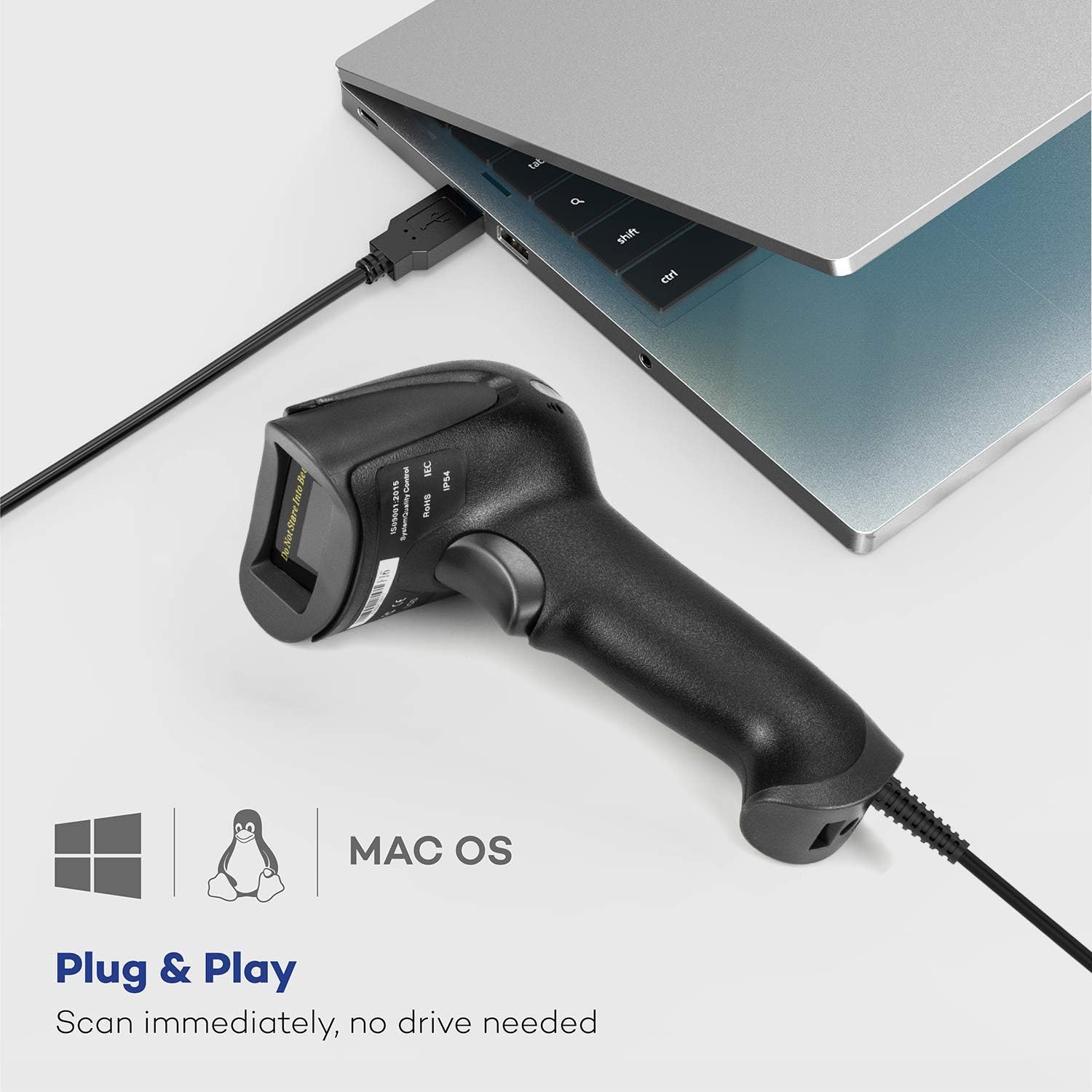
Image: The NETUM barcode scanner connected to a laptop via its USB cable, illustrating its plug-and-play setup.

Image: Visual representation of the scanner's "Plug and Scan" capability, highlighting USB HID, USB COM, USB POS, and RS232 compatibility without requiring drivers.
5. Funtzionamendu-argibideak
Using the NETUM Barcode Scanner is straightforward:
- Open an Application: Open any application where you wish to input barcode data, such as a word processor, spreadsheet, or POS software. Ensure the cursor is active in the desired input field.
- Eskanerra apuntatu: Point the scanner's laser beam at the barcode you wish to scan. Ensure the entire barcode is within the laser line.
- Sakatu abiarazlea: Press and hold the trigger button on the scanner. The laser will activate.
- Scan Confirmation: Upon a successful scan, the scanner will emit a beep sound and the LED indicator will flash or change color. The barcode data will then appear in the active input field on your computer screen, as if typed from a keyboard.
- Eskaneatu anitz: Release the trigger and repeat the process for subsequent barcodes.

Image: The NETUM barcode scanner with its active laser, demonstrating its readiness for scanning.

Image: The scanner is specifically designed for 1D barcodes on paper, as shown with examples of compatible barcode types and an incompatible QR code.
Note on Configuration: The scanner may come with a small manual containing special barcodes for advanced configuration (e.g., adding a carriage return, changing scanning modes). If you require specific settings, scan the appropriate configuration barcodes from the provided manual. For example, to add a carriage return after each scan, you would scan the corresponding barcode in the manual. The barcode 0042000062008 ex daample of a standard EAN/UPC barcode format.
6. Mantentzea
Proper maintenance ensures the longevity and optimal performance of your barcode scanner:
- Eskaneatze-leihoa garbitzea: Regularly clean the scanner's optical window with a soft, lint-free cloth. If necessary, dampen the cloth slightly with water or a mild, non-abrasive cleaner. Avoid harsh chemicals or abrasive materials that could scratch the window.
- Garbiketa orokorra: Wipe the body of the scanner with a dry or slightly damp hautsa eta zikinkeria kentzeko zapia.
- Kableen zainketa: Saihestu USB kablea gehiegi tolestea edo bihurritzea, barneko kableak kaltetu baititzake.
- Biltegiratzea: Erabiltzen ez duzunean, gorde eskanerra leku garbi eta lehor batean, eguzki-argitik eta muturreko tenperaturetatik urrun.
- Saihestu tantoak: While designed to be durable, repeated drops can damage internal components. Handle the scanner with care.
7. Arazoak
If you encounter issues with your NETUM Barcode Scanner, refer to the following common problems and solutions:
| Arazoa | Kausa posiblea | Irtenbidea |
|---|---|---|
| Scanner does not power on or emit laser. | USB kablea ez dago behar bezala konektatuta edo USB ataka akastuna da. | Ensure the USB cable is securely plugged into both the scanner and the computer. Try a different USB port on your computer. |
| Eskanerrak bip egiten du baina ez da daturik agertzen pantailan. | Incorrect input focus in application or scanner is in a different mode. | Ensure the cursor is active in the desired text input field. If the issue persists, try scanning the "Factory Reset" barcode (if available in your manual) and then re-scan any necessary configuration barcodes. |
| Eskaneatutako datuak okerrak edo osatugabeak dira. | Barcode is damaged, poorly printed, or scanner window is dirty. | Clean the scanner's optical window. Try scanning a different, known-good barcode. Ensure the entire barcode is within the laser line during scanning. |
| Scanner does not add carriage return/tab after scan. | Scanner not configured for suffix. | Scan the appropriate configuration barcode from your user manual to add a carriage return (Enter) or tab suffix. |
8. Zehaztapenak
| Atributua | Xehetasuna |
|---|---|
| Modelo zenbakia | RD-2013 |
| Produktuaren neurriak (L x W x H) | 3.35" x 2.56" x 6.69" (8.5 cm x 6.5 cm x 17 cm) |
| Elementuaren pisua | 9.6 ontza (272 gramo) |
| Konektibitate Teknologia | USB kablea |
| Energia iturria | Haridun elektrikoa (USB-a) |
| Gailu bateragarriak | Ordenagailu eramangarria, mahaigaineko ordenagailua |
| Onartutako barra-kode motak | All standard 1D barcodes (e.g., UPC/EAN, Code 128, Code 39, Interleaved 2 of 5, etc.) |
| Eskaneatu tasa | 200 eskaneatu/segundo |
| Prozesadorea | 32 bitekoa |
| Fabrikatzailea | NETUM |

Image: Key performance specifications of the scanner, including its processor speed and reading capabilities.
9. Bermea eta Laguntza
NETUM products are manufactured with high standards of quality and reliability. This product is typically covered by a manufacturer's warranty against defects in materials and workmanship.
- Itzultzeko politika: For purchases made through Amazon, a 30-day return/replacement policy is generally available from the date of purchase. Please refer to Amazon's return policy for specific details.
- Fabrikatzailearen laguntza: For technical assistance, troubleshooting beyond this manual, or warranty claims, please contact NETUM customer support. Contact information can usually be found on the manufacturer's official webgunea edo zure erosketa plataformaren bidez.
- Sareko baliabideak: Visit the official NETUM website for updated drivers (if applicable), FAQs, and additional support resources.