
Sarrera
This manual provides essential instructions for setting up, operating, maintaining, and troubleshooting your Chuwi Hi13 Tablet PC. Please read this guide thoroughly to ensure proper use and to maximize the performance and longevity of your device.
The Chuwi Hi13 is a versatile 13.5-inch tablet PC running Windows 10, powered by an Intel Apollo Lake Celeron N3450 Quad Core processor, featuring 4GB RAM and 64GB eMMC storage. It is designed for both productivity and entertainment, offering a high-resolution display and various connectivity options.

Image: The Chuwi Hi13 Tablet PC showcasing its Windows 10 operating system interface.
Produktua amaituview
Physical Components and Ports
Familiarize yourself with the physical layout and available ports on your Chuwi Hi13 tablet.

Irudia: Albokoa view diagram of the Chuwi Hi13 tablet, highlighting its dimensions and port locations including earphone jack, Micro HDMI, Micro USB, Type-C, and TF Card slot.
- Entzungailuen ataka: 3.5mm jack for audio output.
- Mikro SD txartelaren zirrikitua: Biltegiratzea 128 GB-ra arte zabaltzeko.
- Micro HDMI Slot: Kanpoko pantailetara konektatzeko.
- Mikro USB ataka: Datuak transferitzeko eta kargatzeko.
- C motako ataka: Versatile port for charging, data, and display output.
- Pizteko botoia: Located on the side for turning the device on/off and sleep/wake.
- Bolumen-botoiak: For adjusting audio levels.
Display and Cameras
The Chuwi Hi13 features a high-resolution display and dual cameras for various applications.

Image: Close-up of the Chuwi Hi13's 13.5-inch IPS capacitive screen, demonstrating its 3000x2000 resolution and vibrant color reproduction.
- Pantaila: 13.5-inch IPS Capacitive Touch Screen with 3000 x 2000 resolution, offering wide viewing angles and impressive clarity.
- Aurrealdeko kamera: 2.0MP, bideo-deietarako eta selfieetarako egokia.
- Atzeko kamera: 5.0MP, for capturing photos and videos.

Image: Two Chuwi Hi13 tablets, one showing the front 2.0MP camera and the other highlighting the rear 5.0MP camera, indicating their use for photos and video calls.
Konfigurazio Gida
Hasierako piztea eta Windows 10 konfigurazioa
- Gailua kargatu: Before first use, connect the provided charger to the Type-C or Micro USB port and allow the tablet to charge fully. The battery indicator will show charging status.
- Piztu: Press and hold the Power button on the side of the tablet until the Chuwi logo appears.
- Windows 10 Configuration: Follow the on-screen prompts to complete the initial Windows 10 setup. This includes selecting your region, language, connecting to a Wi-Fi network, and creating a user account.
- Eguneraketak: After setup, it is recommended to check for and install any available Windows updates to ensure optimal performance and security.

Image: The Chuwi Hi13 tablet connected to its docking keyboard, displaying the Windows 10 operating system, indicating its dual-mode functionality.
Osagarriak konektatzea
- Docking Keyboard: Align the tablet with the magnetic connector on the docking keyboard and gently press until it clicks into place. The keyboard will be automatically recognized by Windows 10.
- Larrua: If using a compatible active stylus (sold separately), follow its specific pairing instructions, typically involving Bluetooth pairing through Windows settings.
- Kanpoko biltegiratzea: Insert a Micro SD card into the designated slot to expand storage capacity.
Funtzionamendu-argibideak
Navigating Windows 10
The Chuwi Hi13 runs Windows 10 Home 64-bit, offering a familiar desktop environment and tablet mode functionality.
- Hasiera menua: Access applications, settings, and power options via the Start Menu.
- Edge Browser: Utilize the pre-installed Microsoft Edge browser for web arakatzen.
- Tablet modua: Windows 10 can switch between desktop and tablet modes, optimizing the interface for touch input.
Touch Screen and Input
The 13.5-inch IPS 10-point touch screen supports multi-touch gestures for intuitive navigation.
- Sakatu: Saguaren klik baten baliokidea.
- Eduki ukituta: Eskuineko botoiarekin klik egitearen baliokidea.
- Zoom egiteko apur bat egin: Erabili bi hatz edukia handitu edo txikitzeko.
- Pasatu hatza: Navigate through menus or scroll content.
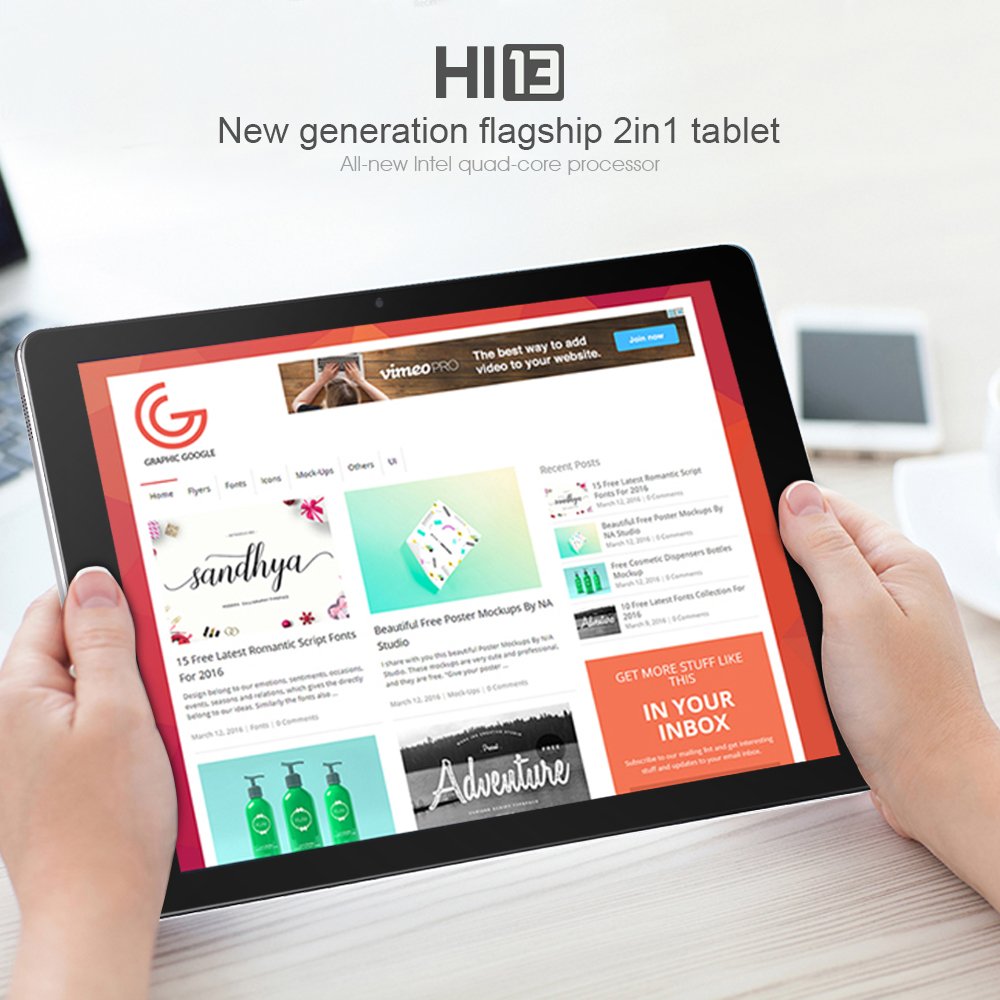
Image: A user holding the Chuwi Hi13 tablet in landscape orientation, browsing a website, demonstrating its use for media consumption and web sarbidea.
Konektibitatea
- Wi-Fi: Connect to wireless networks using the built-in 802.11a/ac/b/g/n dual-band Wi-Fi (2.4GHz / 5.0GHz).
- Bluetootha: Pair with Bluetooth 4.0 devices such as headphones, speakers, or input devices.
- HDMI: Use the Micro HDMI port to connect to an external monitor or TV for a larger display.
- OTG: The tablet supports On-The-Go (OTG) functionality, allowing you to connect USB peripherals via an adapter.
Mantentzea
Gailua garbitzea
- Pantaila: Erabili zapi leun eta lihorik gabekoa, apur bat lehortuaampened with water or a screen cleaner, to gently wipe the display. Avoid harsh chemicals.
- Gorputza: Wipe the tablet's body with a soft, dry cloth.
- Portuak: Keep ports free of dust and debris. Use a can of compressed air if necessary, but avoid inserting objects into the ports.
Bateria zaintzea
- Saihestu tenperatura muturrekoak, bateriaren iraupena murriztu baitezakete.
- Bateriaren osasun optimoa lortzeko, saiatu karga-maila % 20 eta % 80 artean mantentzen ahal den guztietan.
- Erabili jatorrizko kargagailua edo bateragarri ziurtatutako kargagailu bat soilik.
Software eguneraketak
Regularly check for and install Windows updates to ensure your system has the latest features, security patches, and performance improvements. Go to Ezarpenak > Eguneratzea eta segurtasuna > Windows eguneratzea.
Arazoak konpontzea
Ohiko arazoak eta irtenbideak
- Gailua ez da pizten:
- Ensure the device is fully charged. Connect the charger and wait a few minutes before attempting to power on again.
- Try holding the power button for 10-15 seconds for a hard reset.
- Errendimendu motela:
- Itxi atzeko planoan exekutatzen ari diren beharrezkoak ez diren aplikazioak.
- Begiratu eta instalatu zain dauden Windows eguneratzeak.
- Ensure sufficient free storage space (at least 10-15% of total capacity).
- Run a disk cleanup and defragmentation (for HDD, though eMMC benefits less from defrag).
- Consider performing a factory reset if performance issues persist after other steps (back up data first).
- Kargatzeko arazoak:
- Verify the charger and cable are securely connected to both the tablet and the power outlet.
- Try a different compatible charger and cable if available.
- Inspect the charging port for any visible damage or debris.
- Display Problems (No image, flickering):
- Berrabiarazi tableta.
- If connected to an external display, ensure the HDMI cable is properly connected and the correct input is selected on the external display.
- Check display settings in Windows.
- Wi-Fi/Bluetooth konexio arazoak:
- Toggle Wi-Fi/Bluetooth off and on in Windows settings.
- Restart the tablet and your router/modem.
- Ensure drivers are up to date via Device Manager.
Zehaztapenak
Detailed technical specifications for the Chuwi Hi13 Tablet PC.
| Ezaugarri | Zehaztapena |
|---|---|
| Marka | Txuwi |
| Eredua | Kaixo13 |
| Sistema eragilea | Windows 10 Home 64 biteko |
| Prozesadorea | Intel Apollo Lake Celeron N3450 Quad Core (up to 2.2GHz) |
| Grafikoak | Intel HD Graphics 500 |
| RAM | 4 GB DDR3L |
| Biltegiratzea | 64GB eMMC (Expandable up to 128GB via Micro SD) |
| Pantailaren tamaina | 13.5 hazbetekoa |
| Pantailaren bereizmena | 3000 x 2000 IPS Capacitive (10-Point) |
| Aurrealdeko kamera | 2.0MP |
| Atzeko kamera | 5.0MP |
| Wi-Fi | 802.11a/ac/b/g/n Dual Band (2.4GHz / 5.0GHz) |
| Bluetootha | Bai (Bluetooth 4.0) |
| Portuak | 1x 3.5mm Earphone, 1x Micro SD, 1x Micro HDMI, 1x Micro USB, 1x Type-C |
| Bateria | 10000mAh |
| Neurriak | 334 x 222 x 8.9 mm |
| Pisua | 1080 g (1.08 kg) |
Bermea eta Laguntza
Bermearen informazioa
The Chuwi Hi13 Tablet PC comes with a 1 urteko fabrikatzailearen bermeaBerme honek materialen eta fabrikazioaren akatsak estaltzen ditu erabilera normalaren pean. Gorde erosketaren egiaztagiria bermearen erreklamazioak egiteko.
Bermeak ez ditu estaltzen erabilera okerrak, istripuek, baimenik gabeko aldaketek edo ohiko higadurak eragindako kalteak.
Bezeroarentzako Arreta
For technical assistance, warranty claims, or further inquiries, please refer to the official Chuwi support channels. You can typically find support contact information, FAQs, and driver downloads on the official Chuwi webgunea.
It is recommended to visit the Chuwi Store on Amazon or the official Chuwi global weblaguntza-baliabide eguneratuenak lortzeko gunea.