
1. Sarrera
This manual provides essential information for the safe and efficient operation of your Xerox AltaLink C8030 Multifunction Printer. Please read these instructions carefully before using the device and retain them for future reference. This device integrates printing, scanning, copying, and faxing capabilities to support various office tasks.
2. Segurtasun informazioa
Always follow basic safety precautions to reduce the risk of fire, electric shock, and injury. Ensure the device is connected to a grounded power outlet. Do not block ventilation openings. Keep the device away from water and excessive humidity. Refer to the safety labels on the product for specific warnings.
3. Produktua amaitu daview
The Xerox AltaLink C8030 is a color multifunction printer designed for high-volume office environments. It features a 10-inch touchscreen for intuitive navigation and control. Key capabilities include:
- Print Speed: Up to 30 pages per minute (ppm) for both color and monochrome.
- Copy Resolution: 600 x 600 DPI.
- Memory: 8 GB RAM, 1 GB RAM, 250 GB HDD.
- Connectivity: NFC, Wireless, USB.
- Paper Supply: Multiple trays including 2 x 520-sheet trays, a 2,000-sheet high-capacity tandem tray, and a 100-sheet bypass tray.
- Features: Single Pass DADF, Data Security, Job Accounting, PostScript Kit, Network Scanning, Server Fax, iFax, Standard Output Tray, Office Finisher LX.
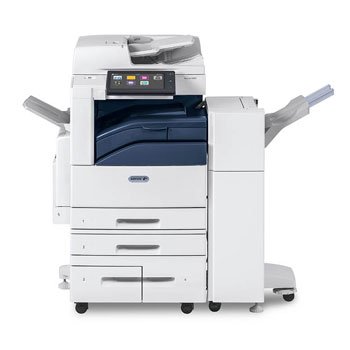
Irudia: Aurrealdea view of the Xerox AltaLink C8030 multifunction printer, showing its various paper trays and the integrated touchscreen control panel.
4. Konfigurazioa
4.1 Desontziratzea eta kokatzea
- Kendu arretaz inprimagailua ontzitik.
- Jarri inprimagailua gainazal egonkor eta lau batean, aireztapen egokia duena.
- Ensure sufficient space around the printer for maintenance and paper loading.
4.2 Energia-konexioa
- Konektatu elikatze-kablea inprimagailura eta gero lurrera konektatutako entxufe elektriko batera.
- Sakatu pizteko botoia gailua pizteko.
4.3 Papera kargatzea
- Open the desired paper tray (e.g., Tray 1, Tray 2, or Bypass Tray).
- Doitu paper-gidak paperaren tamainara egokitzeko.
- Kargatu paper-pila, gehienezko betetze-marra gainditzen ez duela ziurtatuz.
- Itxi paperaren erretilua ongi.
4.4 Sare eta USB konexioa
- Sarea: Connect an Ethernet cable to the printer's network port and to your network router/switch. Configure network settings via the touchscreen if necessary.
- Haririk gabekoa: Access the network settings on the touchscreen, select your Wi-Fi network, and enter the password.
- USBa: Connect a USB cable from your computer to the printer's USB port for direct connection.
5. Funtzionamendu-argibideak
5.1 Inprimaketa
- From your computer or mobile device, open the document you wish to print.
- Hautatu 'Inprimatu' aplikazioaren menuan.
- Choose the Xerox AltaLink C8030 as your printer.
- Adjust print settings (e.g., number of copies, color/monochrome, paper size) as needed.
- Egin klik 'Inprimatu' aukeran.
5.2 Eskaneatzea
- Place your document face-down on the scanner glass or face-up in the Automatic Document Feeder (ADF).
- On the printer's touchscreen, select the 'Scan' function.
- Aukeratu eskaneatze-helmuga (adibidez, posta elektronikoa, sareko karpeta, USB unitate bat).
- Configure scan settings (e.g., resolution, file format, color mode).
- Sakatu 'Hasi' eskaneatzen hasteko.
5.3 Kopiatzea
- Jarri dokumentua eskaneraren beiraren gainean edo ADFn.
- Ukipen-pantailan, hautatu 'Kopiatu' funtzioa.
- Enter the desired number of copies.
- Adjust copy settings (e.g., enlargement/reduction, 2-sided, color/monochrome).
- Sakatu 'Hasi' kopiatzen hasteko.
5.4 Faxa bidaltzea
- Jarri dokumentua eskaneraren beiraren gainean edo ADFn.
- Ukipen-pantailan, hautatu 'Faxa' funtzioa.
- Sartu hartzailearen fax zenbakia.
- Configure fax settings (e.g., resolution, delayed send).
- Sakatu 'Hasi' faxa bidaltzeko.
6. Mantentzea
6.1 Toner kartutxoak ordezkatzea
- Ireki inprimagailuaren aurrealdeko estalkia.
- Identifikatu toner kartutxo hutsa.
- Grasp the handle and pull the cartridge out.
- Unpack the new toner cartridge and shake it gently.
- Sartu kartutxo berria bere lekuan klik egin arte.
- Itxi aurrealdeko estalkia.
6.2 Eskaneraren beira garbitzea
- Itzali inprimagailua eta deskonektatu korronte-kablea.
- Ireki eskanerraren estalkia.
- Garbitu eskanerrari kristala oihal leun eta pelusik gabeko batekinampened with a mild glass cleaner.
- Ensure the glass is dry before closing the cover and restoring power.
7. Arazoak
7.1 Paper-jazarpenak
- Jarraitu pantailan agertzen diren argibideei paper-traba aurkitu eta kentzeko.
- Open all accessible covers and trays to check for jammed paper.
- Tira papera astiro-astiro paperaren bidearen norabidean.
7.2 Inprimatze-kalitatearen arazoak
- Egiaztatu toner mailak eta ordezkatu kartutxoak baxuak badira.
- Egin inprimatze-burua garbitu edo kalibratzea inprimagailuaren mantentze-menutik.
- Ensure you are using appropriate paper types for your print job.
7.3 Konexio arazoak
- Verify all cables (Ethernet, USB) are securely connected.
- For wireless connections, check Wi-Fi signal strength and network settings.
- Restart the printer, router, and computer/device.
8. Zehaztapenak
| Ezaugarri | Zehaztapena |
|---|---|
| Marka | Xerox |
| Ereduaren izena | AltaLink C8030 |
| Inprimatzeko Teknologia | Laserra |
| Inprimagailuaren irteera | Kolorea |
| Inprimatzeko abiadura maximoa (monokromoa) | 30 ppm |
| Gehienezko kopia-abiadura (zuri-beltzean) | 30 ppm |
| Konektibitate Teknologia | NFC, Wireless |
| Elementuaren pisua | 349 kilo |
| Kontrol-metodoa | Urruneko, ukitu |
| Gailu bateragarriak | PC |
| GTIN / UPC | 095205880151 |
9. Bermea eta Laguntza
For warranty information, please refer to the documentation included with your product or visit the official Xerox website. For technical support, driver downloads, or service requests, please contact Xerox customer support through their official channels. Keep your product's serial number and purchase date readily available when contacting support.
Sareko baliabideak: Xerox Ofiziala Webgunea