
Sarrera
Thank you for choosing the MeeTion K9310 Gaming Keyboard. This manual provides detailed instructions for setting up, operating, and maintaining your new keyboard. The K9310 is designed for an enhanced gaming experience with features such as multicolor backlighting, anti-ghosting, and dedicated shortcut keys.
Paketearen edukia
- MeeTion K9310 Gaming Keyboard
- Erabiltzailearen eskuliburua (dokumentu hau)
Konfigurazioa
Follow these steps to connect your MeeTion K9310 Gaming Keyboard to your computer:
- Atera teklatua bere paketetik.
- Bilatu erabilgarri dagoen USB ataka zure ordenagailuan.
- Konektatu teklatuaren USB konektorea USB atakan.
- Your operating system (Windows XP/Vista/7/8/10) will automatically detect and install the necessary drivers. No additional software installation is typically required.
- The keyboard is ready for use once the drivers are installed.

Irudia: Goian view of the MeeTion K9310 Gaming Keyboard with its USB cable, ready for connection.
Funtzionamendu-argibideak
Ezaugarri nagusiak
- Multicolor Key Backlit: The keyboard features vibrant multicolor backlighting for enhanced visibility and aesthetic appeal, especially in low-light conditions.
- Comfortable and Soft Keys: Designed with membrane keys offering tactile feedback, providing a comfortable typing and gaming experience.
- 19 giltza anti-ghosting-a: This feature ensures that up to 19 keys can be pressed simultaneously without any input loss, crucial for complex gaming commands.
- Win Lock Function with LED Indication: Prevents accidental presses of the Windows key during gameplay, which can interrupt your game. An LED indicator shows when this function is active.
- 12 FN Shortcut Buttons: Access various multimedia and system functions quickly using the Function (FN) key in combination with the F1-F12 keys.
Atzeko argiaren kontrola
The K9310 keyboard features a multicolor backlight. Specific key combinations may be used to adjust brightness or switch lighting modes. Refer to the keyboard's markings for dedicated backlight control keys, often indicated by a sun or light bulb icon, or through FN key combinations.
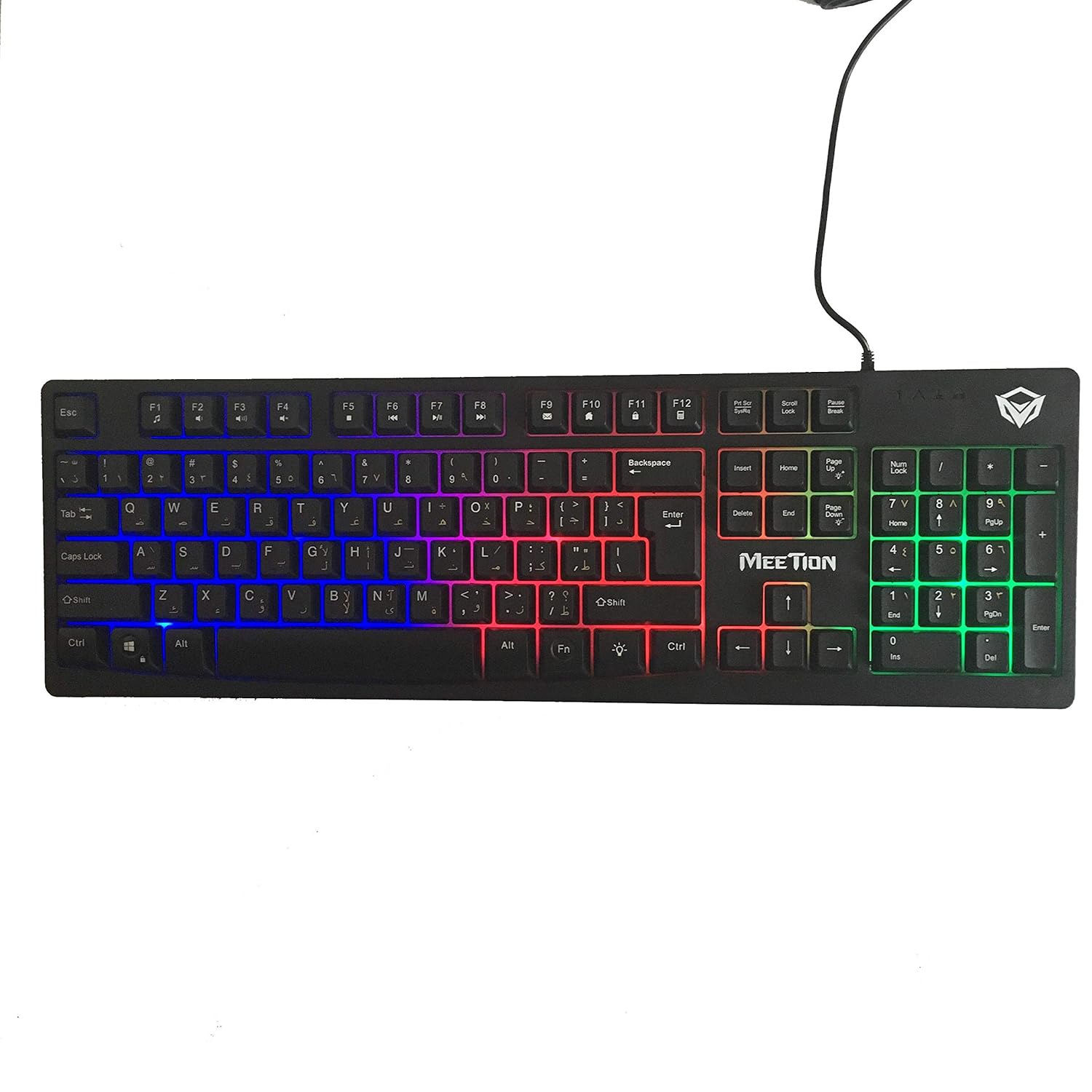
Irudia: Goian view of the MeeTion K9310 Gaming Keyboard with its multicolor backlighting illuminated.
FN Shortcut Functions
The keyboard includes 12 FN (Function) shortcut buttons. To activate these functions, press and hold the FN key, then press the desired F-key (F1-F12).
| Tekla-konbinazioa | Funtzioa |
|---|---|
| FN + F1 | Multimedia erreproduzitzailea |
| FN + F2 | Bolumena jaitsi |
| FN + F3 | Bolumena igo |
| FN + F4 | Isildu |
| FN + F5 | Gelditu |
| FN + F6 | Aurreko Pista |
| FN + F7 | Erreproduzitu/Pausatu |
| FN + F8 | Hurrengo Pista |
| FN + F9 | Posta elektronikoa |
| FN + F10 | Web Arakatzailea |
| FN + F11 | Nire Ordenagailua |
| FN + F12 | Kalkulagailua |
Win Lock Function
To activate or deactivate the Windows key lock function, press FN + Irabazi tekla. When active, the Windows key will be disabled, preventing accidental presses during gaming. An LED indicator on the keyboard will typically illuminate to show the Win Lock status.
Mantentzea
Mantentze egokiak zure teklatuaren iraupena eta errendimendu optimoa bermatzen ditu.
- Garbiketa: Erabili zapi leun eta lehor bat teklatuaren gainazala garbitzeko. Garbiketa sakonago bat egiteko, garbitu zapi pixka bat.amp xaboi leun batekin oihal bat erabil daiteke, likidorik ez sartzeko giltza-etengailuetan edo barneko osagaietan.
- Hautsa kentzea: Erabili aire konprimatua teklen arteko hautsa eta hondakinak kentzeko.
- Saihestu likidoak: Do not spill liquids on the keyboard. If a spill occurs, immediately disconnect the keyboard from the computer and allow it to dry completely before reconnecting.
- Biltegiratzea: Gorde teklatua leku fresko eta lehor batean, eguzki-argitik eta muturreko tenperaturetatik babestuta, denbora luzez erabiltzen ez duzunean.

Irudia: Behealdea view of the MeeTion K9310 Gaming Keyboard, showing the product label and rubber feet.
Arazoak konpontzea
If you encounter issues with your MeeTion K9310 Gaming Keyboard, refer to the following troubleshooting steps:
- Teklatuak ez du erantzuten:
- Ziurtatu USB kablea ondo konektatuta dagoela ordenagailuko USB ataka funtzional batean.
- Saiatu teklatua beste USB ataka batera konektatzen.
- Berrabiarazi ordenagailua.
- Probatu teklatua beste ordenagailu batean arazoa teklatuan edo ordenagailuan dagoen zehazteko.
- Keys Not Working (e.g., 'W' key):
- Check for any debris or foreign objects lodged under the affected key. Use compressed air to clear it.
- If only specific keys are not responding, and the keyboard is otherwise functional, it might indicate a hardware issue.
- Backlight Not Working or Flickering:
- Ziurtatu teklatua behar bezala konektatuta dagoela.
- Check if the backlight brightness is set to minimum or turned off via FN key combinations.
- Arazoak jarraitzen badu, hardwarearen matxura baten adierazle izan daiteke.
- Win Lock Function Not Working:
- Ensure you are using the correct key combination (FN + Win Key) to toggle the function.
- Check the LED indicator for Win Lock status.
Zehaztapenak
| Ezaugarri | Xehetasuna |
|---|---|
| Marka | BILERA |
| Eredua | K9310 |
| Teklatu mota | Joko-teklatua |
| Gako kontaktua | Membrane with tactile feedback |
| Diseinua | Cyrillic alphabet layout (Windows Keys) |
| Ghostingaren aurkakoa | 19 giltza |
| Atzeko argia | Kolore anitzeko tekla atzeko argia |
| Win Lock Function | Bai, LED adierazlearekin |
| FN Shortcut Buttons | 12 |
| Error-Free Running Time | More than 10 million strokes |
| OS bateragarritasuna | Windows XP/Vista/7/8/10 |
| Neurriak | 17.5 × 5.5 x 1.5 inches (approximate) |
| Pisua | 1.2 kilo (gutxi gorabehera) |
| Gailu bateragarriak | Laptop (and Desktop PCs) |
Bermea eta Laguntza
For warranty information or technical support, please refer to the documentation provided at the time of purchase or visit the official MEETION webgunea. Gorde erosketaren egiaztagiria berme-erreklamazioetarako.