
1. Sarrera
Thank you for choosing the Macally USB Type C Wired Mouse. This manual provides detailed instructions for setting up, operating, and maintaining your new mouse. Designed for simplicity and reliability, this plug-and-play mouse offers comfortable use with adjustable DPI settings for various computing needs.
2. Paketearen edukia
- Macally USB Type C Wired Mouse
- Argibide eskuliburua
3. Konfigurazioa
The Macally USB Type C Wired Mouse is designed for easy plug-and-play functionality, requiring no additional drivers for most operating systems.
- Konektatu sagua: Locate an available USB-C port on your computer (MacBook Pro, iMac, PC, Laptop, Tablet, etc.). Insert the USB-C connector of the mouse cable firmly into the USB-C port.
- Aitorpen automatikoa: Your operating system should automatically detect and configure the mouse. No software installation is typically required.
- Erabilera hasi: Behin ezagututa, sagua berehala erabiltzeko prest dago.

Image: The Macally USB-C mouse connected to a laptop via its USB-C cable, demonstrating the plug-and-play setup.
Video: A demonstration of connecting the wired USB-C mouse to a laptop, highlighting its plug-and-play functionality for Type-C computers.
4. Funtzionamendu-argibideak
4.1 Oinarrizko erabilera
The mouse features a standard 3-button layout for intuitive control:
- Ezkerreko klik botoia: Elementuak hautatzeko, irekitzeko erabiltzen da files, eta komandoak exekutatzen.
- Eskuineko botoiarekin klik egiteko: Testuinguru-menuetara eta aukera gehigarrietara sartzeko erabiltzen da.
- Korritzeko gurpila: Dokumentuetan zehar nabigatzeko erabiltzen da eta web pages. The scroll wheel can also be pressed as a middle click button for specific functions in some applications.

Irudia: Goitik behera view of the Macally USB-C mouse, clearly showing the left-click, right-click, and scroll wheel buttons.
4.2 DPI doikuntza
The mouse features a dedicated DPI (Dots Per Inch) switch to adjust cursor sensitivity. This allows you to change the speed and responsiveness of the cursor to suit your preference or task.
- Sakatu DPI botoia (located below the scroll wheel) to cycle through the available sensitivity settings: 800, 1200, 1600, and 2400 DPI.
- Select the DPI setting that provides the most comfortable and efficient cursor movement for your current activity.
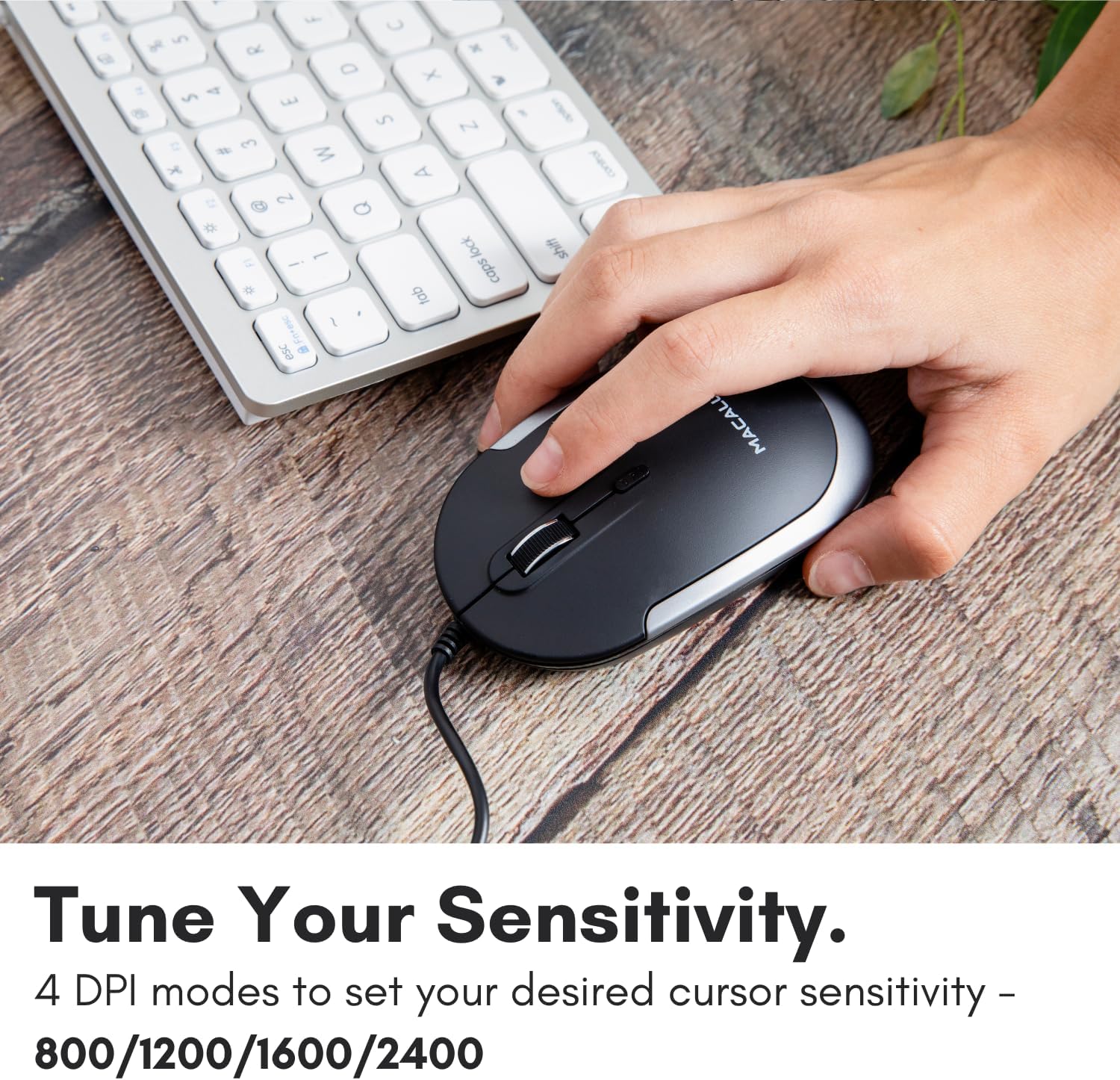
Image: A hand demonstrating how to press the DPI button on the Macally USB-C mouse to adjust sensitivity.
4.3 Bateragarritasuna
The Macally USB Type C Wired Mouse is universally compatible with a wide range of devices and operating systems:
- Mac (macOS)
- PC (Windows)
- iPadOS
- Android devices with USB-C ports

Image: The Macally USB-C mouse displayed with compatibility logos for Mac, PC, iPadOS, and Android operating systems.
5. Ezaugarri nagusiak
- USB-C konexioa: Specifically designed for modern laptops and computers with USB-C ports, ensuring a reliable wired connection.
- Diseinu mehea eta trinkoa: With a height of only 1 inch, the mouse is slim, comfortable, and portable, fitting snugly in your hand.
- Klik isilak egiteko botoiak: Reduces clicking noise by 90% compared to traditional mice, providing a quieter work environment.
- DPI erregulagarria: Easily switch between 800, 1200, 1600, and 2400 DPI settings for precise cursor control.
- 5-Foot Cable: Ematen du ample length for flexible setup and comfortable use, even with desktop computers.
- Diseinu anbidistroa: Eskuineko zein ezkerreko erabiltzaileentzat egokia.

Image: The Macally USB-C mouse highlighting its elegant and slim design with dimensions.
Video: A detailed look at the Macally USB-C Optical Mouse, emphasizing its quiet click buttons and compatibility with Mac and PC.
6. Mantentzea
To ensure the longevity and optimal performance of your Macally USB Type C Wired Mouse, follow these simple maintenance guidelines:
- Garbiketa: Erabili zapi leun, lehor eta lihorik gabeko bat saguaren gainazala garbitzeko. Zikinkeria egoskorra bada, garbitu pixka batampGarbitu zapi bat urarekin edo garbiketa-soluzio leun batekin. Saihestu produktu kimiko gogorrak edo material urratzaileak erabiltzea.
- Sentsore optikoa: Mantendu saguaren azpialdean dagoen sentsore optikoa garbi eta hautsik edo hondakinik gabe. Erabili kotoi-zapi bat edo aire konprimitua beharrezkoa bada.
- Kableen zainketa: Avoid sharp bends or excessive pulling on the USB-C cable to prevent damage. Store the cable neatly when not in use.
- Biltegiratzea: Erabiltzen ez duzunean, gorde sagua leku garbi eta lehor batean, muturreko tenperaturetatik urrun.
7. Arazoak
If you encounter any issues with your Macally USB Type C Wired Mouse, please refer to the following common solutions:
| Arazoa | Irtenbidea |
|---|---|
| Saguak ez du erantzuten. |
|
| Kurtsorearen mugimendua irregularra edo jauzilaria da. |
|
| Buttons or scroll wheel are not working. |
|
8. Zehaztapenak
| Marka | Macally |
| Modelo zenbakia | UCDYNAMOUSESG |
| Konektibitate Teknologia | USB-C kable bidez |
| Mugimenduak detektatzeko teknologia | Optikoa |
| DPI ezarpenak | 800, 1200, 1600, 2400 |
| Kablearen luzera | 5 oin (gutxi gorabehera 1.5 metro) |
| Botoiak | 3 (Left, Right, Scroll Wheel/Middle Click) + DPI Switch |
| Elementuaren pisua | 2.56 ontza (72.5 gramo inguru) |
| Produktuaren neurriak (LxWxH) | 2.8 x 4.21 x 1 hazbete (gutxi gorabehera 7.1 x 10.7 x 2.5 cm) |
| Bateragarritasuna | Mac (macOS), PC (Windows), iPadOS, Android (with USB-C) |
9. Bermea eta Laguntza
Macally provides a 1 urteko bermea for this product. For technical support, troubleshooting assistance, or warranty claims, please contact Macally customer service. You can find contact information and additional resources on the official Macally webgunea:
Webgunea: www.macally.com
Macally also offers easy returns and lifetime support with your purchase.