1. Sarrera
This manual provides detailed instructions for the installation and basic understanding of your A-Tech 16GB DDR4-2666 Desktop Memory module. This memory module is designed to enhance the performance of compatible DELL XPS desktop computers by providing additional random access memory (RAM).
Proper installation is crucial for optimal performance and system stability. Please read all instructions carefully before proceeding with the installation.
2. Segurtasun informazioa
Before handling any computer components, observe the following safety precautions:
- Itzali: Always power down your computer completely and unplug it from the power outlet before opening the case or handling internal components.
- Elektrizitate estatikoa: Static electricity can damage electronic components. Discharge any static electricity from your body by touching a grounded metal object (e.g., the unpainted metal chassis of your computer) before touching the memory module or other internal parts. Consider using an anti-static wrist strap.
- Kontuz maneiatu: Hold the memory module by its edges, avoiding contact with the gold connectors or the chips on the module.
- Aireztapena: Ensure your workspace is well-ventilated.
3. Bateragarritasuna
This A-Tech 16GB DDR4-2666 DIMM is specifically designed for use with the following DELL XPS Desktop Tower Computer models:

Image: A table listing compatible Dell XPS Desktop Models, including 8900, T8900, 8910, T8910, 8920, T8920, 8930, and T8930, along with their various configurations like Ultimate Tower, Small Form Factor, Mini-Tower, and Special Edition.
Onartutako ereduak:
- DELL XPS 8900 (T8900)
- DELL XPS 8910 (T8910)
- DELL XPS 8920 (T8920)
- DELL XPS 8930 (T8930)
This module is a DIMM (Dual In-line Memory Module) and is intended for desktop computers. It is ez bateragarriak with laptop computers, which typically use SODIMM (Small Outline Dual In-line Memory Module) memory.
4. Konfigurazioa eta instalazioa
Follow these steps to install your new A-Tech memory module:
4.1. Prestaketa
- Bildu tresnak: Baliteke Phillips buruko bihurkin bat behar izatea.
- Datuen babeskopia: While memory installation typically does not affect data, it is always recommended to back up important files before performing any hardware changes.
- Deskargatu: Shut down your computer completely. Disconnect the power cable and any other peripherals (monitor, keyboard, mouse, etc.).
- Kasu irekia: Carefully open your computer's side panel to access the motherboard. Refer to your DELL XPS computer's manual for specific instructions on opening the case.
- Discharge Static: Touch an unpainted metal part of the computer chassis to discharge static electricity.
4.2. Memory Module Handling
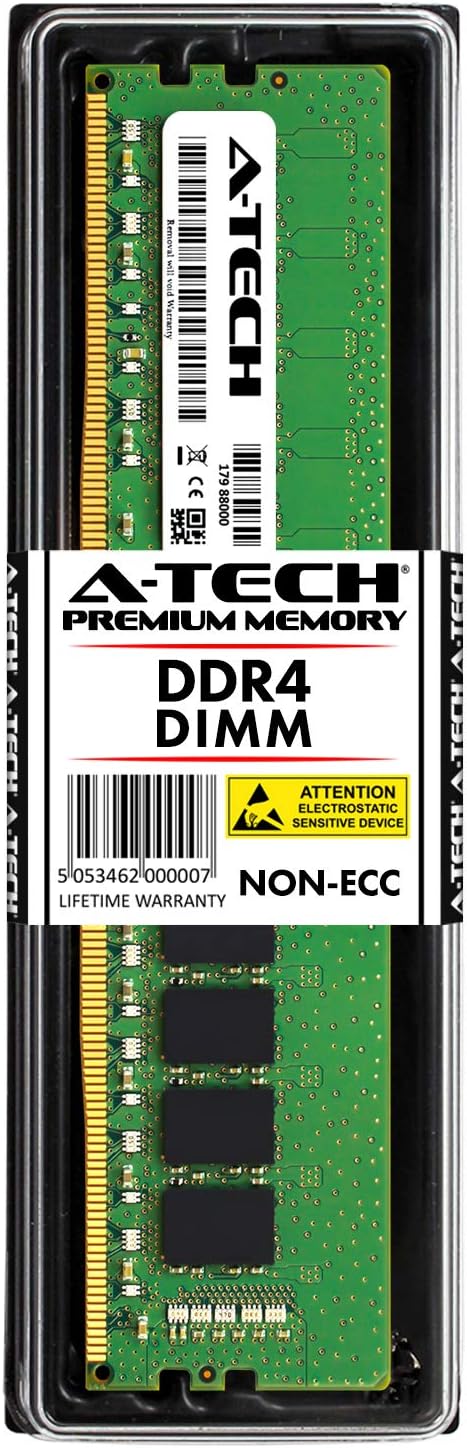
Image: The A-Tech 16GB DDR4 DIMM memory module sealed in its clear plastic retail packaging, showing the product label with 'DDR4 DIMM' and 'NON-ECC' markings.

Image: The A-Tech 16GB DDR4 DIMM memory module removed from its packaging, displaying the green PCB, black memory chips, and gold contacts. The A-Tech logo and a barcode are visible on a white sticker.
Remove the new A-Tech memory module from its anti-static packaging. Hold the module by its top edges, avoiding contact with the gold pins or the integrated circuits (chips).
4.3. Instalazio urratsak
- Locate RAM Slots: Identify the DIMM slots on your motherboard. These are typically long, narrow slots with clips on each end. Your DELL XPS system may have multiple slots.
- Open Clips: Gently push the white clips at both ends of the DIMM slot outwards to open them.
- Align Module: Observe the notch on the bottom edge of the memory module. This notch must align with the key in the DIMM slot. DDR4 modules have a specific notch placement to prevent incorrect insertion.
- Txertatu modulua: Place the memory module into the slot, ensuring the notch is correctly aligned. Apply even pressure to both ends of the module until it clicks into place and the clips automatically snap inwards to secure it. If the clips do not snap automatically, gently push them inwards until they lock.
- Egiaztatu eserlekuak: Visually inspect the module to ensure it is fully seated and level in the slot, with the clips securely holding it.
- Repeat (if installing multiple modules): If you are installing more than one memory module, repeat steps 2-5 for each additional module, following your computer's manual for recommended slot population order.
4.4. Instalazio osteko
- Itxi kasua: Once all memory modules are installed, carefully close your computer's side panel.
- Reconnect Peripherals: Reconnect the power cable and all other peripherals.
- Piztu: Turn on your computer. The system should automatically detect the new memory. You may see a memory count update during the boot process.
- Verify in OS: Once the operating system loads, you can verify the installed memory amount through system information (e.g., Task Manager in Windows, About This Mac in macOS, or system settings in Linux).
5. Funtzionamendua
Once installed, the A-Tech memory module operates automatically with your computer's motherboard and processor. No specific user interaction is required for its operation. The system will utilize the installed RAM to store temporary data, facilitating faster application loading and multitasking.
6. Mantentzea
Memory modules generally require no routine maintenance. To ensure the longevity and stable operation of your memory and computer:
- Mantendu garbi: Periodically clean the interior of your computer case to prevent dust buildup, which can lead to overheating. Use compressed air to gently remove dust from components, including memory modules and their slots.
- Ingurumen Kontrola: Operate your computer in a clean, dry environment with stable temperatures.
- Estres fisikoa saihestu: Do not apply excessive force or bend the memory modules.
7. Arazoak
If you encounter issues after installing the memory, consider the following troubleshooting steps:
- Ez dago pantaila/abio arazorik:
- Ensure the memory module is fully and correctly seated in its slot. Re-seat the module by gently pushing it down until the clips lock.
- Try installing only one module at a time if you installed multiple.
- Test the module in a different memory slot.
- Ensure the memory is compatible with your motherboard and CPU. Refer to your computer's manual.
- Memoria kopuru okerra detektatu da:
- Verify that the operating system is 64-bit to fully utilize more than 4GB of RAM.
- Check BIOS/UEFI settings to ensure memory is detected correctly.
- Re-seat the module as described above.
- Sistemaren ezegonkortasuna/matxurak:
- Exekutatu memoria diagnostiko tresna bat (adibidez, Windows Memory Diagnostic) erroreak egiaztatzeko.
- Ensure your system's BIOS/UEFI is up to date.
If problems persist, contact A-Tech Technical Support for assistance.
8. Zehaztapenak
| Edukiera | 16 GB |
| Memoria Mota | DDR4 SDRAM |
| Abiadura | 2666 MHz (PC4-21300) |
| Forma-faktorea | 288-Pin DIMM |
| liburukiatage | 1.2V |
| Akatsen zuzenketa | Ez-ECC |
| Sailkapena | 2Rx8 |
| Gailu bateragarriak | Desktop Computers (DELL XPS 8900, 8910, 8920, 8930 Series) |
9. Bermea eta Laguntza
A-Tech memory modules come with a Bizi osorako bermea, ensuring peace of mind regarding your purchase. This warranty covers defects in materials and workmanship for the lifetime of the product.
For technical assistance, troubleshooting, or warranty claims, please contact A-Tech Technical Support. Contact information can typically be found on the A-Tech official webgunea edo zure dendariaren bidez.
A-Tech Components Official Webgunea: https://atechmemory.com/


