
Tera D5100
Tera D5100 Wireless 1D 2D QR Barcode Scanner User Manual
Eredua: D5100
Sarrera
The Tera D5100 Barcode Scanner is a versatile and robust device designed for efficient barcode scanning. It supports both 1D and 2D (QR) codes, offering flexible connectivity options including 2.4 GHz wireless and USB wired connections. Featuring a patented battery level indicator and an ergonomic design, this scanner is built for extended use and durability in various environments.

Figure 1: Tera D5100 Barcode Scanner with included accessories.
Ezaugarri nagusiak
- Battery Level Indicator and 2200mAh Capacity: Provides longer continuous usage and extended standby time. Unique indicator lights show remaining battery level.
- Diseinu ergonomikoa: Features a curved and extended handle, specifically tailored for comfortable grip during prolonged use.
- Anti-Shock Silicone (IP54): Equipped with an orange anti-shock silicone protective cover to prevent scratches and friction from falls up to 6.56 feet. IP54 technology offers dust protection.
- 2.4 GHz Wireless plus USB 2.0 Wired Connection: Offers plug-and-play functionality with either a USB receiver for wireless operation (up to 328 ft range in barrier-free environments) or a direct USB cable connection. No driver installation is required.
- Digital and Printed 1D 2D QR Bar Code Symbologies: Supports a wide range of barcode types including 1D (Codabar, Code 11, Code93, MSI, Code 128, UCC/EAN-128, Code 39, EAN-8, EAN-13, UPC-A, ISBN, Industrial 25, Interleaved 25, Standard25, Matrix) and 2D (QR, DataMatrix, PDF417, Aztec, Hanxin, Micro PDF417).

2. irudia: Helduleku ergonomikoak helduleku eroso eta segurua eskaintzen du.
Konfigurazioa
The Tera D5100 barcode scanner offers two primary connection methods for seamless integration with your system.
2.4 GHz Haririk gabeko konexioa
- Locate the USB wireless dongle. It is typically stored in the base of the scanner for convenience.
- Plug the USB wireless dongle into an available USB port on your computer (PC, laptop, etc.).
- The scanner is plug-and-play and should automatically connect to the dongle. The battery indicator lights on the scanner will illuminate, indicating it is ready for use.
USB kable bidezko konexioa
- Connect one end of the provided USB cable to the charging/data port at the bottom of the scanner.
- Konektatu USB kablearen beste muturra ordenagailuko USB ataka erabilgarri batera.
- The scanner will power on and function as a wired device. No additional drivers are typically needed.

Figure 3: The scanner supports both USB wired and 2.4G wireless connections.
Funtzionamendu-argibideak
Eskaneatzeko moduak
The D5100 scanner offers three distinct scanning modes to suit various operational needs:
- Eskuzko Abiarazle Modua: Sakatu abiarazle-botoia eskaneatze-izpia aktibatzeko eta barra-kode bat irakurtzeko.
- Etengabeko eskaneatu modua: The scan beam remains continuously active, allowing for rapid scanning without repeatedly pressing the trigger.
- Auto-Sense Scan Mode: Eskanerrak automatikoki detektatzen du barra-kode bat bere eremuan. view eta eskaneatze-izpia aktibatzen du irakurtzeko.

Figure 4: Choose from Manual, Continuous, or Auto-Sense scanning modes.
Bateriaren mailaren adierazlea
The scanner features a patented battery level indicator on its top surface. This indicator uses a series of blue lights to show the remaining battery charge:
- Four lights: 100% charge
- Three lights: 75% charge
- Two lights: 50% charge
- One light: 25% charge

Figure 5: The battery indicator provides real-time charge status.
Kargatzeko moduak
Eskanerrak bi datuak kargatzeko modu onartzen ditu:
- Berehalako kargatzeko modua: Eskaneatutako datuak berehala transmititzen dira zure konektatutako gailura.
- Biltegiratze modua: Eskaneatutako datuak eskanerraren memorian gordetzen dira barnean eta geroago kargatu daitezke multzo gisa. Hori erabilgarria da denbora errealeko konexioa ez dagoenean beti eskuragarri dauden inbentario-zereginetarako.
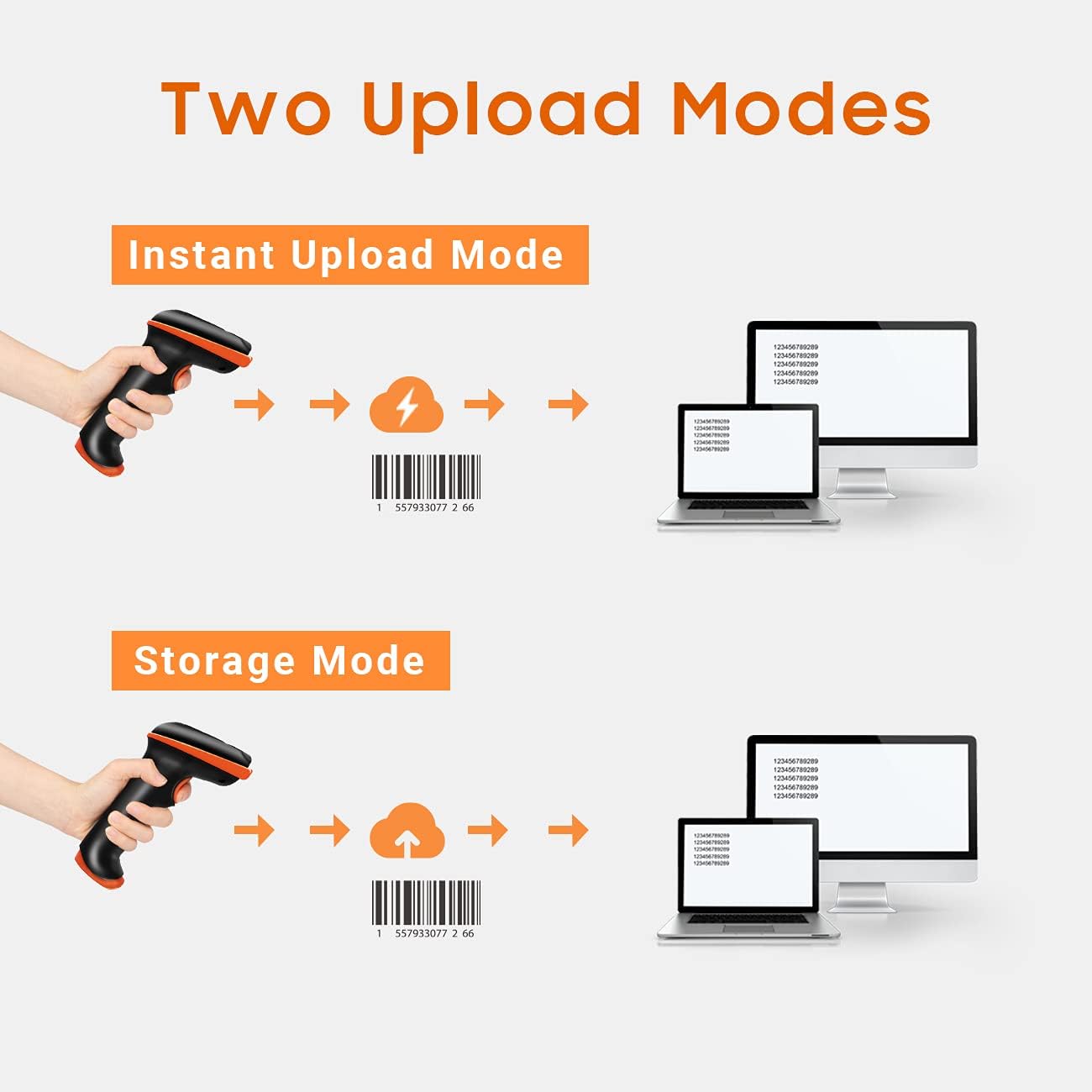
Figure 6: Choose between instant data transfer or storing data for later upload.
Scanning from Digital Screens
The D5100 is capable of scanning both printed 1D/2D codes and codes displayed on digital screens (e.g., smartphones, tablets, monitors).

Figure 7: The scanner can read barcodes from both paper and digital screens.
Adding Prefixes and Suffixes
The scanner can be configured to add custom prefixes or suffixes to scanned data. This feature is useful for data organization and integration with various software systems.

Figure 8: Customize scanned output by adding prefixes or suffixes.
Bolumenaren doikuntza
The scanner's beep volume can be adjusted to suit your environment, with options for low, medium, high, or off.

Figure 9: Adjust the scanner's feedback volume as needed.
Mantentzea
To ensure the longevity and optimal performance of your Tera D5100 Barcode Scanner, follow these maintenance guidelines:
- Garbiketa: Use a soft, dry cloth to clean the scanner's exterior. For stubborn dirt, a slightly damp oihal bat erabil daiteke, baina ziurtatu hezetasunik ez sartzen gailuan.
- Babesa: The scanner features an anti-shock silicone protective cover and an IP54 rating, providing resistance against dust and minor splashes. While durable, avoid submerging the device in water or exposing it to excessive dust.
- Biltegiratzea: Gorde eskanerra leku fresko eta lehor batean, erabiltzen ez duzunean, eguzki-argitik eta muturreko tenperaturetatik babestuta.
- Bateria zaintzea: For optimal battery life, avoid fully discharging the battery frequently. Charge the scanner regularly, especially if it will be stored for an extended period.

Figure 10: The anti-shock silicone and IP54 rating enhance durability.
Arazoak konpontzea
Here are solutions to common issues you might encounter with your Tera D5100 Barcode Scanner:
- Scanner Not Responding / In Sleep Mode: If the scanner has not been used for a while, it may enter a sleep mode to conserve battery. Press the trigger button once or twice to wake it up. The battery indicator lights should illuminate when active.
- Scanner Adds Extra Characters to Scanned Data: This issue typically indicates a configuration mismatch, such as an incorrect keyboard layout setting. Refer to the user manual (included in the package) for specific programming barcodes to reset the scanner to default settings or configure the correct keyboard layout for your region (e.g., US keyboard). If the problem persists, contact customer support.
- Scanning Inaccurate or Slow: Ensure the barcode is clean and not damaged. Hold the scanner at an appropriate distance and angle to the barcode. Check for sufficient lighting. If scanning from a screen, ensure the screen brightness is adequate.
- Haririk gabeko konexio arazoak: Ensure the USB wireless dongle is securely plugged into your computer. Verify that the scanner is within the effective wireless range (up to 328 ft in barrier-free environments). Avoid strong electromagnetic interference.
Zehaztapenak
| Atributua | Xehetasuna |
|---|---|
| Modelo zenbakia | D5100 |
| Produktuaren neurriak | 2.5 x 3.9 x 6.6 hazbete |
| Elementuaren pisua | 12.3 ontza |
| Energia iturria | Bateriaren bidez |
| Bateria mota | 1 litio ioi bateria behar da |
| Konektibitate Teknologia | 2.4G Haririk gabekoa, USB kablea |
| Gailu bateragarriak | Ordenagailu eramangarria, mahaigaina |
| Fabrikatzailea | Tera |
| Jatorrizko Herrialdea | Txina |
Bermea eta Laguntza
Tera products are designed, developed, and supported in the USA. While specific warranty periods may vary, Tera is committed to providing reliable products and customer service. For any technical assistance, troubleshooting, or inquiries regarding your Tera D5100 Barcode Scanner, please refer to the contact information provided in your product packaging or visit the official Tera weblaguntza baliabideen gunea.
Ask a question about this manual
Ask about setup, troubleshooting, compatibility, parts, safety, or missing instructions. Manuals+ will review the question and use this page’s manual context to help answer it.