1. Sarrera
Thank you for choosing the Gembird MUS-6B-01 Optical USB Mouse. This manual provides essential information for setting up, operating, maintaining, and troubleshooting your new mouse. Please read these instructions carefully to ensure optimal performance and longevity of your device.

Image: The official Gembird brand logo, featuring the company name in a stylized font with a geometric design.
2. Produktua amaitu daview
The Gembird MUS-6B-01 is a reliable 6-button optical USB mouse designed for comfortable and precise navigation. Its ambidextrous design makes it suitable for both left and right-handed users.
Ezaugarri nagusiak:
- Jarraipen optikoa: Provides smooth and accurate cursor control.
- 6 Botoiak: Includes standard left/right click, scroll wheel, DPI adjustment, and two side buttons for enhanced functionality.
- USB konexioa: Simple plug-and-play connection to your computer.
- Diseinu anbidistroa: Erosoa bai ezkerreko bai eskuineko erabiltzaileentzat.
Osagaiak:
- Ezkerreko botoia
- Egin klik eskuineko botoian
- Scroll Wheel (also functions as a middle click button)
- DPI doitzeko botoia
- Aurrera botoia (albokoa)
- Atzera botoia (albokoa)
- Optical Sensor (underside)
- USB Connector (at the end of the cable)
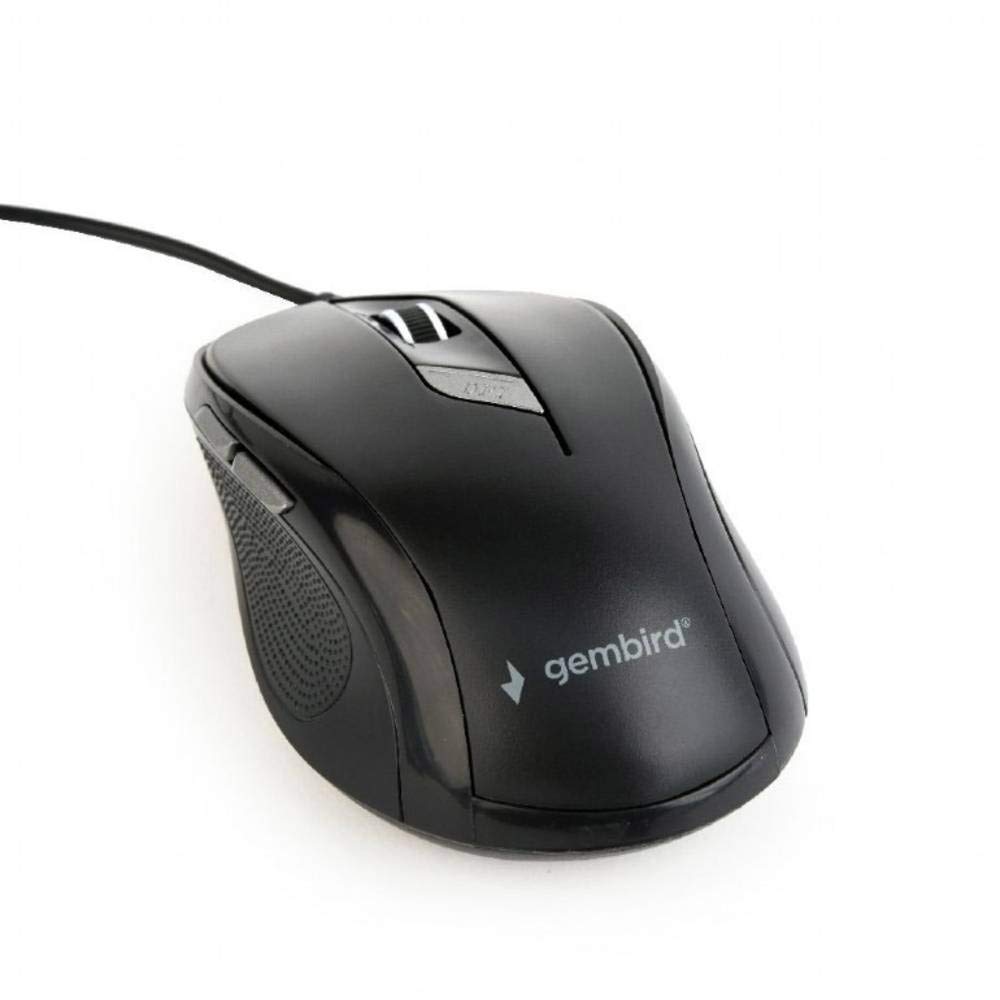
Irudia: Goitik behera view of the Gembird MUS-6B-01 optical USB mouse. The mouse is black with a matte finish, featuring a scroll wheel, left and right click buttons, a DPI button, and two side buttons. A black USB cable extends from the front of the mouse.
3. Konfigurazioa
Setting up your Gembird MUS-6B-01 mouse is a simple plug-and-play process.
Instalazio urratsak:
- Bilatu erabilgarri dagoen USB ataka zure ordenagailuan.
- Plug the USB connector of the Gembird MUS-6B-01 mouse firmly into the USB port.
- Your operating system (Windows, Linux) will automatically detect and install the necessary drivers. This process may take a few moments.
- Behin kontrolatzaileak instalatuta, sagua erabiltzeko prest dago.
Oinarrizko funtzionalitateetarako ez da software gehigarririk instalatu behar normalean.
4. Funtzionamendu-argibideak
Familiarize yourself with the functions of each button on your Gembird MUS-6B-01 mouse.
Oinarrizko funtzioak:
- Ezkerreko klik: Primary action, selecting items, opening files.
- Egin klik eskuineko botoiarekin: Opens context menus, provides additional options.
- Korritzeko gurpila: Joan gora edo behera dokumentuetan zehar eta web orrialdeak.
- Middle Click (Scroll Wheel Press): Often used to open links in new tabs or for specific application functions.
Funtzio aurreratuak:
- DPI doikuntza botoia: Located behind the scroll wheel, this button allows you to cycle through different sensitivity (DPI) settings. Press it to change the cursor speed to suit your preference.
- Aurrera botoia (albokoa): Typically navigates forward in web nabigatzaileak edo file esploratzaileak.
- Atzera botoia (albokoa): Typically navigates backward in web nabigatzaileak edo file esploratzaileak.
The functionality of the side buttons may vary depending on the application or operating system settings. Some operating systems allow customization of these buttons.
5. Mantentzea
Proper care will help extend the life of your Gembird MUS-6B-01 mouse.
Garbiketa:
- Deskonektatu sagua ordenagailutik garbitu aurretik.
- Erabili leuna, apur bat damp, lint-free cloth to wipe the surface of the mouse.
- For stubborn dirt, a small amount of mild soap solution can be applied to the cloth (not directly to the mouse).
- Use a cotton swab or compressed air to clean around the scroll wheel and between buttons.
- Ensure the optical sensor on the underside is clean and free of dust or debris.
- Do not use harsh chemicals, abrasive cleaners, or immerse the mouse in water.
Biltegiratzea:
Denbora luzez erabiltzen ez duzunean, gorde sagua leku garbi eta lehor batean, muturreko tenperaturetatik eta eguzki-argitik babestuta.
6. Arazoak
If you encounter issues with your Gembird MUS-6B-01 mouse, try the following troubleshooting steps:
| Arazoa | Irtenbide posiblea |
|---|---|
| Sagua ez du erantzuten |
|
| Erratic or jumpy cursor movement |
|
| Botoiek ez dute funtzionatzen |
|
7. Zehaztapenak
Detailed technical specifications for the Gembird MUS-6B-01 Optical USB Mouse:
| Ezaugarri | Zehaztapena |
|---|---|
| Marka | Gebirda |
| Ereduaren izena | MUS-6B-01 |
| Konektibitate Teknologia | Kablez (USB) |
| Mugimenduak detektatzeko teknologia | Optikoa |
| Botoi kopurua | 6 |
| Eskuen Orientazioa | Anbidistroa |
| Sistema eragile bateragarriak | Linux, Windows 7, Windows XP (and newer versions) |
| Hardware Plataforma | Ordenagailu pertsonala |
| Kablearen luzera | 5.0 metro |
| Elementuaren pisua | 74 gramo |
| Materiala | Plastikoa |
| Kolorea | Beltza |
| Beharrezko bateriak | Ez |
8. Segurtasun informazioa
Mesedez, errespetatu segurtasun jarraibide hauek:
- Do not expose the mouse to water or excessive moisture.
- Saihestu sagua erortzea edo kolpe gogorrak jasan behar izatea.
- Do not attempt to disassemble or repair the mouse yourself. Refer to qualified service personnel.
- Mantendu gailua muturreko tenperaturatik eta eguzki-argitik urrun.
- Tokiko araudien arabera, bota hondakin elektronikoak arduraz.
9. Bermea eta Laguntza
Gembird products are designed for reliability and performance. For specific warranty terms and conditions, please refer to the warranty card included with your product or visit the official Gembird website. For technical support or further assistance, please contact your retailer or the Gembird customer service department.