
1. Sarrera
The Autel MaxiLink ML519 is an advanced OBDII/EOBD scanner designed to assist in diagnosing vehicle issues. This tool provides comprehensive diagnostic functions, including reading and clearing trouble codes, viewing live data, performing I/M readiness tests, and more. It is compatible with most OBDII-compliant vehicles manufactured from 1996 onwards in the US, and from 2000 for EU-based and Asian cars.
2. Produktua amaitu daview
2.1 Ezaugarri nagusiak
- Reads and clears generic (P0, P2, P3, U0) and manufacturer-specific (P1, P3, U1) codes, and pending codes.
- Motorraren egiaztapen-argia (MIL) itzaltzen du, kodeak ezabatzen ditu eta monitoreak berrezartzen ditu.
- Patented One-Click I/M Readiness Status Key for quick emissions readiness check.
- Views freeze frame data.
- Displays live PCM data stream in text and graphing formats.
- Performs O2 Monitor Test, On-Board Monitor Test (Mode 6), and Component Test.
- Retrieves vehicle identification information (VIN, CALID, and CVN).
- Built-in DTC lookup library for code definitions.
- Memory backup for off-vehicle data review eta analisia.
- Internet updatable for software and language.
- Prints data via Windows-based PC.
2.2 Paketearen edukia
The Autel MaxiLink ML519 package typically includes the following items:
- MaxiLink ML519 Unit
- OBD II Connector Cable
- USB datu-linea
- Gida Azkarra
- Biltegiratzeko poltsa

Image: Contents of the Autel MaxiLink ML519 package, including the scanner unit, cables, quick guide, and storage bag.
3. Konfigurazioa
3.1 Connecting the Scanner to the Vehicle
- Turn the vehicle's ignition off.
- Locate the vehicle's 16-pin Data Link Connector (DLC). The DLC is usually located under the dashboard on the driver's side.
- Connect the OBD II connector cable from the ML519 scanner to the vehicle's DLC. Ensure a secure connection.
- Turn the vehicle's ignition to the ON position (engine off). The scanner will automatically power on.
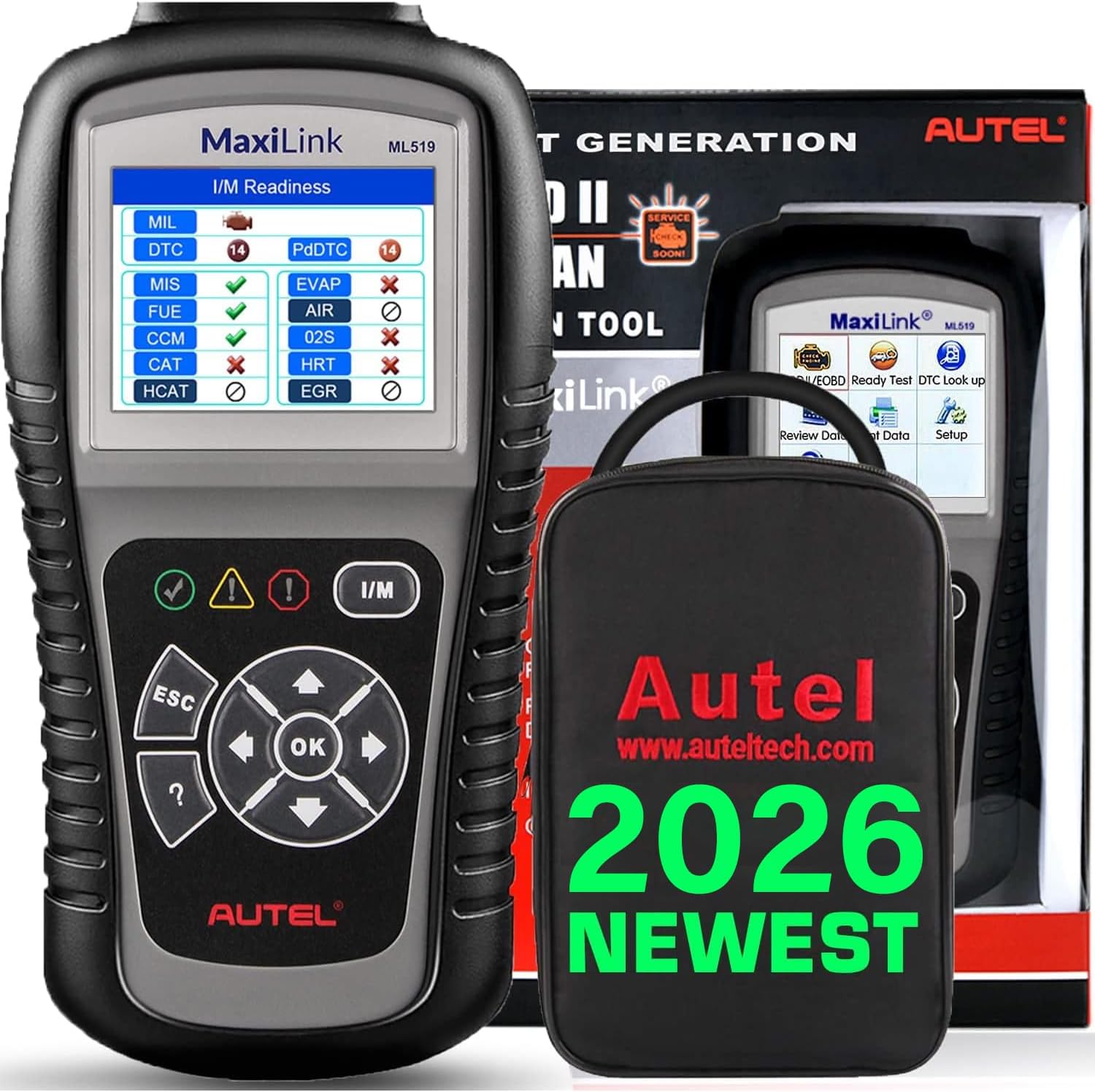
Image: The Autel MaxiLink ML519 scanner connected to a vehicle's OBD-II port, displaying its main menu.
4. Funtzionamendu-argibideak
4.1 Full OBDII Scan Tool Functions
The ML519 supports all 10 modes of OBD II operation, providing comprehensive diagnostic capabilities.

Irudia: Gehiagoview of the Autel MaxiLink ML519's full OBDII scan tool functions, including erase codes, DTC definition, live data, and more.
4.2 Diagnostiko-arazoen kodeak (DTC) irakurtzea eta ezabatzea
To read DTCs:
- Menu nagusitik, hautatu 'Read Codes'.
- The scanner will display any stored or pending DTCs.
To clear DTCs:
- Menu nagusitik, hautatu 'Erase Codes'.
- Confirm the action when prompted. This will turn off the Check Engine Light (MIL) and reset monitors.
4.3 One-Click I/M Readiness (Ready Test)
This function allows you to quickly check the readiness status of the vehicle's emission system, which is crucial for annual emission tests. The ML519 provides visual and audible indications.
- Sakatu dedikatua. I/M Presttasuna button on the scanner.
- The screen will display the status of various monitors (e.g., Misfire, Fuel System, O2 Sensors, EVAP). A green checkmark indicates readiness, while an 'X' indicates not ready.

Image: The Autel MaxiLink ML519 displaying the I/M Readiness screen, showing the status of various emission monitors with checkmarks and 'X' symbols.
4.4 ViewZuzeneko datuak iragartzen
The ML519 can display real-time sensor data from the vehicle's Powertrain Control Module (PCM) in both text and graphical formats. This allows for detailed analysis of vehicle performance.
- Menu nagusitik, hautatu 'Live Data'.
- Choose between 'View Data' (text list) or 'Graph Data' (graphical representation).
- Use the navigation buttons to scroll through parameters or zoom in/out on graphs.

Image: The Autel MaxiLink ML519 displaying live data, showing RPM in a graphical format and a list of data parameters.
4.5 DTC Lookup Function
The built-in DTC lookup library provides detailed definitions for generic and manufacturer-specific trouble codes, helping you understand the cause of a fault.
- Menu nagusitik, hautatu 'DTC Lookup'.
- Enter the DTC code using the scanner's buttons.
- The scanner will display the definition of the entered code.

Image: The Autel MaxiLink ML519 displaying the DTC Lookup function, showing how to input a code and view bere definizioa.
4.6 Other Diagnostic Tests
- O2 Monitorearen Proba: Retrieves O2 sensor monitor test results for the most recently completed tests from the vehicle's on-board computer.
- Monitore Barruko Proba (6. Modua): Isuriekin lotutako potentzia-treneko osagaien eta sistemen proben emaitzak berreskuratzen ditu etengabe kontrolatzen ez direnean.
- Osagaien proba: Ibilgailuaren EVAP sistemaren ihes-proba bat hasteko aukera ematen du.
- Ibilgailuaren informazioa berreskuratu: Ibilgailuaren Identifikazio Zenbakia (VIN), Kalibrazio IDa (CALID) eta Kalibrazio Egiaztapen Zenbakia (CVN) erakusten ditu.
4.7 Data Printing
The ML519 allows you to print diagnostic data via a Windows-based PC. Connect the scanner to your PC using the provided USB cable and use the Autel PC Suite software (available for download from the Autel website) to manage and print data.
5. Mantentzea
5.1 Arreta orokorra
- Keep the scanner dry and clean. Avoid exposure to moisture or extreme temperatures.
- Do not use abrasive cleaners or solvents on the unit. Use a soft, damp garbitzeko oihala.
- Store the scanner in its protective storage bag when not in use to prevent damage.
6. Arazoak
6.1 Ohiko arazoak eta irtenbideak
- Eskanerra ez da pizten: Ensure the OBD II cable is securely connected to the vehicle's DLC and the vehicle's ignition is in the ON position. Check the vehicle's battery voltage (must be 8.0 to 18.0 V).
- Link error: Verify the vehicle is OBDII compliant. Check the connection of the OBD II cable. Turn the ignition off, wait 10 seconds, then turn it back on.
- Ibilgailuarekin komunikaziorik ez: Confirm the vehicle supports OBDII protocols. Try connecting to a different OBDII-compliant vehicle to rule out scanner issues.
- Screen freezes: Disconnect the scanner from the vehicle, then reconnect. If the issue persists, perform a software update.
7. Zehaztapenak
| Zehaztapena | Balioa |
|---|---|
| Bistaratzea | TFT color display (320 x 240 dpi) |
| Funtzionamendu-tenperatura | 0°C eta 60°C (32°F eta 140°F) |
| Biltegiratze Tenperatura | -20 °C eta 70 °C (-4 °F eta 158 °F) |
| Kanpoko Potentzia | 8.0 to 18.0 V via vehicle battery |
| Pantailaren tamaina | 3.5 hazbete |
| Sistema eragilea (ordenagailura konektatzeko) | Windows XP (or later for updates) |
| Elementuaren pisua | 300 gramo |
8. Software eguneraketak
The Autel MaxiLink ML519 comes with lifetime free software updates. Regular updates ensure compatibility with newer vehicle models and provide enhanced features. To update the software:
- Download the Autel PC Suite software from the official Autel webgunea.
- Install the software on a Windows-based PC.
- Connect the ML519 scanner to your PC using the provided USB cable.
- Follow the on-screen instructions in the PC Suite to download and install the latest software updates to your device.
9. Bermea eta Laguntza
9.1 Bermearen informazioa
The Autel MaxiLink ML519 is backed by a 12-month warranty against defects in materials and workmanship from the date of purchase. This warranty covers repair or replacement of the product under normal use conditions.
9.2 Bezeroarentzako laguntza
For any questions, technical assistance, or warranty claims, please contact Autel customer service. Refer to the official Autel website for the most current contact information or use the email provided in your product documentation.