
1. Sarrera
The Xiaomi Mi Router 4A Gigabit Edition (Model: R4AC) is a high-performance dual-band wireless router designed for home and small office environments. It features Gigabit Ethernet ports and supports both 2.4GHz and 5GHz Wi-Fi bands, providing fast and stable internet connectivity for multiple devices. This manual provides detailed instructions for the proper setup, operation, and maintenance of your router.
2. Paketearen edukia
Before proceeding with the setup, please verify that all items are present in your package:
- Xiaomi Mi Router 4A Gigabit Edition (Host)
- Elikatze-moldagailua
- Erabiltzailearen eskuliburua (dokumentu hau)

Image: Visual representation of the router, power cable, and instruction manual included in the package.
3. Produktua amaitu daview
The Xiaomi Mi Router 4A Gigabit Edition features a minimalist design with four external antennas for enhanced signal coverage. It includes multiple ports for wired connections and LED indicators for status monitoring.
3.1 Aurrealdea View

Irudia: Aurrealdea view of the Xiaomi Mi Router 4A Gigabit Edition, showing its sleek white casing and four antennas.
3.2 Angelu View with Antennas

Irudia: Angelua view of the Xiaomi Mi Router 4A, highlighting its four external antennas in an upright position.
3.3 Neurriak
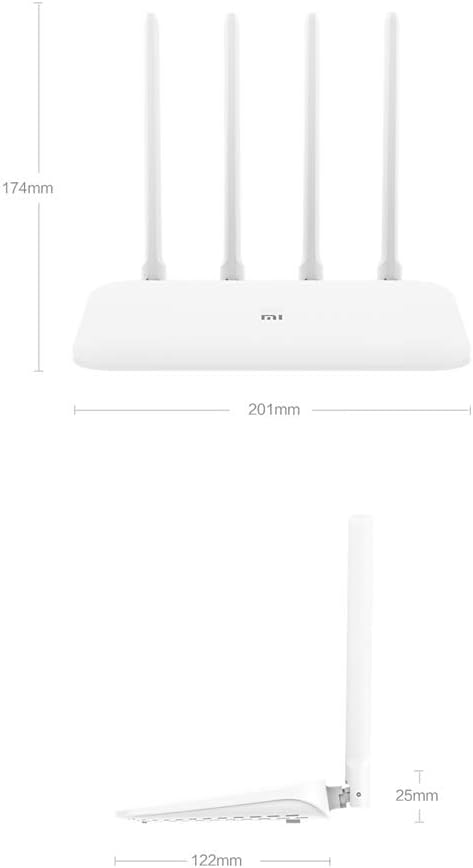
Image: Technical drawing displaying the dimensions of the Xiaomi Mi Router 4A, with measurements in millimeters.
3.4 Portuak eta adierazleak
The router features:
- WAN ataka: 1x 10/100/1000M adaptive port for connecting to your modem or internet service provider.
- LAN ataka: 2x 10/100/1000M adaptive ports for connecting wired devices like computers or gaming consoles.
- Potentzia sarrera: Korronte-egokigailua konektatzeko.
- Sistemaren berrezartze botoia: Fabrika ezarpenak berrezartzeko erabiltzen da.
- LED adierazleak: Two indicators for system status and network activity.
4. Konfigurazioa
4.1 Hardware konexioa
- Konektatu korronte-moldagailua: Konektatu korronte-egokitzailea routerraren elikatze-sarreran eta gero korronte-entxufe batean.
- Konektatu Internetera: Connect an Ethernet cable from your modem's LAN port to the router's WAN port.
- Konektatu kable bidezko gailuak (aukerakoa): For wired connections, connect Ethernet cables from your devices to the router's LAN ports.
4.2 Hasierako konfigurazioa
You can configure the router using a web browser or the Mi Wi-Fi mobile application.
- Konektatu bideratzailearen Wi-Fi sarera: On your computer or smartphone, connect to the default Wi-Fi network broadcast by the router. The network name (SSID) and password are usually found on a label on the bottom of the router.
- Access the Configuration Interface:
- Web Arakatzailea: Ireki a web arakatzailea eta sartu IP helbide lehenetsia (adibidez,
192.168.31.1ormiwifi.com) into the address bar. Follow the on-screen instructions to set up your internet connection and Wi-Fi network. - Mi Wi-Fi App: Download and install the Mi Wi-Fi app on your smartphone. Open the app and follow the prompts to detect and configure your new router.
- Web Arakatzailea: Ireki a web arakatzailea eta sartu IP helbide lehenetsia (adibidez,
- Set Up Wi-Fi Name and Password: During the initial setup, you will be prompted to create a new Wi-Fi network name (SSID) and a strong password for both the 2.4GHz and 5GHz bands. The router supports a unified Wi-Fi name for both frequencies, allowing devices to automatically switch to the optimal band.

Image: Diagram illustrating the unified Wi-Fi name feature, where both 2.4GHz and 5GHz bands share a single SSID for seamless connectivity.
5. Funtzionamendu-argibideak
5.1 Gailuak konektatzea
- Wi-Fi konexioa: On your wireless devices (smartphones, tablets, laptops), search for your Wi-Fi network name (SSID) and enter the password you set during configuration.
- Ethernet konexioa: For devices requiring a wired connection, plug an Ethernet cable from the device into one of the router's LAN ports.
5.2 Sarearen Kudeaketaren Ezaugarriak
The router offers several features to manage and optimize your home network:
- Ekipamenduen kudeaketa: Control internet access times and accessible webgailu espezifikoetarako guneak.
- Intelligent Speed Limit: Allocate bandwidth on demand to ensure a smooth online experience for critical applications.
- Wi-Fi optimizazioa: Perform a one-click detection to improve network performance and resolve common Wi-Fi issues.
- Sarearen segurtasuna: Active interception features help eliminate the risk of unauthorized access or network attacks.

Image: Icons representing various router features, including network management, speed measurement, bandwidth control, Wi-Fi optimization, and network security.
5.3 Gailuaren edukiera
The Xiaomi Mi Router 4A Gigabit Edition is equipped with 128MB of DDR3 memory, supporting stable data transmission for up to 128 connected devices simultaneously. This makes it suitable for smart homes with numerous connected gadgets.

Image: Illustration showing the router's 128MB memory capacity, capable of supporting up to 128 connected devices, surrounded by various smart home devices.
6. Mantentzea
6.1 Firmware eguneraketak
Egiaztatu eta instalatu firmware eguneraketak aldizka errendimendu, segurtasun eta funtzio berrietarako sarbidea optimoa bermatzeko. Firmware eguneraketak normalean bideratzailearen bidez egin daitezke. web interfazea edo Mi Wi-Fi aplikazioa.
6.2 Routerraren berrezarpena
If you encounter persistent issues or wish to clear all configurations, you can perform a factory reset:
- With the router powered on, locate the System Reset Button (usually a small pinhole button).
- Use a paperclip or a similar pointed object to press and hold the reset button for approximately 5-10 seconds until the LED indicators change behavior.
- Release the button. The router will restart with factory default settings. You will need to reconfigure it.
6.3 Ingurumen-gogoetak
To ensure the longevity and stable operation of your router, adhere to the following environmental guidelines:
- Funtzionamendu-tenperatura: 0°C eta 40°C (32°F eta 104°F)
- Funtzionamenduaren hezetasuna: % 10 eta % 90 RH (kondentsatu gabe)
- Biltegiratze tenperatura: -40 °C eta 70 °C (-40 °F eta 158 °F)
- Biltegiratzeko hezetasuna: % 5 eta % 90 RH (kondentsatu gabe)
Avoid placing the router in direct sunlight, near heat sources, or in areas with high humidity.
Image: Details on recommended operating and storage temperature and humidity ranges for the router.
7. Arazoak
This section addresses common issues you might encounter with your Xiaomi Mi Router 4A Gigabit Edition.
- Interneterako sarbidea ez:
- Egiaztatu WAN ataka kablea zure modemara ondo konektatuta dagoen.
- Egiaztatu zure modema behar bezala funtzionatzen duela eta Interneteko konexio aktiboa duela.
- Berrabiarazi modema eta bideratzailea.
- Ensure the router's internet settings (e.g., PPPoE, DHCP, Static IP) are correctly configured according to your ISP.
- Wi-Fi Signal Weak or Unstable:
- Relocate the router to a central location, away from obstructions and interference sources (e.g., microwaves, cordless phones).
- Doitu bideratzailearen antenak seinalearen norabide optimoa lortzeko.
- Use the Wi-Fi Optimization feature in the router's interface or app.
- Ensure your devices are connecting to the appropriate 2.4GHz or 5GHz band.
- Ezin da bideratzailearen konfigurazio orrira sartu:
- Ziurtatu zure gailua bideratzailearen sarera konektatuta dagoela (Wi-Fi edo Ethernet bidez).
- Verify that you are entering the correct IP address (e.g.,
192.168.31.1) edo domeinua (miwifi.com). - Garbitu zure arakatzailearen cachea edo saiatu beste arakatzaile bat erabiltzen.
- Temporarily disable any VPN or proxy settings on your device.
- Interneteko abiadura motela:
- Egiaztatu zure Interneteko zerbitzu hornitzailearen abiadura.
- Ensure no other devices are consuming excessive bandwidth. Use the Intelligent Speed Limit feature if necessary.
- Perform a Wi-Fi Optimization scan.
- If using Wi-Fi, try connecting via Ethernet to determine if the issue is wireless-related.
8. Zehaztapenak
Detailed technical specifications for the Xiaomi Mi Router 4A Gigabit Edition:

Image: Table detailing the router's internal specifications, including processor, memory, Wi-Fi standards, and port configuration.
| Ezaugarri | Deskribapena |
|---|---|
| Modelo zenbakia | R4AC |
| Prozesadorea | MT7621A MPIS Dual Core 880MHz |
| ROM | 16MB |
| Product Memory (RAM) | 128MB DDR3 |
| 2.4G Wi-Fia | 2x2 (supports IEEE 802.11n protocol, up to 300Mbps) |
| 5G Wi-Fia | 2x2 (supports IEEE 802.11ac protocol, up to 867Mbps) |
| Produktuaren Antena | 2x 2.4G (max gain 5dBi), 2x 5G (max gain 6dBi) |
| Makina Interfazea | 1x 10/100/1000M adaptive WAN port (Auto MDI/MDIX), 2x 10/100/1000M adaptive LAN ports (Auto MDI/MDIX) |
| LED adierazlea | 2 |
| Sistema berrezartzeko botoia | 1 |
| Potentzia Sarrerako Interfazea | 1 |
| Protokolo estandarra | IEEE 802.11a/b/g/n/ac, IEEE 802.3/3u |
| Maiztasun bikoitza | 2.4 GHz eta 5 GHz |
| Haririk gabeko kanalak (2.4GHz) | 1, 2, 3, 4, 5, 6, 7, 8, 9, 10, 11, 12, 13 |
| Haririk gabeko kanalak (5GHz) | 36, 40, 44, 48, 149, 153, 157, 161, 165 |
| Sistema eragilea | RouterOS (Custom Xiaomi firmware) |
| Kolorea | Zuria |
| Neurriak (L x W x H) | 201mm x 122mm x 174mm (with antennas up) |
| Gailu bateragarriak | Personal computer, laptop, tablet, smartphone, game console |
| Erabilera gomendatua | Hasiera |
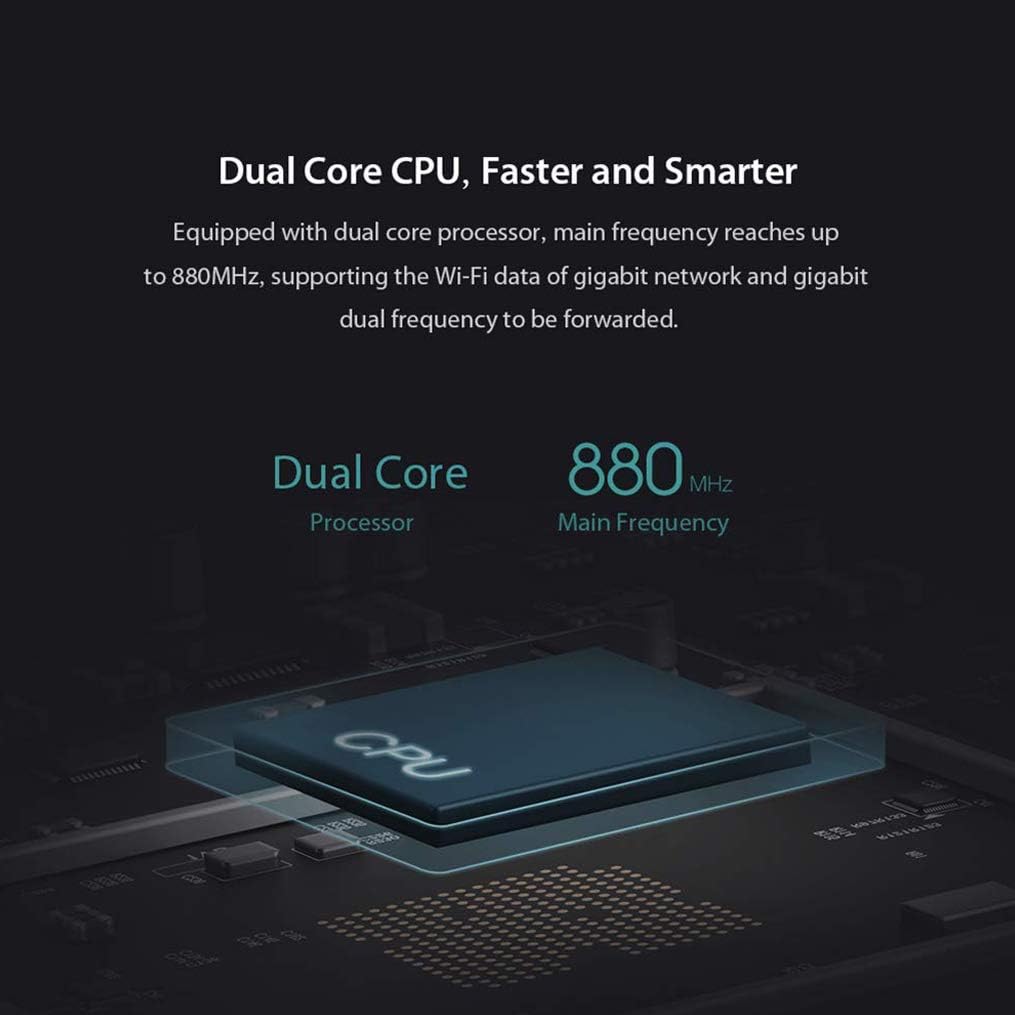
Image: Diagram illustrating the router's dual-core CPU with an 880MHz main frequency, emphasizing its processing capabilities.
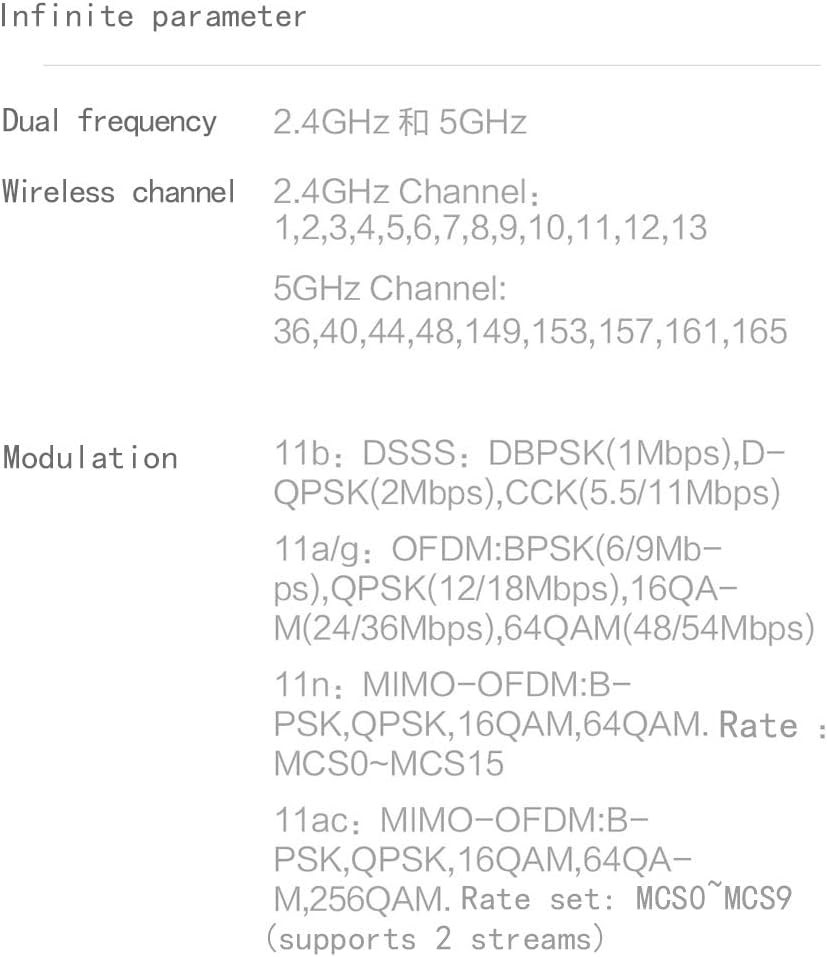
Image: Information on the specific wireless channels available for 2.4GHz and 5GHz bands, along with supported modulation types.
9. Bermea eta Laguntza
Bermeari buruzko informazioa lortzeko, kontsultatu zure produktuarekin batera datorren berme-txartela edo bisitatu Xiaomi-ren webgune ofiziala. website for your region. Support resources, including FAQs and contact information, can also be found on the official Xiaomi support pages. Please retain your proof of purchase for warranty claims.