
Sarrera
This manual provides essential information for the proper setup, operation, and maintenance of your Philips 346B1C Curved Monitor. This 34-inch WQHD (3440 x 1440) display features a 100 Hz refresh rate, 5ms response time, and a curved VA panel for an immersive viewing experience. Key features include USB-C docking, MultiView functionality, FreeSync technology, LowBlue Mode, and FlickerFree technology for enhanced user comfort and productivity.

Irudia: Aurrealdea view of the Philips 346B1C curved monitor, showcasing its ultrawide display and key features like WQHD, USB-C Docking, and MultiView.
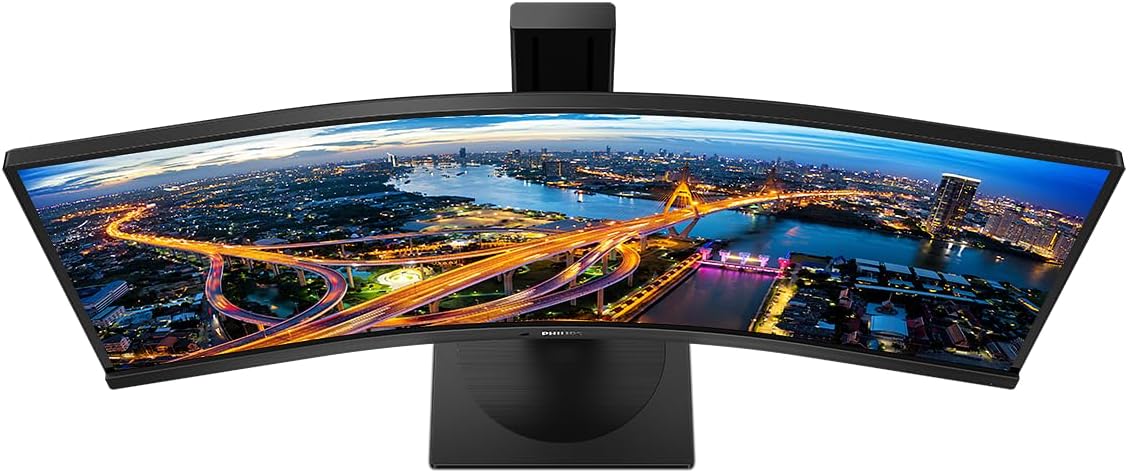
Irudia: Goitik behera view of the Philips 346B1C curved monitor, emphasizing the curvature of the screen.
Kutxan dagoena
Konfigurazioarekin jarraitu aurretik, egiaztatu osagai guztiak daudela.
- Philips 346B1C Curved Monitor
- Monitorearen euskarria (oinarria eta lepoa)
- Elikatze-kablea
- HDMI kablea
- DisplayPort kablea
- USB-C USB-C kablea
- USB-A to USB-B Cable (Upstream)
- Documentation (Quick Start Guide, User Manual CD)
Konfigurazio Argibideak
1. Standa muntatzea
- Jarri monitorearen aurpegia behera gainazal leun eta garbi batean, marradurak saihesteko.
- Lotu euskarriaren lepoa monitorearen panelari. Ziurtatu ondo sartzen dela klik eginez edo torlojuekin lotuta dagoela, baldin badaude.
- Lotu euskarriaren oinarria euskarriaren lepoari. Estutu oinarriaren behealdeko torloju edo torloju eskudunak.

Irudia: Atzealdea view of the Philips 346B1C monitor, showing the stand attachment point and VESA mounting holes.
2. Zure ordenagailura konektatzea
Connect the monitor to your computer using one of the following methods:
- HDMI konexioa: Connect one end of the HDMI cable to the monitor's HDMI port and the other end to your computer's HDMI output.
- DisplayPort konexioa: Connect one end of the DisplayPort cable to the monitor's DisplayPort and the other end to your computer's DisplayPort output.
- USB-C konexioa: Connect one end of the USB-C cable to the monitor's USB-C port and the other end to your computer's USB-C port. This connection supports video, data, and power delivery (up to 90W) to your laptop.
For USB hub functionality, connect the USB-A to USB-B upstream cable from your computer to the monitor's USB-B upstream port.
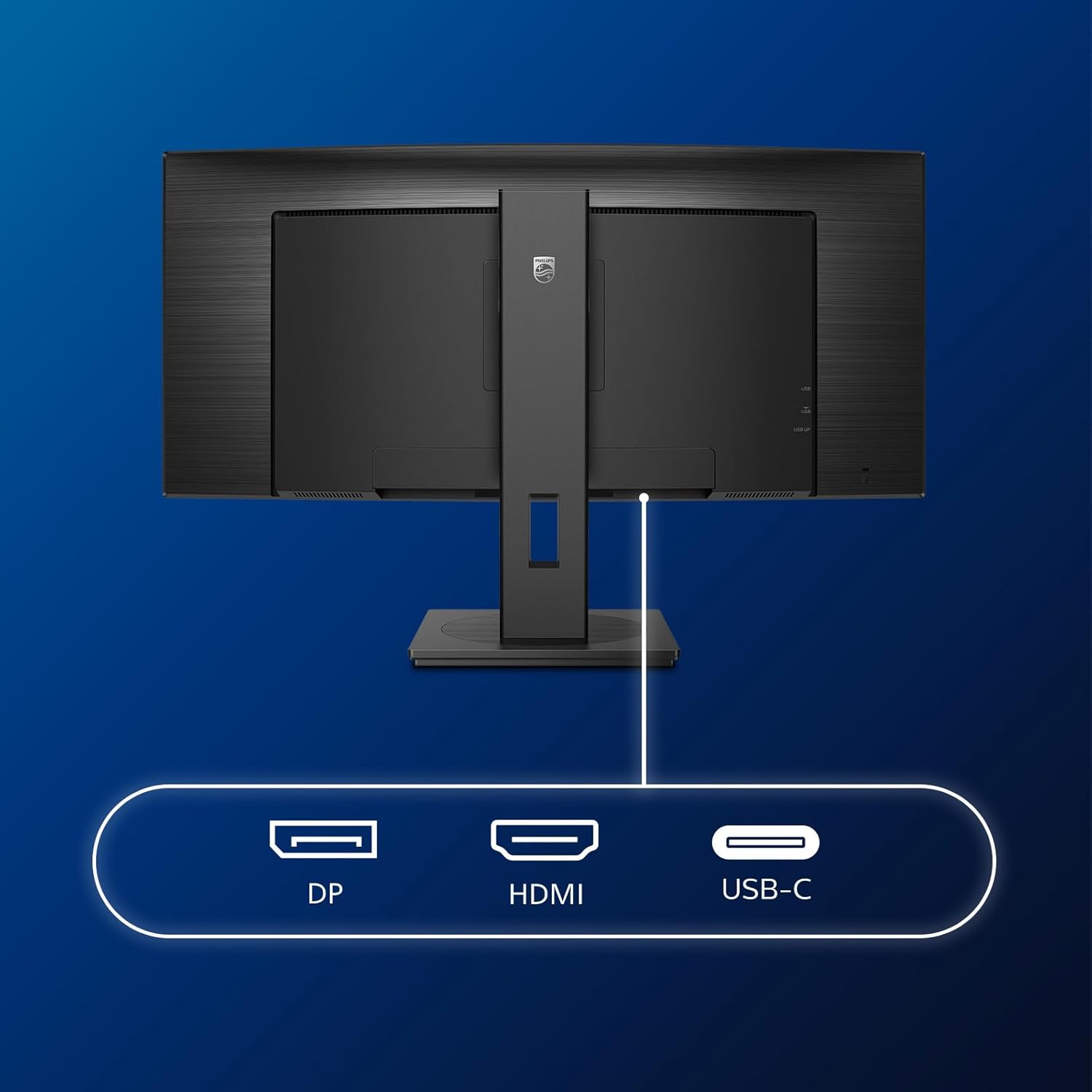
Irudia: Xehetasun handikoa view of the monitor's input ports, including DisplayPort (DP), HDMI, and USB-C, for connecting to various devices.
3. Energia-konexioa
Konektatu elikatze-kablea monitorearen elikatze-sarrerara eta gero lurrera konektatutako entxufe elektriko batera.
4. Hasierako piztea
Press the power button located on the monitor to turn it on. The monitor should automatically detect the input signal. If not, use the On-Screen Display (OSD) menu to select the correct input source.
Funtzionamendu-argibideak
Pantailako pantailan (OSD) menua
The OSD menu allows you to adjust various monitor settings. Use the joystick control located on the back or bottom of the monitor to navigate the menu.
- Distira/Kontrastea: Doitu pantailaren luminantzia eta kontrastea orokorra.
- Kolore ezarpenak: Doitu kolore-tenperatura, gamma eta kolore-espazioa.
- Sarrera hautatzea: Aldatu eskuz HDMI, DisplayPort eta USB-C sarreren artean.
- Audioa: Adjust volume or mute the built-in speakers.
- Irudi modua: Select from preset picture modes (e.g., Standard, Gaming, Text).
AnitzaView Funtzionalitatea
AnitzaView feature allows you to connect and view content from two different sources simultaneously on the screen. Access this feature through the OSD menu to select Picture-by-Picture (PbP) or Picture-in-Picture (PiP) modes and configure input sources.
USB-C akokatzea
When connected via USB-C, the monitor acts as a docking station, providing video, data transfer through its integrated USB hub, and power delivery to charge your connected laptop (up to 90W).
SmartErgoBase and Adjustability
The monitor's SmartErgoBase allows for ergonomic adjustments including height, swivel, and tilt to optimize your viewerosotasuna.

Image: Illustrations demonstrating the monitor's adjustable features, including height adjustment, tilt, and swivel capabilities for ergonomic positioning.
Eye Comfort Ezaugarriak
- LowBlue modua: Reduces harmful shortwave blue light emissions to prevent eye strain. Activate this mode via the OSD menu.
- FlickerFree Technology: Regulates brightness and reduces flicker for more comfortable viewing. This feature is always active.
- PowerSensor & LightSensor: These sensors automatically adjust monitor brightness based on ambient light conditions and user presence, saving energy and reducing eye strain.
Mantentzea
Monitorea garbitzea
- Deskonektatu beti monitorea garbitu aurretik.
- Erabili lipurrik gabeko zapi leun bat dampUrarekin edo pantaila-garbitzaile leun eta ez-urratzaile batekin garbitu.
- Do not use alcohol, solvents, or ammonia-based cleaners, as these can damage the screen surface.
- Garbitu pantaila astiro hautsa eta orbanak kentzeko.
- Garbitu monitore c.asinoihal leun eta lehor batekin garbitu.
Zaintza Orokorra
- Saihestu objektu astunak monitorearen edo haren kableen gainean jartzea.
- Ez jarri monitoreari eguzki-argia zuzenean, bero gehiegi edo hotz handia eraginez.
- Ziurtatu aireztapen egokia monitorearen inguruan.
Arazoak konpontzea
Monitorearekin arazoak badituzu, jarraitu arazoak konpontzeko ohiko urrats hauek:
| Arazoa | Kausa posiblea | Irtenbidea |
|---|---|---|
| Ez dago irudirik pantailan | Kable elektrikoa deskonektatuta; bideo-kablea deskonektatuta; sarrera-iturri okerra hautatuta. | Ensure power cable is securely connected; Check video cable connections (HDMI, DP, USB-C); Select correct input source via OSD menu. |
| Irudia lausoa edo distortsionatua dago | Bereizmen okerra; Grafikoen kontrolatzailearen arazoa. | Set display resolution to 3440 x 1440; Update graphics card drivers. |
| Bozgorailuen soinurik ez | Volume muted or too low; Incorrect audio output selected on computer. | Adjust monitor volume via OSD; Check computer's audio output settings. |
| USB atakak ez dira funtzionatzen | USB kablea ez dago konektatuta. | Ensure the USB-A to USB-B upstream cable is connected from the monitor to your computer. |
For further assistance, please refer to the support section or contact Philips customer service.
Zehaztapenak
| Ezaugarri | Xehetasuna |
|---|---|
| Marka | Philips |
| Modelo zenbakia | 346B1C |
| Pantailaren tamaina | 34 hazbete (86 cm) |
| Ebazpena | 3440 x 1440 (WQHD) |
| Aspektu-erlazioa | 21:9 |
| Pantailaren gainazala | Curved VA Panel |
| Freskatze tasa | 100 Hz |
| Erantzun Denbora | 5 Milliseconds (GtG) |
| Kontraste-erlazioa | 3000:1 (ohikoa) |
| Distira | 300 cd/m² |
| Viewangelua | 178° (H) / 178° (V) |
| Konektibitatea | 1x HDMI 2.0, 1x DisplayPort 1.2, 1x USB-C 3.2 Gen 1 (upstream, power up to 90W), 1x USB-B (upstream), 4x USB 3.2 (downstream), RJ45 (Ethernet) |
| Sinkronizazio egokitzailea | FreeSync |
| Bozgorailu integratuak | 2 x 5W |
| Energia-kontsumoa | 5 Watts (Eco mode) |
| Pisua | 7.8 Kilograms (with stand) |
Bermea eta Laguntza
Bermearen informazioa
This Philips monitor comes with a 2 urteko fabrikatzailearen bermea. The specific terms and conditions of the warranty can be found in the detailed documentation provided with your product or on the official Philips support website. Your statutory rights as a consumer are not affected by this warranty.
Bezeroarentzako Arreta
For technical assistance, product inquiries, or warranty claims, please visit the official Philips support website or contact their customer service department. You may need your monitor's model number (346B1C) and serial number (found on the back of the monitor) when contacting support.
Philips Laguntza Webgunea: www.philips.com/support