
1. Sarrera
Thank you for choosing the iClever BK10 Bluetooth Keyboard. This manual provides essential information for setting up, operating, maintaining, and troubleshooting your new wireless keyboard. Please read it carefully to ensure optimal performance and longevity of your device.
Kutxan dagoena
- iClever BK10 Bluetooth teklatua
- USB-C kargatzeko kablea
- Erabiltzailearen eskuliburua
- Protective Silicone Cover (for key protection)

Figure 1: Included items with the iClever BK10 Bluetooth Keyboard.
2. Ezaugarri nagusiak
- Sleek & Wireless Design: Constructed with stainless steel and ABS, featuring a 10-degree tilt for comfortable desktop use.
- Multi-Device & Multi-OS Compatibility: Seamlessly switch between up to 3 devices using Bluetooth 5.1 technology. Automatically recognizes and adapts to Windows, macOS, iPadOS, Android, iPhone, and Chromebooks.
- Responsive & Low-Profile Gakoak: Scissor-key mechanism provides enhanced feedback, stability, and quiet typing (below 50 dB). Optimized key-travel and anti-slip tapes ensure comfort and precision.
- Compact & Efficient: Full-size layout with a standard numeric keypad. Includes hotkeys for Calculator, Fn lock, Mute, Volume up/down, and more to boost productivity.
- USB-C Rechargeable & Energy Saving: Built-in rechargeable battery offers up to 45 days of use after a 2-hour charge. Features an automatic power-saving sleep mode after 30 minutes of inactivity.
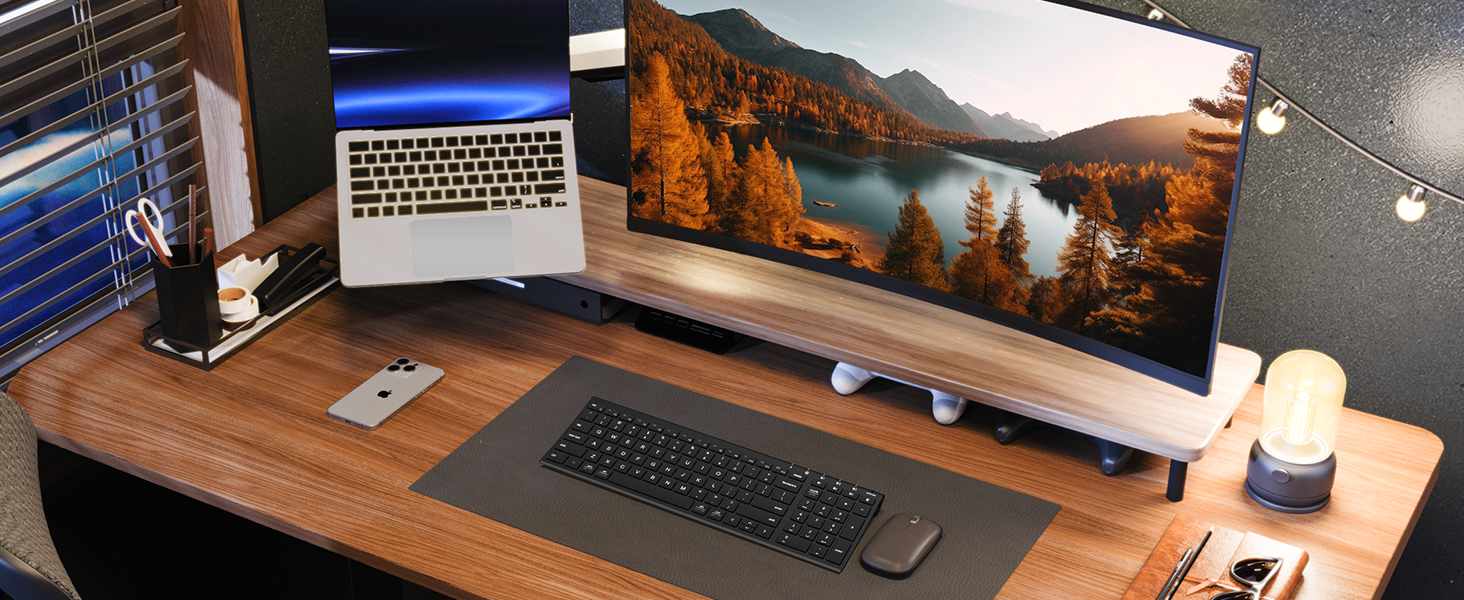
Figure 2: The sleek and wireless design of the iClever BK10 keyboard.
3. Konfigurazioa
3.1 Teklatua kargatzea
Before initial use, fully charge the keyboard using the provided USB-C cable. Connect the USB-C end to the keyboard's charging port (located on the right side) and the USB-A end to a power source (e.g., computer USB port, USB wall adapter). The charging indicator light will illuminate during charging and turn off when fully charged.

Figure 3: USB-C charging port on the iClever BK10 keyboard.
3.2 Piztu/Itzaltzea
Locate the ON/OFF switch on the top right side of the keyboard. Slide the switch to the 'ON' position to power on the keyboard. Slide it to 'OFF' when not in use to conserve battery life.
3.3 Bluetooth parekatzea
The iClever BK10 keyboard supports pairing with up to three devices simultaneously. Follow these steps to pair your devices:
- Piztu teklatua ON/OFF etengailua erabiliz.
- Press and hold one of the Bluetooth channel keys (B1, B2, or B3) for 3-5 seconds until its indicator light starts flashing rapidly. This indicates the keyboard is in pairing mode.
- On your device (computer, tablet, smartphone), go to Bluetooth settings and search for available devices.
- Select "iClever BK10" from the list of found devices.
- Follow any on-screen prompts to complete the pairing process. The indicator light on the keyboard will stop flashing and remain solid for a few seconds, then turn off, indicating successful pairing.
- Repeat these steps for up to two additional devices using the other Bluetooth channel keys (B2 and B3).

Figure 4: Multi-device connectivity of the iClever BK10 keyboard.
4. Funtzionamendu-argibideak
4.1 Gailuen artean aldatzea
To switch between paired devices, simply press the corresponding Bluetooth channel key (B1, B2, or B3) once. The keyboard will connect to the selected device automatically.
4.2 Function Keys and Hotkeys
The iClever BK10 keyboard features a row of function keys (F1-F12) that also serve as hotkeys for various media and system controls. To use the hotkey functions, press the 'Fn' key simultaneously with the desired function key. Some common hotkeys include:
- Fn+F1: Hasiera
- Fn+F2: Search
- Fn+F3: Hautatu Guztiak
- Fn+F4: Kopiatu
- Fn+F5: Itsatsi
- Fn+F6: Moztu
- Fn+F7: Aurreko Pista
- Fn+F8: Erreproduzitu/Pausatu
- Fn+F9: Hurrengo Pista
- Fn+F10: Isildu
- Fn+F11: Bolumena jaitsi
- Fn+F12: Bolumena igo
The keyboard also includes dedicated keys for Calculator, Fn lock, and a standard numeric keypad for efficient data entry.

5 Irudia: Gainetikview of keyboard layout and multi-OS features.
4.3 Operating System Layout Recognition
The keyboard automatically recognizes different operating systems (Windows, macOS, iPadOS, Android) and adjusts its key layout accordingly. For example, the 'Win' key functions as 'Alt' on Mac, and 'Alt' functions as 'Cmd'.
5. Mantentzea
5.1 Garbiketa
To clean your keyboard, power it off and disconnect any cables. Use a soft, lint-free cloth slightly dampened with water or a mild cleaning solution. Avoid excessive moisture and harsh chemicals. The included silicone cover can be removed and washed with mild soap and water.
5.2 Bateria zaintzea
Bateriaren iraupena maximizatzeko:
- Saihestu bateria maiz erabat deskargatzea.
- Charge the keyboard when the battery indicator is low.
- Denbora luzez erabiltzen ez baduzu, gorde teklatua leku fresko eta lehor batean.
- The keyboard enters a power-saving sleep mode after 30 minutes of inactivity. Press any key to wake it up.
6. Arazoak
6.1 Keyboard Not Connecting/Pairing
- Ziurtatu teklatua piztuta eta guztiz kargatuta dagoela.
- Ziurtatu Bluetootha gaituta dagoela zure gailuan.
- Place the keyboard within the effective range (typically 10 meters) of your device.
- Dagoeneko parekatuta badago, saiatu teklatua gailuaren Bluetooth ezarpenetatik desparekatzen eta berriro parekatzen.
- Saiatu teklatua eta gailua berrabiarazten.
6.2 Teklek ez dute erantzuten
- Check if the keyboard is connected to the correct device (verify the active Bluetooth channel).
- Ziurtatu bateria ez dagoela oso baxua.
- Garbitu kaltetutako teklen inguruko hondakin guztiak.
6.3 Connectivity Issues/Lag
- Reduce interference by moving away from other wireless devices (e.g., Wi-Fi routers, cordless phones).
- Ziurtatu zure gailuaren Bluetooth kontrolatzaileak eguneratuta daudela.
- Try connecting to a different Bluetooth channel on the keyboard.
7. Zehaztapenak
| Ezaugarri | Xehetasuna |
|---|---|
| Modelo zenbakia | BK10 |
| Konektibitate Teknologia | Bluetooth 5.1 |
| Gailu bateragarriak | Windows laptops/desktops, MacBook/iMac, iPad/iPhone, Android tablets/phones, Chromebooks |
| Gako kopurua | 104 |
| Gako Aldaketa Mota | Guraize-etengailua |
| Zarata Maila | <50 dB |
| Energia iturria | Bateria kargagarria (USB-C) |
| Bateriaren iraupena | Up to 45 days (after 2 hours charging) |
| Produktuaren neurriak (L x W x H) | 14.41" x 4.92" x 0.63" |
| Materiala | Akrilonitrilo butadieno estirenoa, aluminioa |
8. Bermea eta laguntza
8.1 Bermearen informazioa
The iClever BK10 Bluetooth Keyboard comes with a 12 hilabeteko bermea erosketa-datatik aurrera. Berme honek fabrikazio-akatsak estaltzen ditu eta zure produktua erabilera normalaren pean material eta fabrikazio akatsik gabe dagoela bermatzen du.
8.2 Bezeroarentzako laguntza
If you encounter any issues or have questions regarding your iClever BK10 Bluetooth Keyboard, please refer to the contact information provided in your product packaging or visit the official iClever support weblaguntza eskatzeko gunea.