
1. Produktua amaitu daview
The ProCase Keyboard Case is designed for Microsoft Surface Pro 7 Plus (2021), Surface Pro 7 (2019), Surface Pro 6 (2018), Surface Pro 5th Gen (2017), and Surface Pro 4 (2015) 12.3-Inch Tablets. This product combines a protective case with a functional, laptop-style detachable wireless keyboard, enhancing the usability of your tablet.
Key features include a magnetically detachable wireless keyboard, multiple adjustable viewing angles, and comprehensive protection for your device. The case also supports the Surface Pen's magnetic attachment feature and the tablet's auto Sleep/Wake function when the keyboard is not attached.

Image 1: ProCase Keyboard Case with a Microsoft Surface Pro tablet, showcasing the detachable keyboard and stand functionality.
2. Paketearen edukia
Paketea irekitzean, egiaztatu osagai guztiak daudela:
- Magnetikoki desmunta daitekeen haririk gabeko teklatua
- Tablet Case (with integrated stand)
- Mikro-USB kargatzeko kablea
- Instruction Manual / Thanks Card
1. bideoa: Kutxa ireki eta gehiagoview of the ProCase Keyboard Case components, including the keyboard, case, and charging cable.
3. Konfigurazioa eta instalazioa
3.1 Installing the Tablet into the Case
- Align your Microsoft Surface Pro tablet with the hard shell case.
- Gently press the tablet into the case, ensuring all edges are securely fitted.
- Confirm that all ports, buttons, and the camera are accessible through the precise cutouts.

Image 2: Compatibility chart showing the ProCase Keyboard Case fits Surface Pro 7 Plus / 7 / 6 / 5 / 4 (12.3 inch) tablets.
3.2 Pairing the Wireless Keyboard
- Ensure the keyboard is charged (refer to Section 3.3 for charging instructions).
- Slide the power button on the keyboard to the 'ON' position. The blue status light will illuminate briefly and then turn off.
- Press the 'Connect' button on the keyboard. The blue Bluetooth indicator light will blink, indicating it is in pairing mode.
- On your Microsoft Surface Pro, navigate to Settings > Devices > Bluetooth & other devices. Ensure Bluetooth is turned 'On'.
- Select 'Bluetooth 3.0 Keyboard' from the list of available devices.
- If prompted, enter the displayed code on the keyboard and press 'Enter'.
- Once connected, the blue Bluetooth indicator light on the keyboard will turn off.
3.3 Teklatua kargatzea
To charge the keyboard, connect the provided Micro-USB charging cable to the keyboard's charging port and a suitable USB power source. The Battery status light will be red while charging. Charge the keyboard for 1 to 3 hours, or until the Battery status light turns off, indicating a full charge.
4. Funtzionamendu-argibideak
4.1 Euskarri integratua erabiltzea
The case features three dents that allow you to prop up your tablet at different viewing angles in landscape mode. Adjust the tablet's position in the case to achieve your desired viewangelua.
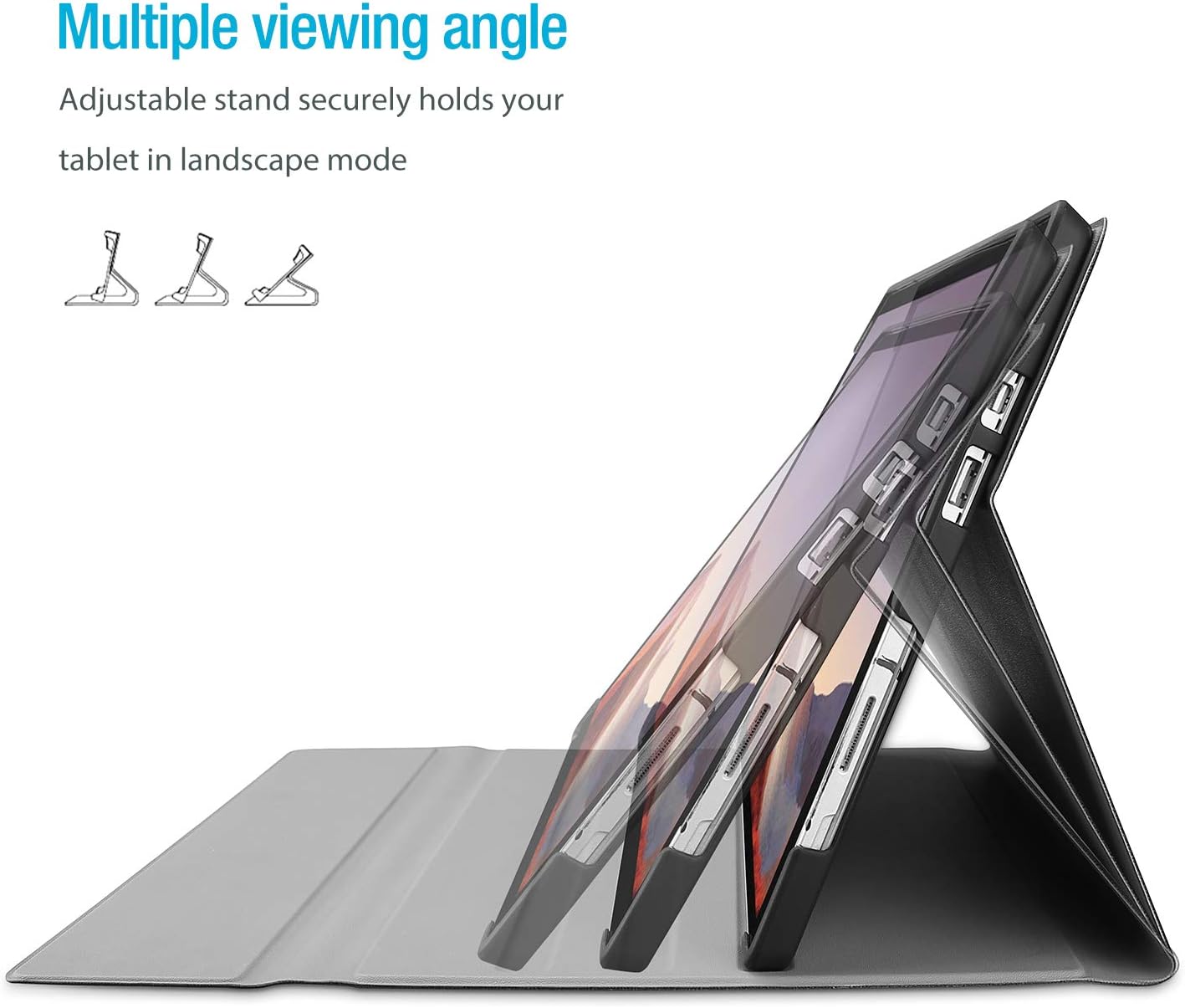
Image 3: The case's design allows for multiple viewing angles, providing flexibility for various tasks.
4.2 Teklatu desmuntagarriaren funtzionaltasuna
The wireless keyboard is magnetically detachable, allowing you to use the tablet independently or position the keyboard for optimal typing comfort. The laptop-style keys with a spring mechanism offer a tactile typing experience.
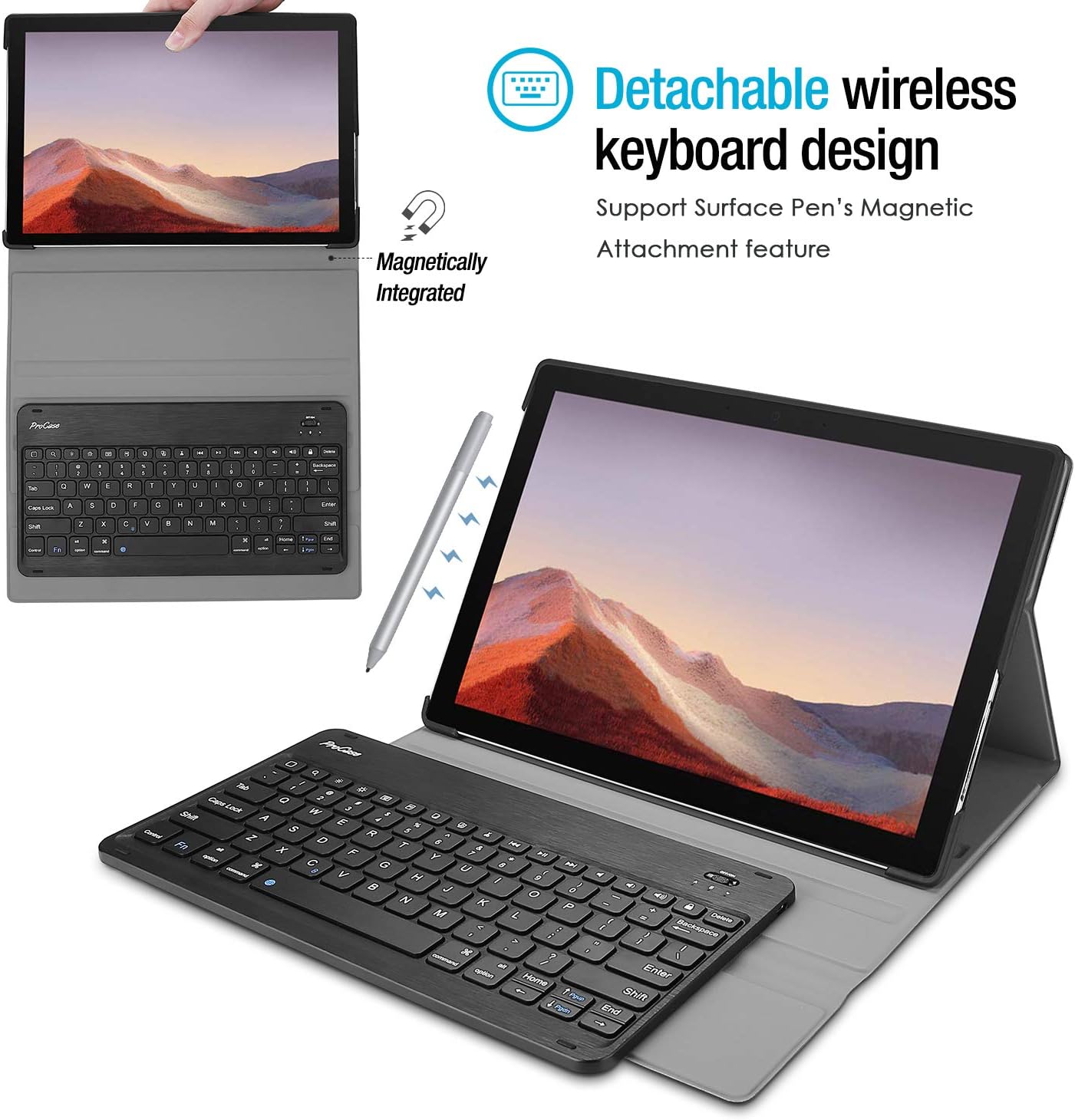
Image 4: The keyboard is magnetically integrated and supports the Surface Pen's magnetic attachment feature.
4.3 Lo/Esnatzeko funtzio automatikoa
The case supports the auto Sleep/Wake function of your tablet. This feature works only when the keyboard is not attached to the case. Closing the cover will put your tablet to sleep, and opening it will wake it up.
4.4 Changing Keyboard Language Settings
To change the input language of the keyboard on your tablet, navigate to Settings > General > Keyboard > Keyboards > Add New Keyboard. Select your desired language from the list. For iOS devices, you can typically switch between languages by pressing the 'Control' and 'Space' keys simultaneously.
5. Mantentzea eta Zainketa
- Keep the keyboard and case away from sharp objects to prevent scratches or damage.
- Avoid placing heavy objects on the keyboard or case.
- Do not expose the product to microwave items.
- Do not force or distort the keyboard or the case.
- Keep the keyboard and case away from water, oil, chemical substances, or other organic liquids.
- If a key falls off, it can typically be reassembled by pressing it back into place until you hear a click.
- Clean the case and keyboard with a soft, dry cloth. Avoid abrasive cleaners.
6. Arazoak
6.1 Keyboard Not Connecting/Responding
- Egiaztatu potentzia: Ensure the keyboard is turned 'ON' and has sufficient battery charge.
- Berriro parekatu gailua: Go to your tablet's Bluetooth settings, forget the 'Bluetooth 3.0 Keyboard' device, and then repeat the pairing process (Section 3.2).
- Berrabiarazi gailuak: Berrabiarazi tableta eta teklatua.
- Interferentzia: Aldendu interferentziak sor ditzaketen haririk gabeko beste gailuetatik.
6.2 Teklak ez dute behar bezala funtzionatzen
- Check Language Settings: Ensure the correct keyboard language is selected on your tablet (Section 4.4). Incorrect settings can cause keys to produce unexpected characters.
- Clean Keyboard: Dust or debris under the keys can affect functionality. Gently clean around the affected keys.
- Parekatu berriro: Try re-pairing the keyboard as described in Section 6.1.
7. Zehaztapenak
| Marka | ProCase |
| Modelo zenbakia | PC-08362125 |
| Gailu bateragarriak | Surface Pro 7 Plus (2021), Surface Pro 7 (2019), Surface Pro 6 (2018), Surface Pro 5th Gen (2017), Surface Pro 4 (2015) 12.3 inch Tablet |
| Konektibitate Teknologia | Haririk gabekoa |
| Teklatuaren deskribapena | Haririk gabekoa |
| Ezaugarri Berezia | Magnetikoa |
| Kolorea | Beltza |
| Materiala | Akrilonitrila Butadiene estirioa |
| Elementuaren pisua | 10 ontza |
| Produktuaren neurriak | 11.5 x 7.9 x 0.29 hazbete |
| Energia iturria | Bateria kargagarria |
8. Bermea eta Laguntza
8.1 Bermearen informazioa
Warranty details for your ProCase Keyboard Case are typically included with the product packaging or can be found on the official ProCase webgunea. Gorde erosketaren egiaztagiria bermearen erreklamazioetarako.
8.2 Bezeroarentzako laguntza
For technical assistance, troubleshooting, or any inquiries regarding your ProCase Keyboard Case, please contact ProCase customer support through their official webgunea edo zure produktuaren dokumentazioan emandako harremanetarako informazioa.