
Iproda T1045A
iProda T1045A 10.1 inch Android Tablet User Manual
Comprehensive instructions for your iProda T1045A Android Tablet.
1. Sarrera
This manual provides detailed instructions for the setup, operation, maintenance, and troubleshooting of your iProda T1045A 10.1 inch Android Tablet. Please read this manual thoroughly before using your device to ensure proper functionality and to maximize your user experience.
The iProda T1045A is a 10.1-inch tablet featuring an HD IPS display with 1280x800 resolution, powered by a 64-bit Quad-core processor running Android 9 Pie. It includes 3GB RAM, 64GB internal storage expandable up to 128GB via TF card, dual-band Wi-Fi, HDMI output, and a 5000mAh battery for extended use.
2. Produktua amaitu daview
2.1 Paketearen edukia
Paketea irekitzean, egiaztatu elementu guztiak bertan daudela:
- iProda T1045A 10.1 inch Android Tablet
- USB kablea
- Elikatze-moldagailua
- Erabiltzailearen eskuliburua (dokumentu hau)

Image: Contents of the iProda T1045A tablet package.
2.2 Gailuaren diseinua
Familiarize yourself with the physical components and ports of your tablet:
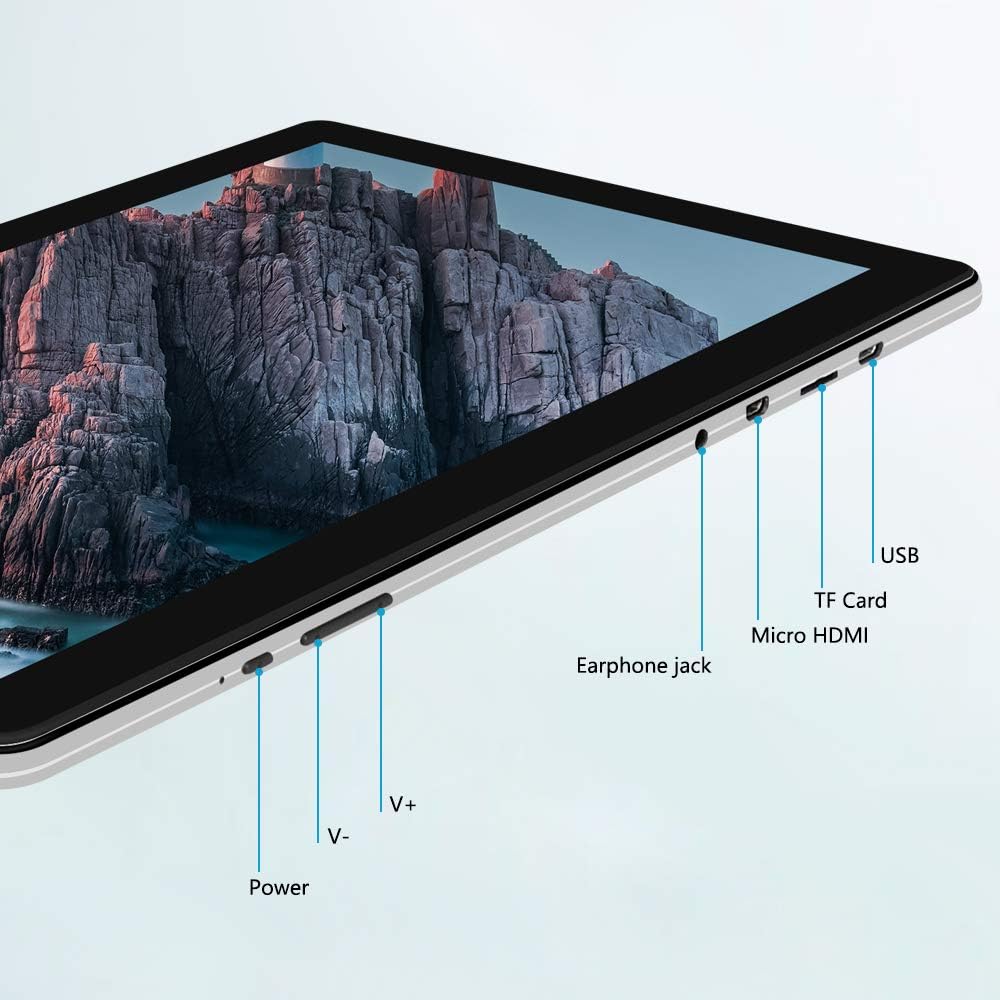
Irudia: Albokoa view of the iProda T1045A tablet highlighting port locations.
- Pizteko botoia: Sakatu eta eutsi tableta pizteko/itzaltzeko edo berrabiarazteko. Sakatu labur pantaila pizteko/itzaltzeko.
- Volume Buttons (V+, V-): Doitu audioaren bolumena.
- Entzungailuen kablea: Konektatu 3.5 mm-ko entzungailuak.
- TF txartelaren zirrikitua: Insert a microSD card for expandable storage (up to 128GB).
- Mikro HDMI ataka: Connect to an external display using a Micro HDMI to HDMI cable.
- USB ataka: Connect to a computer for data transfer or for charging the device.
3. Konfigurazioa
3.1 Hasierako karga
Before first use, fully charge the tablet. Connect the provided USB cable to the tablet's USB port and the power adapter, then plug the adapter into a wall outlet. The charging indicator will typically illuminate. A full charge may take several hours.
3.2 Piztu/Itzaltzea
- Pizteko: Eduki sakatuta pizteko botoia pantaila argitu arte.
- Itzaltzeko: Sakatu eta eutsi pizteko botoiari pantailan pizteko menua agertu arte. Hautatu "Itzali" eta baieztatu.
- Berrabiarazteko: From the power menu, select "Restart".
- Pantaila piztu/desaktibatu: Briefly press the Power button to turn the screen off (sleep mode) or wake it up.
3.3 Hasierako konfigurazio-morroia
The first time you power on the tablet, you will be guided through an initial setup process. Follow the on-screen prompts to:
- Aukeratu nahi duzun hizkuntza.
- Konektatu Wi-Fi sare batera.
- Konfiguratu zure Google kontua (aukerakoa, baina aplikazioen deskargetarako gomendagarria).
- Konfiguratu data eta orduaren ezarpenak.
3.4 Inserting a TF Card (MicroSD)
To expand the tablet's storage:
- Bilatu tabletaren alboan dagoen TF txartelaren zirrikitua.
- Carefully insert a microSD card (up to 128GB) into the slot with the gold contacts facing down until it clicks into place.
- Txartela astiro-astiro barrurantz atera arte.
4. Funtzionamendu-argibideak
4.1 Oinarrizko nabigazioa
The iProda T1045A uses a touch-sensitive screen for navigation:
- Sakatu: Hautatu elementu bat edo ireki aplikazio bat.
- Eduki ukituta: Sartu testuinguru-menuetara edo mugitu ikonoak.
- Pasatu hatza: Joan zerrendetan zehar edo aldatu hasierako pantailen artean.
- Pixka bat: Irudiak handitu edo txikitu eta web orrialdeak.
4.2 Wi-Fi konexioa
Hari gabeko sare batera konektatzeko:
- Joan zaitez Ezarpenak > Sarea eta Internet > Wi-Fi.
- Wi-Fia aktibatu/desaktibatu On.
- Hautatu nahi duzun sarea zerrendatik.
- Eskatzen bazaizu, idatzi pasahitza eta, ondoren, sakatu Konektatu.
The tablet supports both 2.4G and 5G dual-band Wi-Fi for faster and more stable connections.
4.3 Bluetooth parekatzea
To pair with Bluetooth devices (e.g., headphones, speakers):
- Joan zaitez Ezarpenak > Konektatutako gailuak > Bluetootha.
- Aktibatu Bluetooth-a On.
- Ziurtatu zure Bluetooth gailua parekatze moduan dagoela.
- Select your device from the list of available devices and follow any on-screen prompts to complete pairing.
4.4 Kamerak erabiltzea
Tabletak 2MP-ko aurrealdeko kamera eta 5MP-ko atzeko kamera ditu.
- Ireki Kamera application from the app drawer.
- Sakatu kameraren ikonoa aurreko eta atzeko kameren artean aldatzeko.
- Sakatu obturadorearen botoia argazkiak ateratzeko edo bideo grabaketa hasteko/gelditzeko.

Image: Tablet in use, showcasing its camera capabilities.
4.5 Connecting to an External Display (HDMI)
To display your tablet's screen on a larger monitor or TV:
- Connect one end of a Micro HDMI cable to the tablet's Micro HDMI port.
- Connect the other end of the cable to an HDMI input on your external display.
- Select the correct HDMI input source on your external display.
- The tablet's screen content should now be mirrored on the external display.
4.6 Aplikazioen kudeaketa
The tablet runs Android 9 Pie and supports applications from the Google Play Store.
- Aplikazioak instalatzea: Ireki Play Store app, search for your desired application, and tap Instalatu.
- Aplikazioak desinstalatzea: Tap and hold an app icon on the home screen or in the app drawer, then drag it to "Uninstall" or select "App info" and choose "Uninstall". Alternatively, go to Ezarpenak > Aplikazioak eta jakinarazpenak, hautatu aplikazioa eta sakatu Desinstalatu.
5. Mantentzea
5.1 Gailua garbitzea
To clean your tablet:
- Itzali tableta garbitu aurretik.
- Erabili zapi leun eta lihorik gabekoa, apur bat lehortuaampUrarekin edo pantaila-garbitzaile batekin garbitu, pantaila eta gorputza garbitzeko.
- Saihestu produktu kimiko gogorrak, garbitzaile urratzaileak edo gehiegizko hezetasuna erabiltzea.
5.2 Software eguneraketak
Periodically check for software updates to ensure optimal performance and security:
- Joan zaitez Ezarpenak > Sistema > Aurreratua > Sistema eguneratzea.
- Follow the on-screen instructions to download and install any available updates. Ensure your tablet is sufficiently charged or connected to power during updates.
5.3 Biltegiratze kudeaketa
To manage internal storage and the TF card:
- Joan zaitez Ezarpenak > Biltegiratzea.
- Hemen dezakezu view storage usage, free up space, and manage files on both internal storage and the inserted TF card.
6. Arazoak
This section addresses common issues you might encounter with your iProda T1045A tablet.
6.1 Gailua ez da pizten
- Ziurtatu tableta behar bezala kargatuta dagoela. Konektatu korronte-egokitzailera eta utzi gutxienez 30 minutuz kargatzen berriro pizten saiatu aurretik.
- Try holding the Power button for 10-15 seconds to force a restart.
6.2 Wi-Fi konexio arazoak
- Verify that Wi-Fi is enabled in Ezarpenak.
- Ziurtatu Wi-Fi pasahitz zuzena sartzen ari zarela.
- Berrabiarazi Wi-Fi bideratzailea eta tableta.
- Try connecting to a different Wi-Fi network to determine if the issue is with the tablet or the network.
6.3 Errendimendu motela
- Itxi behar ez diren atzeko planoko aplikazioak.
- Clear cached data for apps in Ezarpenak > Aplikazioak eta jakinarazpenak > [Aplikazioaren izena] > Biltegiratzea eta cachea > Garbitu cachea.
- Ensure sufficient free storage space. Uninstall unused apps or move large files to a TF card.
- Berrabiarazi tableta.
6.4 Bateria azkar agortzen
- Murriztu pantailaren distira.
- Desgaitu Wi-Fi, Bluetooth eta GPSa erabiltzen ez dituzunean.
- Itxi energia asko kontsumitzen duten atzeko planoan dauden aplikazioak.
- Egiaztatu bateriaren erabilera hemen: Ezarpenak > Bateria energia-gosea duten aplikazioak identifikatzeko.
- Ensure the tablet is not allowed to run below 15% charge frequently, as this can impact battery longevity.
6.5 Fabrika berrezarri
Arazo iraunkorrak gertatzen badira, fabrika berrezartzeak konpondu ditzake. Abisua: Honek tabletako datu guztiak ezabatuko ditu. Jarraitu aurretik, egin datu garrantzitsuen babeskopia.
- Joan zaitez Ezarpenak > Sistema > Aurreratua > Berrezarri aukerak.
- Hautatu Ezabatu datu guztiak (fabrika berrezarri).
- Berretsi zure erabakia eta jarraitu pantailan agertzen diren argibideei.
7. Zehaztapenak
Below are the technical specifications for the iProda T1045A tablet:
| Ereduaren izena | T1045A |
| Sistema eragilea | Android 9 Pie |
| Bistaratzeko tamaina | 10.1 hazbete |
| Bistaratzeko ebazpena | 1280 x 800 pixels (HD IPS) |
| Prozesadorea | MediaTek Quad-core 1.5Ghz |
| RAM | 3 GB |
| Barne Biltegiratzea | 64 GB SSD |
| Biltegiratze zabalgarria | Up to 128 GB via TF Card (MicroSD) |
| Koprozesadore grafikoa | ARM Mali-T720 MP2 |
| Atzeko kamera | 5 MP |
| Aurrealdeko kamera | 2 MP |
| Bateria Edukiera | 5000 mAh litio-polimeroa |
| Bateriaren batez besteko iraupena | Gehienez 8 ordu |
| Haririk gabeko konexioa | Dual-Band Wi-Fi (802.11a/b/g/n), Bluetooth 4.0 |
| Portuak | 1x USB 2.0, 1x Micro HDMI, 3.5mm Earphone Jack, TF Card Slot |
| Neurriak | 34.5 x 19.7 x 5.5 cm |
| Pisua | 550 g |

Image: Key performance specifications of the tablet.

Image: Tablet portability and battery details.
8. Bermea eta Laguntza
8.1 Produktuaren bermea
The iProda T1045A tablet comes with a 12 hilabeteko bermea erosketa-datatik aurrera. Berme honek erabilera normalaren ondoriozko fabrikazio-akatsak eta matxurak estaltzen ditu. Ez ditu estaltzen erabilera okerrak, istripuek, baimenik gabeko konponketek edo higadura normalak eragindako kalteak.
8.2 Bezeroarentzako laguntza
If you encounter any issues not covered in the troubleshooting section or require further assistance, please contact iProda customer support. Refer to your purchase documentation or the iProda official webharremanetarako informazioa lortzeko gunea.
When contacting support, please have your tablet's model number (T1045A) and purchase details readily available.
Ask a question about this manual
Ask about setup, troubleshooting, compatibility, parts, safety, or missing instructions. Manuals+ will review the question and use this page’s manual context to help answer it.