
Sarrera
The Sudio Flyg is a versatile wireless Bluetooth adapter designed to enhance your audio experience by enabling wireless connectivity with analog audio devices. This device allows you to use your preferred wireless headphones or earbuds with systems that typically require a wired connection, such as in-flight entertainment systems, portable gaming devices, and televisions.
Enjoy the freedom of wireless audio with features like a long battery life, lag-free high-fidelity sound, and broad compatibility across various platforms.
Produktua amaituview
Ezaugarri nagusiak
- Haririk gabeko konektagarritasuna: Converts analog audio signals to wireless Bluetooth for use with wireless headphones or earbuds.
- Bateriaren iraupen hedatua: Up to 12 hours of playtime, with the ability to operate while charging.
- Lag-Free High-Fidelity Audio: Powered by Bluetooth 5.3 for stable connection and high-quality sound within a 10m/33ft range.
- Bateragarritasun zabala: Connects to devices with a 3.5mm headphone jack or dual 3.5mm flight audio sockets. Compatible with airplane entertainment, Nintendo Switch, Xbox/PlayStation controllers, gym equipment, A/V receivers, and TVs.
- Erabiltzeko erraza: Simple setup and pairing process with clear status indicators.
Paketearen edukia
- Sudio Flyg Bluetooth Transmitter
- USB-C kargatzeko kablea

Image: The Sudio Flyg device shown with its dual 3.5mm audio jacks extended, alongside a pair of black wireless earbuds, illustrating its primary function.
Konfigurazio Argibideak
1. Piztea eta hasierako parekatzea
- Piztu: Press and hold the multifunction button on the Sudio Flyg for 3 seconds. The LED indicator will blink white, indicating that pairing mode has automatically started.
- Pair Your Audio Device: Ensure your wireless headphones or earbuds are in pairing mode and placed near the Sudio Flyg. The Flyg will automatically search for and connect to your device.
- Konexio arrakastatsua: Once the first device is successfully paired, the LED will blink red.
2. Pairing a Second Audio Device
- While the LED is blinking red (after the first device is paired), place your second audio device in pairing mode near the Sudio Flyg.
- The Flyg will attempt to pair with the second device.
- If no second device is successfully paired, the LED will stop blinking red after a period.
3. Re-entering Pairing Mode
- If you need to enter pairing mode again (e.g., to pair a new device or if a second device failed to connect), double-click the multifunction button. The LED will resume blinking white.
Video: Official Sudio Flyg Pairing Instructions. This video demonstrates the steps for powering on the device and pairing it with one or two Bluetooth audio devices.

Image: The Sudio Flyg with its dual 3.5mm audio jacks extended, illustrating its readiness to connect to various audio sources.
Funtzionamendu-argibideak
Audio-iturri batera konektatzea
- Extend the appropriate 3.5mm audio jack(s) from the Sudio Flyg.
- Insert the jack(s) into the AUX port or dual 3.5mm flight audio socket of your desired audio source (e.g., airplane entertainment system, gaming console, TV).
- Ensure your paired wireless headphones or earbuds are powered on and within range. The Sudio Flyg will automatically connect to them.
Charging the Sudio Flyg
- Connect the included USB-C charging cable to the Sudio Flyg and a power source.
- The device can be used while it is charging, ensuring uninterrupted audio during long periods of use, such as extended flights.
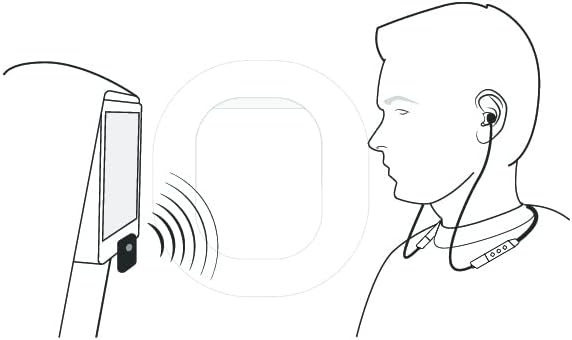
Image: A diagram illustrating the Sudio Flyg connected to an in-flight entertainment system, transmitting audio wirelessly to a user's earbuds.
Mantentzea
- Keep the device dry and clean. Use a soft, dry cloth for cleaning.
- Saihestu gailua muturreko tenperaturetara edo eguzki-argitara zuzenean jarri.
- Gorde gailua leku seguru batean erabiltzen ez duzunean, kalte fisikoak saihesteko.
Arazoak konpontzea
| Arazoa | Kausa posiblea | Irtenbidea |
|---|---|---|
| Gailua ez da pizten. | Bateria baxua. | Charge the Sudio Flyg using the USB-C cable. |
| Cannot pair with headphones/earbuds. | Headphones not in pairing mode or too far away. | Ensure your audio device is in pairing mode and within close proximity to the Sudio Flyg. Double-click the Flyg's multifunction button to re-enter pairing mode if necessary. |
| Audio cuts out or connection is unstable. | Interference from other wireless devices; distance from Flyg. | Move closer to the Sudio Flyg. Minimize other active Bluetooth devices nearby. Re-pair the devices if the issue persists. |
| Audio bolumen baxua. | Volume settings on source device or headphones. | Adjust the volume on your connected headphones/earbuds and the audio source device. |
| Device unpairs automatically. | Temporary connection issue. | Re-pair the device by double-clicking the multifunction button on the Sudio Flyg and putting your audio device into pairing mode. |
Zehaztapenak
- Modelo zenbakia: FLG
- Produktuaren neurriak: 1.5 x 2.28 x 0.59 hazbete
- Elementuaren pisua: 0.847 ontza
- Konektibitate Teknologia: Bluetooth 5.3
- Energia iturria: Bateriaren funtzionamendua (litio-polimeroko bateria bat barne)
- Bateriaren iraupena: Gehienez 12 ordu
- Materiala: Plastikoa
- Ezaugarri berezia: Eramangarria
Bermea eta Laguntza
For detailed warranty information, additional support, or frequently asked questions, please visit the official Sudio Help Center.
Lineako laguntza: sudio.com/helpcenter