
Sarrera
Eskerrik asko erosketagatik.asing the Azpen Dockall D115. This device combines a 15W fast wireless charger, dual Bluetooth speakers, a built-in microphone for hands-free calls, and additional USB charging ports into a single, convenient unit. This manual provides detailed instructions for setup, operation, maintenance, and troubleshooting to ensure optimal performance and longevity of your device.
Segurtasun Informazioa
- Ez jarri gailua tenperatura altuen, eguzki-argiaren eraginpean edo hezetasun handiaren eraginpean.
- Saihestu gailua kolpe gogorrak erortzea edo jasaten.
- Do not disassemble, repair, or modify the device yourself. Contact qualified service personnel if needed.
- Mantendu gailua uretatik edo beste likidoetatik urrun.
- Ensure proper ventilation when using the device, especially during charging.
- Kalteak saihesteko, emandako energia-egokitzailea bakarrik erabili.
Paketearen edukia
Egiaztatu elementu guztiak paketean daudela:
- Azpen Dockall D115 Unit
- Elikatze-moldagailua
- Erabiltzailearen eskuliburua
Produktua amaituview
Familiarize yourself with the components of your Azpen Dockall D115.

Figure 1: Azpen Dockall D115 with a smartphone wirelessly charging, another phone connected via USB, and a smartwatch charging via USB.
Aurreko paneleko kontrolak:
- BOLUMEN- / BOLUMEN+ botoiak: Doitu bozgorailuaren bolumena.
- Previous / Next Track Buttons: Navigate music playback.
- Erreproduzitu/Pausatu botoia: Kontrolatu musika erreprodukzioa eta erantzun/amaitu deiak.
- Mikrofonoa: Esku libreko deiak egiteko mikrofono integratua.
- Deitzeko botoia: Initiate or end phone calls.

2. irudia: Goikoa view of the Dockall D115, showing the Qi wireless charging symbol and control buttons.
Atzeko paneleko atakak:

3. Irudia: Atzealdea view of the Dockall D115, indicating the locations of USB1A, USB2A, DC power input, and power switch.
- USB1A Port: Standard USB charging output.
- USB2A Port: Standard USB charging output.
- DC Sarrera: Konektatu korronte-egokigailua hemen.
- Switch potentziala: Piztu/Itzali gailua.
Konfigurazioa
1. Energia-konexioa
- Connect the provided power adapter to the DC input port on the rear of the Dockall D115.
- Entxufatu korronte-egokigailua hormako entxufe batera.
- Flip the Power Switch on the rear of the unit to the 'ON' position. The device will announce "Power on, Bluetooth mode."
2. Hasierako Bluetooth parekatzea
- Ensure the Dockall D115 is powered on and in Bluetooth pairing mode (indicated by the voice prompt).
- On your smartphone or Bluetooth-enabled device, go to 'Settings' and enable Bluetooth.
- Scan for available devices. You should see 'DOCK ALL' or 'Azpen Dockall' listed.
- Select 'DOCK ALL' to connect. A chime will sound, indicating a successful connection.
Video 1: This video demonstrates the process of connecting a smartphone to the Azpen Dockall D115 via Bluetooth, including powering on the device and selecting it from the phone's Bluetooth settings.
Funtzionamendu-argibideak
1. Haririk gabeko kargatzea
The Dockall D115 features 3 vertical charging coils, allowing for flexible placement of your device.
- Place your Qi-compatible smartphone or tablet on the charging pad in either vertical or horizontal orientation.
- Ensure the device is centered on the charging area for optimal charging.
- The charger supports 15W fast wireless charging for compatible devices.
- The Dockall D115 is case-friendly and can charge through most plastic phone cases up to 5mm thick. Metal cases or cases with metal components may interfere with charging.
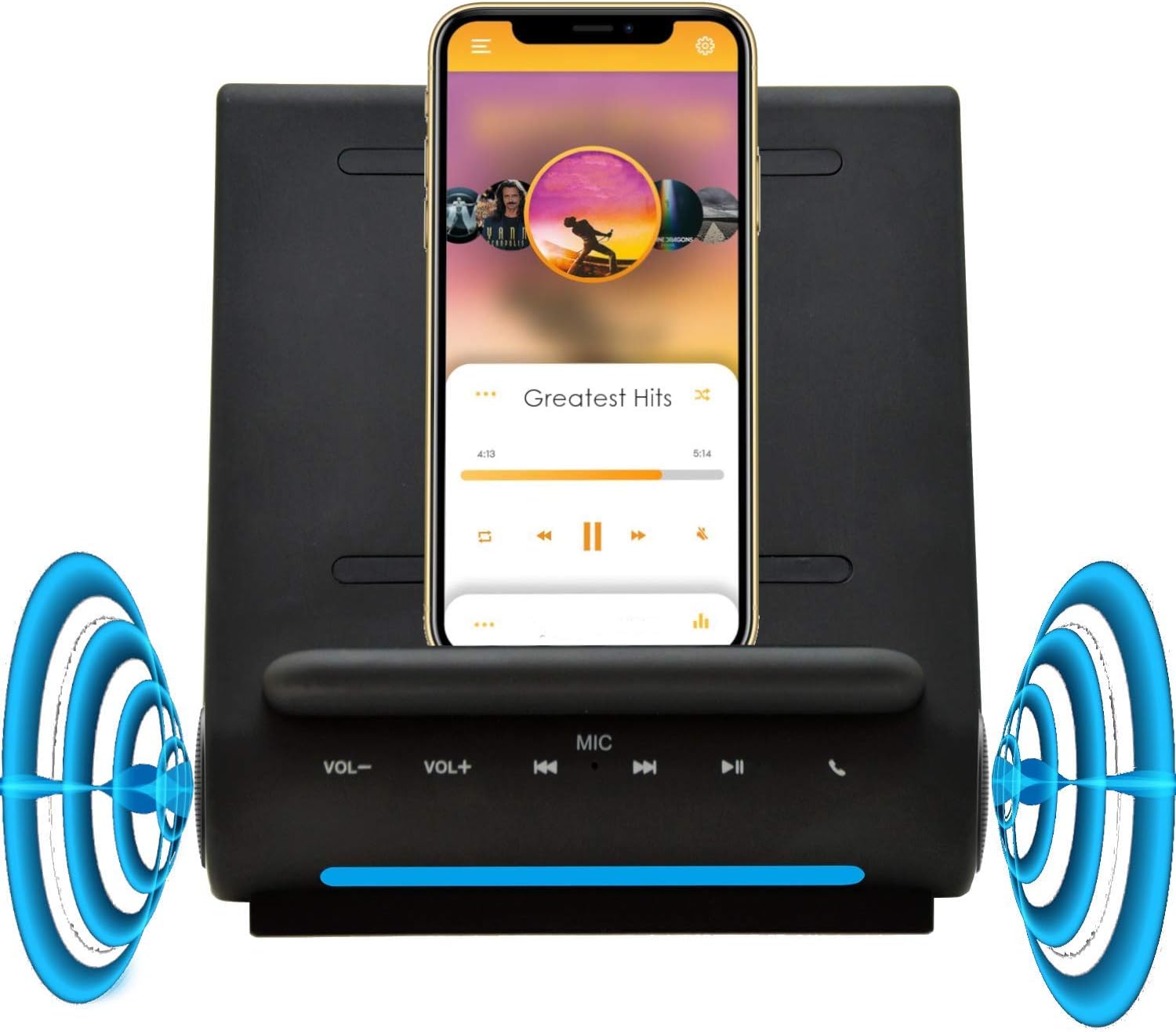
Figure 4: A smartphone wirelessly charging on the Dockall D115, demonstrating its upright viewing angle and integrated speakers.

Figure 5: A tablet positioned on the Dockall D115, showcasing its ability to hold larger devices for viewkargatzen ari zaren bitartean.
2. Using Bluetooth Speakers
- Once your device is paired via Bluetooth, audio will automatically stream through the Dockall D115's dual 5W speakers.
- Use the VOL- / VOL+ buttons on the front panel or your connected device to adjust the volume.
- Use the Previous / Next Track and Play/Pause buttons to control music playback.
3. Eskurik gabeko deiak
Mikrofono integratuak esku libreko komunikazio garbia ahalbidetzen du.
- When a call comes in, press the Call button on the front panel to answer.
- Speak towards the MIC on the front panel.
- Press the Call button again to end the call.
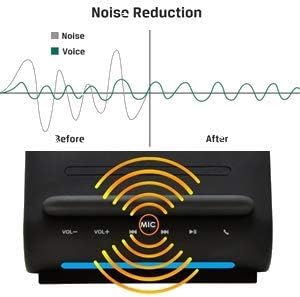
Figure 6: A graphic demonstrating the noise reduction capabilities of the Dockall D115's built-in microphone, enhancing call clarity.
4. Using USB Charging Ports
In addition to wireless charging, the Dockall D115 provides two USB ports for wired charging.
- Connect your device's USB charging cable to either the USB1A or USB2A port on the rear of the Dockall D115.
- You can charge up to three devices simultaneously (one wirelessly, two via USB).
5. Reconnecting Bluetooth
If your smartphone disconnects from the Dockall D115, you can easily reconnect it.
- Long-press the Play/Pause button on the front panel of the Dockall D115.
- The device will indicate that it is reconnected with a chime.
Video 2: This video demonstrates how to reconnect a previously paired Bluetooth device to the Azpen Dockall D115 by long-pressing the Play/Pause button.
Mantentzea
- Garbitu gailua zapi leun eta lehor batekin. Ez erabili garbitzaile edo disolbatzaile urratzailerik.
- Keep the charging surface free of dust and debris to ensure efficient wireless charging.
- Gorde gailua leku fresko eta lehor batean denbora luzez erabiltzen ez duzunean.
Arazoak konpontzea
| Arazoa | Kausa posiblea | Irtenbidea |
|---|---|---|
| Gailua ez da pizten. | Power adapter not connected or faulty; Power switch is OFF. | Ensure power adapter is securely connected and plugged into a working outlet. Flip the Power switch to ON. |
| Haririk gabeko kargatzeak ez du funtzionatzen. | Device not Qi-compatible; Misaligned on charging pad; Phone case too thick or metallic; Foreign object on pad. | Verify device supports Qi wireless charging. Reposition device on the pad. Remove phone case. Remove any foreign objects. |
| Bluetooth not connecting/pairing. | Dockall D115 not in pairing mode; Bluetooth disabled on phone; Device too far from Dockall. | Ensure Dockall is powered on and in pairing mode. Enable Bluetooth on your phone. Move phone closer to the Dockall. Try long-pressing the Play/Pause button to force reconnection. |
| Audio kalitate eskasa edo soinurik ez. | Volume too low; Device not properly connected; Audio source issue. | Increase volume on both Dockall and connected device. Re-pair Bluetooth. Check audio source on your device. |
| Phone overheating during wireless charging. | Improper alignment; Phone case interfering; Environmental factors. | Ensure phone is correctly aligned. Remove phone case. Avoid charging in direct sunlight or hot environments. If issue persists, discontinue use and contact support. |
Zehaztapenak
| Ezaugarri | Xehetasuna |
|---|---|
| Marka | Azpen |
| Modelo zenbakia | D115 |
| Haririk gabeko kargaren irteera | 15W |
| Bluetooth bozgorailuak | 5W bikoitza |
| USB kargatzeko atakak | 2 (USB1A, USB2A) |
| Sarrera boltage | 20 Volt |
| Elementuaren pisua | 1.6 kilo |
| Gailu bateragarriak | Qi-enabled smartphones (e.g., iPhone 11-17, Samsung Galaxy S20-S25) |
Bermearen informazioa
The Azpen Dockall D115 comes with an 18-month warranty from the date of purchase. This warranty covers manufacturing defects and malfunctions under normal use. It does not cover damage caused by misuse, accidents, unauthorized modifications, or natural disasters. Please retain your proof of purchase for warranty claims.
Laguntza
For technical support, warranty claims, or further assistance, please contact Azpen customer service:
- Webgunea: www.azpenpc.com
- Posta elektronikoa: support@azpenpc.com (example)
- Telefonoa: 1-800-XXX-XXXX (example)