
1. Sarrera
This manual provides essential information for the setup, operation, maintenance, and troubleshooting of your new Fusion5 FWIN232 Plus S2 10-inch Windows Tablet PC. Please read this manual thoroughly to ensure proper use and to maximize the device's performance and longevity.
2. Produktua amaitu daview eta Ezaugarri nagusiak
The Fusion5 FWIN232 Plus S2 is a versatile 10-inch Windows tablet designed for various daily computing needs. It combines portability with the functionality of a Windows PC.
Ezaugarri nagusiak:
- Sistema eragilea: Pre-installed with Windows 10 Professional for a familiar and user-friendly experience.
- Errendimendua: Equipped with 6GB DDR4 RAM and an N3450 quad-core CPU for efficient multitasking and daily tasks.
- Pantaila: 10.1-inch Full HD IPS screen (1920x1200 pixels) for clear and vibrant visuals.
- Biltegiratzea: 64GB internal storage, expandable via Micro SD card.
- Konektibitatea: Features USB 3.0 port, Micro HDMI, and 802.11ac wireless connectivity.
- Kamera: Front-facing 2MP single camera for video calls.
- Karga azkarra: FusionCharge FastCharge technology allows for rapid battery replenishment.

2.1. irudia: Aurrealdea view of the Fusion5 FWIN232 Plus S2 Tablet PC, showcasing its 10.1-inch Full HD IPS display.

Figure 2.2: Diagram illustrating the various ports and buttons on the Fusion5 FWIN232 Plus S2 Tablet PC, including power, volume, headphone jack, Micro HDMI, USB 3.0, and charging ports.
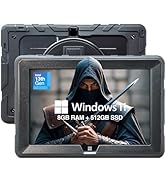
Figure 2.3: Visual summary of key features including 10.1" IPS Display, Windows 10 Professional, Intel Quad Core CPU, 6GB RAM, 64GB Storage, and Dual-Band WiFi.
3. Konfigurazioa
3.1 Zer dago kutxan
- Fusion5 FWIN232+ S2 Windows Tablet
- FusionCharge Fast Charger
- Erabiltzailearen eskuliburua (dokumentu hau)
3.2 Hasierako karga
Before first use, connect the FusionCharge Fast Charger to the tablet and a power outlet. It is recommended to fully charge the device. FusionCharge technology allows for 80% charge in approximately 45-50 minutes and a full charge in 70-80 minutes.
3.3 Powering On and Initial Windows Setup
- Press and hold the power button located on the side of the tablet until the screen illuminates.
- Follow the on-screen prompts to complete the Windows 10 Professional setup. This includes selecting your language, region, and connecting to a Wi-Fi network.
- Create a user account and set up any desired security features.
4. Funtzionamendu-argibideak
4.1 Oinarrizko nabigazioa
- Ukipen-pantaila: Navigate the Windows interface by tapping, swiping, and pinching on the 10.1-inch Full HD IPS display.
- Optional Keyboard: If using a compatible docking keyboard (ASIN B08HJK5QCR), attach it to the tablet for a laptop-like experience with physical keys and a trackpad.
4.2 Periferikoak konektatzea
- USB 3.0: Connect USB devices such as external hard drives, flash drives, or mice to the USB 3.0 port for fast data transfer.
- Mikro HDMI: Use a Micro HDMI cable to connect your tablet to an external display or TV.
- Mikro SD txartela: Insert a Micro SD card into the dedicated slot to expand storage capacity. The tablet supports up to 256GB (as per customer reviews, manual states 128KB max, but 256GB cards have been reported to work).
- Aurikularrak Jack: Connect headphones or external speakers via the 3.5mm audio jack.
4.3 Kameraren erabilera
The tablet features a front-facing 2MP single camera. This camera is suitable for video conferencing and online classes. Access the camera application from the Windows Start Menu to use it.
5. Mantentzea
- Garbiketa: Use a soft, lint-free cloth to clean the screen and exterior of the tablet. Avoid abrasive cleaners or solvents.
- Software eguneraketak: Egiaztatu eta instalatu aldizka Windows eguneraketak errendimendu, segurtasun eta azken funtzioetarako sarbidea optimoa bermatzeko. Joan honera Ezarpenak > Eguneratzea eta segurtasuna > Windows eguneratzea.
- Biltegiratze kudeaketa: Aldian behin berriroview eta beharrezkoak ez direnak ezabatu files or applications to free up storage space. Utilize the Micro SD card slot for additional storage of media and documents.
- Bateria zaintzea: To prolong battery life, avoid extreme temperatures and do not leave the tablet fully discharged for extended periods.
6. Arazoak
6.1 Ohiko arazoak eta irtenbideak
- Tableta ez da pizten: Ensure the tablet is fully charged. Connect the FusionCharge Fast Charger and wait a few minutes before attempting to power on again.
- Errendimendu motela: Close unnecessary applications running in the background. Check for available Windows updates. Ensure sufficient free storage space.
- Wi-Fi konexio-arazoak: Verify that Wi-Fi is enabled in Windows settings. Restart your Wi-Fi router and the tablet.
- Bateria ez da kargatzen: Ensure the charger is securely connected to both the tablet and a working power outlet. Try a different power outlet.
If you encounter persistent issues, please refer to the Warranty and Support section for assistance.
7. Zehaztapenak
| Bistaratzeko tamaina | 10.1 hazbete |
| Pantailaren bereizmena | 1920 x 1200 pixel (Full HD IPS) |
| Prozesadorea | 2.2 GHz Intel Celeron N3450 (Quad-core) |
| RAM | 6 GB DDR4 SDRAM |
| Disko gogorra | 64 GB |
| Koprozesadore grafikoa | Intel HD Graphics 500 |
| Haririk gabeko mota | 802.11ac |
| Sistema eragilea | Windows 10 Professional |
| Elementuaren pisua | 1.3 kilo |
| Produktuaren neurriak | 9.72 x 6.5 x 0.31 hazbete |
| Atzekoa Webkamaren ebazpena | 5 MP |
| Aurrealdea Webkamaren ebazpena | 2 MP |
| Pilak | 1 litio-polimeroko bateria (barne) |
8. Bermea eta Laguntza
Your Fusion5 FWIN232 Plus S2 Tablet PC comes with a 12-month full USA warranty. For any warranty claims, technical support, or inquiries, please contact our USA service center.
Jarri harremanetan laguntzarekin: For assistance, please email feedback@fusion5store.com.


