
Sarrera
Thank you for choosing the iClever BK10 Bluetooth Wireless Keyboard. This manual provides detailed instructions on how to set up, operate, and maintain your keyboard to ensure optimal performance. Please read this manual carefully before use and retain it for future reference.
Paketearen edukia
- iClever BK10 Bluetooth haririk gabeko teklatua
- USB kargatzeko kablea
- Erabiltzailearen eskuliburua
Zehaztapenak
| Marka | iClever |
| Modelo zenbakia | BK10 |
| Konektibitate Teknologia | Bluetootha |
| Gailu bateragarriak | Android 9+, ChromeOS (BT 4.0+), Windows 10/11, iPadOS 13.4+, macOS 10.15+ |
| Teklatuaren diseinua | AZERTY |
| Gako kopurua | 78 |
| Aldatu mota | Guraizeen etengailua |
| Energia iturria | Bateriaren bidez |
| Produktuaren neurriak | 43L x 14W x 2.5H zentimetro |
| Barne Materiala | Akrilonitrilo butadieno estirenoa, altzairu herdoilgaitza |
Konfigurazioa
1. Hasierako kargatzea
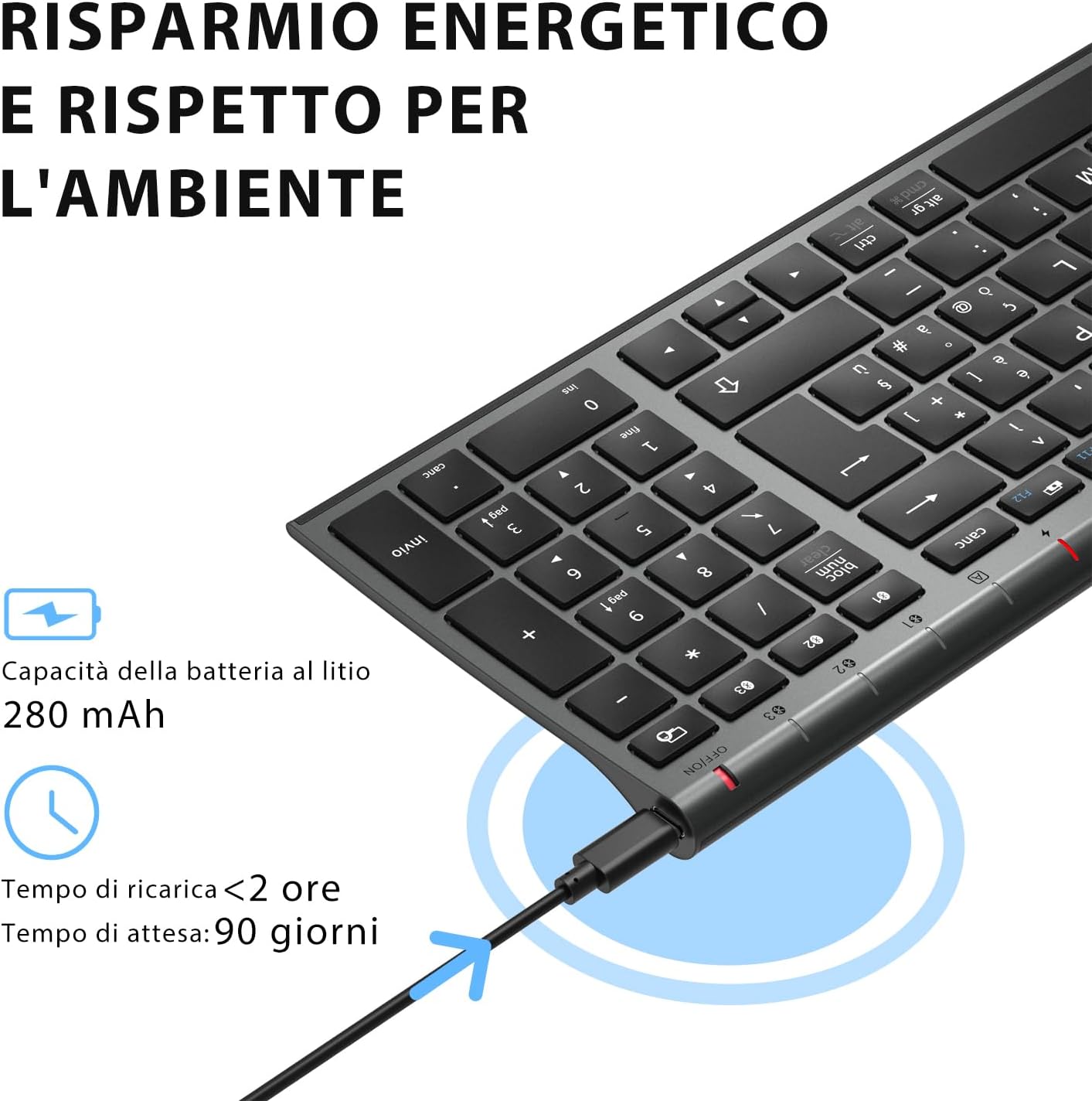
Before first use, fully charge the keyboard. Connect the provided USB charging cable to the keyboard's USB-C port and the other end to a USB power source (e.g., computer, wall adapter). The charging indicator light will show charging status and turn off when fully charged.

The iClever BK10 keyboard connected via USB-C for charging. This image details the 280 mAh lithium battery capacity, a charging time of less than 2 hours, and a standby time of 90 days.
2. Piztu/Itzali
Locate the power switch on the keyboard. Slide the switch to the 'ON' position to power on the keyboard. Slide it to the 'OFF' position when not in use to conserve battery.
3. Bluetooth parekatzea
The iClever BK10 keyboard supports connection to up to three devices simultaneously.
- Piztu teklatua etengailua erabiliz.
- Sakatu Fn tekla aldi berean Bluetooth kanaleko tekletako batekin (BT1, BT2, edo BT3) kanal bat hautatzeko.
- Press and hold the selected Bluetooth channel key (e.g., BT1) for 3-5 seconds until the indicator light for that channel starts blinking rapidly. This indicates the keyboard is in pairing mode.
- Zure gailuan (ordenagailuan, tabletan, telefonoan), gaitu Bluetooth-a eta bilatu eskuragarri dauden gailuak.
- Select "iClever BK10" (or similar name) from the list of found devices.
- Follow any on-screen prompts to complete the pairing process. The indicator light will stop blinking and remain solid for a few seconds, then turn off, indicating a successful connection.

The iClever BK10 keyboard demonstrating its ability to connect to an iPad, MacBook, and iPhone via three distinct Bluetooth channels. The image also illustrates key mapping for Windows/Android (Alt/Cmd) and iPad/Mac (Alt/Cmd) operating systems.
Teklatua funtzionatzea
1. Bikotekatuta dauden gailuen artean aldatzea
To switch between your paired devices, simply press the Fn tekla dagokion Bluetooth kanalaren teklarekin batera (BT1, BT2, edo BT3) that your device is paired to. The keyboard will automatically connect to the selected device.
2. Function Keys (Fn)
The keyboard features a row of function keys (F1-F12) that also serve as multimedia and shortcut keys. To use the secondary function of these keys, press and hold the Fn key while pressing the desired function key.
3. Sistema eragilearen bateragarritasuna
The iClever BK10 keyboard is designed to be compatible with various operating systems. Key functions may adapt slightly depending on the connected OS. For optimal performance, ensure your device's Bluetooth version is 4.0 or higher.

Close-up of the iClever BK10 keyboard with a hand typing, highlighting the low-profile keys and scissor switch mechanism designed for quiet and comfortable typing.
Mantentzea
1. Garbiketa
To clean your keyboard, power it off and disconnect it from any devices. Use a soft, lint-free cloth slightly dampened with water or a mild cleaning solution. Avoid using harsh chemicals, abrasives, or excessive moisture. Do not spray cleaners directly onto the keyboard.
2. Bateria zaintzea
To prolong the battery life of your keyboard:
- Charge the keyboard fully before its first use.
- Saihestu bateria maiz erabat deskargatzea.
- Gorde teklatua leku fresko eta lehor batean denbora luzez erabiltzen ez duzunean.
- Turn off the keyboard when transporting it or when not in use to prevent accidental key presses and battery drain.
Arazoak konpontzea
1. Teklatua ez da konektatzen/parekatzen
- Ziurtatu teklatua piztuta eta guztiz kargatuta dagoela.
- Ziurtatu Bluetootha gaituta dagoela zure gailuan.
- Ensure the keyboard is in pairing mode (indicator light blinking).
- Saiatu teklatua desparekatzen eta berriro parekatzen gailuaren Bluetooth ezarpenetatik.
- Berrabiarazi teklatua eta gailua.
- Ensure your device's Bluetooth version is compatible (BT 4.0+ recommended).
2. Teklek ez dute erantzuten
- Check if the keyboard is connected to the correct device.
- Ensure the battery is not low. Charge the keyboard if necessary.
- Restart the keyboard and the connected device.
- Garbitu teklen inguruko hondakin guztiak.
3. Connection Drops Frequently
- Ensure there are no strong interference sources (e.g., Wi-Fi routers, other Bluetooth devices) nearby.
- Keep the keyboard within the recommended operating range of your device.
- Ziurtatu teklatua guztiz kargatuta dagoela.
Bermea eta Laguntza
iClever products come with a standard warranty. For detailed warranty information, technical support, or customer service, please refer to the warranty card included with your product or visit the official iClever website. Please have your product model number (BK10) and purchase information ready when contacting support.
Produktua amaituview Irudiak

Goitik behera bat view of the iClever BK10 Bluetooth Wireless Keyboard, showcasing its full layout including the numeric keypad and function keys.
Alde bat view of the iClever BK10 keyboard, illustrating its ultra-thin profile with a thickness ranging from 0.16 inches to 0.45 inches.

The iClever BK10 keyboard positioned on a desk in an office environment, alongside a computer monitor, laptop, tablet, and smartphone, illustrating its versatile use in various professional and personal setups.