
1. Sarrera
This manual provides essential information for the safe and efficient operation of your iProda 2 in 1 Laptop, Model M1169YM. Please read this manual thoroughly before using the device and retain it for future reference. This convertible laptop features an 11.6-inch touchscreen, powered by an Intel N4100 processor, and runs on Windows 10 Pro.

Image: The iProda 2 in 1 Laptop can be used in multiple configurations, including traditional laptop, tent, stand, and tablet modes, showcasinbere aldakortasunari esker.
2. Segurtasun informazioa
Jarraitu segurtasun neurri hauek zure gailuari kalterik edo zeure buruari kalterik ez egiteko:
- Ez jarri gailua tenperatura altuen, eguzki-argiaren eraginpean edo hezetasun handiaren eraginpean.
- Saihestu gailua erortzea edo kolpe gogorren eraginpean jartzea.
- Use only the provided or approved power adapter for charging.
- Mantendu gailua uretatik eta beste likidoetatik urrun.
- Ez saiatu gailua zeuk desmuntatzen edo konpontzen. Jarri harremanetan zerbitzu-langile kualifikatuekin.
3. Paketearen edukia
Egiaztatu elementu guztiak zure paketean daudela:
- iProda 2 in 1 Laptop (Model M1169YM)
- Elikatze-moldagailua
- Erabiltzailearen eskuliburua (dokumentu hau)
4. Produktua amaitu daview
The iProda 2 in 1 Laptop is designed for versatility, offering multiple usage modes and essential connectivity options.
4.1. Ezaugarri nagusiak
- 11.6 hazbeteko IPS ukipen-pantaila: A responsive 10-point precision touchscreen with 1920x1080 resolution for interactive use.
- Diseinu bihurgarria: 360-degree hinge allows seamless transition between laptop, tablet, tent, and stand modes.
- Intel N4100 Processor: Provides efficient performance for daily tasks.
- Windows 10 Pro: Pre-installed operating system for productivity and security.
- Biltegiratze zabalgarria: Supports M.2 2242 SSD for additional storage capacity.

Image: Key features of the iProda laptop, including its touchscreen, operating system, display specifications, and camera resolution.

Image: The laptop's 360-degree hinge allows it to convert into a tablet, enabling direct interaction via its precision touchscreen.
4.2. Portuak eta Botoiak
Familiarize yourself with the various ports and buttons on your laptop:
- C motako ataka: Used for power supply and data transfer.
- Mikro HDMI: Kanpoko pantailetara konektatzeko.
- Mikro USB: USB gailuak konektatzeko.
- TF txartelaren zirrikitua: For expanding storage with a TF (MicroSD) card.
- Pizteko botoia: Gailua pizteko/itzaltzeko edo lo moduan jartzeko.
- Bolumen-botoiak: Audio irteera doitzeko.
- Entzungailuen kablea: Entzungailuak edo kanpoko bozgorailuak konektatzeko.

Irudia: Xehetasun zehatza view of the laptop's side panels, indicating the location and function of each port and button for easy identification.
5. Konfigurazioa
5.1. Bateria kargatzea
Before first use, fully charge the laptop's battery. Connect the provided power adapter to the Type-C port on the laptop and plug it into a power outlet. The charging indicator light will illuminate.
5.2. Lehenengo abiaraztea eta Windows konfigurazioa
- Sakatu eta eutsi pizteko botoia pantaila piztu arte.
- Jarraitu pantailan agertzen diren argibideei Windows 10 Pro-ren hasierako konfigurazioa osatzeko, hizkuntza hautatzea, sareko konexioa eta erabiltzaile kontua sortzea barne.
6. Zure ordenagailu eramangarria erabiltzea
6.1. Ukipen-pantaila erabiliz
The 10-point precision touchscreen allows for intuitive interaction with Windows 10 Pro. Use gestures such as tapping, swiping, pinching, and stretching to navigate, zoom, and interact with applications.
6.2. Teklatua eta ukipen-panela
The integrated keyboard and touchpad provide traditional input methods. The touchpad supports multi-touch gestures for scrolling, zooming, and switching applications.

Image: The laptop's full-size American keyboard and responsive touchpad, designed for comfortable typing and navigation.
6.3. Convertible Modes
The 360-degree hinge allows you to switch between various modes:
- Ordenagailu eramangarriaren modua: Standard configuration for typing and productivity.
- Tablet modua: Fold the screen back completely for a tablet experience, ideal for browsing or drawing.
- Karpa modua: Position the laptop like a tent for media consumption or presentations.
- Zutik egoteko modua: Flip the keyboard face down to use the screen as a display, suitable for watching videos.

Image: The laptop configured in tent mode, demonstrating its flexibility for viewing content without the keyboard in the way.
7. Biltegiratze-hedapena
The laptop comes with 64GB eMMC storage. You can expand the storage capacity by installing an M.2 2242 SSD (128GB/256GB/512GB, not included).
7.1. Installing an M.2 2242 SSD
To install an M.2 2242 SSD:
- Power off the laptop and disconnect the power adapter.
- Carefully open the back cover of the laptop.
- Locate the M.2 slot.
- Insert the M.2 2242 SSD into the slot and secure it with the appropriate screw (if provided).
- Jarri atzeko estalkia.
- Upon booting, you may need to initialize and format the new SSD through Windows Disk Management.
Note: If you are unsure about this procedure, it is recommended to seek professional assistance.

Image: Visual representation of the M.2 SSD slot, illustrating how additional storage can be integrated into the laptop.
8. Konektibitatea
8.1. Wi-Fi konexioa
The laptop supports dual-frequency 2.4GHz/5GHz Wi-Fi. To connect to a wireless network:
- Click the Wi-Fi icon in the system tray.
- Hautatu nahi duzun sarea zerrendatik.
- Sareko pasahitza idatzi behar baduzu eta egin klik 'Konektatu'.
8.2. External Display (Micro HDMI)
Connect an external monitor or TV using a Micro HDMI to HDMI cable. Once connected, you can configure display settings (duplicate, extend, second screen only) through Windows display settings.
8.3. USB gailuak
Use the Micro USB port or the Type-C port (with an appropriate adapter) to connect peripherals such as a mouse, keyboard, or external storage devices.
9. Mantentzea
9.1. Garbiketa
To clean the laptop, power it off and disconnect the power adapter. Use a soft, lint-free cloth slightly dampened with water or a screen cleaner for the display. Avoid harsh chemicals or abrasive materials.
9.2. Bateria zaintzea
Bateriaren iraupena luzatzeko:
- Saihestu bateria maiz erabat deskargatzea.
- Do not expose the laptop to high temperatures.
- If storing the laptop for an extended period, ensure the battery is charged to around 50-70%.
10. Arazoak
Hona hemen aurki ditzakezun arazo ohikoen irtenbideak:
| Arazoa | Irtenbidea |
|---|---|
| Ordenagailu eramangarria ez da pizten. | Ensure the battery is charged. Connect the power adapter and try again. If still unresponsive, perform a hard reset by holding the power button for 10-15 seconds. |
| Pantaila hutsik dago edo keinuka ari da. | Restart the laptop. Check if an external display is connected and interfering. Update display drivers if possible. |
| Wi-Fi konexio arazoak. | Ensure Wi-Fi is enabled. Restart your router and the laptop. Check network settings in Windows. |
| Ukipen-pantailak ez du erantzuten. | Restart the laptop. Ensure the screen is clean. Check for any pending Windows updates or driver updates for the touchscreen. |
11. Zehaztapenak
Technical specifications for the iProda 2 in 1 Laptop (Model M1169YM):
| Ezaugarri | Xehetasuna |
|---|---|
| Marka | iProda |
| Modelo zenbakia | M1169YM |
| Sistema eragilea | Windows 10 Pro |
| Pantailaren tamaina | 11.6 hazbete |
| Pantailaren bereizmena | 1920 x 1080 pixel (1080p) |
| Prozesadorea | Intel N4100 (up to 2.4 GHz Burst Frequency) |
| RAM | 4 GB DDR4 |
| Disko gogorra | 64 GB eMMC |
| Txartel grafikoa | Integrated (UHD 600 Graphics) |
| Haririk gabeko mota | 2.4 GHz / 5 GHz Dual-frequency Wi-Fi |
| Bateriaren batez besteko iraupena | 8 Hours (3500mAh, 27Wh) |
| Elementuaren pisua | 3.63 kilo |
| Produktuaren neurriak | 11.99 x 11.6 x 0.5 hazbete |
| Konektibitate Teknologia | HDMI, USB Type-C, Micro USB |
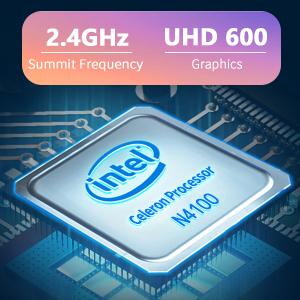
Image: The Intel Celeron N4100 processor, central to the laptop's performance, highlighting its clock speed and integrated graphics capabilities.

Image: The laptop's battery specifications, indicating its power capacity for extended use.
12. Bermea eta Laguntza
For warranty information and technical support, please refer to the documentation included with your purchase or visit the official iProda website. Contact information for customer service can typically be found on the manufacturer's support page.