
KPREPUBLIC MXRSKEY 60U OTM Black Switch x1
KPREPUBLIC MXRSKEY 60U Mechanical Keyboard User Manual
Model: MXRSKEY 60U OTM Black Switch x1
1. Sarrera
This manual provides comprehensive instructions for the KPREPUBLIC MXRSKEY 60U Mechanical Keyboard. Please read this manual thoroughly before using the product to ensure proper operation and longevity.
The MXRSKEY 60U is a 60% mechanical keyboard featuring Outemu switches and single-color mixed LED backlighting. It supports multimedia combination keys for enhanced functionality. Please note that this keyboard is not hot-swappable and does not feature RGB backlighting; each row has a single, fixed color LED.
2. Paketearen edukia
Mesedez, egiaztatu elementu guztiak zure paketean daudela:
- KPREPUBLIC MXRSKEY 60U Mechanical Keyboard
- USB-C kablea
- Erabiltzailearen eskuliburua (dokumentu hau)
3. Zehaztapenak
| Ezaugarri | Deskribapena |
|---|---|
| Teklatuaren diseinua | % 60 trinkoa |
| Aldatu mota | Outemu Mechanical Switches (Black Switch variant) |
| Keycap materiala | ABS Doubleshot Keycaps |
| Atzeko argiztapena | Single Color Mixed LED (Each row with one fixed color) |
| Konektibitatea | USB-C (Detachable cable) |
| Ezaugarri bereziak | Multimedia Combination Keys, Non-hot-swappable switches |
| Fabrikatzailea | KPREPUBLIC |
| Modelo zenbakia | MXRSKEY 60U |
4. Konfigurazio gida
4.1 Teklatua konektatzea
- Locate the USB-C port on the back or side of the MXRSKEY 60U keyboard.
- Insert one end of the provided USB-C cable into the keyboard's USB-C port.
- Insert the other end of the USB-A connector into an available USB port on your computer.
- Teklatua automatikoki ezagutuko du zure sistema eragileak. Normalean ez da beharrezkoa beste kontrolatzailerik.
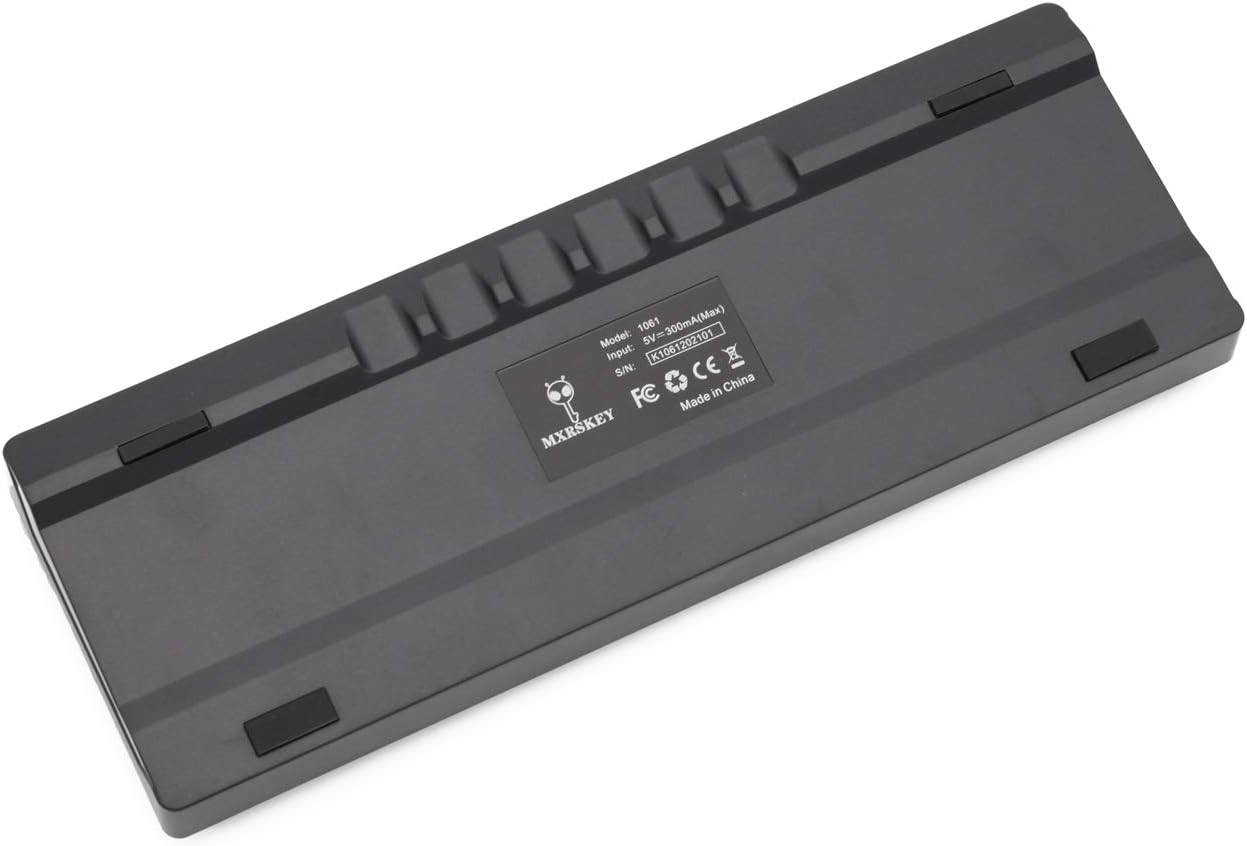
Irudia: Atzealdea view of the MXRSKEY 60U keyboard, highlighting the USB-C port for connection and the stable rubber feet.
5. Funtzionamendu-argibideak
5.1 Oinarrizko teklatuaren funtzioak
The MXRSKEY 60U is a standard QWERTY layout 60% keyboard. All standard alphanumeric and symbol keys function as expected.

Irudia: Goian view of the MXRSKEY 60U keyboard, showcasing its compact 60% layout and the single-color mixed LED backlighting.
5.2 Funtzio (FN) tekla konbinazioak
Due to its compact 60% layout, many functions are accessed via the Function (FN) key in combination with other keys. Refer to the table below for common FN key combinations.
| Konbinazio tekla | Funtzioa | Oharra |
|---|---|---|
| FN+TAB | Berrezarri teklatua | |
| FN+Esc | ~ | |
| FN + 1 | F1 | |
| FN + 2 | F2 | |
| FN + 3 | F3 | |
| FN + 4 | F4 | |
| FN + 5 | F5 | |
| FN + 6 | F6 | |
| FN + 7 | F7 | |
| FN + 8 | F8 | |
| FN + 9 | F9 | |
| FN + 10 | F10 | |
| FN + 11 | F11 | |
| FN + 12 | F12 | |
| FN+[ | Distira- | |
| FN+] | Distira+ | |
| FN+; | Abiadura- | |
| FN+' | Abiadura+ | |
| FN+? | ↑ | |
| FN+Alt | ← | |
| FN+Menua | ↓ | |
| FN+Ktrl | → | |
| FN+L | Back Lit Effect Change | |
| FN+Atzera atzera | Close Back lit | |
| Multimedia gakoak | ||
| FN+A | Pausa | |
| FN+S | Aurrekoa | |
| FN+D | Hurrengoa | |
| FN+F | Isildu | |
| FN+G | Vol+ | |
| FN+H | Bol- | |
| FN+J | Txertatu | |
| FN+K | Hasiera | |
| FN+L Win | Irabazi Blokeoa | |
| FN+L | PGUP | |
| FN+N | DEL | |
| FN+M | AMAIERA | |
| FN+ | PGDN | |
| FN+; | PRT | |
| FN + O | SCR | |
| FN+P | PS | |
Table: FN key combinations for various functions, including multimedia controls and navigation.

Image: Close-up of the keyboard's keycaps, illustrating the legends for primary and FN-accessed functions.
5.3 Atzeko argiztapenaren kontrola
The MXRSKEY 60U features single-color mixed LED backlighting. You can adjust the brightness and change the lighting effect using FN key combinations.
- FN + [: Atzeko argiaren distira txikitu.
- FN +]: Atzeko argiaren distira handitu.
- FN + ;: Decrease backlight speed/effect.
- FN + ': Increase backlight speed/effect.
- FN + L: Change backlight effect.
- FN + Backspace: Turn off backlight.

Image: The keyboard with its single-color mixed LED backlighting active, showing the distinct color zones per row.
6. Mantentzea eta Zainketa
6.1 Teklatua garbitzea
- Deskonektatu teklatua ordenagailutik garbitu aurretik.
- Erabili lipurrik gabeko zapi leun bat dampGarbitu urarekin edo garbiketa-soluzio leun batekin teklak eta txasisa garbitzeko.
- Teklen arteko hautsa eta hondakinak kentzeko, erabili aire konprimatua.
- Saihestu produktu kimiko gogorrak, garbitzaile urratzaileak edo gehiegizko hezetasuna erabiltzea, hauek teklatua kaltetu baitezakete.
6.2 Biltegiratzea
Denbora luzez erabiltzen ez baduzu, gorde teklatua leku lehor eta fresko batean, eguzki-argitik eta muturreko tenperaturetatik babestuta.
7. Arazoak
| Arazoa | Kausa posiblea | Irtenbidea |
|---|---|---|
| Teklatuak ez du erantzuten | Loose cable connection, incorrect USB port, system driver issue. | Ensure the USB-C cable is securely connected to both the keyboard and the computer. Try a different USB port. Restart your computer. |
| Atzeko argiak ez du funtzionatzen | Backlight turned off, brightness set to minimum. | Press FN + ] to increase brightness. Press FN + L to cycle through effects. Press FN + Backspace to toggle backlight. |
| Giltza batzuk ez dira funtzionatzen | Hondakinak teklaren azpian, etengailuaren matxura. | Use compressed air to clear debris. As switches are not hot-swappable, contact support if the issue persists. |
| FN tekla konbinazioak ez du funtzionatzen | Incorrect combination, temporary software glitch. | Refer to the "Function (FN) Key Combinations" table. Try resetting the keyboard (FN+TAB). |
8. Bermea eta Laguntza
For warranty information and technical support, please refer to the official KPREPUBLIC webwebgunearekin edo jarri harremanetan zure saltzailearekin. Gorde erosketa-agiria berme-erreklamazioetarako.
Manufacturer: KPREPUBLIC
Lehenengo eskuragarritasun data: 2021ko otsailaren 9a
Laguntza gehiago lortzeko, mesedez bisitatu: KPREPUBLIC Brand Store on Amazon
Ask a question about this manual
Ask about setup, troubleshooting, compatibility, parts, safety, or missing instructions. Manuals+ will review the question and use this page’s manual context to help answer it.