
Q LINK WIRELESS Scepter 8
Q LINK WIRELESS Scepter 8 User Manual
Model: Scepter 8
Sarrera
Welcome to the user manual for your Q LINK WIRELESS Scepter 8 tablet. This guide provides essential information on setting up, operating, maintaining, and troubleshooting your device. The Scepter 8 is an 8-inch Android 11 tablet designed for everyday use, featuring 1GB RAM and 16GB ROM.
Produktua amaituview
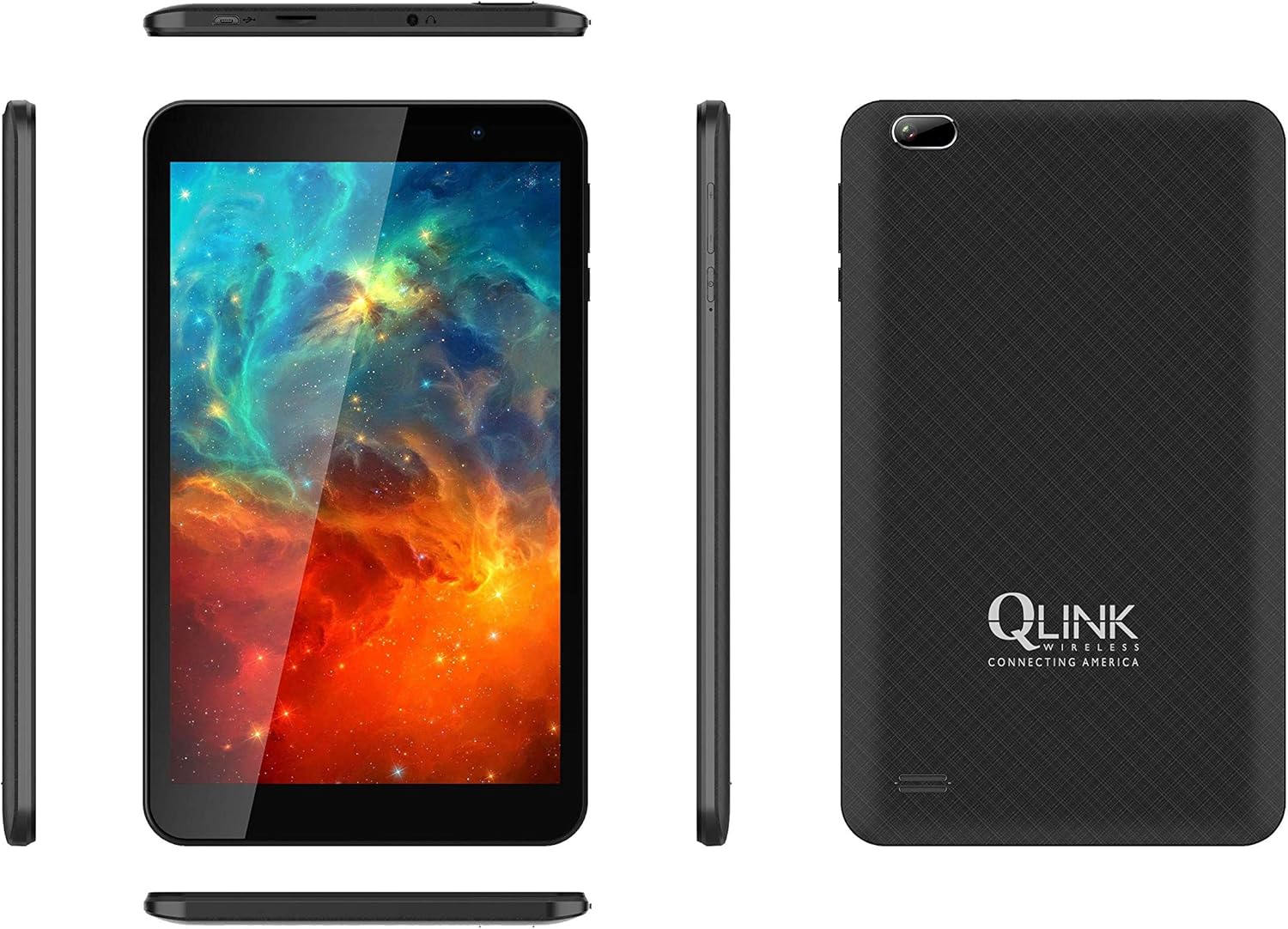
This image displays multiple views of the Q LINK WIRELESS Scepter 8 tablet, including the front with its display, the textured back panel featuring the Q LINK WIRELESS logo, and the slim side profiles showing button and port placements.

Aurrealde garbi bat. view of the Q LINK WIRELESS Scepter 8 tablet, highlighting its 8-inch IPS display. The screen shows a vibrant, colorful abstract image.

Atzealdea view of the Q LINK WIRELESS Scepter 8 tablet, showcasing its textured finish and the Q LINK WIRELESS logo. The rear camera is visible in the upper left corner.
Konfigurazioa
1. Hasierako kargatzea
Before first use, fully charge your Scepter 8 tablet. Connect the included charger to the tablet's charging port and plug it into a power outlet. The battery indicator on the screen will show charging progress.
2. Piztu/Itzaltzea
- To power on: Press and hold the Power button until the Q LINK WIRELESS logo appears.
- Itzaltzeko: Sakatu eta eutsi pizteko botoiari, eta ondoren hautatu "Itzali" aukeren artean.
3. Hasierako konfigurazio morroia
Upon first power-on, the tablet will guide you through an initial setup process. This includes selecting your language, connecting to a Wi-Fi network, setting up your Google account, and configuring basic device settings.
4. MicroSD txartel bat sartzea (aukerakoa)
To expand storage, locate the MicroSD card slot (usually on the side or top edge). Gently insert a compatible MicroSD card until it clicks into place. Ensure the tablet is powered off before inserting or removing the card.
Tableta funtzionatzea
Nabigazioaren oinarriak
- Ukipen-keinuak: Sakatu hautatzeko, irristatu korritzeko, apurtu handitzeko.
- Hasierako pantaila: Sartu aplikazioetara, widgetetara eta jakinarazpenetara.
- Jakinarazpen panela: Irristatu hatza behera pantailaren goialdetik view jakinarazpenak eta ezarpen azkarrak.
- Aplikazioen tiradera: Irristatu hatza pantailaren behealdetik gora instalatutako aplikazio guztietara sartzeko.
Wi-Fira konektatzen
- Joan zaitez Ezarpenak > Sarea eta Internet > Wi-Fi.
- Wi-Fia aktibatu/desaktibatu On.
- Hautatu nahi duzun sarea zerrendatik eta idatzi pasahitza eskatzen bazaizu.
Aplikazioak kudeatzea
- Aplikazioak instalatzea: Deskargatu aplikazioak Google Play Store-tik.
- Aplikazioak desinstalatzea: Press and hold an app icon on the home screen or in the app drawer, then drag it to "Uninstall" or select "App info" and choose "Uninstall".
- Closing Apps: Swipe up from the bottom of the screen and hold to view recent apps, then swipe up on an app to close it.
Kameraren erabilera
The Scepter 8 features a 5 MP rear camera. Open the Camera app from your home screen or app drawer. Tap the shutter button to take photos. You can switch between front and rear cameras using the icon on the screen.
Mantentzea
- Garbiketa: Erabili zapi leun eta lihorik gabeko bat pantaila eta gorputza garbitzeko. Saihestu garbitzaile edo disolbatzaile urratzaileak.
- Bateria zaintzea: To prolong battery life, avoid extreme temperatures. Do not let the battery fully drain frequently.
- Software eguneraketak: Aldian-aldian egiaztatu sistemaren eguneraketak Ezarpenak > Sistema > Sistema eguneratzea errendimendu eta segurtasun optimoa bermatzeko.
- Biltegiratze kudeaketa: Garbitu beharrezkoak ez direnak aldizka files and uninstall unused apps to free up storage space. Go to Ezarpenak > Biltegiratzea kudeatzeko.
Arazoak konpontzea
| Arazoa | Irtenbidea |
|---|---|
| Tableta motela da edo ez du erantzuten. |
|
| Ezin da wifira konektatu. |
|
| Bateria azkar agortzen da. |
|
| Apps crashing frequently. |
|
Zehaztapenak
| Ezaugarri | Xehetasuna |
|---|---|
| Marka | Q LINK HARI GABE |
| Ereduaren izena | Zetroa 8 |
| Sistema eragilea | Android 11 |
| Pantailaren tamaina | 8 hazbete |
| Pantailaren bereizmena | 1280 x 800 pixel |
| RAM | 1 GB |
| Flash memoriaren tamaina | 16 GB |
| Prozesadorearen marka | Qualcomm |
| Atzekoa Webkamaren ebazpena | 5 MP |
| Haririk gabeko mota | 802.11ac |
| Bateriaren batez besteko iraupena | 12 ordu |
| Elementuaren pisua | 1.06 kilo |
| Produktuaren neurriak | 8.2 x 4.9 x 0.36 hazbete |
Bermea eta Laguntza
For warranty information and technical support, please refer to the documentation included with your purchase or visit the official Q LINK WIRELESS webgunea. Gorde erosketaren egiaztagiria bermearen erreklamazioetarako.
Sareko baliabideak: For additional support, FAQs, and software downloads, please visit the Q LINK WIRELESS support page.
Ask a question about this manual
Ask about setup, troubleshooting, compatibility, parts, safety, or missing instructions. Manuals+ will review the question and use this page’s manual context to help answer it.