
1. Sarrera
The Protectli Vault Pro VP2410 is a compact, fanless micro appliance designed for network security applications such as firewalls, routers, and VPNs. This barebones unit offers high customizability, allowing users to install their preferred operating system and hardware components like RAM and M.2 SATA storage. It features an Intel Celeron J4125 quad-core processor with AES-NI hardware support, ensuring efficient and secure network operations. The VP2410 is compatible with popular open-source software solutions like pfSense, OPNsense, and Untangle.
2. Zer dago kutxan
The Protectli Vault Pro VP2410 package typically includes the following components:
- Protectli Vault Pro VP2410 Mini PC unit
- 8GB eMMC module (on board)
- Korronte egokitzailea eta kablea
- Muntatzeko tarte
- Additional cables (e.g., SATA power/data, USB console cable)

Image: Contents of the Protectli Vault Pro VP2410 box, showing the mini PC, power adapter, mounting bracket, and various cables for connectivity and installation.
3. Produktua amaitu daview
The VP2410 features a robust fanless design with an all-aluminum chassis that acts as a heatsink, ensuring silent operation and efficient heat dissipation.
3.1. Front Panel Ports

Image: Front panel of the Protectli Vault Pro VP2410, featuring the power button, HDMI, USB 3.0, Display Port, USB-C 3.2, and Console ports.
- Pizteko botoia: Gailua pizteko eta itzaltzeko.
- HDMI ataka: Pantaila batera bideo irteerarako.
- 2x USB 3.0 ataka: For connecting peripherals like keyboards, mice, or USB storage devices.
- Bistaratzeko ataka: For additional video output.
- 1x USB-C 3.2 Port: Versatile port for data transfer or display output.
- Kontsolaren ataka: A serial port for command-line interface access, often used for initial setup or troubleshooting.
- Mappable Reset Button: A small button that can be configured for various reset functions.
- WiFi/LTE Antenna Ports: Connectors for external antennas to enable wireless connectivity (antennas sold separately).
3.2. Atzeko paneleko atakak
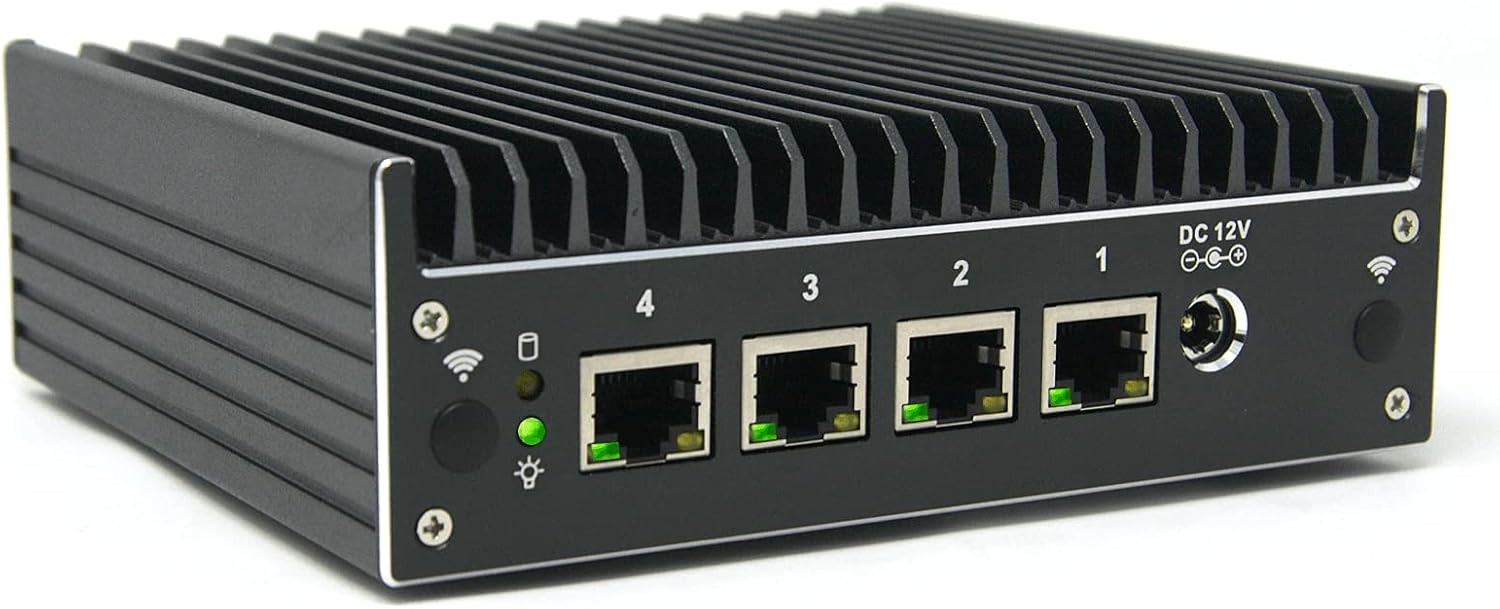
Image: Rear panel of the Protectli Vault Pro VP2410, highlighting the four Intel Gigabit Ethernet ports and the DC 12V power input.
- 4x Intel Gigabit Ethernet NIC ports (numbered 1-4): For high-speed wired network connections, typically used for WAN and LAN interfaces.
- DC 12V potentzia sarrera: Connection point for the external power adapter.
- WiFi/LTE Antenna Ports: Additional connectors for external antennas, similar to the front panel.
3.3. Produktuaren bideoaview
Bideoa: Ofizial bat amaitu daview of the Protectli Vault Pro VP2410, detailing its features and connectivity options.
4. Konfiguratzeko argibideak
- Hardware Installation (if barebones):
- Install compatible DDR4 RAM (SODIMM) into the available slot. Refer to Protectli's Vault Hardware Compatibility documentation for verified memory modules.
- Install an M.2 SATA SSD if additional storage is required.
- Hasierako konexioa:
- Connect a monitor to the HDMI or Display Port.
- Konektatu teklatua eta sagua USB ataketara.
- Connect an Ethernet cable from your internet source to one of the Gigabit Ethernet ports (typically port 1 for WAN).
- Connect the power adapter to the DC 12V input and plug it into a power outlet.
- Piztu: Sakatu aurreko paneleko pizteko botoia.
- BIOS Configuration (if necessary): Access the BIOS (usually by pressing DEL or F2 during boot) to configure boot options. For OS installation, ensure the correct boot device is selected. Some operating systems may require specific BIOS settings (e.g., Legacy booting instead of UEFI for certain Ubuntu Live USB installations).
- Sistema eragilearen instalazioa: Install your chosen open-source firewall or routing software (e.g., pfSense, OPNsense, Untangle) from a USB drive or network. Follow the specific installation instructions for your chosen OS.
5. Funtzionamendu-argibideak
- Piztu/Itzali: Press the power button to turn the device on or off. A brief press initiates a graceful shutdown if the OS supports ACPI. A long press (several seconds) forces a power off.
- Sarearen konfigurazioa: Once the operating system is installed, configure your network interfaces (WAN, LAN, OPT) according to your network topology and security requirements using the OS's interface.
- Software eguneraketak: Regularly update your chosen operating system and installed packages to ensure optimal performance and security.
6. Mantentzea
- Fanless diseinua: The VP2410's fanless design minimizes dust accumulation and eliminates moving parts, reducing maintenance needs.
- Garbiketa: Periodically clean the exterior of the device with a soft, dry cloth to remove dust. Ensure ventilation fins are clear of obstructions for optimal heat dissipation.
- Firmware eguneraketak: Check the Protectli website for any available BIOS or firmware updates and follow their instructions carefully for installation.
7. Arazoak
- Potentziarik gabe:
- Egiaztatu korronte-egokitzailea gailura eta funtzionatzen duen entxufe batera ondo konektatuta dagoela.
- Ziurtatu pizteko botoia irmo sakatuta dagoela.
- Ez dago pantaila-irteerarik:
- Check HDMI/Display Port cable connections.
- Try a different monitor or cable.
- Ziurtatu monitorearen sarrera-iturri zuzena konfiguratuta dagoela.
- Operating System Boot Issues:
- Verify the boot order in the BIOS.
- Ensure the installation media (USB drive) is properly created and compatible.
- Consult Protectli's knowledge base or the specific OS documentation for known compatibility issues or recommended BIOS settings (e.g., UEFI vs. Legacy boot).
- Sarearen konexio arazoak:
- Egiaztatu Ethernet kablearen konexioak.
- Verify network interface configurations within your operating system.
- Confirm your internet service provider's connection is active.
- Errendimendu arazoak:
- Ensure sufficient RAM and storage are installed for your workload.
- Check for excessive CPU or memory usage within your operating system.
- Verify that the installed RAM and SSD are compatible and functioning correctly.
8. Zehaztapenak
| Ezaugarri | Deskribapena |
|---|---|
| Eredua | Protectli Vault Pro VP2410 |
| Prozesadorea | Intel Celeron J4125 (quad core, 2.0 GHz with burst up to 2.7 GHz), Intel AES-NI hardware support |
| RAM | Barebones (supports DDR4 SODIMM, up to 16GB) |
| Biltegiratzea | Barebones (supports M.2 SATA SSD), includes 8GB eMMC module on board |
| Ethernet Portuak | 4x Intel Gigabit Ethernet NIC ports |
| Bideo Irteera | 1x HDMI, 1x Display Port |
| USB atakak | 2x USB 3.0, 1x USB-C 3.2 |
| Beste Portu batzuk | Serial Console, WiFi/LTE Antenna Ports |
| Hardware Plataforma | PC |
| Sistema eragilea | OS Agnostic (No OS pre-installed) |
| Neurriak (LxWxH) | 5.75 x 5 x 2 hazbete (146 x 127 x 50 mm) |
| Pisua | 3.08 kilo |
| Potentzia Sarrera | DC 12V |
| Ezaugarriak | Fanless design, all-aluminum chassis/heatsink, coreboot BIOS optional (user installable) |
9. Bermearen informazioa
The Protectli Vault Pro VP2410 includes a 30-day money-back guarantee. For detailed warranty terms and conditions, please refer to the official Protectli webwebgunean edo jarri harremanetan bere bezeroarentzako laguntzarekin.
10. Laguntza
Protectli provides US-based customer support for their products. For technical assistance, documentation, or to access their knowledge base, please visit the official Protectli website. Their knowledge base offers detailed articles from installation to configuration.
Official Protectli Webgunea: https://protectli.com