
Sarrera
This manual provides essential information for setting up, operating, maintaining, and troubleshooting your CyberpowerPC Gamer Xtreme Gaming PC. This system is designed for high-performance gaming and multitasking, featuring an AMD Ryzen 7 3700X processor, NVIDIA GeForce RTX 3060 graphics, 16GB DDR4 RAM, and a combination of SSD and HDD storage, running on Windows 10 Home 64-Bit.
1. Konfigurazioa
1.1 Paketatzea
Carefully remove the PC from its packaging. Ensure all accessories, including the power cable, keyboard, and mouse, are present. Retain the original packaging for future transport or service needs.

1. irudia: Aurrealdea view of the CyberpowerPC Gamer Xtreme, highlighting its design and RGB lighting.
1.2 Periferikoak konektatzea
Connect your monitor, keyboard, mouse, and other peripherals to the appropriate ports on the rear and top of the PC. Ensure all connections are secure.
- Monitorea: Connect your monitor to the graphics card's HDMI or DisplayPort output.
- Teklatua eta sagua: Connect to any available USB ports (USB 2.0 or USB 3.0).
- Potentzia: Connect the power cable to the PC's power supply unit (PSU) and then to a grounded electrical outlet.
- Sarea: For wired internet, connect an Ethernet cable to the LAN port. For wireless, ensure the Wi-Fi antenna (if included) is attached.

2. irudia: Angeludun view of the CyberpowerPC Gamer Xtreme, highlighting the front panel design and side ventilation.

3. irudia: Goikoa view of the PC, illustrating the accessible front I/O ports and top ventilation.
1.3 Hasierako piztea eta Windows konfigurazioa
Press the power button located on the top panel of the PC. The system will boot up. Follow the on-screen instructions to complete the Windows 10 Home setup, including language selection, network connection, and user account creation.
2. Funtzionamendu-argibideak
2.1 Piztu/Itzali
- Pizteko: Press the power button on the top panel.
- Itzateko: Egin klik Windows-eko Hasi botoian, eta ondoren hautatu Energia > Itzali.
- Berrabiarazteko: Egin klik Hasi botoian eta, ondoren, hautatu Pizteko > Berrabiarazi.
- Lo egiteko: Egin klik Hasi botoian, eta ondoren hautatu Energia > Lo.
2.2 Sare batera konektatzea
Your PC supports both wired (Ethernet) and wireless (Wi-Fi) network connections.
- Sare: Connect an Ethernet cable from your router/modem to the LAN port on the rear of the PC.
- Haririk gabekoa: In Windows, click the network icon in the taskbar, select your Wi-Fi network, enter the password, and click Connect.
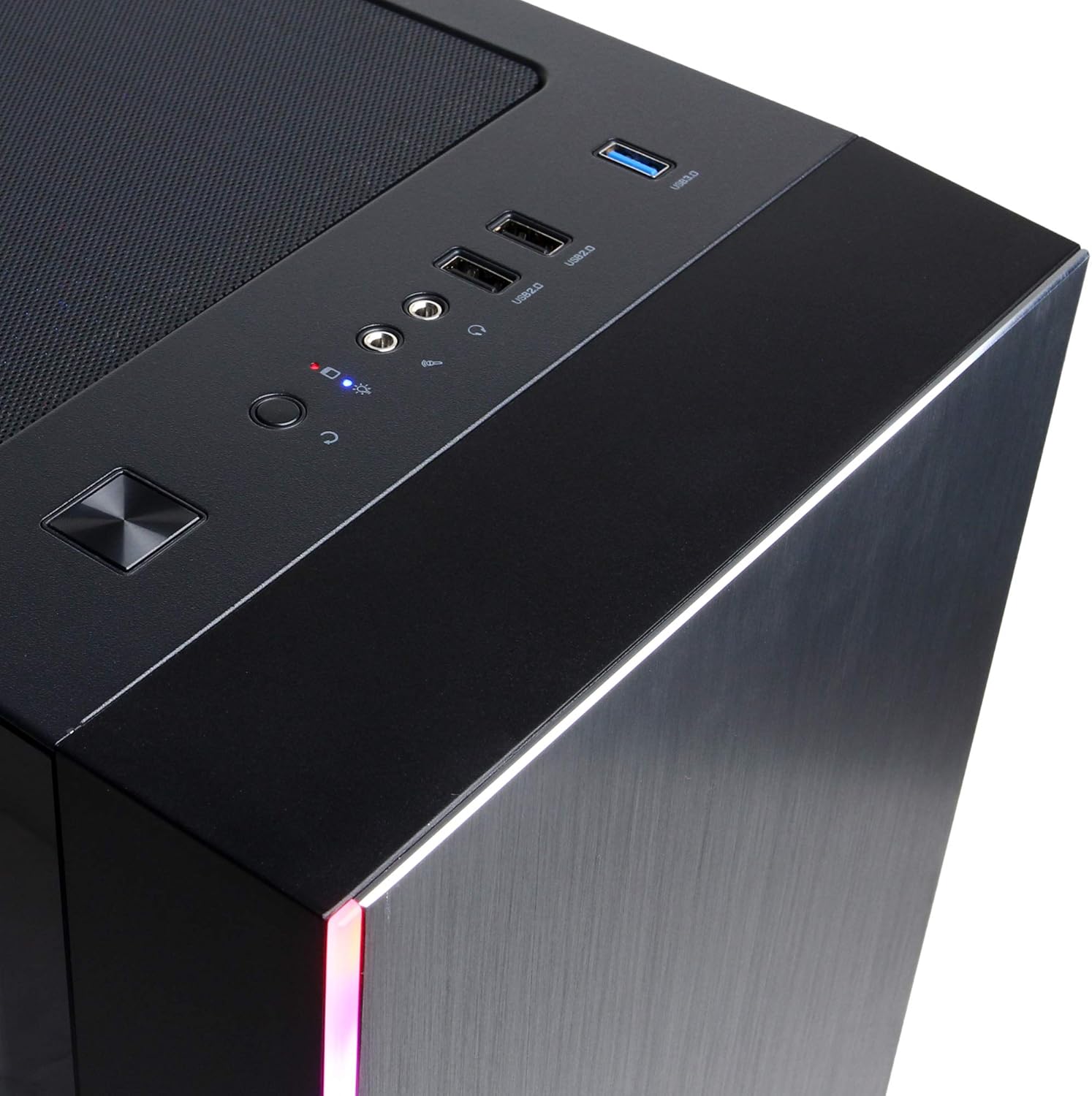
Figure 4: Detail of the top I/O panel, providing easy access to USB and audio connections.
3. Mantentzea
3.1 Garbiketa
Regular cleaning helps maintain optimal performance and extends the lifespan of your PC.
- Kanpoaldea: Erabili biguna, damp cloth to wipe down the exterior. Avoid harsh chemicals.
- Hautsa: Periodically use compressed air to clear dust from ventilation grilles and internal components. Ensure the PC is powered off and unplugged before cleaning.
3.2 Software eguneraketak
Keep your operating system, drivers, and applications updated to ensure security, stability, and performance.
- Windows eguneraketak: Joan Ezarpenak > Eguneratzea eta segurtasuna > Windows Update atalera.
- Grafikoen kontrolatzaileak: Deskargatu azken kontrolatzaileak zuzenean NVIDIAren webgune ofizialetik. webgunea.
4. Arazoak
4.1 Potentziarik gabe
- Ziurtatu kablea ondo konektatuta dagoela bai ordenagailura bai hormako entxufera.
- Egiaztatu hormako entxufea funtzionatzen duela beste gailu bat konektatuz.
- Check the power switch on the PSU (if present) is in the 'On' position.
4.2 Ez dago pantailarik
- Confirm the monitor is powered on and connected to the graphics card's output, not the motherboard's integrated graphics ports (if applicable).
- Saiatu beste pantaila-kable edo monitore batekin, eskuragarri badago.
- Ensure the monitor's input source is correctly selected.
4.3 Sistemaren moteltzea edo izoztea
- Check Task Manager (Ctrl+Shift+Esc) for high CPU, RAM, or disk usage by specific applications.
- Ziurtatu Windows eta kontrolatzaileak eguneratuta daudela.
- Birus eta malware eskaneatzea egin.
- Ensure adequate ventilation and check for excessive dust buildup.
5. Zehaztapenak
| Ezaugarri | Xehetasuna |
|---|---|
| Marka | CyberpowerPC |
| Ereduaren izena | Gamer Xtreme |
| Sistema eragilea | Windows 10 Home |
| CPU eredua | AMD Ryzen 7 3700X |
| CPU Abiadura | 3.6 GHz (Base) |
| Koprozesadore grafikoa | NVIDIA GeForce RTX 3060 |
| Graphics Card RAM | 12 GB GDDR6 |
| RAM memoria instalatuta | 16 GB DDR4 |
| Biltegiratzea | 240 GB SSD, 1 TB HDD |
| Konektibitatea | HDMI, Wi-Fi (802.11ab), USB 2.0, USB 3.0 |
| Elementuaren neurriak (LxWxH) | 18.6 x 17.4 x 8.9 hazbete |
| Hozteko metodoa | Airea |
| UPC | 811842073769 |
6. Bermearen informazioa
Your CyberpowerPC Gamer Xtreme Gaming PC is covered by a manufacturer's limited warranty. Specific terms and conditions, including warranty duration and coverage details, are typically provided with your purchase documentation or can be found on the official CyberpowerPC webgunea. Gorde erosketaren egiaztagiria bermearen erreklamazioetarako.
7. Laguntza
For technical assistance, troubleshooting, or further inquiries, please visit the official CyberpowerPC support website or contact their customer service. You may need your product model number (GMA3088W) and serial number for support.
- Ofiziala Webgunea: www.cyberpowerpc.com
- Laguntza Atala: Look for a "Support" or "Contact Us" link on their webgunea.