
1. Hasierako konfigurazioa
1.1 Inprimagailua desegitea
Carefully remove all packaging materials from the printer box. Ensure all components are present before proceeding.
- Remove the printer from its box.
- Kendu babes-zinta eta ontziratze-material guztiak inprimagailuaren kanpoaldetik eta barrualdetik.
- Verify that the power cord and USB cable are included.

Figure 1.1: Canon PIXMA MG2522 printer and included cables.
1.2 Inprimagailua konektatzea
Connect the printer to a power source and your computer.
- Konektatu elikatze-kablea inprimagailura eta gero hormako entxufe batera.
- Konektatu USB kablearen mutur karratua inprimagailuaren USB atakara eta mutur angeluzuzena ordenagailuko USB ataka libre batera.

Figure 1.2: USB and power connections on the printer.
1.3 Tinta-kartutxoak instalatzea
Install the FINE cartridges into the printer.
- Open the printer's front cover. The cartridge holder will move to the center.
- Remove the protective tape from the ink cartridges.
- Insert the color cartridge into the left slot and the black cartridge into the right slot. Push firmly until they click into place.
- Itxi aurrealdeko estalkia.
1.4 Papera kargatzea
Load paper into the rear paper tray.
- Ireki paperezko euskarria.
- Slide the paper guides to the edges.
- Load paper with the print side facing up. The printer supports plain paper, photo paper plus glossy II, photo paper glossy, and U.S. #10 envelopes.
- Adjust the paper guides to fit the paper snugly.

1.3. irudia: Papera atzeko paper-erretiluan sartzea.
1.5 Software-instalazioa
Install the necessary drivers and software on your computer.
- Insert the setup CD-ROM (if included) into your computer's CD/DVD drive, or download the latest drivers from the official Canon webgunea.
- Jarraitu pantailako argibideei instalazioa amaitzeko.
- The printer is compatible with Windows 10, 8.1, 8, 7, 7 SP1, Vista SP1, Vista SP2, XP SP3 32-bit, and Mac OS X v10.7.5 - 10.11.
2. Inprimagailuaren funtzionamendua
2.1 Dokumentuak inprimatzea
Dokumentu bat ordenagailutik inprimatzeko:
- Ireki inprimatu nahi duzun dokumentua.
- Hautatu Inprimatu from the application's File menua.
- Choose "Canon MG2522 series" as your printer.
- Adjust print settings (e.g., paper size, print quality) as needed.
- Egin klik Inprimatu.
The printer offers approximate print speeds of 8.0 ipm for black and white, and 4.0 ipm for color documents. Maximum print resolution is 4800 x 600 dpi.
2.2 Dokumentuak kopiatzea
To make a copy using the printer's control panel:
- Place the document face-down on the scanner glass, aligning it with the arrow mark.
- Close the document cover gently.
- Sakatu Beltza button for a black and white copy or the Kolorea button for a color copy.
- To make multiple copies, press the desired copy button repeatedly for the number of copies required.
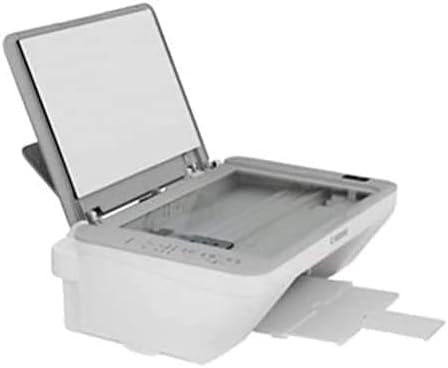
Figure 2.1: Scanner glass with document cover open.
2.3 Dokumentuak eskaneatzea
To scan a document to your computer:
- Jarri dokumentua aurpegia behera eskaneraren beiraren gainean.
- Ireki eskaneatze softwarea zure ordenagailuan (adibidez, Canon IJ Scan Utility).
- Select the desired scan type (e.g., Photo, Document).
- Egokitu eskaneatze-ezarpenak behar den moduan (adibidez, bereizmena, kolore-modua).
- Egin klik Eskaneatu. The scanned image will be saved to your computer.
3. Mantentzea eta Zainketa
3.1 Inprimagailua garbitzea
Garbiketa erregularrak inprimatze-kalitatea mantentzen laguntzen du eta inprimagailuaren bizitza luzatzen du.
- Garbitu inprimagailuaren kanpoaldea oihal leun eta lehor batekinamp, litxarrik gabeko oihala.
- Clean the scanner glass regularly with a glass cleaner and a soft cloth. Avoid abrasive cleaners.
- Perform print head cleaning from the printer driver utility if print quality degrades (e.g., streaks, faded colors).
3.2 Tinta-kartutxoak ordezkatzea
Replace ink cartridges when they are empty or low to ensure continuous printing.
- Ziurtatu inprimagailua piztuta dagoela.
- Open the front cover. The cartridge holder will move to the replacement position.
- Press down on the empty cartridge to release it, then pull it out.
- Unpack the new cartridge, remove the protective tape, and insert it into the correct slot (color on left, black on right). Push until it clicks.
- Itxi aurrealdeko estalkia.
3.3 Paper Jam Resolution
Papera traba gertatzen bada, jarraitu urrats hauek:
- Itzali inprimagailua eta deskonektatu korronte-kablea.
- Gently pull out any visible jammed paper from the paper output slot or the rear tray.
- If paper is stuck inside, open the front cover and carefully remove any jammed paper.
- Ensure no torn pieces of paper remain inside the printer.
- Itxi estalki guztiak, konektatu korronte-kablea eta piztu inprimagailua.
4. Ohiko arazoak konpontzea
This section provides solutions to common problems you may encounter.
| Arazoa | Kausa posiblea | Irtenbidea |
|---|---|---|
| Inprimagailua ez da pizten. | Elikatze-kablea ez da behar bezala konektatuta. | Ensure the power cord is securely connected to the printer and a working electrical outlet. |
| Inprimagailua ez du ordenagailuak ezagutzen. | USB cable disconnected or drivers not installed. | Check USB cable connection. Reinstall printer drivers from the Canon webgunea. |
| Poor print quality (streaks, faded). | Tinta gutxi, inprimatze-burua buxatuta, paper mota okerra. | Check ink levels and replace cartridges if low. Perform print head cleaning and nozzle check. Ensure correct paper type is selected in print settings. |
| Paper ataskatzea. | Paper loaded incorrectly, foreign object, excessive paper. | Refer to Section 3.3 "Paper Jam Resolution". |
| Error B200 (Print Head Error). | Print head malfunction. | Turn off the printer, unplug it, wait a few minutes, then plug it back in and turn it on. If the error persists, contact Canon support. |
5. Zehaztapen Teknikoak
| Ezaugarri | Xehetasuna |
|---|---|
| Inprimagailu mota | Tinta-zorrotadako inprimagailu osoa (inprimatu, kopiatu, eskaneatu) |
| Eredu seriea | Canon PIXMA 2522 Series |
| Modelo zenbakia | MG2522 |
| Konektibitate Teknologia | Abiadura Handiko USBa |
| Inprimatzeko abiadura (beltza) | Gutxi gorabehera. 8.0 ipm |
| Inprimatze-abiadura (koloretan) | Gutxi gorabehera. 4.0 ipm |
| Inprimatzeko ebazpena | Gehienez 4800 x 600 dpi |
| Onartutako euskarri motak | Plain Paper, Photo Paper Plus Glossy II, Photo Paper Glossy, U.S. #10 Envelopes |
| Onartutako paper-tamainak | 4 x 6, 5 x 7, Letter, Legal, U.S. #10 Envelopes |
| Paperaren erretilua edukiera | Rear Paper Tray: 60 Sheets of Plain Paper OR 20 Sheets of 4 x 6 Glossy Photo Paper |
| Neurriak (W x D x H) | 16.8" x 12.1" x 5.8" |
| Pisua | Approx. 7.6 lbs (10.6 lbs packaged) |
| OS bateragarritasuna | Windows 10, 8.1, 8, 7, 7 SP1, Vista SP1, Vista SP2, XP SP3 32-bit; Mac OS X v10.7.5 - 10.11 |
6. Bermea eta Laguntza
6.1 Bermearen informazioa
This Canon PIXMA MG2522 printer typically comes with a standard manufacturer's warranty. Please refer to the warranty card included in your product packaging or visit the official Canon website for specific terms, conditions, and duration of the warranty applicable in your region.
6.2 Bezeroarentzako laguntza
For technical assistance, troubleshooting beyond this manual, or service inquiries, please contact Canon customer support:
- Bisitatu Canon laguntza ofiziala webgunea: www.usa.canon.com/support
- Ikusi zure produktuaren dokumentazioan emandako harremanetarako informazioa.


