1. Sarrera
Welcome to the user manual for your ASUS E410 14-inch laptop. This guide provides essential information to help you set up, operate, maintain, and troubleshoot your device. Please read this manual thoroughly to ensure proper use and to maximize the performance and longevity of your laptop.
The ASUS E410 is designed for productivity and portability, featuring an Intel Celeron N4020 processor, 4GB DDR4 RAM, and 320GB storage, running on Windows 11.
2. Hasteko
2.1 Paketearen edukia
Hasi aurretik, ziurtatu elementu guztiak paketean daudela:
- ASUS E410 ordenagailu eramangarria
- Elikatze-moldagailua
- Mikrozuntzezko oihala
- Erabiltzailearen eskuliburua (dokumentu hau)
2.2 Laptop Overview
Familiarize yourself with the main components of your ASUS E410 laptop.

2.2.1. irudia: Aurrealdea view of the ASUS E410 laptop displaying the Windows 11 desktop and Start Menu. This image shows the full keyboard, touchpad, and screen.
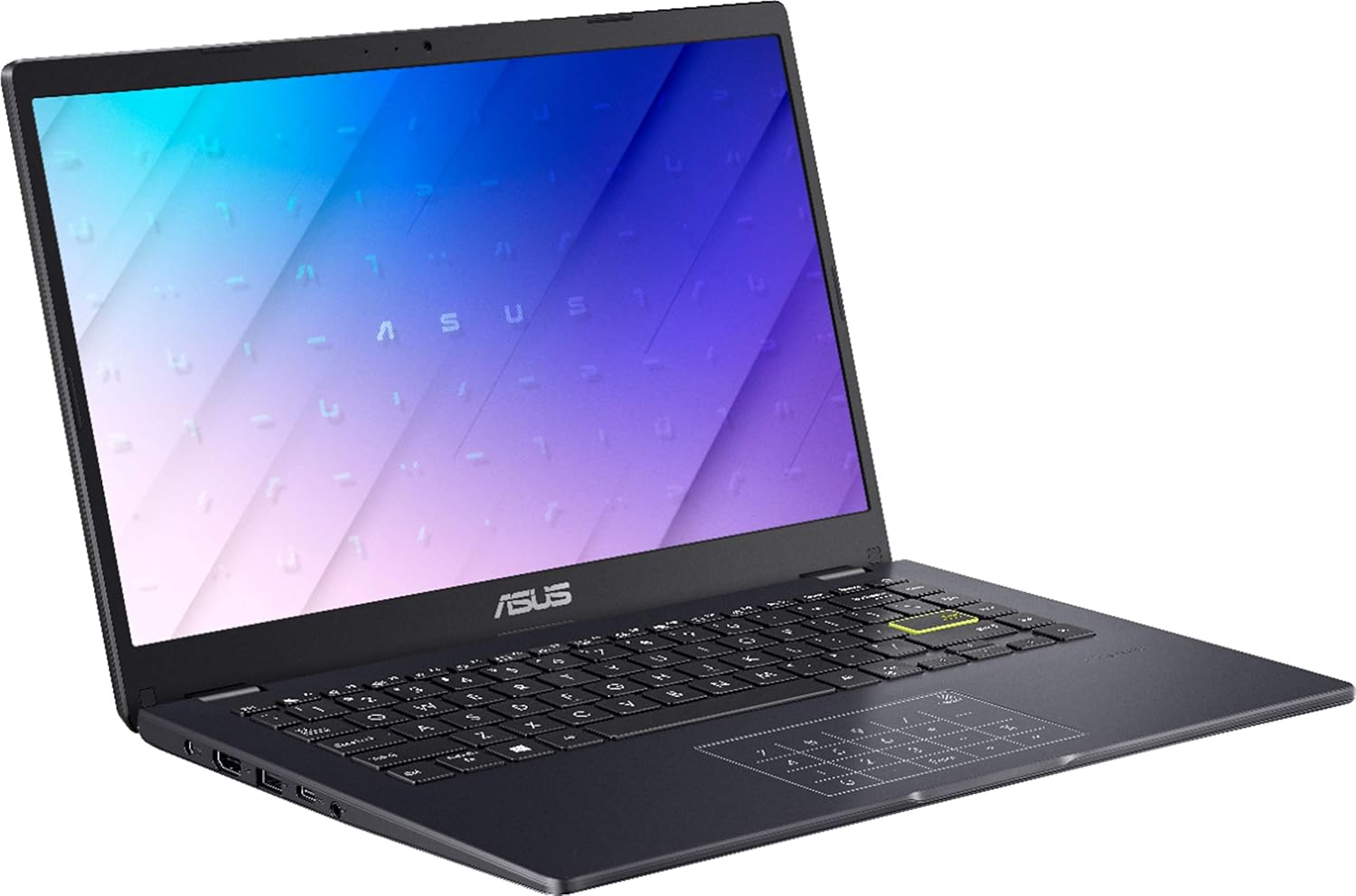
2.2.2. irudia: Aldea view of the ASUS E410 laptop, highlighting the various ports available for connectivity.
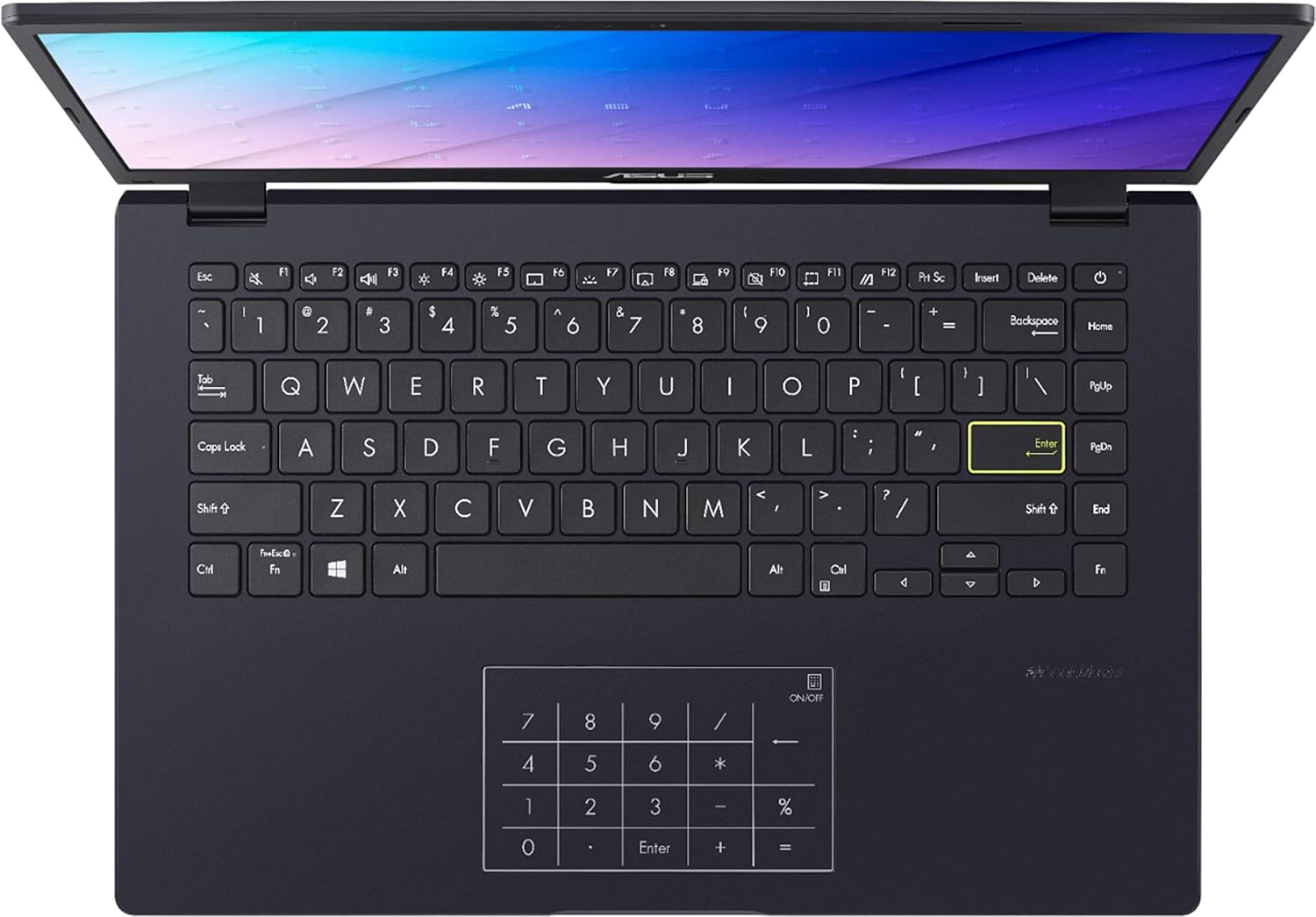
2.2.3. irudia: Goitik behera view of the ASUS E410 keyboard and touchpad, which features an integrated numeric keypad.
3. Konfigurazioa
3.1 Hasierako piztea
- Konektatu korronte-egokitzailea ordenagailu eramangarriaren kargatzeko atakara eta gero entxufe batera.
- Ireki ordenagailu eramangarriaren estalkia.
- Sakatu pizteko botoia, normalean teklatuaren goiko eskuinaldean edo alboan dagoena.
- Follow the on-screen instructions to complete the Windows 11 initial setup, including language, region, network connection, and user account creation.
3.2 Periferikoak konektatzea
Your ASUS E410 laptop includes various ports for connecting external devices:
- USB 3.2 Type-C Gen 1: Abiadura handiko datuak transferitzeko.
- USB Standard Port (x2): USB gailuak konektatzeko, hala nola saguak, teklatuak edo kanpoko unitateak.
- HDMI: Kanpoko pantailetara edo proiektoreetara konektatzeko.
- Micro SD Connectivity: For reading Micro SD cards.
Simply plug your peripheral devices into the appropriate ports. The operating system will typically detect and install necessary drivers automatically.
3.3 Windows 11 S modutik irtetea
Windows 11 in S mode is designed for security and performance, exclusively running apps from the Microsoft Store. If you need to install apps from outside the Microsoft Store, you can switch out of S mode. This is a one-way switch.
- On your PC running Windows 11 in S mode, open Ezarpenak.
- Nabigatu Eguneratzea eta segurtasuna, gero hautatu Aktibazioa.
- "Aldatu Windows 11 Home-ra" edo "Aldatu Windows 11 Pro-ra" atalean, hautatu Joan dendara.
(Note: If you also see an "Upgrade your edition of Windows" section, be careful not to click the "Go to the Store" link that appears there.) - On the "Switch out of S mode (or similar)" page that appears in the Microsoft Store, select the Lortu botoia.
- After you see a confirmation message, you will be able to install apps from outside of the Microsoft Store.
4. Zure ordenagailu eramangarria erabiltzea
4.1 Teklatua eta ukipen-panela
The laptop features a full-sized keyboard and a multi-touch touchpad. The touchpad also integrates a numeric keypad for convenient data entry.
- Funtzio-teklak (Fn): Erabili Fn key in combination with the function keys (F1-F12) to access special features like adjusting screen brightness, volume, or enabling/disabling Wi-Fi.
- Touchpad keinuak: The touchpad supports various multi-touch gestures for navigation and control within Windows 11. Refer to Windows settings for customization.
4.2 Bateriaren kudeaketa
Your ASUS E410 is equipped with a Lithium Polymer battery, offering an average battery life of up to 12 hours under optimal conditions.
- Kargatzen: Connect the power adapter to fully charge the battery before first use and whenever the battery level is low.
- Bateria osasuna: To prolong battery life, avoid frequently discharging the battery completely. It is recommended to keep the battery level between 20% and 80% when possible.
- Potentzia moduak: Utilize Windows 11 power settings to optimize battery life or performance based on your needs.
4.3 Haririk gabeko konexioa
The laptop supports Wi-Fi 5 (802.11ac) for wireless network connections.
- Egin klik sistemaren erretiluan dagoen Wi-Fi ikonoan (pantailaren beheko eskuineko izkinan).
- Hautatu nahi duzun Wi-Fi sarea zerrendatik.
- Sareko pasahitza idatzi behar baduzu eta egin klik Konektatu.
5. Mantentzea
5.1 Ordenagailu eramangarria garbitzea
- Pantaila: Erabili zapi leun eta lihorik gabekoa, apur bat lehortuaampened with water or a screen cleaner, to gently wipe the display. Avoid harsh chemicals.
- Teklatua eta txasisa: Erabili zapi leun bat gainazalak garbitzeko. Aire konprimituzko lata batek teklen arteko hautsa kendu dezake.
- Portuak: Ziurtatu atakak hautsik eta hondakinik gabe daudela. Erabili aire konprimatua beharrezkoa bada.
Itzali eta deskonektatu beti ordenagailu eramangarria garbitu aurretik.
5.2 Software eguneraketak
Regularly update your Windows operating system and drivers to ensure optimal performance, security, and compatibility.
- Windows eguneraketa: Joan zaitez Ezarpenak > Windows eguneratzea eguneraketak egiaztatu eta instalatzeko.
- Gidarien eguneraketak: ASUS may provide specific driver updates. Visit the official ASUS support webzure modeloarentzako gunea.
6. Arazoak
Atal honek zure ordenagailu eramangarriarekin izan ditzakezun arazo ohikoenei buruzko informazioa ematen du.
- Ordenagailu eramangarria ez da pizten:
- Ziurtatu korronte-egokitzailea ondo konektatuta dagoela ordenagailu eramangarrira eta funtzionatzen duen entxufe batera.
- Egiaztatu entxufea funtzionatzen duen beste gailu bat konektatuz.
- Saiatu pizteko botoia 15-20 segundoz sakatuta berrezarpen gogorra egiteko.
- Ez dago Wi-Fi konexiorik:
- Egiaztatu Wi-Fi gaituta dagoela Windows ezarpenetan.
- Berrabiarazi zure bideratzailea eta modema.
- Ziurtatu Wi-Fi sare baten eremuan zaudela.
- Egiaztatu sareko kontrolatzaile eguneratuak dauden.
- Errendimendu motela:
- Itxi atzeko planoan exekutatzen ari diren beharrezkoak ez diren aplikazioak.
- Begiratu eta instalatu zain dauden Windows eguneratzeak.
- Diskoaren garbiketa bat egin. SSDetarako, ziurtatu TRIM gaituta dagoela (normalean automatikoa).
- Eskaneatu malwarea edo birusak bilatzeko.
- Consider if you are running many demanding applications simultaneously.
- Kanpoko pantaila ez dabil:
- Ensure the HDMI cable is securely connected to both the laptop and the external display.
- Check the input source on your external display.
- Sakatu Windows tekla + P and select a display option (e.g., Duplicate, Extend).
7. Zehaztapenak
Below are the detailed technical specifications for the ASUS E410 laptop:
| Ezaugarri | Zehaztapena |
|---|---|
| Ereduaren izena | E410 |
| Pantailaren tamaina | 14 hazbete |
| Pantailaren bereizmena | 1366 x 768 pixel |
| Prozesadorea | Intel Celeron N4020 (1.1 GHz, up to 2.8 GHz Burst Frequency) |
| RAM | 4 GB DDR4 |
| Biltegiratzea | 320 GB SSD (64GB eMMC + 256GB PCIe SSD) |
| Koprozesadore grafikoa | Intel UHD Graphics 600 |
| Sistema eragilea | Windows 11 |
| Haririk gabeko mota | 802.11ac (Wi-Fi 5) |
| Bateriaren batez besteko iraupena | 12 ordu |
| Portuak | 1x USB 3.2 Type-C Gen 1, 2x USB Standard Port, 1x HDMI, 1x Micro SD |
| Elementuaren pisua | 2.87 kilo |
| Produktuaren neurriak | 12.81 x 8.56 x 0.74 hazbete |
| Kolorea | Urdina |
8. Laguntza eta Bermea
8.1 Bezeroarentzako laguntza
For further assistance, technical support, or service inquiries, please visit the official ASUS support website. You can find drivers, FAQs, and contact information there.
ASUSen laguntza ofiziala Webgunea
8.2 Bermearen informazioa
Your ASUS laptop comes with a limited warranty. Please refer to the warranty card included in your product packaging or visit the ASUS support webZure eskualdeko eta produktu modeloko berme-baldintza zehatzak ikusteko, bisitatu webgunea. Gorde erosketaren frogagiria berme-erreklamazioetarako.