
Sarrera
Thank you for choosing the Pixio PX27U Wave Beige 27-inch 4K 160Hz Gaming Monitor. This manual provides essential information for setting up, operating, and maintaining your new monitor. Please read it thoroughly before use to ensure optimal performance and safety.
The Pixio PX27U Wave Beige monitor is designed to deliver an exceptional visual experience with its 4K UHD (3840x2160p) resolution, a rapid 160Hz refresh rate, and a lightning-fast 1ms GTG response time. Featuring a Fast IPS panel, it offers vibrant colors and wide viewing angles, complemented by Adaptive Sync technology for tear-free gameplay. Its versatile connectivity options, including HDMI 2.1 and DisplayPort 1.4, ensure broad compatibility with various devices.
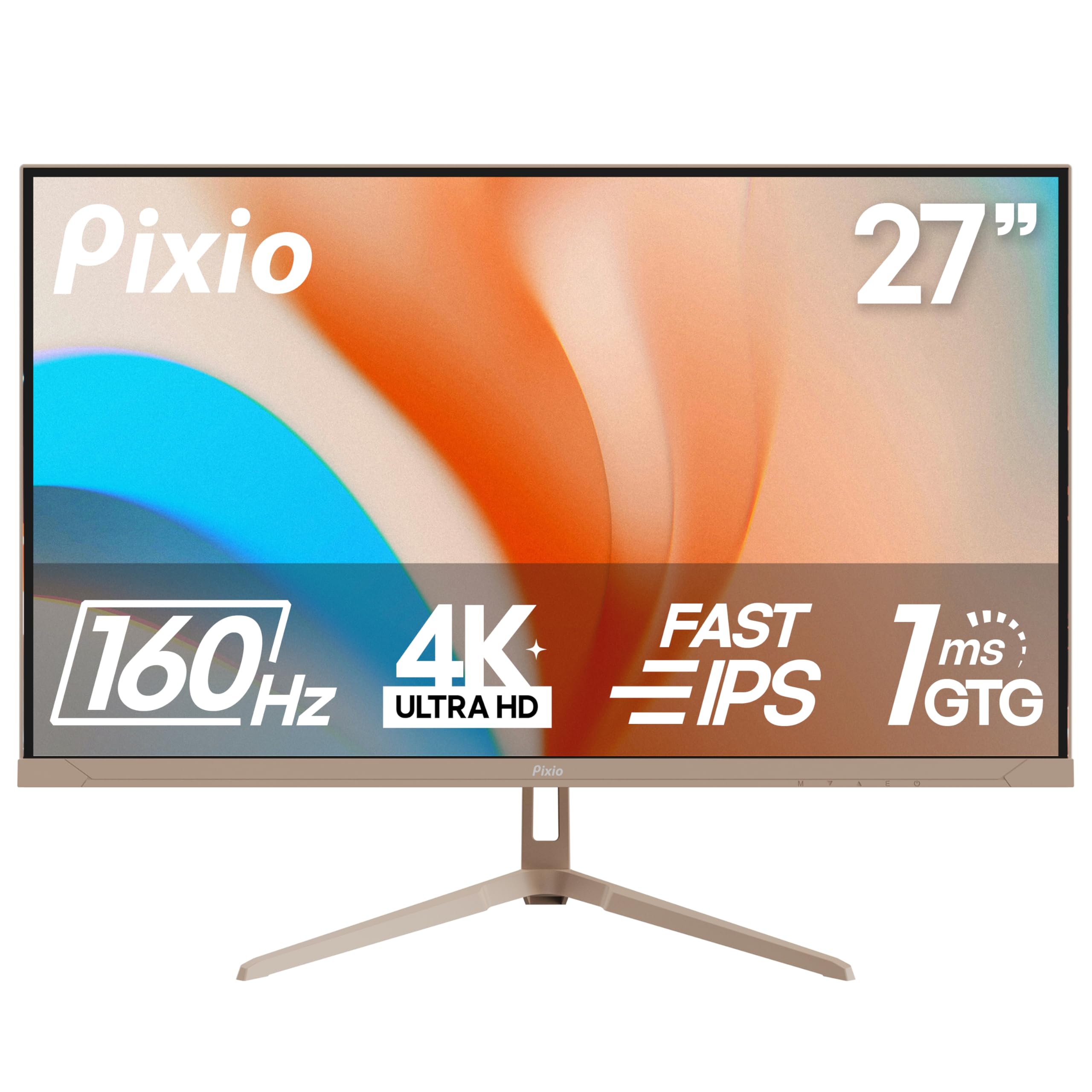
Image: The Pixio PX27U Wave Beige 27-inch 4K 160Hz Gaming Monitor, showcasinbere diseinu dotorea eta pantaila bizia ditu.
Konfigurazioa
1. Kutxatik ateratzea eta osagaien egiaztapena
Kontu handiz atera osagai guztiak paketetik. Ziurtatu elementu hauek daudela:
- Pixio PX27U Wave Beige Monitor
- Monitorearen euskarria (oinarria eta lepoa)
- Korronte egokitzailea eta kablea
- HDMI kablea
- DisplayPort (DP) kablea
- Erabiltzailearen eskuliburua (dokumentu hau)
- VESA Mount Adapter (if included for alternative mounting)
2. Standa muntatzea
- Attach the stand neck to the monitor panel. Align the grooves and secure with the provided screws.
- Lotu euskarriaren oinarria euskarriaren lepoari. Estutu oinarriaren behealdeko torloju edo torloju eskudunak.
- Jarri muntatutako monitorea gainazal egonkor eta lau batean.

Image: Unboxed Pixio PX27U Wave Beige monitor with its stand components and included cables laid out.
3. Konektatzeko kableak
Connect the power adapter to the monitor's DC IN port and then to a power outlet. Use either the HDMI or DisplayPort cable to connect your computer or gaming console to the monitor.
- HDMI konexioa: Use the provided HDMI cable to connect your device to one of the monitor's HDMI 2.1 ports. These ports support up to 4K@160Hz.
- DisplayPort konexioa: Use the provided DisplayPort 1.4 cable to connect your device to one of the monitor's DP 1.4 ports. These ports also support up to 4K@160Hz.
- Entzungailuen kablea: Connect your headphones or external speakers to the earphone jack for audio output.
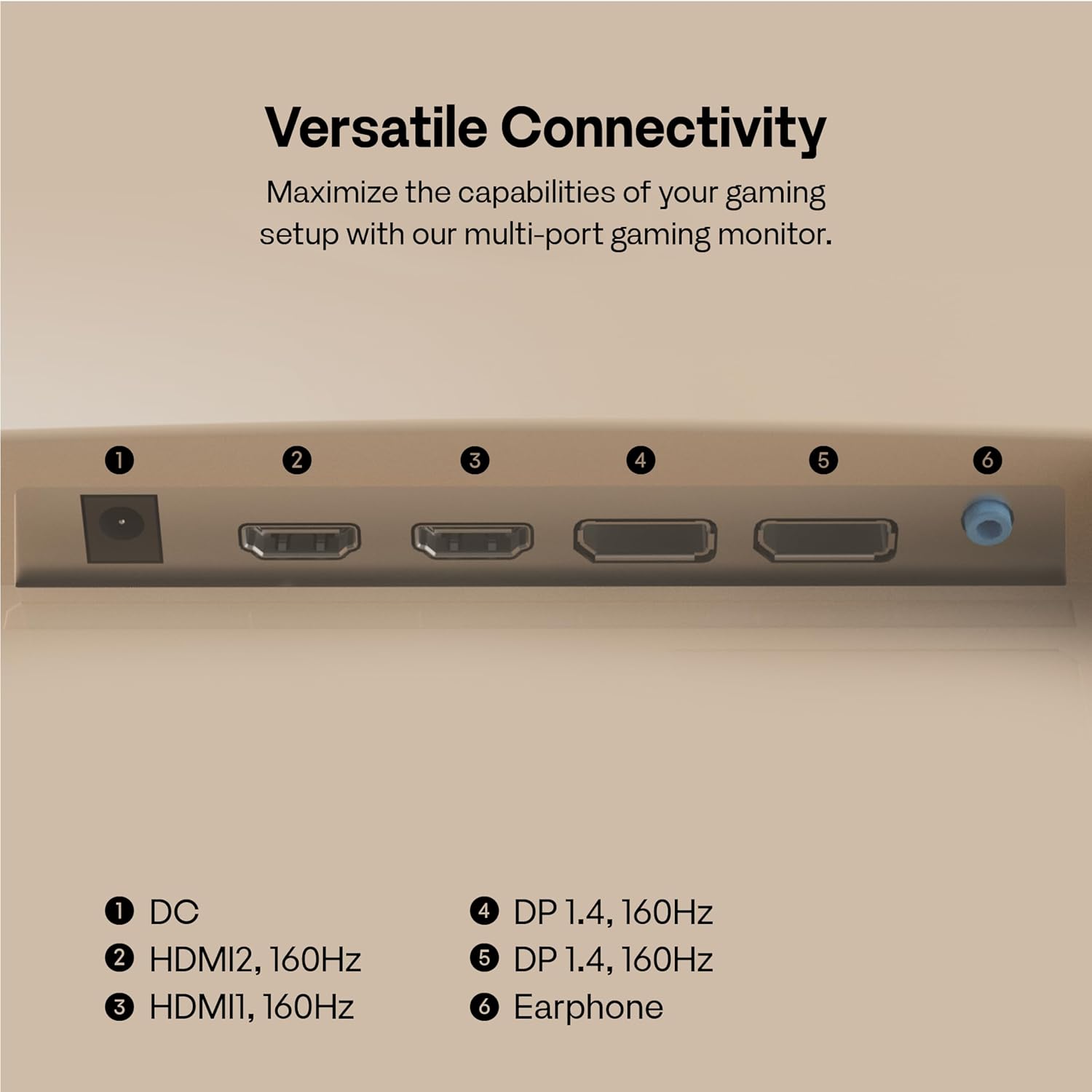
Image: A close-up of the monitor's rear panel, highlighting the DC IN, HDMI 2.1, DisplayPort 1.4, and Earphone Jack ports for versatile connectivity.
4. VESA muntaketa (aukerakoa)
If you prefer to mount your monitor using a VESA-compatible arm or wall mount, remove the stand and attach the VESA mount adapter (if applicable) to the monitor's VESA mounting holes (100x100mm). Follow the instructions provided with your VESA mount.
Video: An instructional video demonstrating the assembly of a VIVO STAND-V024 Dual Monitor Desk Mount, which is compatible with VESA mounting standards. This video illustrates how to attach monitors to a VESA mount, providing a visual guide for users opting for this setup.
Monitorea funtzionatzen
1. Piztu/Itzali
Press the power button located on the back of the monitor to turn it on or off. The monitor will automatically detect the input signal.
2. Pantailako pantailan (OSD) nabigazioa
Use the 5-way joystick button on the back of the monitor to navigate the OSD menu. Push the joystick in to select an option, and move it up/down/left/right to browse through settings.
3. Pantailaren ezarpenak doitzea
- Ebazpena: The monitor supports 4K (3840x2160p) resolution. Ensure your connected device is configured to output at this resolution for optimal clarity.
- Freskatze-tasa: Experience ultra-smooth visuals with a 160Hz refresh rate. Verify your device's display settings are set to 160Hz.
- Erantzun denbora: The 1ms GTG (Gray-to-Gray) response time minimizes motion blur, crucial for fast-paced gaming.
- Sinkronizazio egokitzailea: Enable Adaptive Sync in your monitor's OSD and your graphics card settings to eliminate screen tearing and stuttering.
- HDR: The monitor is HDR compatible. For the best experience, ensure your content and source device support HDR.

Image: A visual comparison demonstrating the difference between a 60Hz and 160Hz refresh rate, highlighting the enhanced smoothness and precision offered by the higher refresh rate for gaming.

Image: The Pixio PX27U Wave Beige monitor showcasing vibrant and rich colors, emphasizing its 99.5% DCI-P3 color gamut for immersive visual experiences.
Video: An official Pixio video highlighting the key features of the PX27U Wave 27" 4K 160Hz Fast IPS 1ms GTG Gaming Monitor, including its high refresh rate, fast response time, and vibrant display.
Mantentzea
1. Pantaila garbitzea
Pantaila garbitzeko, astiro-astiro zapi leun eta pelusik gabeko batekin garbitu. Orban egoskorrak izanez gero, astiro-astiro garbitu.ampGarbitu zapi bat urarekin edo pantaila garbitzeko soluzio batekin. Saihestu produktu kimiko gogorrak edo material urratzaileak erabiltzea.
2. Zaintza orokorra
Mantendu monitorearen argi-argia zuzenean, bero gehiegizkotik eta hezetasunetik urrun. Ziurtatu aireztapen egokia dagoela monitorearen inguruan gehiegi berotzea saihesteko. Saihestu objektu astunak monitorearen edo haren kableen gainean jartzea.
Arazoak konpontzea
- Potentziarik gabe: Ziurtatu kablea ondo konektatuta dagoela monitoreari eta entxufeari. Egiaztatu entxufea funtzionatzen duen.
- Seinalerik ez: Verify that the video cable (HDMI or DisplayPort) is correctly connected to both the monitor and your source device. Ensure the correct input source is selected in the OSD menu.
- Pantaila keinukaria: Check the video cable for damage or loose connections. Ensure your graphics card drivers are up to date. Try enabling or disabling Adaptive Sync.
- Image Distortion/Blurry: Adjust the resolution and refresh rate settings on your computer to match the monitor's native resolution and refresh rate.
- Pixel hilak: While rare, a small number of dead or stuck pixels are within industry standards. If you suspect a significant issue, refer to the warranty information.
Zehaztapenak
| Ezaugarri | Zehaztapena |
|---|---|
| Pantailaren tamaina | 27 hazbete |
| Ebazpena | 4K UHD 3840 x 2160 Pixels |
| Freskatze tasa | 160Hz |
| Erantzun Denbora | 1 ms GTG |
| Panel mota | IPS azkarra |
| Sinkronizazio egokitzailea | Bai |
| HDR bateragarritasuna | Yes (HDR content and compatible source required) |
| Aspektu-erlazioa | 16:9 |
| Irudiaren distira | 400 Kandela |
| Konektibitatea | 2x HDMI 2.1, 2x DisplayPort 1.4, Earphone Jack |
| Produktuaren neurriak | 8.3 x 2.2 x 18.18 hazbete |
| Elementuaren pisua | 15 kilo |
| Fabrikatzailea | Pixio |
Bermearen informazioa
Your Pixio PX27U Wave Beige monitor comes with a manufacturer's warranty. Please refer to the warranty card included in your product packaging or visit the official Pixio website for detailed information regarding warranty terms, conditions, and registration procedures. Keep your proof of purchase for warranty claims.
Laguntza
For technical assistance, troubleshooting, or any questions regarding your Pixio PX27U Wave Beige monitor, please contact Pixio customer support through their official website or the contact information provided in your warranty documentation. You may also find helpful resources, FAQs, and driver downloads on the Pixio support page.