
1. Sarrera
The Fujitsu ScanSnap iX1400 is a desktop document scanner designed for individuals, families, and small teams to efficiently digitize, organize, and share documents. This manual provides essential information for setting up, operating, maintaining, and troubleshooting your scanner to ensure optimal performance.

Image: The ScanSnap iX1400 scanner actively scanning a document, illustrating its automatic feeding and output capabilities.
2. Konfigurazioa
2.1 Kutxa irekitzea eta edukia
Kontu handiz atera eskanerra eta osagarri guztiak paketetik. Egiaztatu osagai guztiak daudela:
- ScanSnap iX1400 eskaner unitatea
- Korronte-egokitzailea eta elikatze-kablea
- USB kablea
- Konfigurazio DVD-ROMa (edo deskargatzeko argibideak)
- Safety Precautions and other documentation
2.2 Konexio fisikoa
- Jarri eskanerra gainazal egonkor eta lau batean.
- Connect the AC adapter to the scanner's power input and then plug it into a wall outlet.
- Connect one end of the supplied USB cable to the USB port on the scanner and the other end to an available USB port on your computer.

Irudia: Atzealdea view of the ScanSnap iX1400, highlighting the connectivity ports for power and USB.
2.3 Software-instalazioa
Insert the Setup DVD-ROM into your computer's optical drive, or download the latest ScanSnap Home software from the official Fujitsu ScanSnap website. Follow the on-screen instructions to install the software and drivers. This software is essential for operating the scanner and managing your scanned documents.
3. Eskanerra erabiltzea
3.1 Dokumentuak kargatzea
Open the Automatic Document Feeder (ADF) cover. Adjust the side guides to match the width of your documents. Load up to 50 sheets of paper into the ADF. Ensure documents are free of staples, paper clips, or tears to prevent jams.

Image: The ScanSnap iX1400 with a business card and a standard document loaded in the automatic document feeder, ready for scanning.
3.2 Eskaneatzea abiaraztea
The ScanSnap iX1400 features a simple one-touch scan button. Once documents are loaded and the scanner is powered on, press the blue 'Scan' button on the front panel. The scanner will automatically detect document size, color, and orientation, and begin the scanning process.
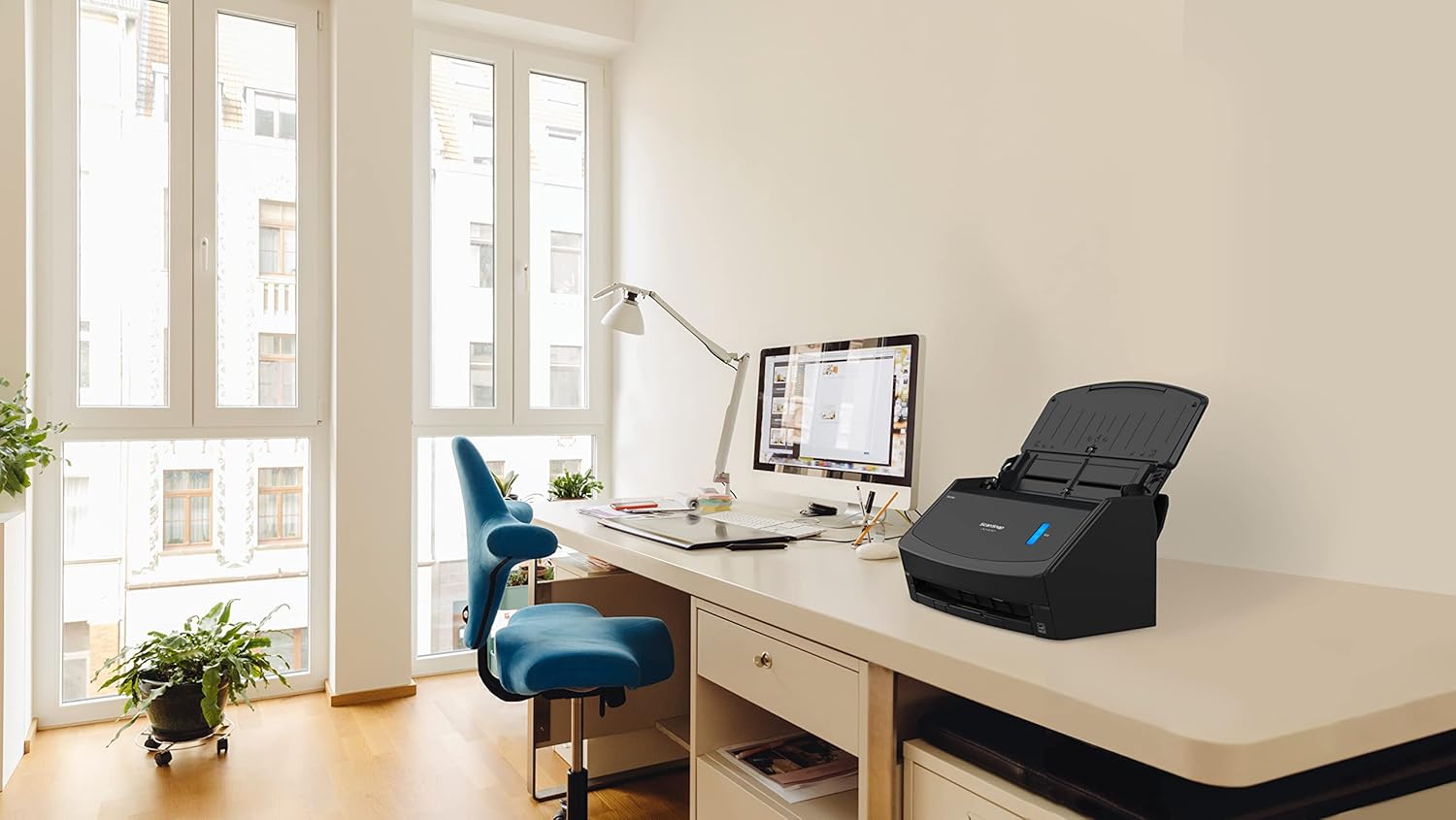
Image: A user's hand initiating a scan by pressing the prominent blue 'Scan' button on the iX1400 scanner.
3.3 Document Types and Features
- Dokumentuen kudeaketa polifazetikoa: Scans various document types from A8 to A4 sizes, including receipts, business cards, and invoices.
- Duplex eskaneatzea: Automatically scans both sides of a document simultaneously at a speed of 40 sheets (80 images) per minute.
- A3 Manual Scan: For larger documents up to A3 size, use the manual scan mode.
- Irteera formatuak: Documents can be saved as searchable PDFs, standard PDFs, JPEG images, or converted into editable Microsoft Word, Excel, or PowerPoint formats.

Image: The ScanSnap iX1400 completing a scan, with a document smoothly exiting into the output tray.
4. Mantentzea
4.1 Eskanerra garbitzea
Regular cleaning ensures consistent scan quality and extends the life of your scanner. It is recommended to clean the rollers and glass surfaces periodically.
- Itzali: Itzali eta deskonektatu beti eskanerra garbitu aurretik.
- Kanpoaldea: Garbitu kanpoaldea zapi leun eta lehor batekin.
- Arrabolak: Ireki eskaneraren estalkia eta garbitu elikatze-arrabolak oihal batekin astiro-astiro.ampened with isopropyl alcohol or a specialized roller cleaner. Ensure they are dry before use.
- Beirazko gainazalak: Use a lint-free cloth and a non-abrasive glass cleaner to clean any glass surfaces inside the scanner.
Avoid using harsh chemicals or abrasive materials, as these can damage the scanner components.
5. Arazoak
If you encounter issues with your ScanSnap iX1400, refer to the following common solutions:
- Eskanerra ez da detektatu: Ensure the USB cable is securely connected to both the scanner and the computer. Try a different USB port or cable. Verify that the scanner drivers are correctly installed.
- Paper-atalak: Turn off the scanner and carefully open the covers to remove any jammed paper. Ensure documents are properly aligned and free of obstructions before loading.
- Eskaneatze kalitate eskasa: Clean the scanner's rollers and glass surfaces as described in the Maintenance section. Adjust scan settings within the ScanSnap Home software (e.g., resolution, color mode).
- Software-arazoak: Restart your computer and the scanner. Ensure your ScanSnap Home software is up to date. If problems persist, try reinstalling the software.
For more detailed troubleshooting, consult the comprehensive help section within the ScanSnap Home software or visit the official Fujitsu ScanSnap support webgunea.
6. Zehaztapenak
| Ezaugarri | Zehaztapena |
|---|---|
| Ereduaren izena | iX1400 |
| Zati zenbakia | PA03820-B111 |
| Eskaner mota | Dokumentuen eskanerra |
| Konektibitate Teknologia | USBa |
| Orri-sarrerako gehienezko edukiera | 50 orri (dokumentu-elikagailu automatikoa) |
| Eskaneatzeko abiadura | 40 ppm (pages per minute) / 80 ipm (images per minute) |
| Eskaneatzea alderantzizko aldea | Bai |
| Gehienezko multimedia-tamaina | A3 (via manual scan mode), A4 (ADF) |
| Onartutako euskarri motak | Plain Paper, Receipts, Business Cards |
| Eskanerraren Ebazpena | 600 ppp |
| Kolore-Sakonera | 24 bpp |
| Argi iturri mota | LED |
| Produktuaren neurriak (W x P x H) | 39 x 25 x 27 cm |
| Produktuaren pisua | 4.39 kg |
| Kolorea | Beltza |
7. Bermea eta Laguntza
7.1 Bermearen informazioa
For detailed warranty information, including coverage period and terms, please refer to the warranty card included with your product or visit the official Fujitsu ScanSnap webgunea. Gorde erosketaren egiaztagiria bermearen erreklamazioetarako.
7.2 Bezeroarentzako laguntza
If you require further assistance, technical support, or have questions not covered in this manual, please visit the official Fujitsu ScanSnap support website or contact their customer service directly. Support contact details can typically be found on the manufacturer's webgunean edo eskanerrarekin batera emandako dokumentazioan.