
Sarrera
The HyperGear HyperStream 1080P Webcam provides high-definition video and clear audio for various applications, including online meetings, classes, and streaming. This manual provides instructions for setup, operation, maintenance, and troubleshooting to ensure optimal performance of your webkamara.
Paketearen edukia
Mesedez, egiaztatu elementu guztiak zure paketean daudela:
- HyperGear HyperStream 1080P Webkamara
- USB kablea
- Mikrofono integratua
Produktua amaituview
The HyperGear HyperStream 1080P Webcam is designed for ease of use and high-quality performance. Key features include:
- Crystal-Clear 1080P HD Resolution: Delivers sharp and vibrant visuals.
- Built-in Noise Reduction Microphone: Captures clear audio by reducing background sounds.
- Plug & Play USB konexioa: Requires no additional software or drivers for quick setup.
- Wide-Angle 110° Lens: Eremu zabala jasotzen du view, suitable for group interactions.
- Auto-White Balance: Automatically adjusts to various lighting conditions for optimal image quality.
- Klip-on muntaia erregulagarria: Securely attaches to monitors or laptops, and can also be positioned as a standalone unit.
Konfigurazio Argibideak
Follow these steps to set up your HyperGear HyperStream 1080P Webkamera:
- Deskonprimitu Webkamera: Kendu arretaz webcam and its USB cable from the packaging.

Image: The HyperGear HyperStream 1080P Webcam is designed for instant plug-and-play setup without requiring additional drivers. Simply connect the USB cable to your computer.
- Muntatu Webkamera:
- Monitore/ordenagailu eramangarri batean: Open the adjustable clip and place it securely on top of your monitor or laptop screen. Adjust the angle to ensure the webKamera egonkor dago eta zuri begira dago.
- Mahai gainean: Fold the clip to form a stable stand and place the webcam on a flat surface, such as your desk.

Irudia: The webcam features an adjustable mount that allows it to be clamped onto any screen or display, or positioned as a standalone unit on your desk. It offers 180-degree rotation for flexible positioning.
- Konektatu zure gailura: Konektatu USB kablea webcam into an available USB port on your computer (PC, Mac) or Xbox console. The webcam is plug-and-play, so no additional drivers are typically required.
- Egiaztatu konexioa: Your operating system should automatically detect the webcam. You can verify its connection in your device settings or within your preferred video conferencing/streaming application.
Funtzionamendu-argibideak
Once connected, the HyperGear HyperStream 1080P WebKamera hainbat aplikaziorekin erabiltzeko prest dago.
Sistemaren bateragarritasuna
The webcam is compatible with multiple operating systems and platforms:
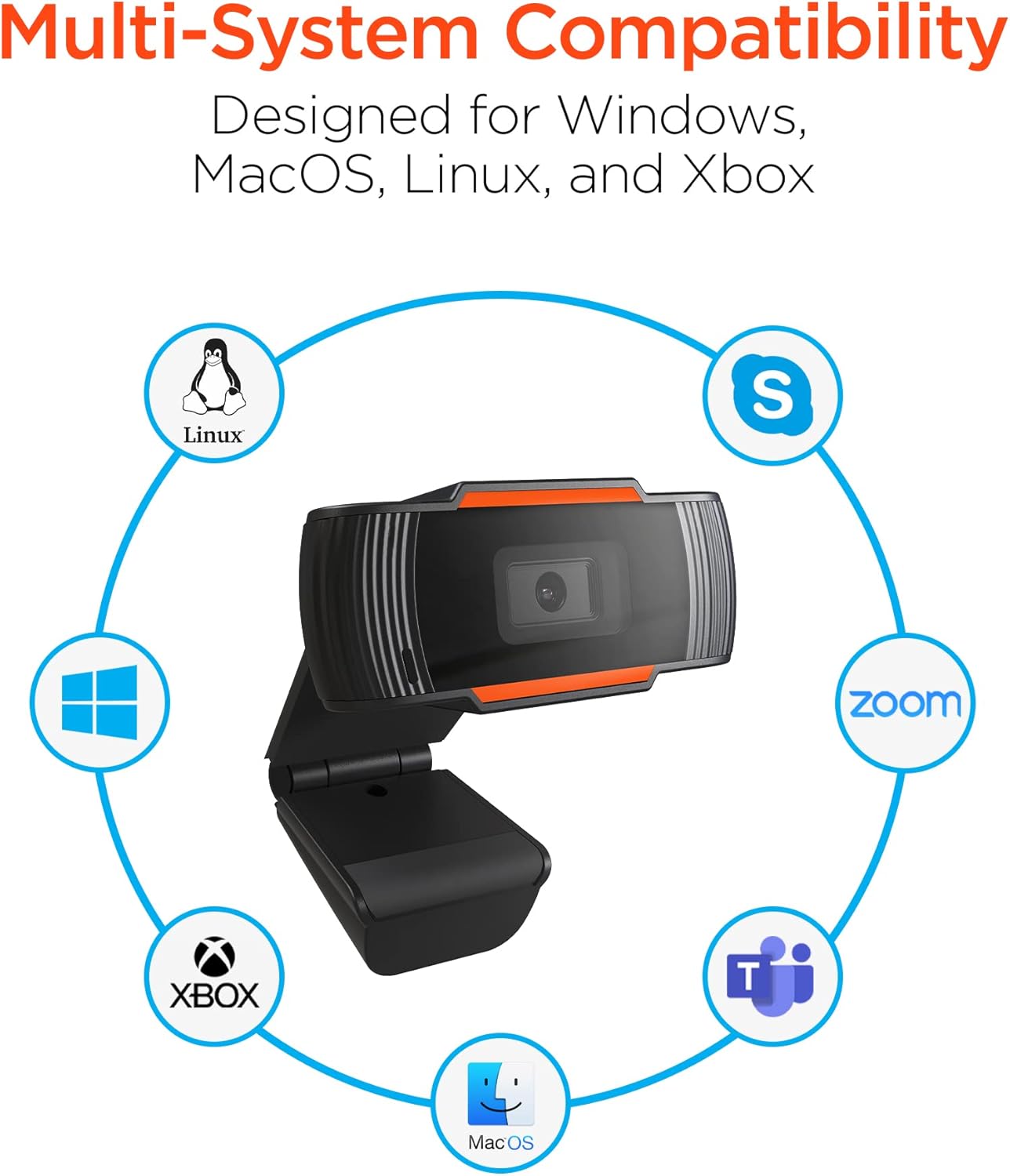
Image: The HyperGear HyperStream 1080P Webcam offers multi-system compatibility, designed for use with Windows, MacOS, Linux, and Xbox, as well as popular communication platforms like Skype, Zoom, and Microsoft Teams.
- Leihoak
- macOS
- Linux
- Xbox
- Compatible with popular video conferencing software (e.g., Skype, Zoom, Microsoft Teams).
erabiliz Webkamara
- Hautatu Webkamera: In your video conferencing or streaming application, navigate to the video and audio settings. Select "HyperGear HyperStream 1080P Webcam" as your video input device and its integrated microphone as your audio input device.
- Adjust Position and Angle: Ziurtatu webcam is positioned to capture your desired view. The 110° wide-angle lens is ideal for capturing multiple participants or a broader background.

Image: The 110° ultra wide-angle lens ensures that your entire team and presentations fit within the frame, making it suitable for group meetings and collaborative environments.
- Benefit from Auto-White Balance and Fixed Focus: The webcam automatically adjusts for optimal lighting and maintains a sharp focus on subjects within its field of view, eliminating the need for manual adjustments.

Irudia: The webcam features fixed focus and auto-white balance (AWB) to automatically adjust to various lighting conditions (like daylight or fluorescent), ensuring clear and sharp visuals without manual intervention.
- Utilize Noise Reduction Microphone: The built-in microphone actively reduces ambient noise, ensuring your voice is clear and easily understood during calls.

Image: The integrated noise reduction microphone minimizes unwanted background noise and distortions, ensuring clear audio during your video calls and streams.
Mantentzea
Zure iraupena eta errendimendu optimoa ziurtatzeko webkamera, jarraitu mantentze-jarraibide hauek:
- Garbiketa: Gently wipe the lens with a soft, lint-free cloth. Avoid using harsh chemicals or abrasive materials that could scratch the lens or damage the casing.
- Biltegiratzea: Erabiltzen ez duzunean, gorde webGorde leku garbi eta lehor batean, tenperatura altuetatik eta eguzki-argitik babestuta.
- Manipulazioa: Saihestu webcam or subjecting it to strong impacts, which could damage internal components.
Arazoak konpontzea
If you encounter issues with your HyperGear HyperStream 1080P Webkamera, saiatu arazoak konpontzeko urrats hauekin:
- WebKamera ez da detektatu:
- Ziurtatu USB kablea ondo konektatuta dagoela bietan webcam and your computer's USB port.
- Saiatu konektatzen webkamera beste USB ataka batera.
- Berrabiarazi ordenagailua.
- Check your operating system's device manager (Windows) or System Information (macOS) to see if the webkamera zerrendatuta dago.
- Bideo-irteerarik ez:
- Egiaztatu hori webkamera bideo sarrerako gailu gisa hautatuta dago zure aplikazioaren ezarpenetan.
- Ziurtatu beste aplikazio batek ere ez duela une honetan erabiltzen webcam, as some systems only allow one application to access it at a time.
- Check for any physical obstructions covering the lens.
- Audio sarrerarik ez (mikrofonoa):
- Berretsi hori webcam's microphone is selected as the audio input device in your application's settings and your system's sound settings.
- Check that the microphone is not muted in your application or system settings.
- Ensure your system's privacy settings allow applications to access the microphone.
- Bideoaren kalitate eskasa:
- Ensure you have adequate lighting in your environment. While the webcam has auto-white balance, sufficient ambient light is crucial for best results.
- Garbitu webcam lens if it appears smudged or dirty.
- Check your internet connection speed if streaming or video conferencing, as a slow connection can affect video quality.
Zehaztapenak
| Ezaugarri | Xehetasuna |
|---|---|
| Marka | HyperGear |
| Ereduaren izena | HyperStream Portable 1080P |
| Bideo Harrapaketa Ebazpena | 1080p |
| Konektibitate Teknologia | USBa |
| Kolorea | beltza |
| Ezaugarri Berezia | Egokigarria |
| Kamera mota | Webkamara |
| Sistema eragilea | Windows, macOS |
| Lente mota | Angelu Zabala |
| Foku mota | Foku finkoa |
| Irudiaren aspektu-erlazioa | 16:9 |
| Esposizio-kontrol mota | Automatikoa |
| Bideo Ebazpen eraginkorra | 1920 pixel |
| Gailu bateragarriak | Ordenagailu pertsonala |
| Hedabide integratua | Mikrofonoa, USB kablea |
| Elementuaren pisua | 4.72 ontza |
| UPC | 633755155390 |
| ASIN | B09S51KSC4 |
Bermea eta Laguntza
For warranty information and customer support, please refer to the documentation included with your purchase or visit the official HyperGear webgunea.
Era berean, bisitatu dezakezu HyperGear denda Amazonen produktuari buruzko informazio gehiago eta laguntza-baliabideak lortzeko.