
Cuifati Cuifatip0izksa79g3281
Cuifati Wireless Smart Remote Control User Manual
Model: Cuifatip0izksa79g3281
Sarrera
This manual provides comprehensive instructions for the Cuifati Wireless Smart Remote Control. It covers setup, operation, maintenance, and troubleshooting to ensure optimal performance and longevity of your device. This remote control features 2.4G and Bluetooth 5.0 connectivity, voice control, and IR learning capabilities, making it compatible with a wide range of devices such as Nvidia Shield, PCs, Projectors, Smart TVs, and Android TV Boxes.
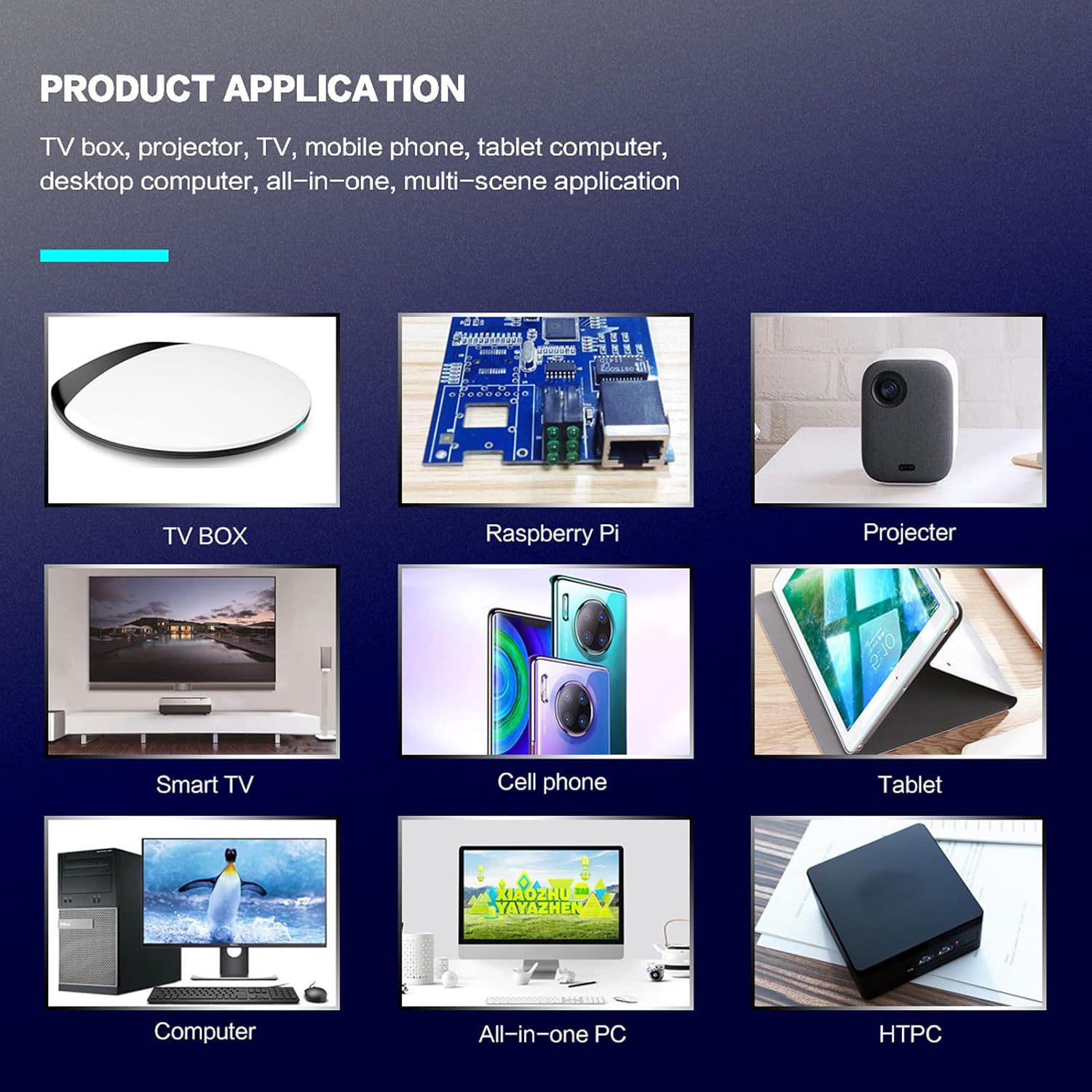
1. irudia: Produktuaren aplikazioa, adibidezamples.
Paketearen edukia
Mesedez, egiaztatu elementu guztiak zure paketean daudela:
- 1 x Cuifati Wireless Smart Remote Control
- 1 x 2.4G USB hargailua
- 1 x Erabiltzailearen eskuliburua
Zehaztapenak
| Ezaugarri | Xehetasuna |
|---|---|
| Marka | Cuifati |
| Modelo zenbakia | Cuifatip0izksa79g3281 |
| Materiala | ABS |
| liburukiatage | 3.0 V |
| Konektibitate moduak | 2.4G, Bluetooth 5.0 |
| Funtzionamendu Korrontea | <15 mA |
| Egoneko korrontea | <20 uA |
| Distantzia eragilea | >10 meters (32.8 feet) |
| Bateria mota | 2 x AAA bateria (ez daude barne) |
| Botoi kopurua | 5 (Control buttons, total buttons are more) |
| Gailu bateragarriak | Streaming devices, Televisions, PCs, Projectors, Smart TVs, Android TV Boxes |
| Ezaugarri Berezia | Universal, Voice Control, IR Learning, Backlit |
Konfigurazio Gida
1. Bateriaren instalazioa
Urruneko kontrolak bi AAA pila behar ditu (ez daude barne).
- Ireki bateriaren konpartimentuaren estalkia urruneko agintearen atzeko aldean.
- Sartu bi AAA pila, polaritate zuzena ziurtatuz (+ eta -).
- Itxi bateriaren konpartimenduaren estalkia ondo.

2. irudia: Battery compartment with AAA batteries.
2. Connecting the Remote Control
The remote control supports both 2.4G wireless and Bluetooth 5.0 connectivity.
2.1. 2.4G Haririk gabeko Konexioa (USB Hargailuaren bidez)
- Insert the 2.4G USB receiver into an available USB port on your device (e.g., Smart TV, Android TV Box, PC).
- The device should automatically detect and install the necessary drivers.
- Urruneko agintea erabiltzeko prest dago orain.
2.2. Bluetooth 5.0 konexioa
For Bluetooth connection, ensure your device supports Bluetooth 5.0 or higher.
- Urruneko agintean, luze sakatu OK botoia eta Itzuli button simultaneously for 3 seconds. The indicator light on the remote will flash rapidly, indicating it is in pairing mode.
- On your device, navigate to the Bluetooth settings and search for available devices.
- Select "G20s Pro" (or similar device name) from the list of found devices to pair.
- Once paired, the indicator light on the remote will stop flashing.

3. irudia: Bluetooth parekatzeko argibideak.
Funtzionamendu-argibideak
1. Botoien funtzioakview
Familiarize yourself with the layout and functions of the remote control buttons.

4. irudia: Remote control button layout and functions.
- Power (IR Learning Key): Turns the device on/off. Can be programmed via IR learning.
- Mikrofonoa: Activates voice input.
- Argi adierazlea: Shows status (pairing, IR learning).
- Mute (IR Learning Key): Mutes/unmutes audio. Can be programmed via IR learning.
- Pg+ / Pg-: Page Up / Page Down.
- Navigation Keys (Up/Down/Left/Right): For menu navigation.
- OK / Enter / Mouse Left: Confirms selection or acts as left mouse click.
- Return / Mouse Right: Goes back or acts as right mouse click.
- Hasiera: Returns to the home screen.
- Open Google Voice Assistant: Dedicated button for voice assistant.
- Volume - / Volume +: Adjusts volume.
- Erreproduzitu/Pausatu: Multimedia erreprodukzioa kontrolatzen du.
- Aurrekoa / Hurrengoa: Skips to previous or next media track.
- AtzeraGunera: Deletes characters.
- Menua: Press and hold to turn on/off the backlight.
2. Ahots kontrola
The remote control supports voice commands for compatible devices. Press the Mikrofonoa button and speak clearly into the remote to issue commands or search content.
3. IR Ikaskuntza Funtzioa
The Power and Mute buttons can learn infrared signals from your existing TV remote control, allowing you to control basic TV functions with this remote.

5. irudia: IR Learning process for the Power button.
- Eduki sakatuta Boterea botoia (edo Isildu button) on the Cuifati remote for 3 seconds. The red indicator light will flash slowly, entering IR learning mode.
- Point the infrared emitter of your original TV remote control directly at the infrared receiver of the Cuifati remote (approximately 2-3 cm apart).
- Press the desired button on your original TV remote (e.g., Power button). The Cuifati remote's red indicator light will flash rapidly and then turn off, indicating successful learning.
- Repeat the process for other buttons if desired.
4. Motion Sensing (Air Mouse)
The remote control features a gyroscope core compensation algorithm for motion sensing, allowing it to function as an air mouse. Move the remote in the air to control the cursor on your screen.

6. irudia: Motion sensing in action.
Mantentzea
- Keep the remote control dry. Avoid exposure to moisture or liquids.
- Garbitu urrutiko agintea oihal leun eta lehor batekin. Ez erabili garbitzaile edo disolbatzaile urratzailerik.
- Urrutiko agintea denbora luzez erabiliko ez baduzu, kendu pilak isuriak saihesteko.
- Saihestu urrutiko agintea erortzea edo kolpe bortitzak jasatea.
Arazoak konpontzea
- Urrutiko agintea ez da erantzuten:
- Ziurtatu bateriak behar bezala instalatuta daudela eta ez daudela agortuta. Ordeztu itzazu beharrezkoa bada.
- Check if the 2.4G USB receiver is properly inserted into the device's USB port.
- For Bluetooth connection, ensure the remote is paired correctly. Re-pair if connection is lost.
- Ensure there are no obstructions between the remote and the device (for 2.4G) or within Bluetooth range.
- Ahots-kontrola ez dabil:
- Ensure the remote is properly connected via 2.4G or Bluetooth.
- Verify that your device supports voice input and that the microphone is enabled.
- Hitz egin argi eta urrutiko agintearen mikrofonotik gertu.
- IR learning failed:
- Ensure the original remote's IR emitter is pointed directly at the Cuifati remote's IR receiver, within 2-3 cm.
- Make sure the original remote has sufficient battery power.
- Repeat the learning steps carefully.
Bermea eta Laguntza
Specific warranty information is not provided in this manual. For warranty details, technical support, or service inquiries, please refer to the product packaging or contact the manufacturer directly through their official webgune edo bezeroarentzako arretarako kanalak.
Ask a question about this manual
Ask about setup, troubleshooting, compatibility, parts, safety, or missing instructions. Manuals+ will review the question and use this page’s manual context to help answer it.