
1. Sarrera
The Razer Barracuda X is a versatile 4-in-1 USB-C wireless headset designed for immersive home gaming and seamless on-the-go audio. It offers true versatility and freedom, backed by long-lasting comfort, powerful drivers, and a crystal-clear microphone. This manual provides essential information for setting up, operating, maintaining, and troubleshooting your headset.

Image: The Razer Barracuda X headset in a gaming environment, showcasing its sleek design and wireless capability.
2. Paketearen edukia
Ziurtatu elementu hauek guztiak zure paketean sartuta daudela:
- Razer Barracuda X Wireless Gaming Headset
- C motako haririk gabeko donglea
- Removable Razer HyperClear Cardioid Mic
- C motako kargatzeko kablea
- A motako C motako kable egokitzailea
- Erabiltzailearen eskuliburua (dokumentu hau)

Image: The Razer Barracuda X headset with its included accessories: the USB-C wireless dongle and the detachable HyperClear Cardioid Mic.
3. Konfigurazioa
3.1 Entzungailuak kargatzea
Before first use, fully charge your Razer Barracuda X headset using the provided Type-C charging cable. Connect the Type-C end to the headset's charging port and the USB-A end to a power source (e.g., computer USB port, wall adapter).
3.2 Wireless Connectivity (2.4GHz USB-C Dongle)
For low-latency gaming audio, use the 2.4GHz wireless connection:
- Plug the Type-C wireless dongle into your desired device (PC, PlayStation, Nintendo Switch, Android device). If your device only has a USB-A port, use the included Type-A to Type-C adapter cable.
- Power on your Razer Barracuda X headset. It will automatically connect to the dongle.
3.3 Bluetooth konexioa
For mobile use or devices without a USB-C port, connect via Bluetooth:
- With the headset powered on, press and hold the SmartSwitch button (usually indicated by a Bluetooth icon) until the LED indicator blinks blue, indicating pairing mode.
- On your device, search for Bluetooth devices and select "Razer Barracuda X" to pair.

Image: The Razer Barracuda X headset connected to multiple devices, highlighting its SmartSwitch dual wireless capability for seamless transitions between 2.4GHz and Bluetooth.
3.4 Mikrofonoa konektatzea
Insert the detachable Razer HyperClear Cardioid Mic into the microphone jack located on the left earcup. Ensure it is firmly seated.
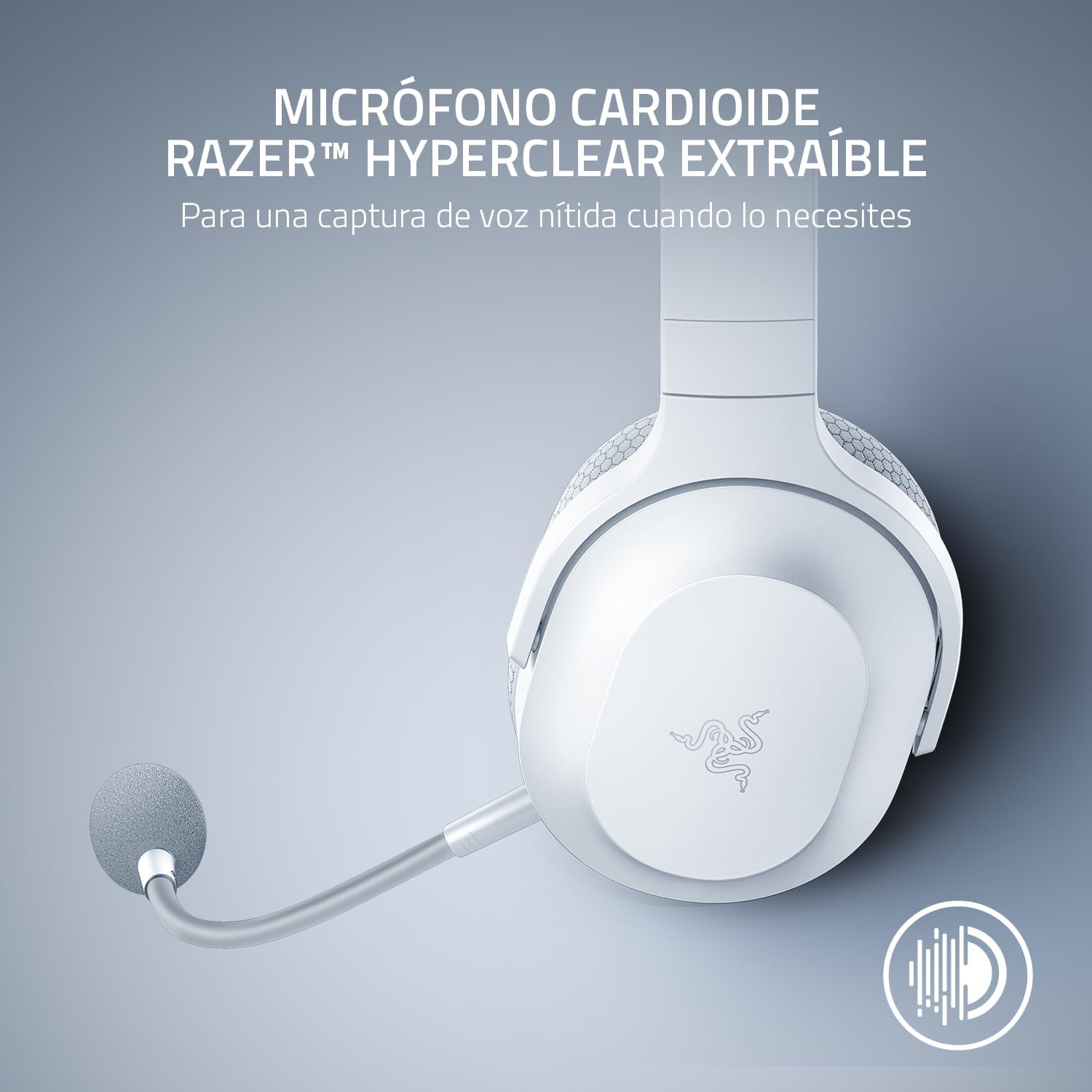
Image: The Razer Barracuda X headset with its detachable HyperClear Cardioid Mic, designed for clear voice capture.
4. Entzungailuak erabiltzea
4.1 Piztu/Itzali
- Pizteko: Sakatu eta eutsi pizteko botoia LED adierazlea piztu arte.
- Itzaltzeko: Sakatu eta eutsi pizteko botoia LED adierazlea itzali arte.
4.2 Bolumen kontrola
Adjust the audio volume using the volume roller located on the left earcup.
4.3 Mikrofonoaren isiltasuna
Press the microphone mute button on the left earcup to toggle the microphone on or off. An LED indicator on the mic will show its status.
4.4 SmartSwitch Dual Wireless
The SmartSwitch feature allows you to seamlessly switch between 2.4GHz wireless and Bluetooth connections. When connected to both, the headset will prioritize the 2.4GHz connection for gaming. If a call comes in on your Bluetooth-connected phone, the headset will automatically switch to the Bluetooth connection. After the call, it will switch back to 2.4GHz.

Image: Close-up of the Razer Barracuda X headset's on-headset controls, including the volume wheel, power button, and mic mute button.
4.5 Comfort and Ergonomics
The Barracuda X features a lightweight 250g ergonomic design with breathable memory foam ear cushions and swiveling earcups, ensuring comfort during long gaming sessions or daily commutes.

Irudia: Xehetasun zehatza view of the Razer Barracuda X headset's ergonomic design, highlighting the comfortable ear cushions and lightweight build.
5. Mantentzea
5.1 Garbiketa
- Use a soft, dry cloth to clean the headset.
- Saihestu produktu kimiko gogorrak edo material urratzaileak erabiltzea.
- Belarri-kuxinetarako, astiro-astiro garbitu iragarkiarekinamp zapi eta utzi airean guztiz lehortzen.
5.2 Biltegiratzea
Store the headset in a cool, dry place away from direct sunlight and extreme temperatures. When not in use, consider storing it in a protective case to prevent damage.
6. Arazoak
6.1 No Audio/Poor Audio Quality
- Egiaztatu bolumena: Ensure the headset volume is not muted or set too low.
- Konektibitatea: Verify the 2.4GHz dongle is properly inserted and the headset is connected, or that Bluetooth is successfully paired. Try re-pairing if necessary.
- Gailuaren ezarpenak: Confirm the Razer Barracuda X is selected as the default audio output device in your computer's or console's sound settings.
- Interferentzia: Aldendu interferentziak sor ditzaketen haririk gabeko beste gailuetatik.
6.2 Mikrofonoak ez du funtzionatzen
- Egiaztatu mutua: Ensure the microphone is not muted via the headset button or your device's software.
- Konexioa: Re-insert the detachable microphone firmly into its jack.
- Gailuaren ezarpenak: Verify the Razer Barracuda X microphone is selected as the default input device in your computer's or console's sound settings and application settings (e.g., Discord).
6.3 Headset Not Powering On/Charging
- Kargatu bateria: Connect the headset to a power source using the Type-C charging cable and allow it to charge for at least 30 minutes.
- Check Cable/Port: Ensure the charging cable and port are not damaged. Try a different cable or USB port.
6.4 Itzali automatikoa
The headset may automatically power off after a period of inactivity to conserve battery. This is a normal feature. To prevent this during active use, ensure audio is consistently playing through the headset.
7. Zehaztapenak
| Ezaugarri | Xehetasuna |
|---|---|
| Marka | Razer |
| Ereduaren izena | Barracuda X |
| Modelo zenbakia | RZ04-04430200-R3U1 |
| Kolorea | Zuria |
| Konektibitate Teknologia | 2.4GHz Wireless, Bluetooth 5.2, USB-C |
| Audio kontrolatzaile mota | Gidari dinamikoa |
| Audio kontrolatzailearen tamaina | 40 Millimeters (Razer TriForce) |
| Maiztasun Erantzuna | 20 Hz - 20,000 Hz |
| Inpedantzia | 32 ohmio |
| Sentikortasuna | 96 dB |
| Mikrofonoa | Detachable Razer HyperClear Cardioid Mic |
| Bateriaren iraupena | Gehienez 50 ordu |
| Pisua | 9.6 ontza (250 g) |
| Belarrien Kokatzea | Belarri gainean |
| Kontrol mota | Multimediaren kontrola, ukimena |
| Ezaugarri gehigarriak | SmartSwitch Dual Wireless, 250g Ergonomic Design |

Irudia: Leherketa bat view diagram illustrating the Razer TriForce 40mm drivers, designed for distinct high, mid, and low audio frequencies.
8. Bermea eta Laguntza
8.1 Bermearen informazioa
The Razer Barracuda X Wireless Gaming Headset comes with a 2 urteko fabrikatzailearen bermeaGorde erosketaren egiaztagiria bermearen erreklamazioetarako.
8.2 Bezeroarentzako laguntza
For further assistance, technical support, or warranty inquiries, please visit the official Razer support webgunea edo Razer denda Amazonen.