
1. Sarrera
This manual provides detailed instructions for the installation, operation, and maintenance of your BooiParts G31T-LM V1.0 Desktop Motherboard. Please read this manual thoroughly before proceeding with installation to ensure proper setup and to prevent damage to the components.
2. Segurtasun informazioa
- Deskonektatu beti korronte-iturria hormako entxufetik edozein osagai instalatu edo kendu aurretik.
- Wear an anti-static wrist strap or frequently touch a grounded metal object to discharge static electricity before handling the motherboard or other components. Static electricity can damage sensitive electronic parts.
- Osagai sentikorrak ez ukitzeko, heldu plaka nagusiari ertzetik.
- Ensure all cables are connected correctly and securely before powering on the system.
- Ez jarri plaka nagusia hezetasunean edo tenperatura altuetan.
3. Paketearen edukia
Verify that all items are present in your package. If any items are missing or damaged, contact your retailer.
- BooiParts G31T-LM V1.0 Desktop Motherboard
- I/O Shield (may be included)
- SATA Data Cable (may be included)
- Erabiltzailearen eskuliburua (dokumentu hau)
4. Produktua amaitu daview
The BooiParts G31T-LM V1.0 motherboard is designed for Intel LGA 775 processors and supports DDR2 memory. Below are key components and their locations.
4.1. irudia: Goiena view of the BooiParts G31T-LM V1.0 motherboard. This image highlights the central LGA 775 CPU socket, two DDR2 RAM slots to its right, and various expansion slots (PCIe and PCI) below the CPU area. Power connectors and SATA ports are also visible along the edges.

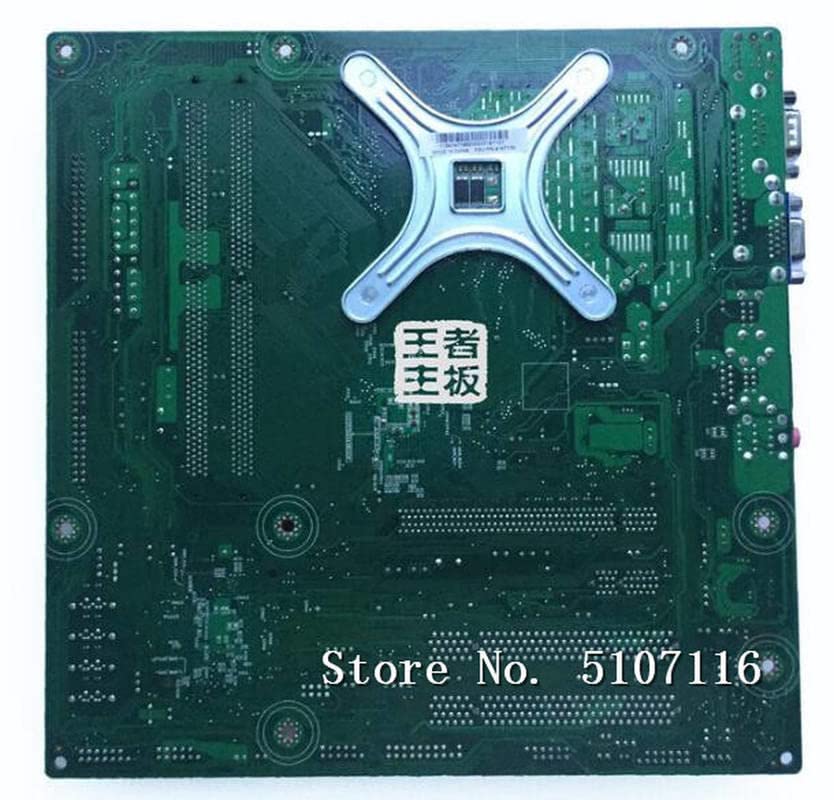
4.2. irudia: Angelukoa view of the BooiParts G31T-LM V1.0 motherboard. This perspective provides a clearer view of the rear I/O panel, including PS/2 ports, serial port, VGA output, USB ports, Ethernet port, and audio jacks. Key components like the chipset heatsink and power delivery components are also visible.
4.1 Funtsezko osagaiak
- LGA 775 CPU Socket: For Intel Core 2 Duo and Pentium D processors.
- DDR2 DIMM zirrikituak: Two slots supporting up to 8GB DDR2 memory.
- PCI Express Slot: For graphics cards.
- PCI Slots: For other expansion cards.
- SATA Port: For connecting storage devices.
- Atzeko I/O panela: Includes PS/2 ports, USB ports, VGA, LAN, and audio jacks.
5. Konfigurazioa
5.1 Prestaketa
- Ensure your computer case is compatible with Micro-ATX motherboards.
- Gather all necessary components: CPU, CPU cooler, DDR2 RAM, power supply, storage devices, and graphics card (if not using integrated graphics).
5.2 PUZaren instalazioa
- Kokatu LGA 775 entxufea plakan.
- Altxa kargatzeko palanka eta ireki CPUaren socket-aren estalkia.
- Carefully align the CPU with the socket, ensuring the notches on the CPU match the keys on the socket. Do not force the CPU into place.
- Itxi entxufearen estalkia eta bultzatu kargatzeko palanka behera bere lekuan sartu arte.
5.3 CPU Cooler Installation
Apply thermal paste to the CPU if not pre-applied on the cooler. Install the CPU cooler according to its manufacturer's instructions, ensuring it is securely fastened and the fan cable is connected to the CPU_FAN header on the motherboard.
5.4 RAM instalazioa
- Ireki DDR2 DIMM zirrikituen bi muturretan dauden klipak.
- Lerrokatu RAM modulua zirrikituarekin, ziurtatu moduluko koska zirrikituan dagoen giltzarekin bat datorrela.
- Sakatu ondo RAM moduluaren bi muturrak klipak bere lekuan sartu arte.
5.5 Motherboard Installation into Case
- Instalatu E/S babeskia ordenagailuaren kaxaren atzeko irekiduran.
- Kontu handiz jarri plaka basea kaxan, plaka baseko torloju-zuloak kaxako distantziagailuekin lerrokatuz.
- Lotu plaka nagusia torlojuekin. Ez estutu gehiegi.
5.6 Potentzia konektatzea
- Konektatu elikatze-iturritik datorren 24 pineko ATX elikatze-konektorea plaka baseko dagokion goiburura.
- Connect the 4-pin ATX 12V power connector (CPU power) to its header near the CPU socket.
5.7 Biltegiratze gailuak konektatzea
Connect your SATA storage devices (HDD/SSD) to the SATA port on the motherboard using a SATA data cable. Connect the power cable from your power supply to the storage device.
5.8 Connecting Front Panel Connectors
Connect the front panel cables (Power SW, Reset SW, HDD LED, Power LED, USB, Audio) from your case to the corresponding headers on the motherboard. Refer to the motherboard's silkscreen labels for correct pin orientation.
5.9 Periferikoak konektatzea
Konektatu teklatua, sagua, monitore eta beste periferikoak atzeko S/I paneleko portu egokietara.
6. Funtzionamendu-argibideak
6.1 Lehenengo abiaraztea
After completing all connections, turn on your power supply and press the power button on your computer case. The system should power on, and you should see a display on your monitor. If not, refer to the Troubleshooting section.
6.2 BIOS/UEFI konfigurazioa
Abiaraztean, sakatu dagokion tekla (normalean DEL or F2) to enter the BIOS/UEFI setup utility. Here you can configure system settings, boot order, and monitor hardware status.
7. Mantentzea
- Garbiketa: Garbitu aldizka hautsa plaka nagusitik eta osagaietatik aire konprimatua erabiliz. Ziurtatu sistema itzalita eta deskonektatuta dagoela garbitu aurretik.
- BIOS eguneraketak: Egiaztatu fabrikatzailearena website for BIOS updates. Only update the BIOS if necessary and follow the instructions carefully to avoid system instability.
- Kableen kudeaketa: Ziurtatu kableak ondo bideratuta daudela aire-fluxua hobetzeko eta interferentziak saihesteko.
8. Arazoak
8.1 Potentziarik gabe
- Check if the power supply is switched on and properly connected to the motherboard (24-pin and 4-pin connectors).
- Ziurtatu aurrealdeko paneleko etengailuaren kablea plaka basearen goiburura behar bezala konektatuta dagoela.
- Probatu elikatze-iturria beste sistema batekin edo elikatze-iturri probatzaile batekin.
8.2 Ez dago pantailarik
- Verify that the monitor is connected to the correct video output (onboard VGA or discrete graphics card).
- Reseat the RAM modules. Incorrectly seated RAM is a common cause of no display.
- If using a discrete graphics card, ensure it is properly seated in its PCIe slot and has adequate power connected.
- Saiatu RAM memoria bakarrarekin abiarazten.
8.3 System Instability/Crashes
- Egiaztatu CPU eta GPU tenperaturak. Gehiegi berotzeak ezegonkortasuna eragin dezake.
- Ziurtatu gidari guztiak eguneratuta daudela.
- Exekutatu memoriaren diagnostiko tresnak RAM akastuna egiaztatzeko.
- Egiaztatu energia-iturriatage nahikoa da osagai guztientzat.
9. Zehaztapenak
The following table outlines the key specifications for the BooiParts G31T-LM V1.0 Motherboard.
| Ezaugarri | Zehaztapena |
|---|---|
| Marka | BooiParts |
| Ereduaren izena | G31T-LM V1.0 |
| CPU Socketa | LGA 775 |
| Prozesadore bateragarriak | Intel Core 2 Duo, Intel Pentium D |
| Txip mota | Intel G31 |
| RAM Memoria Teknologia | DDR2 |
| Memoria zirrikituak eskuragarri | 2 |
| Memoriaren biltegiratze-ahalmena (gehienez) | 8 GB |
| Txartel grafikoen interfazea | PCI Express |
| Total SATA Ports | 1 |
| Total PCIe Ports | 2 |
| Potentzia-konektore mota nagusia | 24-Pin |
| Gailu bateragarriak | Ordenagailu pertsonala |
| Modelo zenbakia | T4900V 53Y3282 45C2882 |
10. Bermea eta Laguntza
For warranty information and technical support, please refer to the documentation provided with your purchase or contact your retailer. Keep your proof of purchase for warranty claims.