
1. Sarrera
Welcome to the HyperX Armada 25 Gaming Monitor user manual. This document provides essential information for setting up, operating, maintaining, and troubleshooting your new monitor. The HyperX Armada 25 is designed for competitive gaming, featuring a 24.5-inch Full HD (1920x1080) IPS panel, a 240Hz refresh rate, and a 1ms response time, ensuring smooth and responsive visuals. It also includes NVIDIA G-SYNC compatibility to eliminate screen tearing and minimize input latency. A desk mount is included for convenient setup and to maximize desk space.
Ezaugarri nagusiak:
- Guztiak-bateko paketea: Includes an ergonomic arm and desk mount for easy setup and space-saving.
- Freskatze-tasa eta erantzun-denbora handia: 240Hz refresh rate and 1ms response time for ultra-smooth gaming.
- Vibrant IPS Panel: 24.5-inch Full HD (1920x1080) IPS panel delivers stunning visuals with accurate colors and wide viewangeluak.
- NVIDIA G-SYNC Compatible: Eliminates screen tearing and reduces stuttering for a fluid gaming experience.

Produktuaren bideo ofiziala:
2. Konfigurazioa
This section guides you through the initial setup of your HyperX Armada 25 Gaming Monitor, including assembly and connection to your computer.
2.1. Assembling the Desk Mount
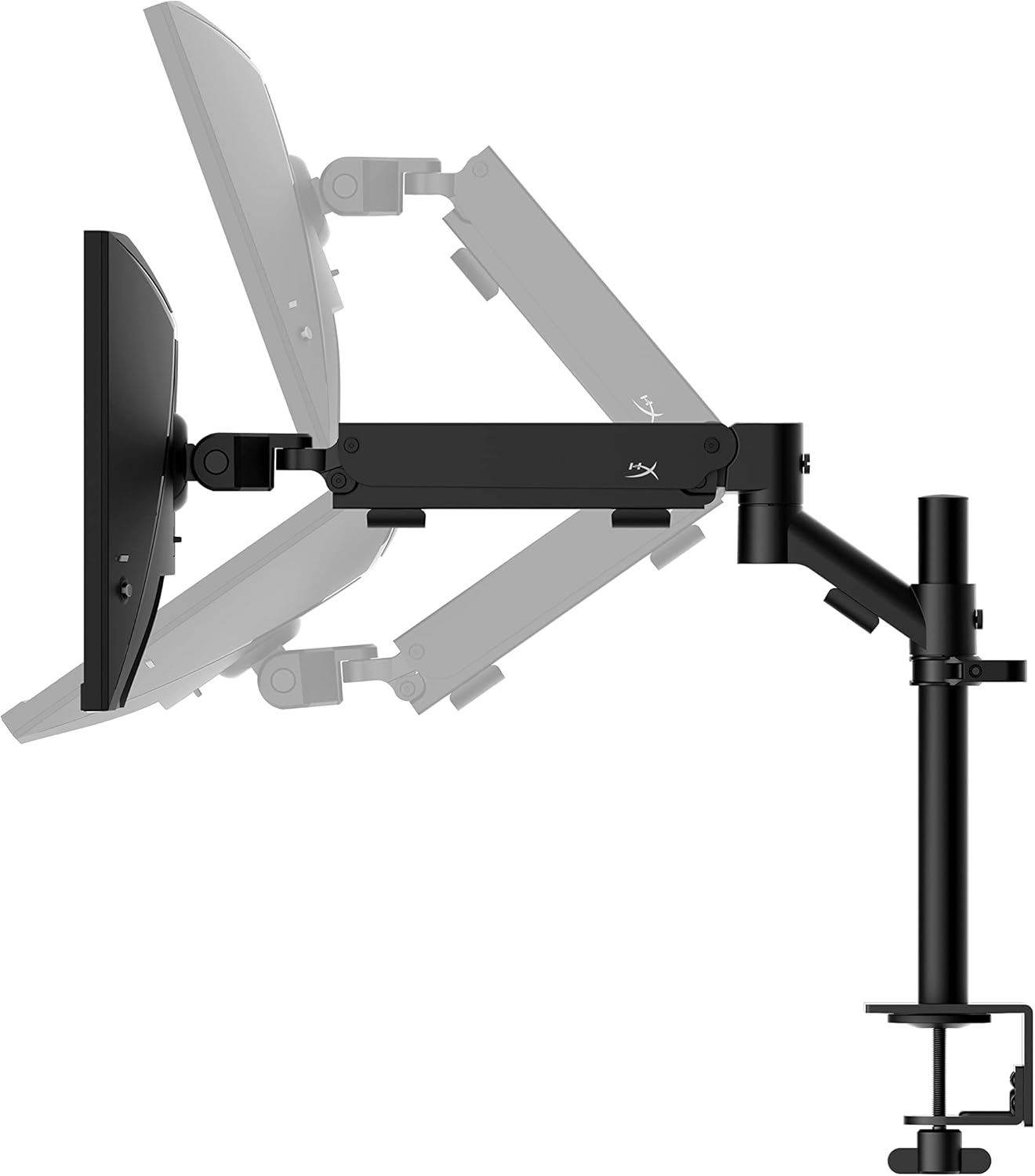
The HyperX Armada 25 comes with an integrated ergonomic desk mount. Follow the instructions provided in the separate quick start guide for detailed assembly steps. The monitor head easily snaps into the arm, allowing for quick and secure installation.

2.2. Monitorea konektatzea
Connect the monitor to your computer using the appropriate cables. The HyperX Armada 25 supports both HDMI and DisplayPort connections.
- Connect one end of the HDMI or DisplayPort cable to the corresponding port on your computer's graphics card.
- Connect the other end of the cable to an available HDMI 2.0 or DisplayPort 1.4 port on the back of your monitor.
- Konektatu elikatze-kablea monitoreari eta gero entxufe batera.
- Sakatu monitorearen pizteko botoia pizteko.

3. Monitorea funtzionatzea
This section covers basic operation and navigation of the monitor's On-Screen Display (OSD) menu.
3.1. Pantailako pantailan (OSD) nabigazioa
The OSD menu is controlled using a joystick located on the back of the monitor. This joystick allows you to power on/off the monitor and navigate through various settings.
- Sakatu joystick-a: OSD menua irekitzeko edo hautaketa bat berresteko.
- Move the joystick Up/Down/Left/Right: To navigate through menu options and adjust settings.
- Hold the joystick: To power off the monitor.

3.2. Monitorearen posizioa doitzea
The ergonomic desk mount allows for flexible positioning of your monitor. You can adjust the height, tilt, swivel, and pivot to find your optimal viewangelua.

4. Mantentzea
Proper maintenance ensures the longevity and optimal performance of your HyperX Armada 25 Gaming Monitor.
- Pantaila garbitzea: Erabili lipurrik gabeko zapi leun bat dampened with water or a specialized screen cleaner. Avoid using harsh chemicals, abrasive materials, or direct spraying onto the screen.
- C garbiketaasing: Garbitu monitorearen casinoihal leun eta lehor batekin garbitu.
- Aireztapena: Ziurtatu monitorearen aireztapen-irekidurak ez daudela blokeatuta gehiegi berotzea saihesteko.
- Itzali erabiltzen ez denean: Itzali monitorearen iraupena denbora luzez erabiltzen ez duzunean energia aurrezteko eta luzatzeko.
5. Arazoak
If you encounter issues with your monitor, refer to the following common troubleshooting steps.
- Potentziarik gabe:
- Egiaztatu elikadura-kablea monitoreari zein korronte-hartuneari ongi konektatuta dagoen.
- Ziurtatu entxufea behar bezala funtzionatzen duela.
- Sakatu monitorearen pizteko botoia.
- Seinalerik ez:
- Verify that the HDMI or DisplayPort cable is securely connected to both the monitor and your computer.
- Ziurtatu ordenagailua piztuta dagoela eta ez dagoela lo moduan.
- Hautatu sarrera-iturri zuzena OSD menua erabiliz.
- Flickering Screen or Image Issues:
- Check the display cable for damage or loose connections.
- Ziurtatu zure txartel grafikoaren kontrolatzaileak eguneratuta daudela.
- Doitu freskatze-tasa ordenagailuaren pantailaren ezarpenetan.
- If G-SYNC is enabled, try disabling it temporarily to see if the issue persists.
- Buttons Not Responding (OSD Joystick):
- Ziurtatu monitorea piztuta dagoela.
- Try restarting the monitor by unplugging and replugging the power cable.
- Clean around the joystick to ensure no debris is obstructing its movement.
6. Zehaztapenak
Detailed technical specifications for the HyperX Armada 25 Gaming Monitor.
| Ezaugarri | Xehetasuna |
|---|---|
| Produktuaren neurriak | 21.94 x 25.79 x 31.12 hazbete; 16.98 kilo |
| Elementuaren eredu-zenbakia | HyperX Armada 25 |
| Eskuragarri dagoen lehen data | 24ko abuztuaren 2022a |
| Fabrikatzailea | HP Inc. |
| ASIN | B0B2C1G356 |
| Bistaratzeko tamaina | 24.5 hazbeteko diagonala |
| Ebazpena | FHD (1920x1080) |
| Freskatze tasa | 240Hz |
| Panel mota | IPS panela |
| Erantzun Denbora | 1 ms |
| Sinkronizazio Teknologia | NVIDIA® G-SYNC® bateragarria |
| Included Mount | Desk Mount Included |
| Konektibitatea | HDMI and Display Port |
7. Bermea eta Laguntza
For warranty information, technical support, or to access additional resources, please visit the official HyperX webwebgunean edo jarri harremanetan bere bezeroarentzako zerbitzuarekin.
- Official HyperX Webgunea: www.hyperx.com
- Produktuaren laguntza orria: Refer to the support section on the HyperX webzure modelo espezifikorako gunea.


