
1. Sarrera
Thank you for choosing the LIONWEI 13-in-1 USB C Docking Station. This versatile docking station is designed to expand the connectivity of your USB-C or Thunderbolt 3 enabled laptop, providing multiple ports for display, data transfer, networking, and audio. This manual provides detailed instructions for setup, operation, maintenance, and troubleshooting to ensure optimal performance.

Image: The LIONWEI 13-in-1 USB C Docking Station shown with a laptop and various connected peripherals, including multiple monitors, demonstrating its extensive connectivity options.
2. Produktua amaitu daview
The LIONWEI LIUC3908-CA docking station transforms a single USB-C port into 13 essential ports, enhancing your productivity and connectivity.
2.1 Portuaren diseinua eta funtzioak

Image: A detailed diagram illustrating the various ports available on the LIONWEI docking station, including USB-C, USB-A, HDMI, DisplayPort, Ethernet, and Audio/Mic jacks, with their respective specifications.
- 2 x 4K HDMI Ports: Connect external displays for high-resolution video output. HDMI1 supports up to 4K@60Hz (DP1.4 Source), HDMI2 supports up to 4K@30Hz.
- 1 x 4K DisplayPort (DP): Connect an external display for high-resolution video output, supporting up to 4K@60Hz (DP1.4 Source).
- 2 x USB-C 3.1 Ports: Both support 100W Power Delivery (PD) for laptop charging and 10Gbps data transfer.
- 1 x USB-A 3.1 Port: High-speed data transfer up to 10Gbps.
- 3 x USB 3.0 Ports: Data transfer up to 5Gbps, suitable for connecting peripherals like external hard drives, flash drives, and cameras.
- 2 x USB 2.0 Ports: Data transfer up to 480Mbps, ideal for connecting keyboards, mice, and other low-bandwidth devices.
- 1 x Gigabit Ethernet (RJ45) Port: 1000 Mbps-ko kable bidezko sare konexio egonkor eta azkarra eskaintzen du.
- 1 x 3.5mm Audio/Mic Jack: Combined port for audio output and microphone input.
3. Konfigurazio gida
Before connecting the docking station, ensure your laptop has a full-function USB-C port that supports video output (DisplayPort Alt Mode) and Power Delivery. Thunderbolt 3 or higher ports are fully compatible.
3.1 Hasierako konexioa
- Connect the docking station to your laptop's USB-C/Thunderbolt 3 port using the integrated USB-C cable.
- For power delivery to your laptop, connect your laptop's original power adapter or a compatible USB-C PD charger (up to 100W) to one of the USB-C 3.1 ports on the docking station.
- Connect your external monitors to the HDMI and/or DisplayPort outputs on the docking station.
- Connect any USB peripherals (keyboard, mouse, external drives, etc.) to the available USB-A or USB-C data ports.
- For wired internet, connect an Ethernet cable to the RJ45 port.
- Connect headphones or speakers to the 3.5mm Audio/Mic jack if needed.
3.2 Bistaratzeko konfigurazioa
The display capabilities depend on your laptop's operating system and the specifications of its USB-C port (DP1.2 or DP1.4).

Image: A diagram explaining the different types of USB-C ports (Thunderbolt 3, Data+DisplayPort Alt, Data+PD DisplayPort Alt) and their compatibility with the docking station for display output, along with a comparison of Windows and macOS multi-display capabilities.
3.2.1 Windows OS (Triple Display Support)
For Windows laptops with a DP1.4 source USB-C port, the docking station supports triple display output in extended or mirroring mode. Only AMD graphics cards (DP1.4), 11th or 12th generation processors support display four screens (laptop screen + 3 external monitors).

Irudia: Visual examples of how to configure triple displays on a Windows operating system using the docking station, including extended and mirrored modes with different resolutions for HDMI and DisplayPort outputs.
- Extend Mode (ABC): Laptop screen + two distinct external monitors.
- Extend Mode (ABCD): Laptop screen + three distinct external monitors (requires DP1.4 source and compatible GPU).
- Mirror Mode (AAA): Pantaila guztiek eduki bera erakusten dute.
To configure displays on Windows:
- Egin klik eskuineko botoiarekin mahaigainean eta hautatu "Bistaratzeko ezarpenak".
- Detect and identify your monitors.
- Select the desired display mode (Extend these displays, Duplicate these displays, Show only on 1/2/3/4).
- Egokitu bereizmena eta orientazioa behar den moduan.
3.2.2 macOS (Dual Display Support)
For macOS, the docking station supports dual display output in extended or mirroring mode. However, due to macOS limitations, it can only extend one display at a time (AB/ABB/ABBB). This means that when using multiple external monitors, they will display the same content (mirroring each other) while extending from the laptop's display.

Irudia: Visual examples of how to configure displays on a macOS operating system using the docking station, illustrating the mirroring of external monitors when extending from the laptop's display.
- Mirror Mode (AAAA): Pantaila guztiek eduki bera erakusten dute.
- Extend Mode (AB/ABB/ABBB): The laptop screen is extended, and all connected external monitors will mirror each other.
To configure displays on macOS:
- Go to "System Settings" (or "System Preferences" on older macOS versions).
- Select "Displays".
- Arrange displays as desired for mirroring or extending.
4. Funtzionamendu-argibideak
4.1 Power Delivery (PD)
The two USB-C 3.1 ports on the docking station are versatile. They can be used for either 100W Power Delivery to charge your laptop or for high-speed 10Gbps data transfer. You can choose either port for either function.
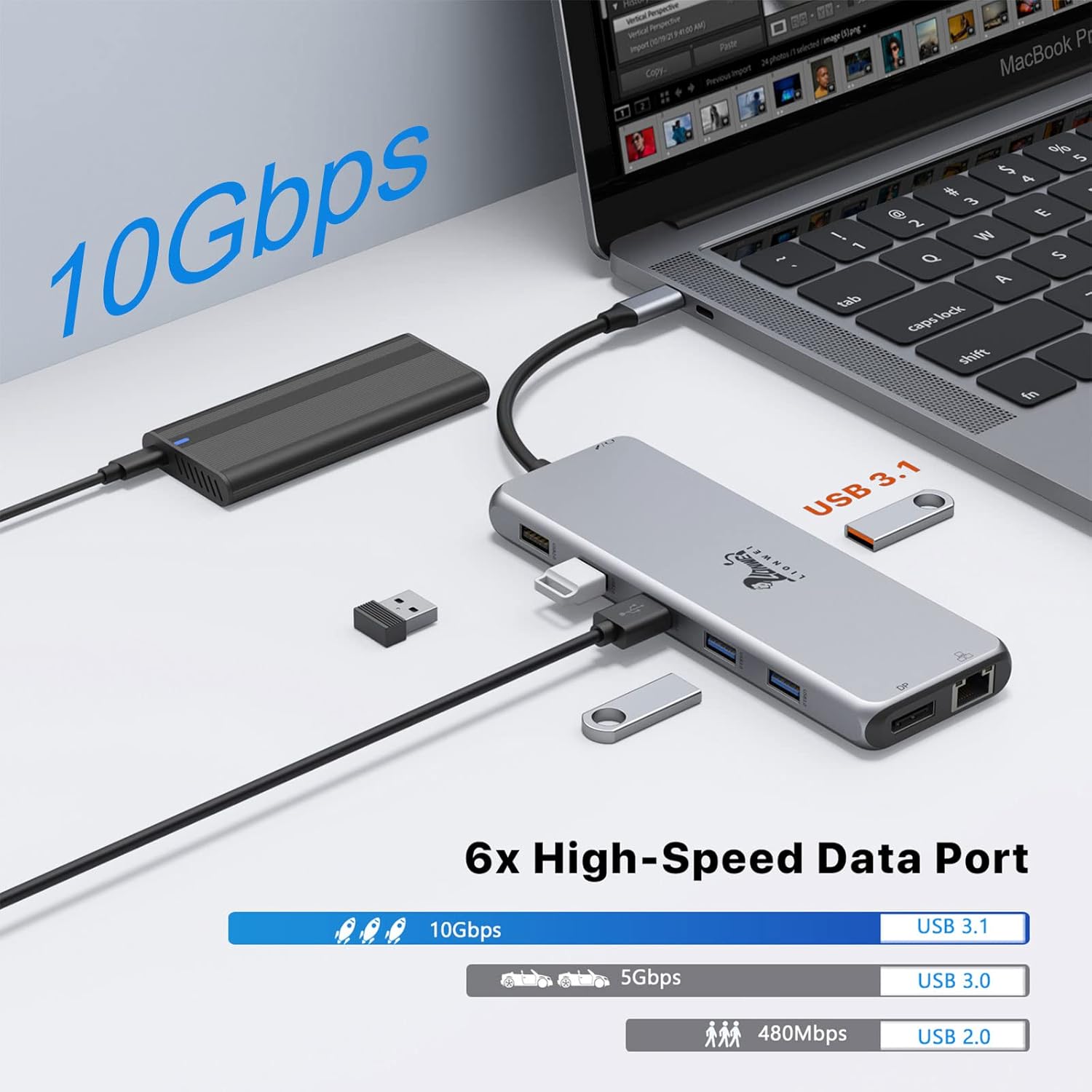
Image: A visual representation of the USB-C ports on the docking station, highlighting their dual functionality for both 100W power delivery to a laptop and 10Gbps high-speed data transfer.
4.2 High-Speed Data Transfer
The docking station offers a variety of USB ports for connecting your devices:
- USB-C 3.1 & USB-A 3.1: Up to 10Gbps, ideal for external SSDs or high-speed flash drives.
- USB 3.0: Up to 5Gbps, suitable for most external hard drives, cameras, and standard peripherals.
- USB 2.0: Up to 480Mbps, perfect for keyboards, mice, printers, and other low-bandwidth devices.

Image: A graphic demonstrating the varying data transfer speeds of the USB 3.1, USB 3.0, and USB 2.0 ports on the docking station, indicating their suitability for different types of devices.
4.3 Gigabit Ethernet
The RJ45 Ethernet port provides a stable and high-speed wired internet connection, eliminating reliance on Wi-Fi and reducing latency for activities like online gaming or large file downloads. No additional drivers are required for this function.

Irudia: Gertutik view of the Gigabit Ethernet (RJ45) port on the docking station, showing an Ethernet cable plugged in, emphasizing its 1000Mbps capability.
4.4 Audio/Mic Functionality
The integrated 3.5mm Audio/Mic 2-in-1 jack allows you to connect headphones, speakers, or a headset for audio playback and voice communication simultaneously.

Image: A close-up of the 3.5mm Audio/Mic port on the docking station, with earbuds connected, indicating its function for audio output and microphone input.
5. Mantentzea
Proper maintenance ensures the longevity and optimal performance of your LIONWEI docking station.
- Garbiketa: Use a soft, dry, lint-free cloth to clean the surface of the docking station. Do not use liquid cleaners, aerosols, or abrasive solvents.
- Biltegiratzea: Gorde kargatzeko estazioa leku fresko eta lehor batean, eguzki-argitik eta muturreko tenperaturetatik babestuta.
- Manipulazioa: Avoid dropping or subjecting the device to strong impacts. Do not attempt to disassemble or modify the docking station, as this will void any warranty and may cause damage.
- Aireztapena: Ensure adequate airflow around the docking station, especially during prolonged use, as it may generate some heat. Placing it on a flat, open surface or slightly elevating it can help with heat dissipation.
6. Arazoak
Zure kargatzeko estazioaren arazoekin arazoak badituzu, jo ezazu honako arazo eta irtenbide ohikoenei:
6.1 No Display Output or Flickering Screen
- Egiaztatu konexioak: Ensure all HDMI/DP cables are securely connected to both the docking station and the monitors.
- Ordenagailu eramangarrien bateragarritasuna: Egiaztatu zure ordenagailu eramangarriaren USB-C atakak DisplayPort Alt modua onartzen duela. USB-C ataka guztiek ez dute bideo irteera onartzen.
- Pantailaren ezarpenak: Adjust your computer's display settings (resolution, refresh rate, display mode - extend/mirror).
- Kablearen kalitatea: Use high-quality HDMI/DP cables, especially for 4K resolutions.
- Mac OS Limitations: Remember that macOS can only extend one display, with other external monitors mirroring each other.
- Gidariaren eguneratzea: Ensure your laptop's graphics drivers and USB-C drivers are up to date.
6.2 Peripherals Not Working or Disconnecting (e.g., Mouse Lag)
- Elikatze-iturria: Ensure the docking station is receiving sufficient power, especially if you have many power-hungry devices connected. Connect your laptop's power adapter to the docking station's PD port.
- USB ataka erabilera: Try connecting the peripheral to a different USB port on the docking station.
- Gidariaren arazoak: Ensure drivers for your peripherals are installed and up to date.
- Interferentzia: In some cases, mouse lag can be related to video connection interference. Try switching between HDMI and DisplayPort for your monitors if possible.
-
Ask a question about this manual
Ask about setup, troubleshooting, compatibility, parts, safety, or missing instructions. Manuals+ will review the question and use this page’s manual context to help answer it.