
1. Sarrera
This manual provides essential information for the proper installation, operation, and maintenance of your SUNMI T2s Lite 15.6-inch Android Point of Sale (POS) system. Please read this manual thoroughly before using the device to ensure optimal performance and safety. Keep this manual for future reference.
2. Segurtasun informazioa
- Ez jarri gailua muturreko tenperatura, hezetasun edo eguzki-argitara.
- Saihestu gailua kolpe gogorrak erortzea edo jasaten.
- Use only the power adapter supplied with the device. Using an incorrect adapter may cause damage or fire.
- Ez saiatu gailua zeuk desmuntatzen edo konpontzen. Jarri harremanetan zerbitzu-langile kualifikatuekin.
- Mantendu gailua uretatik edo beste likidoetatik urrun.
- Ziurtatu gailua behar bezala aireztatuta dagoela inguruan funtzionamenduan zehar.
3. Paketearen edukia
Egiaztatu elementu guztiak paketean daudela:
- SUNMI T2s Lite POS Terminal
- Elikatze-moldagailua
- Elikatze-kablea
- Hasiera Azkarreko Gida (aplikagarria bada)
- Berme txartela (hala badagokio)
Elementuren bat falta bada edo hondatuta badago, jarri harremanetan zure saltzailearekin berehala.
4. Produktua amaitu daview
The SUNMI T2s Lite is an integrated Android-based POS system designed for retail environments. It features a 15.6-inch capacitive touchscreen display and various connectivity options.
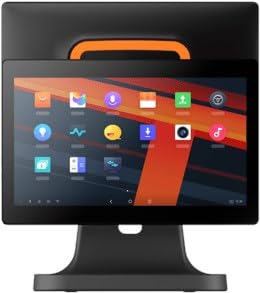
4.1. irudia: Aurrealdea view of the SUNMI T2s Lite POS system. This image displays the main 15.6-inch touchscreen, which is the primary interface for operating the device. The design is compact and suitable for various retail settings.
4.1 Funtsezko osagaiak
- 15.6 hazbeteko ukipen-pantaila: High-resolution (1920x1080) capacitive touch interface.
- Pizteko botoia: Located typically on the side or rear for turning the device on/off.
- USB atakak: For connecting peripherals such as barcode scanners, external printers, or cash drawers.
- Ethernet ataka: Kable bidezko sarearen konexiorako.
- Potentzia sarrera: Korronte-egokigailua konektatzeko.
- Aurrealdeko kamera: For specific applications requiring image capture.
5. Konfigurazioa
5.1 Desontziratzea eta kokatzea
- Carefully remove the device and all accessories from the packaging.
- Place the POS terminal on a stable, flat surface in a well-ventilated area.
- Ensure there is sufficient space around the device for cable connections and heat dissipation.
5.2 Potentzia konektatzea
- Konektatu korronte kablea korronte-egokigailura.
- Plug the power adapter into the power input port on the back of the SUNMI T2s Lite.
- Entxufatu kablearen beste muturra lurrera konektatutako entxufe elektriko batera.
5.3 Initial Boot and Network Connection
- Press and hold the power button until the screen lights up. The device will boot into the Android operating system.
- Jarraitu pantailan agertzen diren argibideei hasierako konfiguraziorako, hizkuntza eta ordu-eremua hautatzea barne.
- Wi-Fi konexioa: Joan zaitez Ezarpenak > Sarea eta internet > Wi-Fi, select your network, and enter the password.
- Ethernet konexioa: Connect an Ethernet cable from your router/switch to the Ethernet port on the device. The device should automatically connect to the wired network.
5.4 Periferikoak konektatzea
- USB gailuak: Plug USB peripherals (e.g., barcode scanner, external printer, cash drawer) into the available USB ports. The system will typically recognize them automatically.
- Bluetooth gailuak: Joan zaitez Ezarpenak > Konektatutako gailuak > Bluetooth, enable Bluetooth, and pair with your desired device.
6. Funtzionamendu-argibideak
6.1 Piztu/Itzaltzea
- Pizteko: Eduki sakatuta pizteko botoia pantaila argitu arte.
- Itzaltzeko: Press and hold the power button until a power menu appears. Select "Power off" and confirm. Alternatively, a short press of the power button will put the device to sleep.
6.2 Ukipen-pantailaren erabilera
- Sakatu: To select an item or activate a button.
- Eduki ukituta: To open context menus or drag items.
- Pasatu hatza: To scroll through lists or navigate between screens.
- Zoom egiteko apur bat egin: Irudiak handitu edo txikitzeko edo web orrialdeak.
6.3 Android sistema eragilearen nabigazioa
- Hasierako pantaila: The central hub for your applications and widgets.
- Aplikazioen tiradera: Instalatutako aplikazio guztietara sar zaitezke.
- Jakinarazpen panela: Irristatu hatza behera pantailaren goialdetik view jakinarazpenak eta ezarpen azkarrak.
- Ezarpenak: Configure Wi-Fi, Bluetooth, display, sound, and other system options.
6.4 Basic POS Functions
The specific POS functions will depend on the software application installed on your device. Refer to the documentation provided with your POS software for detailed instructions. Generally, you will:
- Launch your POS application from the home screen or app drawer.
- Hasi saioa zure erabiltzailearen kredentzialekin.
- Process transactions using the touchscreen and connected peripherals (e.g., scanning items, accepting payments).
- Print receipts if an external or integrated printer is configured.
7. Mantentzea
7.1 Gailua garbitzea
- Garbitu aurretik, itzali eta deskonektatu gailua beti.
- Erabili lipurrik gabeko zapi leun bat dampened with water or a mild, non-abrasive cleaner to wipe the screen and exterior surfaces.
- Ez isuri likidorik gailura zuzenean.
- Saihestu produktu kimiko gogorrak, disolbatzaileak edo material urratzaileak erabiltzea.
7.2 Software eguneraketak
Regularly check for and install system and application updates to ensure optimal performance, security, and access to new features. You can usually find system updates in Ezarpenak > Sistema > Sistemaren eguneraketa.
7.3 Biltegiratzea
When not in use for extended periods, store the device in a cool, dry place, away from direct sunlight and extreme temperatures. If storing for a long time, ensure the battery is charged to about 50% to prolong its lifespan.
8. Arazoak
Atal honek aurki ditzakezun arazo ohikoenak jorratzen ditu. Arazo konplexuagoetarako, jarri harremanetan bezeroarentzako arreta-zerbitzuarekin.
- Gailua ez da pizten:
- Ziurtatu korronte-egokitzailea ondo konektatuta dagoela gailura eta funtzionatzen duen entxufe batera.
- Egiaztatu korronte-hartunea funtzionala dela.
- Try holding the power button for 10-15 seconds to force a restart.
- Touchscreen is unresponsive:
- Berrabiarazi gailua.
- Ensure the screen is clean and free of debris or liquids.
- Network connection issues (Wi-Fi/Ethernet):
- Check if the Wi-Fi is enabled and you are connected to the correct network with the right password.
- For Ethernet, ensure the cable is properly connected and your router/switch is working.
- Berrabiarazi zure bideratzailea/modema.
- Peripherals (e.g., printer, scanner) not working:
- Ensure the peripheral is properly connected to the correct port.
- Check if the peripheral has its own power supply and is turned on.
- Verify that the necessary drivers or software for the peripheral are installed and configured within your POS application.
9. Zehaztapenak
The following are key technical specifications for the SUNMI T2s Lite:
| Ezaugarri | Zehaztapena |
|---|---|
| Marka | SUNMI |
| Fabrikatzailea | Sunmi |
| Berezko pantailaren bereizmena | 1920x1080 pixel |
| Konektibitate Teknologia | Bluetooth, Ethernet, USB, WLAN |
| Kameraren deskribapena | Frontala |
| ASIN | B0B53FLFT8 |
10. Bermea eta Laguntza
The SUNMI T2s Lite POS system comes with a standard manufacturer's warranty. Please refer to the warranty card included in your package for specific terms and conditions, including warranty period and coverage details.
For technical support, service, or warranty claims, please contact your authorized SUNMI dealer or the customer support channel specified in your purchase documentation. Ensure you have your product model number (T2s Lite) and ASIN (B0B53FLFT8) ready when contacting support.