
1. Sarrera
Thank you for choosing OREiN Smart Edison Light Bulbs. This product combines vintage aesthetics with modern smart technology, offering tunable white light, dimming capabilities, and smart control via app, voice, and a dedicated smart button. This manual will guide you through the installation, operation, and maintenance of your new smart bulbs.
Kutxan dagoena
- 6 x OREiN Smart Edison Bulbs (ST19)
- 1 x OREiN Smart Button
2. Segurtasun informazio garrantzitsua
- Produktuaren neurriak: These bulbs are 5.04 inches in length and 2.28 inches in width. Please confirm the bulb fits your lamp fixture before installation.
- Dimmer etengailuak: OREiN smart filament bulbs are ez da bateragarria etengailu erregulatzaile tradizionalekin. Using them with dimmer switches may cause flickering, buzzing, or premature burnout. Brightness adjustment should be done via the AiDot app, voice commands, or the smart button.
- Barruko erabilera soilik: Produktu hau barrualdean erabiltzeko diseinatuta dago.
- Energia iturria: Ziurtatu argia itzalita dagoela bonbillak instalatu edo kendu aurretik.

Image: OREiN Smart Edison Bulbs highlighting dimensions (5.04" length, 2.28" width) and key features like Voice Control, App Control, Button Control, Group Control, Music Sync, Timer & Schedule, Power Source Required, and Not Support Dimmer Switches.

Image: A visual warning indicating that OREiN smart bulbs are not compatible with traditional dimmer switches and that brightness should be adjusted via the app, speaker, or button.
3. Konfigurazio gida
3.1 Install the Bulbs
- Screw the OREiN Smart Edison Bulbs into any standard E26 base light fixture.
- Turn on the power to the light fixture. The bulbs should light up.
3.2 Download the AiDot App
The AiDot app is required for full control and smart features. Ensure your mobile device is connected to a 2.4GHz Wi-Fi network.
- For iOS devices, download AiDot from the App Store.
- For Android devices, download AiDot from Google Play.
Bilatu "AiDot" in your app store and ensure you download the official application.

Image: Visual guide showing how to download the official AiDot App from the App Store or Google Play, search for "AiDot", and confirm it's the correct app before downloading.
3.3 Connect the Smart Light Bulbs to the App
No hub is required for connecting the bulbs to the AiDot app.
- Ensure the bulbs are lit up.
- Open the AiDot app and sign in.
- Tap the "+" icon or "Add Device" option within the app.
- Select "Smart Light Bulb" from the list of devices. Follow the on-screen prompts to complete the pairing process.

Image: Step-by-step visual guide for connecting the smart light bulbs to the AiDot app: Light up bulbs, open app and tap '+', add device 'Nearby', select 'Smart Light Bulb', and confirm successful addition.
3.4 Connect to Voice Assistants (Alexa, Google Home, Siri)
After connecting your bulbs to the AiDot app, you can integrate them with popular voice assistants for hands-free control.
- Once your device is connected to the AiDot app, navigate to AiDot > Integration.
- Choose your desired voice assistant (Amazon Alexa, Google Home, or SmartThings).
- You will be redirected to link your accounts. Enter your Alexa/Google Home username and password to connect the two accounts.
- Once linked successfully, you can use voice commands to control your OREiN smart bulbs. For Siri, set up Siri Shortcuts within the AiDot App.

Image: Visual instructions for connecting OREiN smart bulbs to Alexa, Google Home, or SmartThings: Navigate to Integration in AiDot app, choose platform, link accounts, and confirm successful linking.
3.5 Smart Button Setup
The OREiN Smart Button is easy to use and install. It comes equipped with a magnet and tape for versatile placement.
- The button can be customized via the AiDot App to control your smart lights without needing your phone.
- Use the magnet to attach it to metallic surfaces or the tape for other locations.

Image: The OREiN Smart Button demonstrating its portable and mountable design, showing it attached to a wall with tape, placed on a desk, and mounted on a wall with its magnetic backing.
4. Funtzionamendu-argibideak
4.1 App Control (AiDot App)
The AiDot app provides comprehensive control over your smart bulbs:
- Distira doitzea: Seamlessly dim or brighten the lights from 5% to 100%.
- Tunable White: Adjust the color temperature from 2700K (warm white) to 6500K (cool white) to suit any mood or activity.
- Ordutegiak eta ordutegiak: Program specific times for lights to turn on/off or adjust settings automatically. This can simulate occupancy when you are away.
- Taldearen kontrola: Control multiple bulbs simultaneously by grouping them within the app.
- DIY Scenes: Create custom lighting scenes for various occasions (e.g., reading, work, relaxation).

Image: An illustration of remote and schedule control functionality, showing a smartphone app interface managing lights in a house, with text indicating setting schedules to simulate occupancy.

Image: A visual representation of setting schedules with daily routines, showing a person using a phone in bed at 10:30 PM (Bedtime) and another person waking up at 7:00 AM (Wake up), illustrating automated light changes.
4.2 Ahots kontrola
Once linked with Alexa, Google Home, or Siri, you can control your bulbs using simple voice commands:
- "Alexa, piztu egongelako argiak."
- "Hey Google, txikitu sukaldeko argia %50era."
- "Siri, change the bedroom light to warm white." (Requires Siri Shortcuts setup in AiDot App)
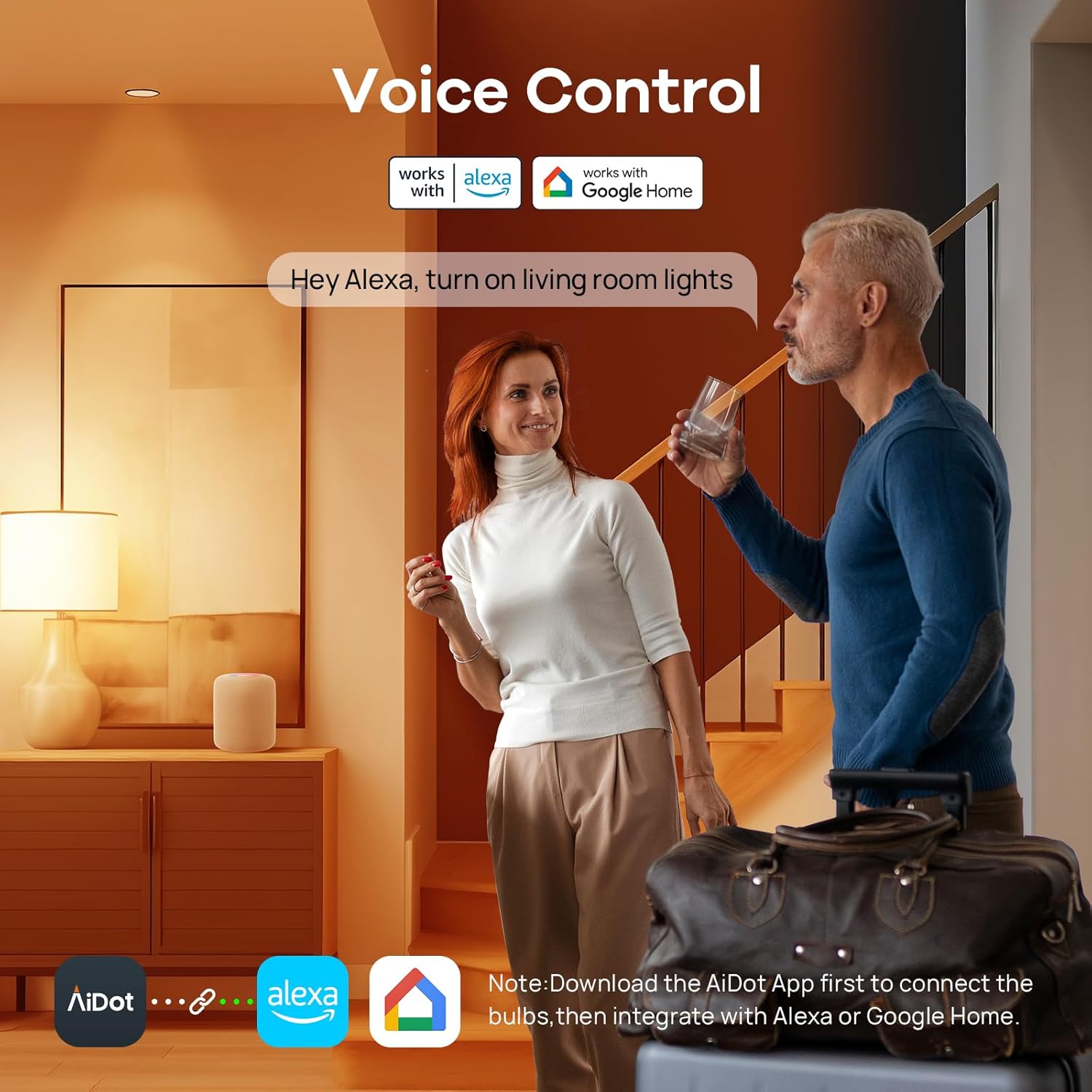
Image: A couple in a living room setting, demonstrating voice control with Alexa and Google Home, showing speech bubbles with commands like "Hey Alexa, turn on living room lights." and indicating the need to download the AiDot App first.
4.3 Smart Button Control
The included smart button provides quick physical control:
- Prentsa bakarra: Turn light on/off.
- Double Presses: Doitu kolore-tenperatura.
- Eutsi: Egokitu distira.

Image: A hand holding the OREiN Smart Button, illustrating its control functions: Single Press (Turn light on/off), Double Presses (Adjust color temperature), and Hold (Adjust brightness).
5. Produktuaren zehaztapenak
| Ezaugarri | Zehaztapena |
|---|---|
| Marka | OREIN |
| Modelo zenbakia | OS01007-AW-WB-US-4 |
| Argi Mota | LED |
| Ezaugarri Berezia | Tunable White / Voice Control / App Control |
| Wattage | 8 watt |
| Goritasunezko baliokidea | 60 Watt |
| Bonbilla Forma Tamaina | ST19 |
| Bonbilla Oinarria | E26 |
| Distira | 800 lumen |
| Argi Kolorea | 2700K-6500K Tunable White |
| liburukiatage | 120 voltio (AC) |
| Konektibitate Teknologia | Wi-Fi (2.4 GHz bakarrik) |
| Kontrolagailu mota | Amazon Alexa, Android, Google Assistant, Siri, iOS |
| Materiala | Beira |
| Batez besteko Bizitza | 25,000 ordu |
| Kolore errendatze indizea (CRI) | 90+ |
| Produktuaren neurriak | 2.28"Z x 5.04"A |
| Elementuaren pisua | 16 ontza |
| Smart Button Battery | CR2032 1 (barne) |
6. Arazoak
6.1 Konexio arazoak
- Bonbilla ez da Wi-Fi-ra konektatzen: Ensure your Wi-Fi network is 2.4GHz. These bulbs do not support 5GHz networks. Move the bulb closer to your Wi-Fi router.
- App cannot find the bulb: Make sure the bulb is powered on and within range of your Wi-Fi network. Try restarting the bulb by turning the power off and on at the switch.
- Ahots-kontrola ez dabil: Verify that your AiDot account is correctly linked to your Alexa, Google Home, or Siri account. Check your internet connection and ensure your voice assistant device is online.
6.2 Errendimendu arazoak
- Dardara edo burrunba: This is typically caused by using the smart bulbs with a traditional dimmer switch. Remove the dimmer switch or ensure it is set to full power (non-dimming mode). Adjust brightness only through the app, voice, or smart button.
- Bulb not responding: Check the power supply to the bulb. If the issue persists, try resetting the bulb by turning it off and on several times (e.g., 3-5 times) at the switch, waiting a few seconds between each toggle, until it enters pairing mode (may flash). Then attempt to re-pair with the app.
- Smart Button not responding: Check the CR2032 battery in the smart button. Ensure it is within range of the bulbs it controls.
7. Zainketa eta Mantentzea
- Garbiketa: Ensure the bulb is cool and power is off before cleaning. Wipe with a soft, dry cloth. Do not use liquid cleaners or abrasive materials.
- Biltegiratzea: Bonbillak denbora luzez gordetzen badituzu, gorde itzazu leku fresko eta lehor batean, eguzki-argitik babestuta.
- Manipulazioa: Handle bulbs with care to avoid damage to the glass or internal components.
8. Bermea eta Laguntza
For detailed warranty information, please refer to the product packaging or contact OREiN customer support. If you encounter any issues not covered in this manual, please reach out to our support team.
- Erabiltzailearen eskuliburu ofiziala (PDF): Deskargatu PDFa
- Bezeroarentzako arreta: 1 (844) 506-1530 (24-Hour Service)