
Produktua amaituview
The MARVO 2.4G Ergonomic Wireless Keyboard and Silent Mouse Combo provides a reliable and comfortable input solution for your computer and smart devices. Featuring a full-size keyboard with a built-in phone/tablet holder and a silent 6-button mouse with adjustable DPI, this combo is designed for efficiency and quiet operation.

Image: MARVO 2.4G Ergonomic Wireless Keyboard and Silent Mouse Combo.
Konfigurazio Argibideak
1. Bateriaren instalazioa
The keyboard and mouse require batteries (not included). Each device typically uses one AA battery. Locate the battery compartments on the underside of both the keyboard and the mouse. Insert the batteries, ensuring correct polarity.

Image: Underside of the wireless mouse, illustrating the battery slot and the storage for the USB receiver.
2. USB hargailuaren konexioa
The combo uses a single 2-in-1 USB Nano Receiver for both the keyboard and mouse. The receiver is typically stored within the mouse's battery compartment for convenience. Remove the receiver and plug it into an available USB port on your computer.
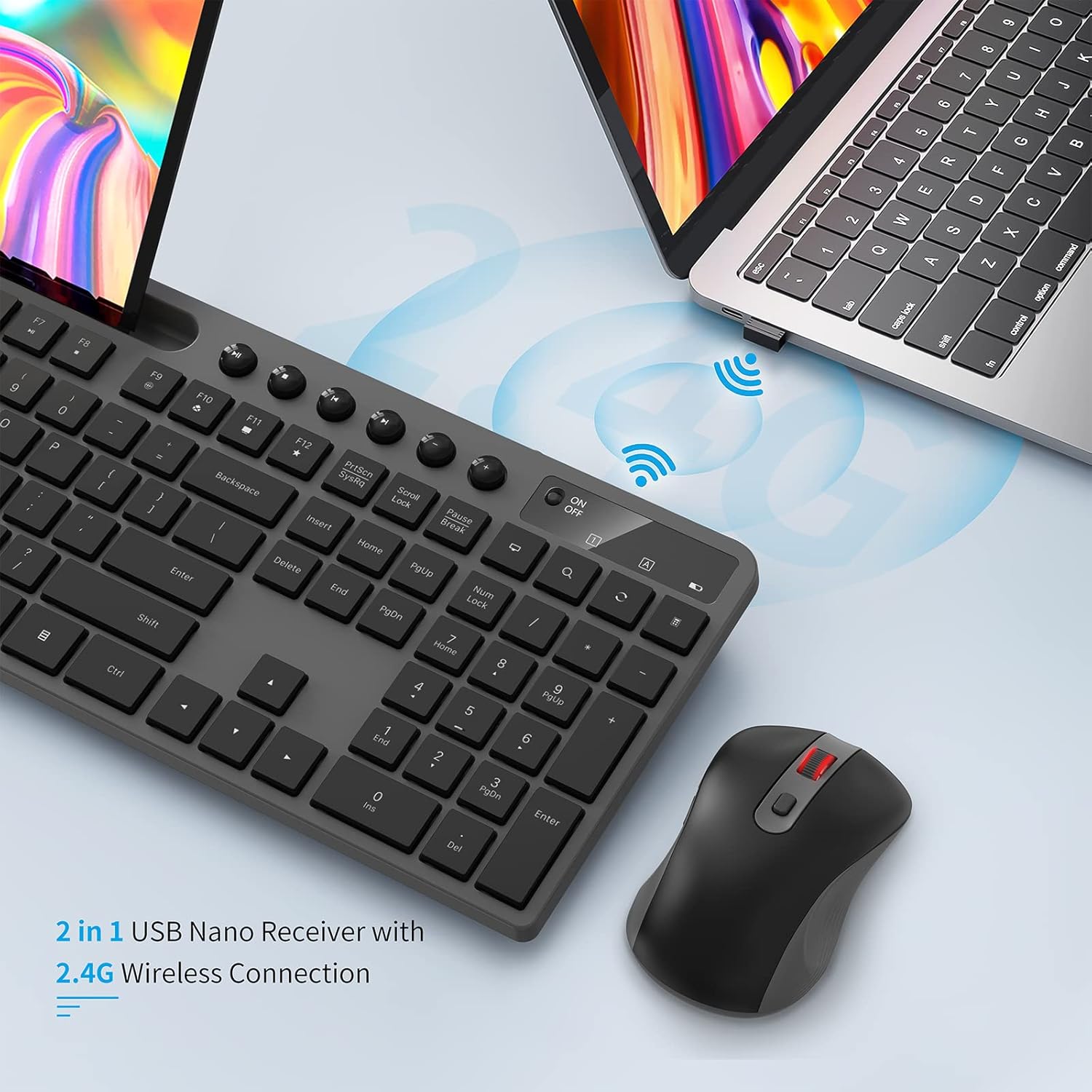
Image: The 2-in-1 USB Nano Receiver connected to a laptop, enabling wireless communication for the keyboard and mouse.
3. Piztu
Turn on both the keyboard and the mouse using their respective On/Off switches. The keyboard's power light will blink for 5-8 seconds and then turn off, indicating a normal connection. If the red power light blinks when you press any key, it indicates a low battery state.
4. Sistemaren bateragarritasuna
The MARVO Wireless Keyboard and Mouse Combo is compatible with Windows XP, Vista, 7, 8, 10, and macOS operating systems. No additional drivers are typically required for basic functionality.
Funtzionamendu-argibideak
Teklatuaren Ezaugarriak
- QWERTY Layout: Standard keyboard layout for familiar typing.
- Multimedia teklak: Dedicated keys for media control (play, pause, volume, etc.) located above the function keys.
- Telefono/tableta euskarri integratua: A 9.84-inch slot is built into the keyboard to securely hold your smartphone or tablet, providing convenient access to your second screen.
- Diseinu ergonomikoa: Designed for comfortable typing during extended use.
- Hanka inklinatu erregulagarriak: The keyboard features foldable legs on the underside, allowing you to adjust the typing angle for personalized comfort.

Image: The MARVO wireless keyboard featuring its integrated phone and tablet holder, showcasing a phone and tablet in use.
Saguaren ezaugarriak
- Klik isilak: Funtzionamendu isilerako diseinatua, klik-zarata gutxituz.
- 6 Botoiak: Includes standard left/right click, scroll wheel, DPI switch, and two side buttons (often for page up/down or forward/back).
- DPI erregulagarria: Cycle through 800, 1200, and 1600 DPI settings using the dedicated DPI switch button to adjust cursor sensitivity.
- Korritzeko gurpila: Dokumentuen artean nabigazio leuna lortzeko eta web orrialdeak.
- Piztu/Itzali etengailua: Located on the underside of the mouse to conserve battery life when not in use.
Mantentzea
- Bateria ordezkatzea: Replace batteries when the low battery indicator appears or performance degrades. Ensure to use the correct battery type (AA).
- Garbiketa: Erabili zapi leun eta lehor bat teklatuaren eta saguaren gainazalak garbitzeko. Zikinkeria egoskorra bada, garbitu zapi pixka bat.amp oihal bat erabil daiteke, barneko osagaietan hezetasunik ez sartzeko ziurtatuz.
- USB hargailuaren biltegiratzea: When transporting the mouse, store the USB receiver in its dedicated slot within the mouse's battery compartment to prevent loss.
Arazoak konpontzea
- Ez dago konexiorik: Ensure both devices are powered on and the USB receiver is securely plugged into a working USB port. Try plugging the receiver into a different USB port.
- Saguak ez du erantzuten: Check the mouse battery. If the mouse is unresponsive, try re-pairing it by pressing the ESC key on the keyboard and holding the right wheel and right button down simultaneously on the mouse.
- Teklatuko teklak ez dira funtzionatzen: Check the keyboard battery. Ensure the keyboard is powered on.
- Etengabeko konexioa: Ensure there are no obstructions between the devices and the USB receiver. Move the receiver closer to the keyboard and mouse if possible.
- Keyboard Wobbles: If the keyboard does not sit level, check the adjustable tilt legs on the underside. Gently adjust or apply slight pressure to the corners to correct any unevenness.
Zehaztapenak
| Marka | MARVO |
| Eredua | KC-411W |
| Konektibitatea | 2.4G Radio Frequency |
| Gailu bateragarriak | Ordenagailu pertsonala, Smartphone |
| Sistema eragilea | Windows XP / Vista / 7 / 8 / 10, macOS |
| Teklatuaren diseinua | QWERTY (92 keys) |
| Sagua DPI | 800/1200/1600 DPI Adjustable |
| Saguaren botoiak | 6 |
| Energia iturria | Battery Powered (1 AA per device, not included) |
| Elementuaren pisua | 0.75 kilogramo |
| Wireless Range | Gehienez 33 oin |
| Telefono/tabletaren euskarria | 9.84 hazbetekoa |

Image: Detailed dimensions of the MARVO wireless keyboard and mouse for reference.
Bermea eta Laguntza
MARVO provides a 12-month worry-free warranty for this product, ensuring peace of mind. Our friendly customer service team is available to assist with any questions or issues you may encounter.
For support, please visit the official MARVO website or contact our customer service department directly. Please have your model number (KC-411W) and purchase information ready when contacting support.