
1. Produktua amaitu daview
The HP DeskJet 2722 is an all-in-one wireless color inkjet printer designed for printing, scanning, and copying. It offers convenient mobile printing capabilities and a simple setup process.

1.1. irudia: Aurrealdea view of the HP DeskJet 2722 printer with paper in the input tray.

1.2. irudia: Key components of the HP DeskJet 2722, including the LCD screen with buttons, 60-sheet rear input tray, 25-sheet output tray, and flatbed scanner.

1.3. irudia: Atzekoa view of the printer, highlighting the 60-sheet rear input tray and the USB 2.0 port for PC connection.
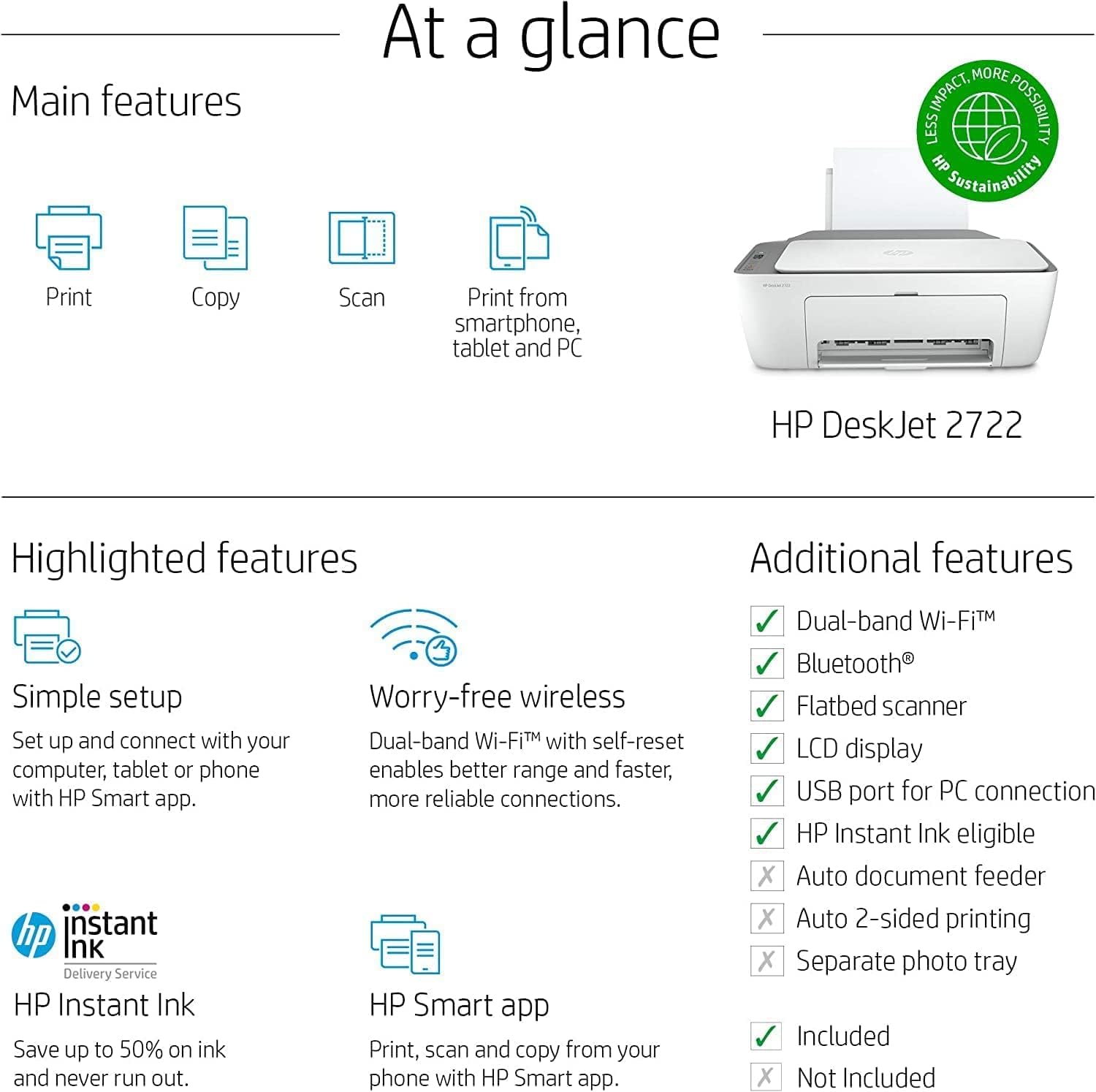
1.4. irudia: At a glance: Main features include Print, Copy, Scan, and Print from smartphone, tablet, and PC. Highlighted features are simple setup, worry-free dual-band Wi-Fi, HP Instant Ink eligibility, and HP Smart app compatibility. Additional features include Bluetooth, flatbed scanner, LCD display, and USB port for PC connection.

1.5. irudia: The HP Smart app interface, enabling simple setup and mobile multitasking, including ink level monitoring, remote printing, and scanning on the go.

1.6. irudia: The printer features dual-band Wi-Fi with self-reset, ensuring better range and reliable connections for wireless printing.
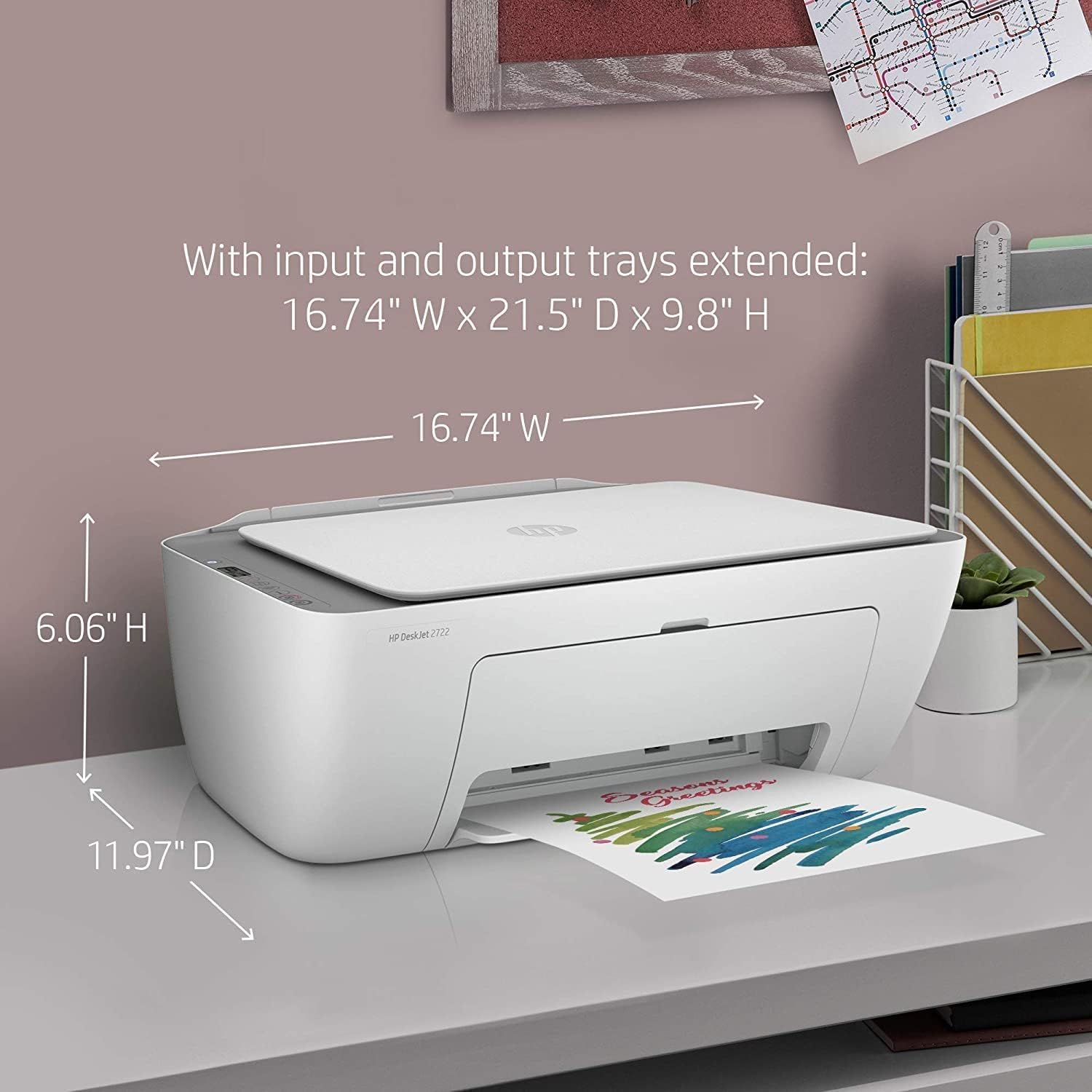
1.7. irudia: Dimensions of the printer with input and output trays extended: 16.74" W x 21.5" D x 9.8" H.
2. Konfigurazio gida
Follow these steps to set up your HP DeskJet 2722 printer for the first time.
- Despaketatzea: Carefully remove the printer and all packing materials from the box. Ensure all components, including the power cord and setup ink cartridges (HP 67 Setup Black and HP 67 Setup Tri-color), are present.
- Potentzia-konexioa: Connect the power cord to the printer and then to a wall outlet. Power on the printer.
- Tinta-kartutxoaren instalazioa: Open the ink cartridge access door. Wait for the carriage to move to the center. Install the HP 67 Setup Black and HP 67 Setup Tri-color ink cartridges into their respective slots. Close the access door.
- Kargatu papera: Extend the 60-sheet rear input tray. Load plain white paper into the input tray. Adjust the paper guides to fit the paper size.
- Software Installation & Connectivity: Download the HP Smart app on your smartphone or computer. Follow the on-screen instructions in the app to connect your printer to your Wi-Fi network or via Bluetooth. The app will guide you through the remaining setup steps, including driver installation for your computer.
3. Funtzionamendu-argibideak
3.1. Inprimaketa
The HP DeskJet 2722 supports various printing functions for documents and photos.
- Inprimatzeko abiadura: Up to 7.5 pages per minute (ppm) for black (ISO) and up to 5.5 ppm for color (ISO).
- Inprimatzeko ebazpena: Up to 1200 x 1200 rendered dpi for best quality.
- Duplex inprimaketa: Manual duplex printing is supported via driver settings.
- Print Languages: HP PCL 3 GUI; HP PCLm (HP Apps/UPD); URF (AirPrint).
- Konektibitatea: Print wirelessly via Wi-Fi or Bluetooth, or connect directly using a USB cable.
3.2. Eskaneatzea
Utilize the integrated flatbed scanner to digitize documents and photos.
- Eskaner mota: Ohe laua.
- Scanning via HP Smart App: Use the HP Smart app for easy scanning directly to your smartphone or computer.
3.3. Kopiatzea
The printer allows for direct copying of documents.
- Color Copy Capability: Bai.
- Maximum Copies: Up to 9 copies.
- Kopiaren ebazpena: Gehienez 300 x 300 dpi.
- Copier Settings: Includes auto-enlarge feature.
4. Mantentzea
4.1. Tinta-kartutxoaren ordezkapena
The HP DeskJet 2722 uses HP 67 ink cartridges. Monitor ink levels via the printer's LCD display or the HP Smart app. Replace cartridges when indicated to ensure optimal print quality.
4.2. Garbiketa
Garbitu inprimagailuaren kanpoaldea aldizka zapi leun eta lehor batekinamp cloth. For print quality issues, refer to the HP Smart app or online support for printhead cleaning procedures.
5. Arazoak
Atal honek aurki ditzakezun arazo ohikoenen irtenbideak eskaintzen ditu.
- Inprimagailuak ez du erantzuten: Ensure the printer is powered on and connected to the power outlet. Check USB cable connection if using wired, or Wi-Fi/Bluetooth connection if wireless. Restart both the printer and your computer/device.
- Inprimatzeko kalitate-arazoak: If prints are faded, streaky, or incorrect colors, check ink levels. Perform a printhead cleaning cycle through the HP Smart app or printer software. Ensure you are using genuine HP ink cartridges.
- Paper-atalak: Carefully remove any jammed paper from the input tray, output tray, and inside the printer. Refer to the printer's internal diagrams for paper path. Ensure paper is loaded correctly and not overfilled.
- Konektibitate arazoak: For Wi-Fi issues, ensure the printer is within range of your router. Restart your router and printer. Re-establish the Wi-Fi connection using the HP Smart app. For Bluetooth, ensure Bluetooth is enabled on your device and the printer is discoverable.
- Inprimagailua lineaz kanpo: Check the printer's status on your computer. If it shows offline, try setting it as the default printer or removing and re-adding the printer in your system settings.
6. Zehaztapenak
| Ezaugarri | Zehaztapena |
|---|---|
| Eredua | HP DeskJet 2722 |
| Funtzioak | Inprimatu, Eskaneatu, Kopiatu |
| Konektibitatea | Wi-Fi 802.11a/b/g/n, Bluetooth, USB 2.0 |
| Inprimatu Teknologia | HP tintazko termikoa |
| Inprimatze-abiadura (ISO beltza) | Gehienez 7.5 ppm |
| Inprimatze-abiadura (Kolore ISO) | Gehienez 5.5 ppm |
| Print Resolution (Best) | Errendatutako 1200 x 1200 ppp arte |
| Duplex Inprimaketa | Eskuliburua (gidariaren laguntza eskaintzen da) |
| Eskaner mota | Ohe laua |
| Eskanearen ebazpena | Up to 1200 dpi (Optical) |
| Kopiatu Ebazpena | Gehienez 300 x 300 dpi |
| Gehienezko kopiak | Gehienez 9 ale |
| Sarrerako erretiluaren edukiera | 60 fitxa |
| Irteera erretiluaren edukiera | 25 fitxa |
| Hileko betebehar zikloa | Gehienez 1000 orrialde |
| Memoria | 86 MB (Maximum: 512 M bit DDR1; 160 M bit flash) |
| Neurriak (W x D x H) | 425 x 304 x 154 mm (16.74 x 11.97 x 6.06 hazbete) |
| Pisua | 3.42 kg (7.54 lb) |
| Gailu bateragarriak | Smartphones, Ordenagailuak |
7. Bermea eta Laguntza
For detailed warranty information and technical support, please refer to the official HP webgunearekin edo jarri harremanetan HP bezeroarentzako arreta-zerbitzuarekin.
Era berean, bisitatu dezakezu HP denda Amazonen produktuen informazioa eta baliabideak lortzeko.