
1. Produktua amaitu daview
The UOGIC Magic Keyboard Case transforms your iPad into a versatile workstation, offering a comfortable typing experience, a precision trackpad, and robust protection. Its floating magnetic design allows for easy attachment and adjustment, making it ideal for various tasks and environments.

Figure 1: UOGIC Magic Keyboard Case with iPad in typing position.

Figure 2: Versatile usage scenarios of the keyboard case.
2. Bateragarritasuna
This keyboard case is designed for specific iPad models. Please confirm your iPad model before use.
- iPad Pro 11" (1st, 2nd, 3rd, 4th Generation): A1980, A2013, A1934, A1979, A2228, A2068, A2230, A2231, A2301, A2459, A2460, A2377, A2759, A2435, A2761, A2762
- iPad Air 10.9" (4th, 5th Generation): A2316, A2324, A2325, A2072, A2589, A2591, A2588
Note: This product is NOT compatible with iPad 10th Generation 10.9".

Figure 3: Visual guide for compatible iPad models.
3. Konfiguratzeko argibideak
3.1. Teklatua kargatzea
- Locate the USB-C charging port on the side of the keyboard case.
- Connect the provided USB-C cable to the charging port and plug the other end into a power source (e.g., wall adapter, computer USB port).
- Kargatzeko adierazlearen argia piztuko da. Karga oso batek normalean 3 ordu inguru behar ditu.
A fully charged keyboard provides up to 70 hours of continuous use or 90 days of standby time.
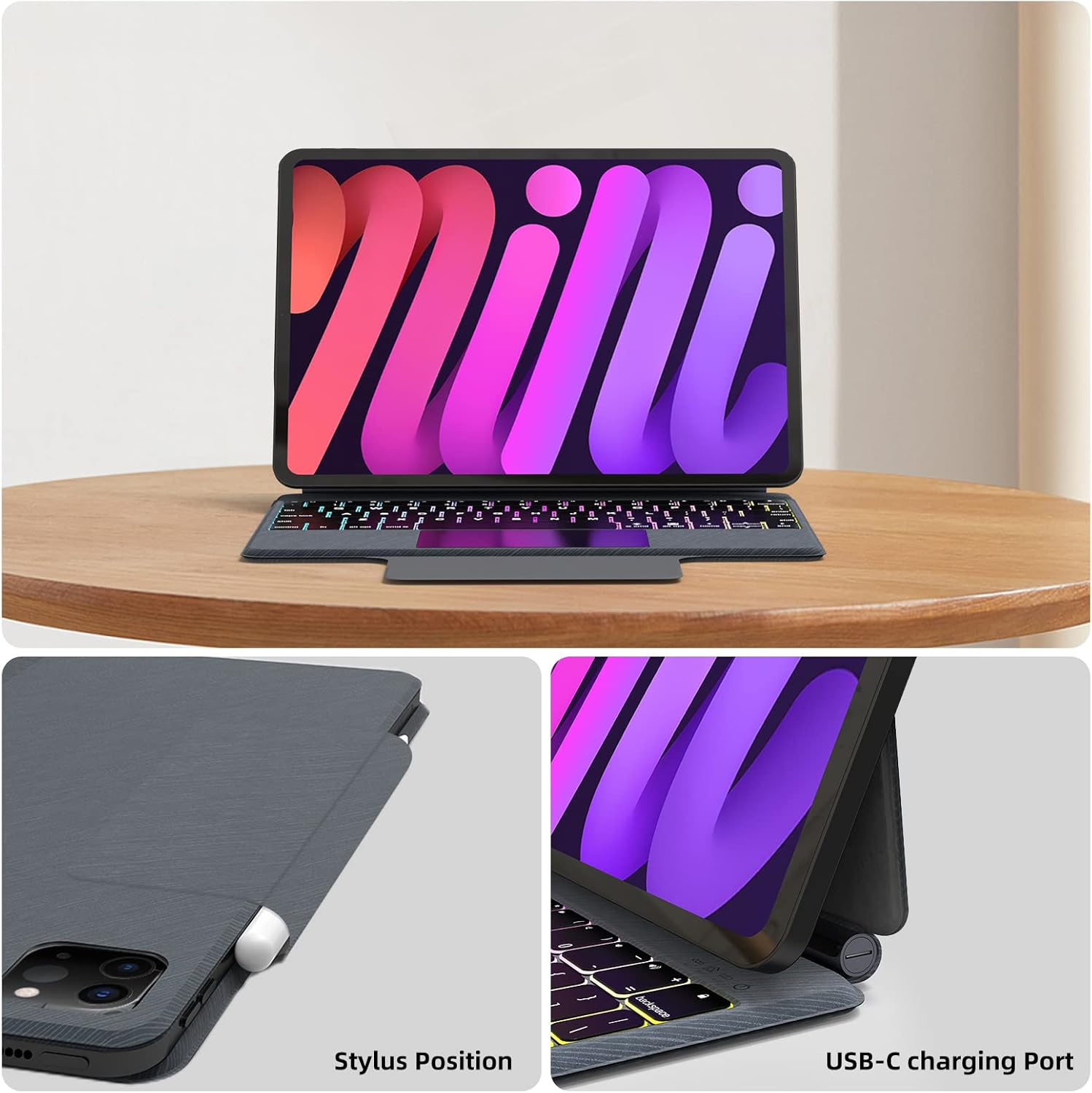
4. irudia: USB-C kargatzeko atakaren kokapena.
3.2. Zure iPad-a konektatzea
- Ireki teklatuaren kutxa.
- Align your compatible iPad with the magnetic back panel of the case. The iPad will magnetically snap into place.
- Adjust the iPad to your desired viewing angle. The floating cantilever stand allows for flexible positioning.
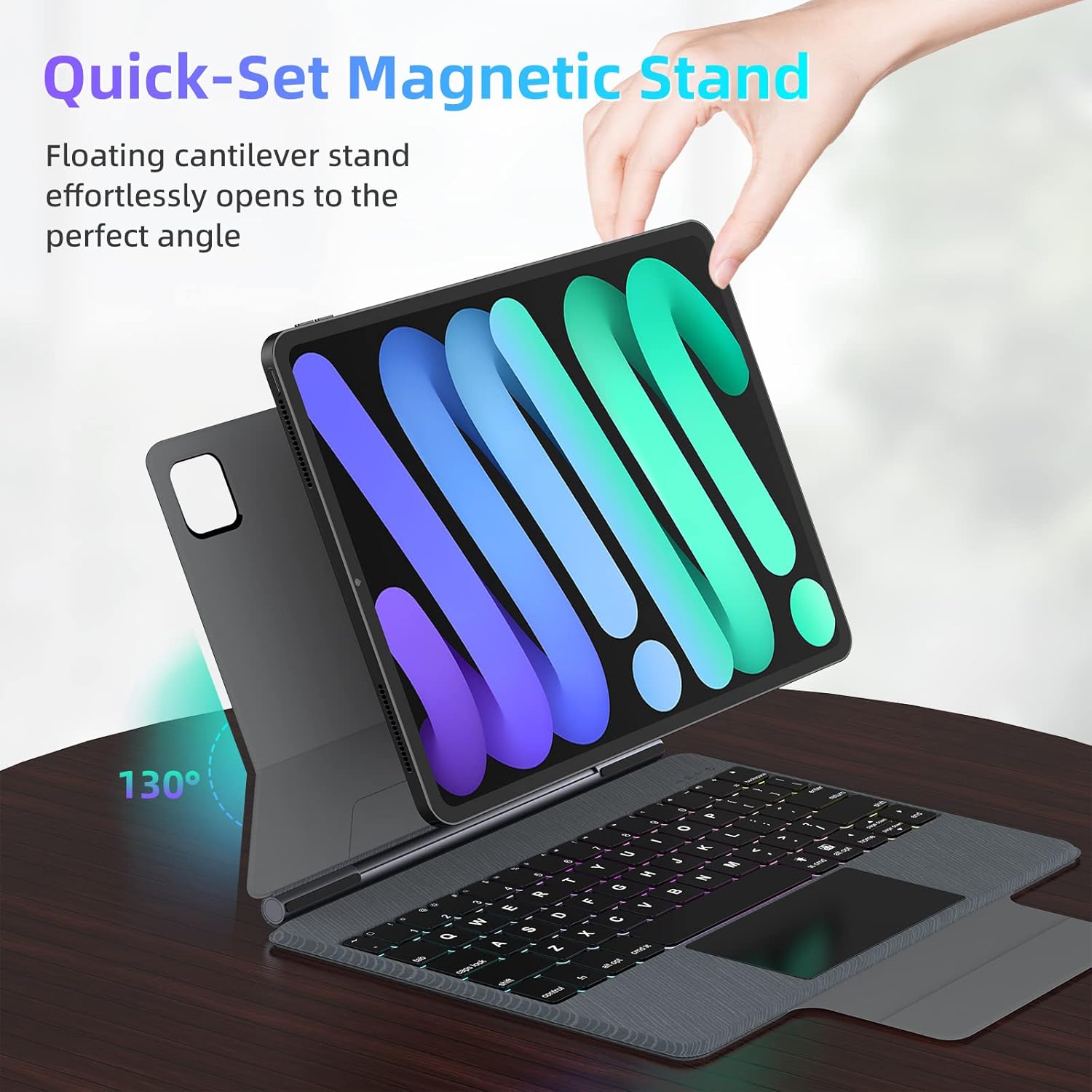
Figure 5: Floating magnetic design and adjustable stand.

Figure 6: Quick-set and folding stand mechanism.
3.3. Bluetooth parekatzea
- Ziurtatu teklatua kargatuta eta piztuta dagoela.
- Zure iPad-ean, joan honera: Ezarpenak > Bluetootha.
- Aktibatu Bluetooth-a. Zure iPad-ak inguruko gailuak bilatuko ditu.
- Select "UOGIC Keyboard" (or similar name) from the list of available devices.
- Jarraitu pantailako edozein gomendio parekatzeko prozesua amaitzeko.
4. Funtzionamendu-argibideak
4.1. Teklatuaren funtzioak
- Atzeko argia: The keyboard features 7 customizable backlight modes and 3 adjustable brightness levels. Use the dedicated backlight key (often Fn + Light icon) to cycle through modes and adjust brightness.
- Ergonomic Keys: The keys are designed for comfortable and efficient typing.
- Laster teklak: Utilize the top row of keys for quick access to iPadOS functions such as brightness, volume, and media controls.
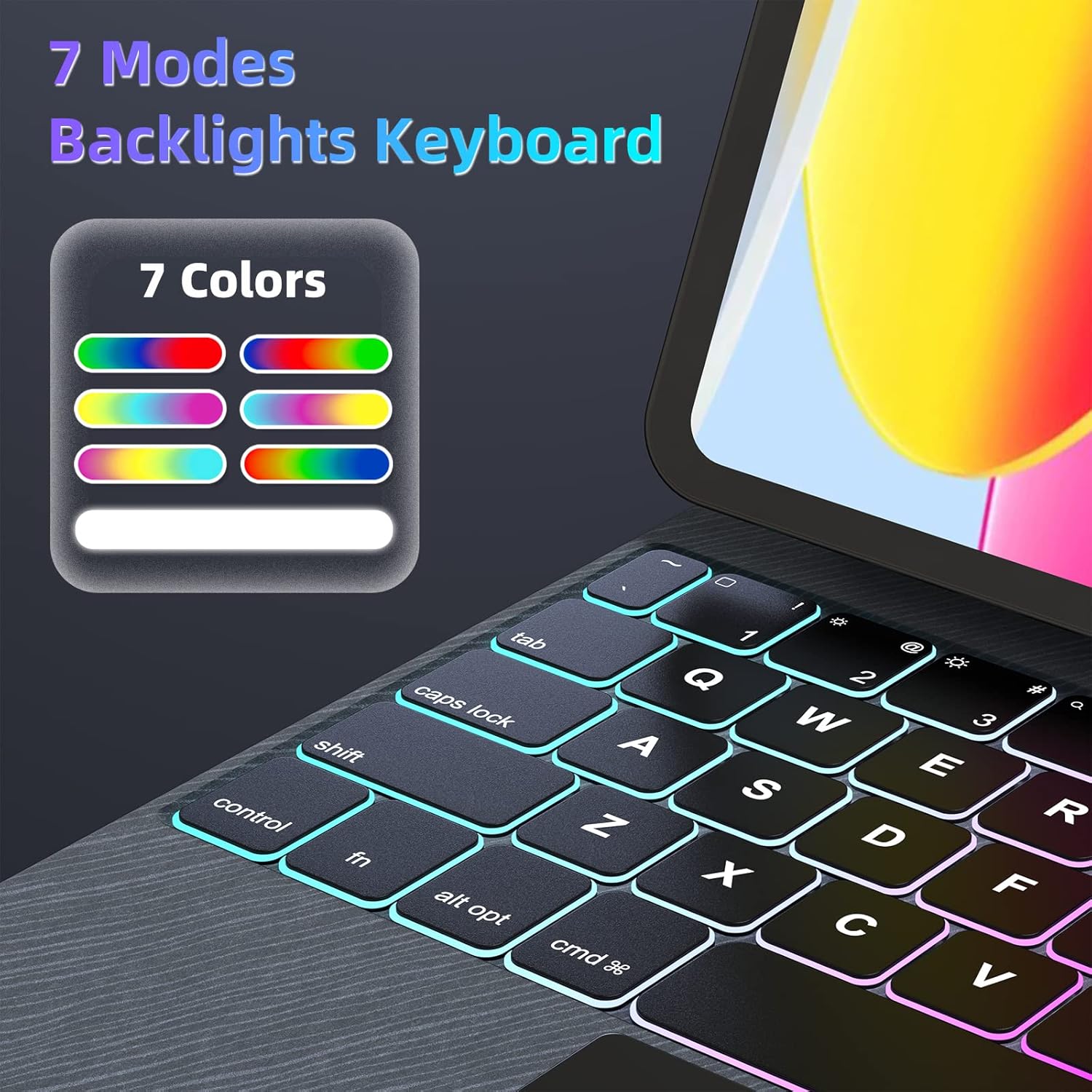
Figure 7: 7-Mode Backlight Keyboard.
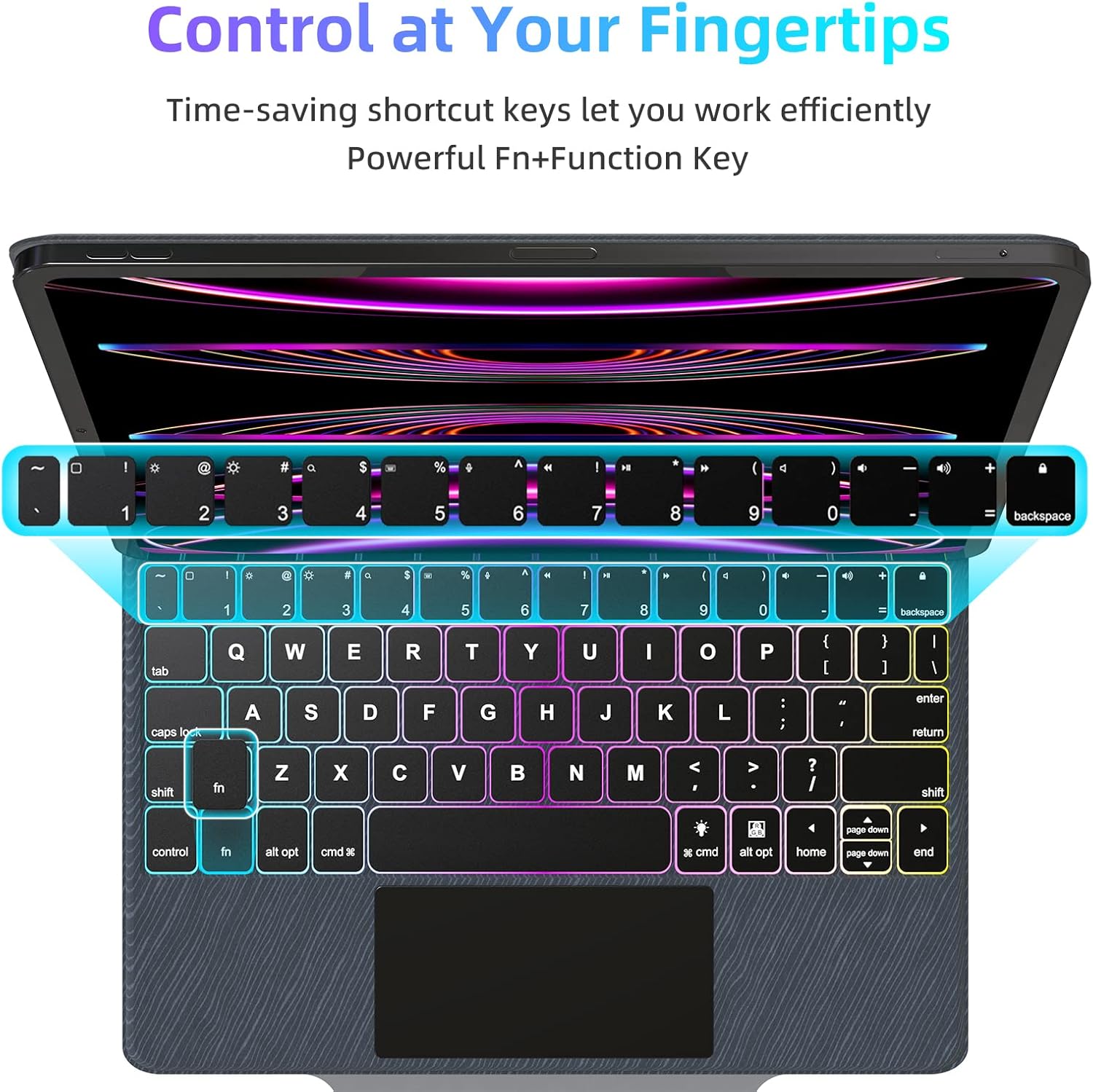
Figure 8: Keyboard shortcut keys for efficient control.

Figure 9: Scissor structure button key for tactile feedback.
4.2. Trackpad Functions
The precision trackpad supports full multi-touch gestures, enhancing navigation and productivity on your iPad.
- Hatz bakarreko ukitu: Click/select.
- Bi hatzekin korritzea: Gora/behera edo ezkerra/eskuina joan.
- Atximurkatu Zooma egiteko: Edukia handitu/txikitu.
- Three-Finger Swipe Up: Joan hasierako pantailara.
- Three-Finger Swipe Up and Hold: Ireki aplikazio aldatzailea.
- Three-Finger Swipe Left/Right: Aldatu irekitako aplikazioen artean.
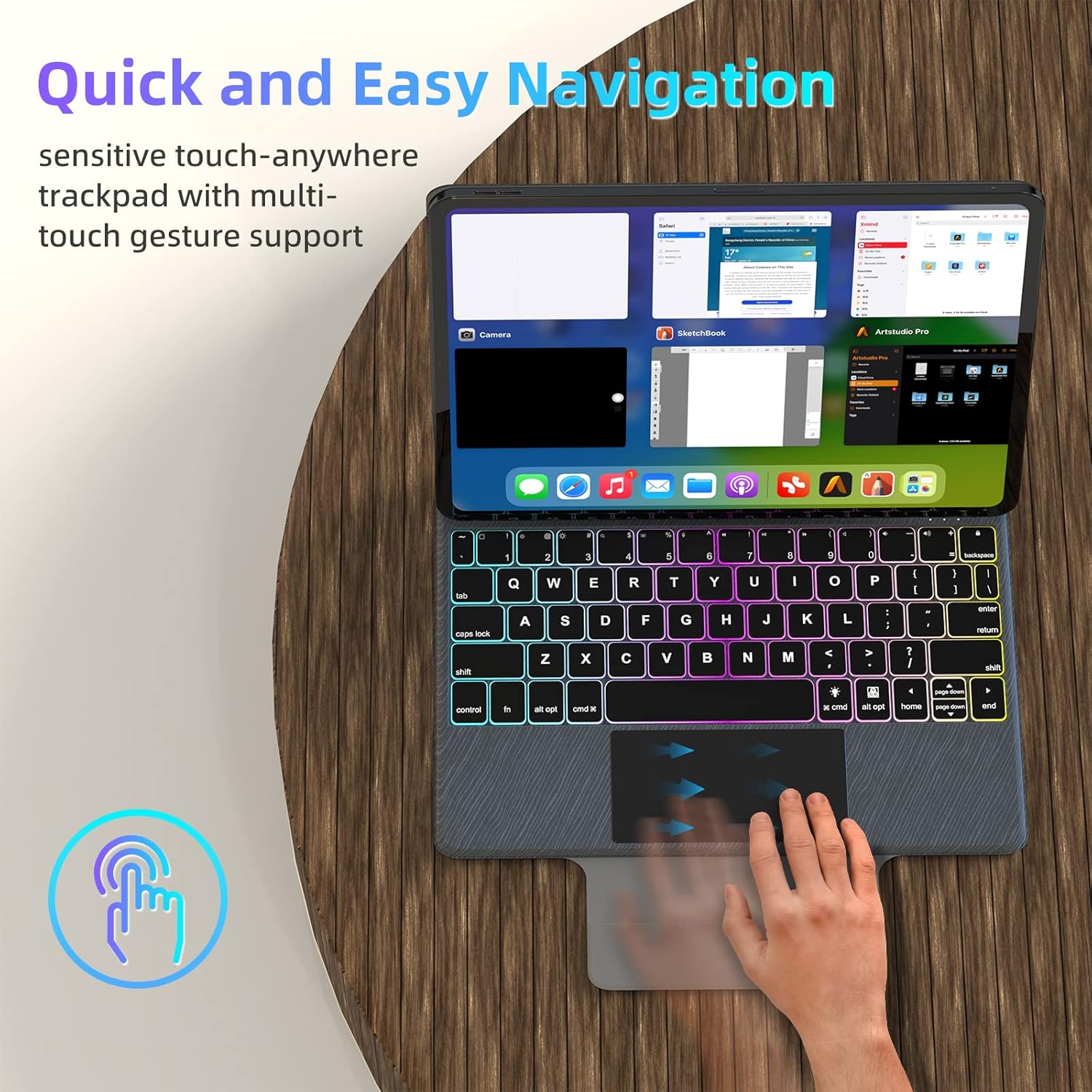
Figure 10: Multi-touch trackpad gestures.
4.3. Energiaren kudeaketa
To conserve battery life, the keyboard case automatically enters sleep mode after 10 minutes of inactivity. It will wake up when a key is pressed or the trackpad is used.

Figure 11: Auto Sleep/Wake feature.
4.4. Stylus Position
The case includes a designated area for securely holding your stylus, ensuring it is always accessible and protected.

Figure 12: Stylus storage position.
5. Mantentzea
5.1. Garbiketa
- Gently wipe the keyboard and trackpad surfaces with a soft, lint-free cloth.
- Zikinkeria egoskorrerako, apur bat lehortuampGarbitu zapi bat urarekin edo garbitzaile leun eta ez-urratzaile batekin. Saihestu gehiegizko hezetasuna.
- Do not spray cleaners directly onto the keyboard or trackpad.
5.2. Biltegiratzea
- When not in use, fold the case to protect both the iPad and the keyboard.
- Gorde zorroa leku fresko eta lehor batean, eguzki-argitik eta muturreko tenperaturetatik babestuta.
6. Arazoak
6.1. Teklatua ez da konektatzen
- Ziurtatu teklatua kargatuta eta piztuta dagoela.
- Check your iPad's Bluetooth settings to confirm Bluetooth is enabled and the keyboard is listed as 'Connected'. If not, try re-pairing.
- Berrabiarazi zure iPada eta teklatua.
6.2. Teklek ez dute erantzuten
- Egiaztatu teklatua Bluetooth bidez konektatuta dagoela.
- Ziurtatu teklatuak bateria nahikoa duela.
- Saiatu Bluetooth konexioa deskonektatzen eta berriro konektatzen.
6.3. Trackpad Issues
- Ziurtatu ukipen-panelaren gainazala garbi eta hondakinik gabe dagoela.
- Egiaztatu iPadOS ezarpenak trackpad-aren sentikortasuna eta keinuen konfigurazioak ikusteko.
- If the trackpad is unresponsive, try restarting the keyboard and iPad.
6.4. Atzeko argia ez dabil
- Ensure the keyboard has sufficient battery charge, as backlighting consumes more power.
- Press the backlight key (often Fn + Light icon) to cycle through modes and brightness levels.
7. Zehaztapenak
| Ezaugarri | Xehetasuna |
|---|---|
| Marka | UOGIC |
| Gailu bateragarriak | iPad Pro 11" (1st/2nd/3rd/4th Gen), iPad Air 10.9" (4th/5th Gen) |
| Konektibitate Teknologia | Bluetooth, USB-C for charging |
| Teklatuaren deskribapena | Multi Functional, Scissor Structure Button Key |
| Ezaugarri bereziak | Backlit (7 modes, 3 brightness), Ergonomic, Rechargeable, Multi-Touch Trackpad, Floating Magnetic Design, Auto Sleep/Wake |
| Kolorea | Beltza |
| Materiala | Akrilonitrila Butadiene estirioa |
| Elementuaren pisua | 2.46 kilo |
| Bateria | 1 litio ioizko bateria (barne) |
| Bateriaren iraupena | Up to 70 hours continuous use, 90 days standby |
| Kargatzeko Denbora | 3 ordu gutxi gorabehera |
8. Bermea eta Laguntza
UOGIC provides a 1-year warranty covering any quality-related issues with your Magic Keyboard Case.
For any questions or concerns, our 24/7 online customer support is available to assist you. Please refer to the product packaging or the official UOGIC webharremanetarako datuak lortzeko gunea.