
Eyoyo EY-5500
Eyoyo EY-5500 2D Desktop Barcode Scanner Instruction Manual
Marka: Eyoyo | Modeloa: EY-5500
1. Produktua amaitu daview
The Eyoyo EY-5500 is a versatile 2D desktop barcode scanner designed for efficiency and ease of use. Its hands-free operation allows users to scan barcodes without needing to hold the device or press buttons, significantly improving workflow. The scanner features automatic sleep and wake-up functions, adapting dynamically to its environment and reducing eye strain with its intelligent LED white light. It supports a wide range of 1D, 2D, and QR codes, including those on screens, and can accurately read distorted, damaged, blurred, or colorful codes. With its plug-and-play design, no additional software or drivers are required, making it compatible with various operating systems like Windows, Mac OS, and Linux. Its compact size makes it suitable for diverse environments such as supermarkets, libraries, and retail stores.

Figure 1: Eyoyo EY-5500 2D Desktop Barcode Scanner.
2. Konfigurazio gida
2.1 Deskargatzea
Carefully remove the scanner and its accessories from the packaging. Verify that all components are present.
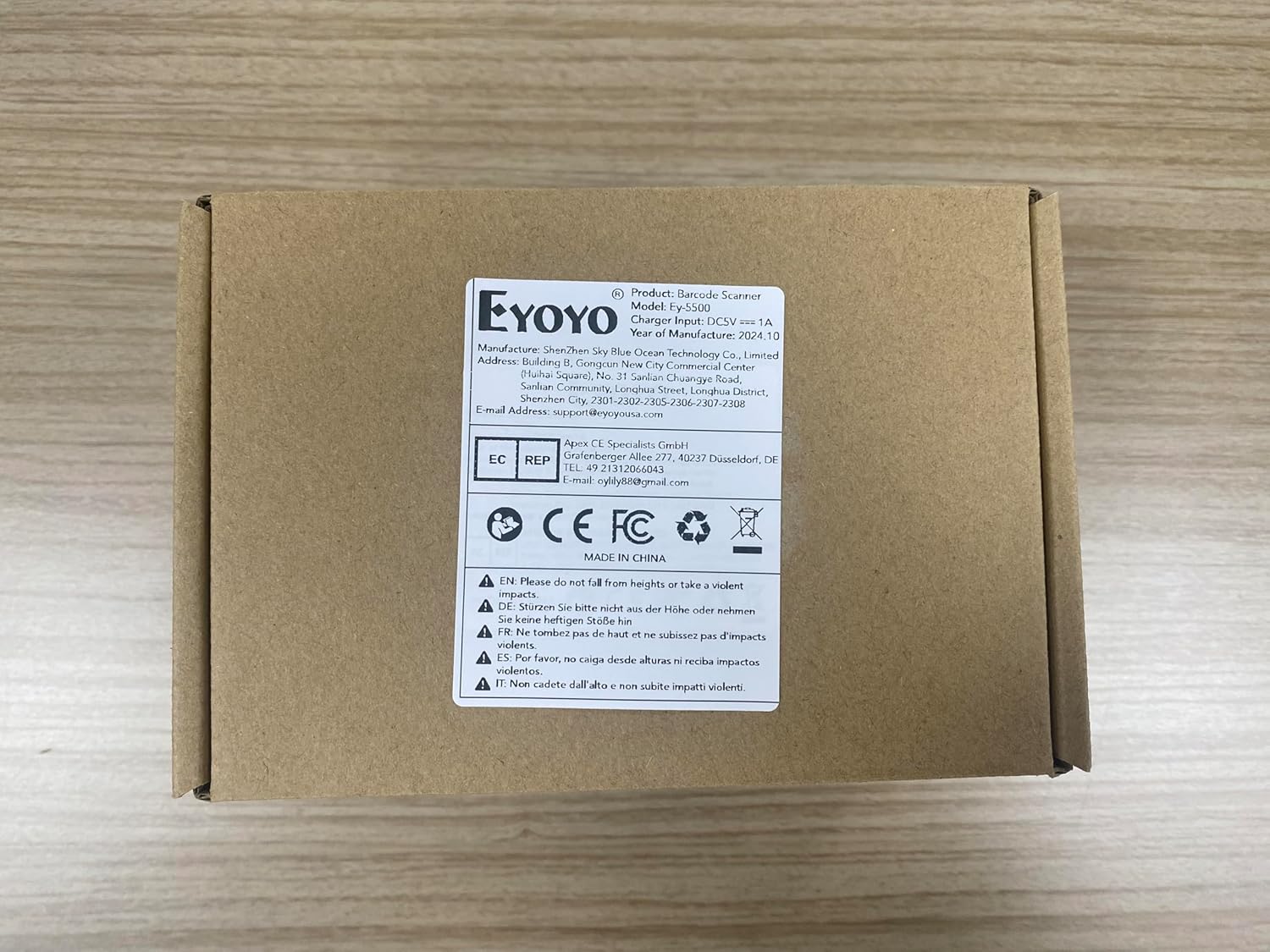
Figure 2: Product packaging with model and certification details.
2.2 Konexioa
The Eyoyo EY-5500 barcode scanner is designed for simple plug-and-play operation via USB. No driver installation is required.
Video 1: This video demonstrates the simple plug-and-play setup of the Eyoyo EY-5500 barcode scanner, showing it being connected to a computer via USB and immediately ready for use.
- Connect the USB cable to the designated port on the back of the scanner.
- Konektatu USB kablearen beste muturra zure ordenagailuko USB ataka libre batean (PC, ordenagailu eramangarria edo POS sistema).
- The scanner will automatically power on and be ready for use.

Figure 3: Connecting the scanner to a computer via USB.
3. Funtzionamendu-argibideak
3.1 Hands-Free Automatic Sensing
The EY-5500 features an infrared auto-sensing mode, allowing for hands-free scanning. The scanner will automatically detect a barcode placed in its scanning window and initiate the scan.
Video 2: This short video illustrates the infrared auto-sensing feature of the Eyoyo EY-5500, showing how the scanner automatically wakes up and scans when an item is presented, then returns to sleep mode.
- Place the item with the barcode in front of the scanner's window.
- The scanner will automatically activate its light and scan the barcode.
- After a successful scan, the scanner will return to a low-power sleep mode, conserving energy and reducing light emission.

Figure 4: Automatic sensing and adjustable scanning window.
3.2 Scanning Capabilities
The EY-5500 is capable of reading a wide variety of 1D and 2D barcodes, including QR codes, from both printed labels and digital screens (e.g., mobile phones, computer displays). Its advanced decoding algorithm ensures fast and accurate scanning even for challenging barcodes.
Video 3: This video showcases the wide range of applications for the Eyoyo EY-5500 barcode scanner, demonstrating its use in retail, pharmacy, and library environments for efficient and accurate scanning.
- Supported barcode types include: Interleaved 2 of 5, EAN-13, UPC-A, PDF417, Data Matrix, QR Code, and more.
- The scanner can read barcodes that are unclear, colored, damaged, or blurred.
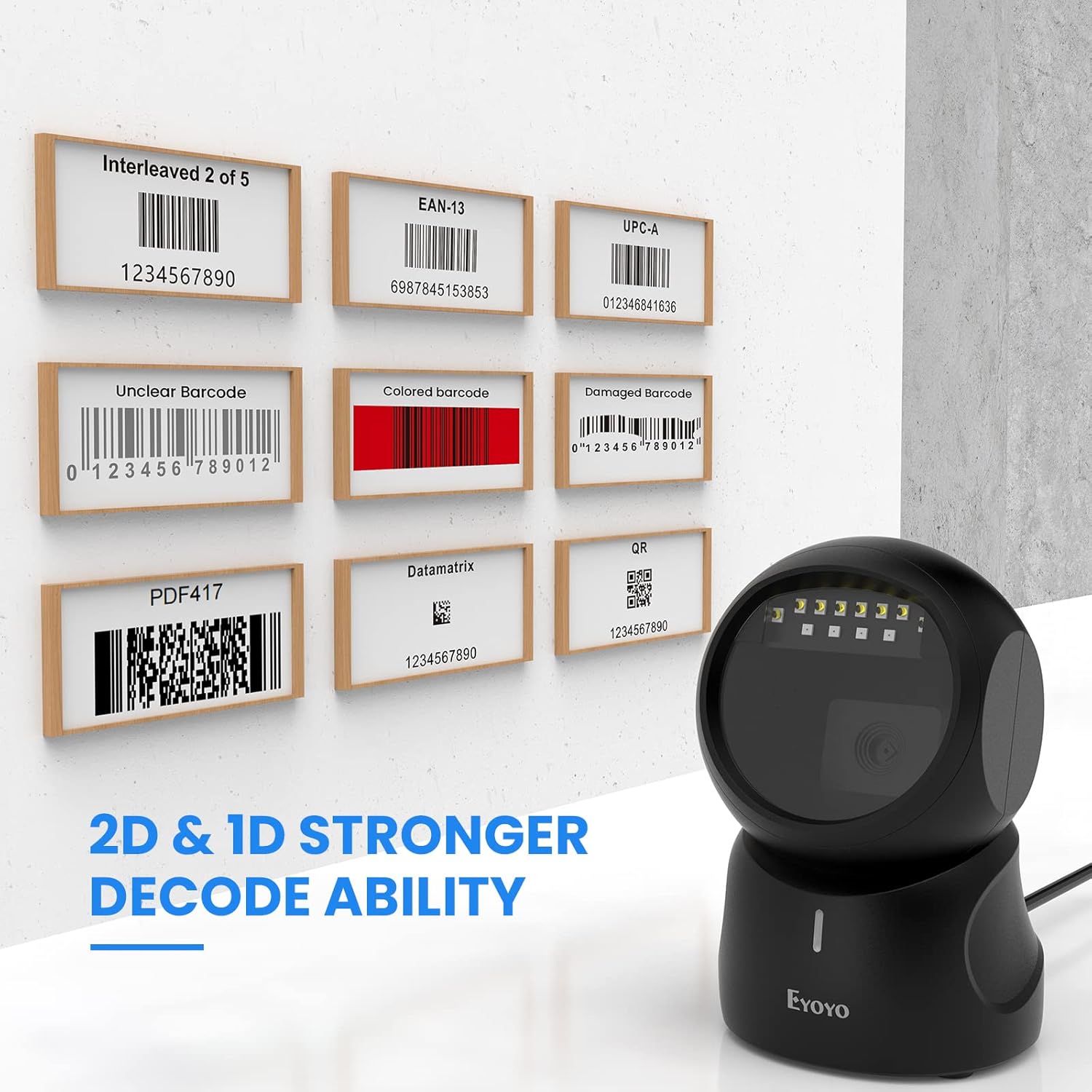
Figure 5: Scanner's strong decode ability for various barcode conditions. For more information, visit www.nbdeli.com.
3.3 Konfigurazio aukerak
The Eyoyo EY-5500 offers multiple configuration options to customize its behavior, such as adjusting the beep sound, adding prefixes or suffixes to scanned data, and setting keyboard language.
Video 4: This video demonstrates how to adjust the beep setting of the Eyoyo EY-5500 barcode scanner by scanning a specific setup code to turn the volume off.
- Beep Setting: You can turn the beep sound on or off, or adjust its volume (high/low) by scanning specific configuration barcodes found in the full user manual.
- Add Prefix/Suffix: Customize the output by adding a specific string of characters before or after the scanned barcode data.
- Teklatuaren teklak: Configure specific keyboard keys to be sent after a scan (e.g., Enter key for carriage return).
- Keyboard Language Setting: Adjust the scanner's output to match your system's keyboard layout.

Figure 6: Scanner in use, illustrating various configuration options.
4. Mantentzea
4.1 Garbiketa
To ensure optimal performance, keep the scanner's window clean. Use a soft, lint-free cloth lightly dampened with water or a mild, non-abrasive cleaner. Do not use harsh chemicals or abrasive materials, as they can scratch the scanning window.
4.2 Kableen zaintza
Avoid bending or twisting the USB cable excessively. Store the cable neatly when not in use to prevent damage. A damaged cable can affect the scanner's connectivity and performance.
5. Arazoak
If you encounter issues with your Eyoyo EY-5500 barcode scanner, please refer to the common problems and solutions below. If the problem persists, contact Eyoyo customer support.
| Arazoa | Kausa posiblea | Irtenbidea |
|---|---|---|
| Eskanerra ez da pizten | Loose USB connection, faulty USB port, damaged cable. | Ensure USB cable is securely connected to both scanner and computer. Try a different USB port or cable. |
| Ezin dira barra-kodeak eskaneatu | Barcode type not enabled, barcode damaged/unreadable, scanner settings incorrect. | Ensure the barcode is clean and clear. Refer to the full manual to enable specific barcode types. Check if the scanner is in the correct operating mode. |
| Incorrect data output | Keyboard language mismatch, prefix/suffix settings. | Verify your computer's keyboard language matches the scanner's setting. Check prefix/suffix configurations. |
| Eskanerrak ez du erantzuten | System freeze, temporary error. | Disconnect and reconnect the USB cable. Restart your computer if necessary. |
6. Produktuaren zehaztapenak
| Ezaugarri | Xehetasuna |
|---|---|
| Modelo zenbakia | EY-5500 |
| Produktuaren neurriak | 5.51 x 3.54 x 3.54 hazbete (3.5"S x 3.7"Z x 5.5"A) |
| Elementuaren pisua | 12.3 ontza |
| Konektibitate Teknologia | USB kablea (kableduna) |
| Energia iturria | Kable elektrikoa |
| Gailu bateragarriak | Ordenagailu eramangarria, mahaigainekoa, salmenta puntua |
| Onartutako barra-kodeak | 1D, 2D, QR Codes (from labels, paper, mobile/computer displays) |
| Fabrikatzailea | Eyoyo |
| Jatorrizko Herrialdea | Txina |
7. Bermea eta Laguntza
Eyoyo products are designed for reliability and performance. For any product-related inquiries, technical assistance, or warranty claims, please contact Eyoyo customer support. The product typically comes with a 30-day return policy for refunds or replacements, as per standard retail terms.
For the most up-to-date support information and contact details, please refer to the official Eyoyo webgunea edo erosketarekin batera datorren dokumentazioa.
Ask a question about this manual
Ask about setup, troubleshooting, compatibility, parts, safety, or missing instructions. Manuals+ will review the question and use this page’s manual context to help answer it.