
1. Sarrera
This manual provides essential information for setting up, operating, maintaining, and troubleshooting your Beelink SEI10 Mini PC. Please read this manual thoroughly before using the device to ensure optimal performance and longevity.
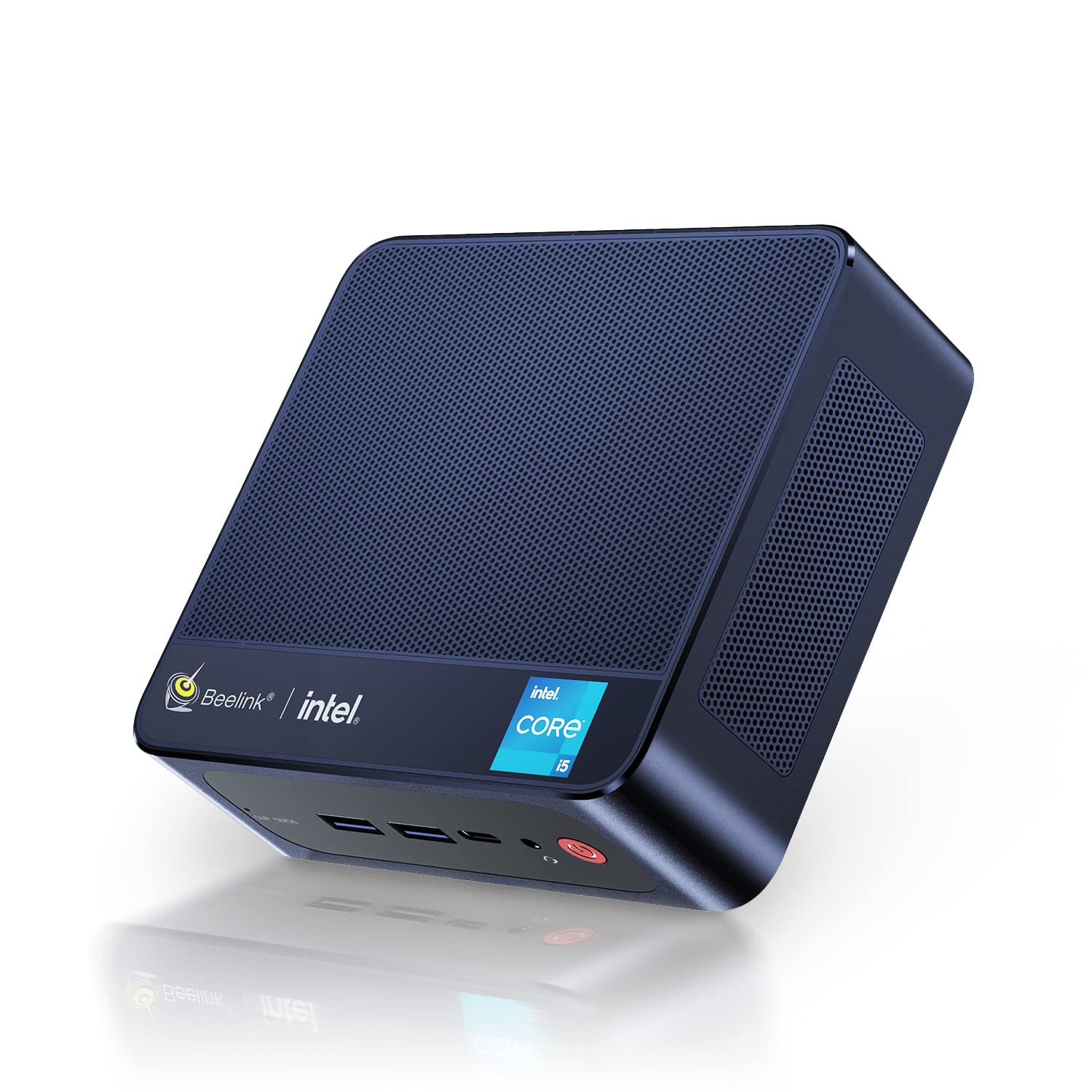
Figure 1: Beelink SEI10 Mini PC
The Beelink SEI10 is a compact and powerful mini PC designed for various computing tasks, from home entertainment to office productivity. It features an Intel Core i5-1035G4 processor, 16GB DDR4 RAM, and a 500GB SSD, offering efficient performance in a small form factor.
2. Paketearen edukia
Egiaztatu elementu guztiak paketean daudela:
- 1 × Beelink SEI10 Mini PC
- 2 × HDMI Cables (25cm and 100cm)
- 1 × Elikadura egokitzailea
- 1 × Muntatzeko euskarria
- 1 × Erabiltzailearen eskuliburua (dokumentu hau)
3. Produktua amaitu daview eta Portuak
The Beelink SEI10 Mini PC offers a range of connectivity options for various peripherals and displays.

2. irudia: Aurrealdea view of the Beelink Mini PC, highlighting its support for WiFi 6 and Bluetooth 5.2 connectivity.
Portuak eta konektoreak:
- 1 × DC Jack Port (for power input)
- 4 × USB 3.0 ataka
- 2 × RJ45 Ports (Gigabit LAN)
- 2 × HDMI Ports (supports dual 4K display output)
- 1 × Audio Jack Port (for headphones and microphone)
- 1 × Type-C Port (supports video output)
4. Konfigurazioa
Follow these steps to set up your Beelink SEI10 Mini PC:
- Pantaila batera konektatu: Use one of the provided HDMI cables to connect the Mini PC to your monitor or TV. If your display supports Type-C video input, you can use the Type-C port.
- Konektatu periferikoak: Plug in your USB keyboard and mouse into the USB 3.0 ports.
- Konektatu energiara: Connect the power adapter to the DC Jack port on the Mini PC, then plug the adapter into a power outlet.
- Piztu: Press the power button located on the front of the Mini PC. The device will boot up, and you should see the operating system on your display.
- Hasierako konfigurazioa: Jarraitu pantailan agertzen diren argibideei Windows 11 Pro konfigurazioa osatzeko, hizkuntza, eskualdea, sareko konexioa eta erabiltzaile-kontua sortzea barne.
5. Funtzionamendua
Piztu/Itzali:
- Pizteko: Sakatu pizteko botoia.
- Itzateko: Egin klik Windows-eko Hasi botoian, eta ondoren hautatu Energia > Itzali.
- Berrabiarazteko: Egin klik Windows-eko Hasi botoian eta, ondoren, hautatu Energia > Berrabiarazi.
Sareko konexioa:
- Wi-Fi: The Mini PC supports Wi-Fi 6 (802.11ax). To connect, click the Wi-Fi icon in the taskbar, select your network, enter the password, and click Connect.
- Ethernet: For a wired connection, connect an Ethernet cable from your router to one of the RJ45 ports on the Mini PC.
- Bluetootha: The Mini PC supports Bluetooth 5.0. To pair devices, go to Windows Settings > Bluetooth & devices, and follow the instructions to add a new device.
Pantaila anitzeko konfigurazioa:
The Beelink SEI10 supports dual 4K display output via its two HDMI ports and an additional display via the Type-C port, allowing for a triple display setup. Connect your monitors to the available ports, and Windows will automatically detect them. You can configure display settings (extend, duplicate, etc.) in Windows Settings > System > Display.
6. Biltegiratzea eta memoriaren hedapena
The Mini PC comes with 16GB DDR4 RAM and a 500GB M.2 NVMe SSD. You can expand the storage and memory as follows:
- Memoria (RAM): The system supports configurable memory up to 16GB with a single card and 32GB with dual cards.
- M.2 NVMe SSD: The M.2 2280 NVMe SSD can be upgraded to up to 2TB.
- 2.5-inch SATA Drive: An additional 2.5-inch SATA drive (HDD/SSD) can be installed for further storage expansion.

3. irudia: Barnekoa view of the Beelink Mini PC's cooling system, showing the fan, heatsink, and hard drive cooler, along with a table of noise levels.
7. Mantentzea
Garbiketa:
- Regularly clean the exterior of the Mini PC with a soft, dry cloth.
- Use compressed air to clear dust from ventilation openings to ensure proper airflow and cooling.
- Do not use liquid cleaners or solvents directly on the device.
Software eguneraketak:
Keep your Windows operating system and drivers updated to ensure optimal performance and security. Windows Update can be accessed via Settings > Update & Security > Windows Update.
Beroaren kudeaketa:
The Beelink SEI10 is equipped with an efficient cooling system, including a quiet fan and dual heat pipes. Ensure the Mini PC is placed in a well-ventilated area and that its vents are not obstructed to prevent overheating.
8. Arazoak
Potentziarik gabe:
- Ziurtatu korronte-egokitzailea ondo konektatuta dagoela bai Mini PCra bai funtzionatzen duen korronte-entxufe batera.
- Egiaztatu entxufea funtzionatzen duela beste gailu bat konektatuz.
Ez dago pantailarik:
- Check that the HDMI or Type-C cable is securely connected to both the Mini PC and the monitor.
- Ziurtatu monitoreak piztuta dagoela eta sarrera-iturri zuzenera konfiguratuta dagoela.
- Try a different HDMI port or cable if available.
Sarearen konexio arazoak:
- For Wi-Fi, ensure your router is working and the Wi-Fi password is correct.
- For Ethernet, check the cable connection and ensure your router's LAN port is active.
- Restart your router and the Mini PC.
Errendimendu motela:
- Itxi atzeko planoan exekutatzen ari diren beharrezkoak ez diren aplikazioak.
- Ensure the system has sufficient free storage space.
- Begiratu eta instalatu zain dauden Windows eguneratzeak.
- Ensure proper ventilation to prevent thermal throttling.
9. Zehaztapenak
The following table details the technical specifications of the Beelink SEI10 Mini PC:
| Ezaugarri | Zehaztapena |
|---|---|
| Marka | Beelink |
| Ereduaren izena | SEI10 |
| Sistema eragilea | Windows 11 Pro (Windows 10 Pro also possible, upgradeable) |
| CPU eredua | Intel Core i5-1035G4 (10th Gen) |
| CPU Base Frequency | 1.1 GHz |
| CPU Max Turbo Frequency | 3.70 GHz (4 Cores / 8 Threads) |
| Smart cachea | 6 MB |
| Grafikoak | Intel Iris Plus Graphics (Integrated) |
| RAM | 16 GB DDR4 (3200 MHz) |
| RAM edukiera maximoa | 32GB (via dual slots) |
| Biltegiratzea | 500GB M.2 2280 NVMe SSD |
| Biltegiratze-hedapena | Up to 2TB M.2 NVMe SSD, 2.5-inch SATA HDD/SSD slot |
| Ethernet | 1000Mbps LAN (2x RJ45 ports) |
| Wi-Fi | Wi-Fi 6 (802.11ax) |
| Bluetootha | Bluetooth 5.0 |
| Bideo Irteera | 2x HDMI (4K support), 1x Type-C (video output) |
| USB atakak | 4x USB 3.0 |
| Audio-portua | 1x Audio Jack (HP & Mic) |
| Aspektu-erlazioa | 16:9 |
| Ebazpena | 3840 x 2160 (4K) |
| Fabrikazio urtea | 2022 |
| UPC | 810056048167 |
Note: Some images in this manual may depict features or specifications of similar Beelink models or general Intel processor capabilities. The specifications listed above are specific to the Beelink SEI10 model with the Intel Core i5-1035G4 processor.

Figure 4: An illustration detailing processor specifications, showing an Intel Core i5-11320H processor. Note: This specific model (SEI10) features an Intel Core i5-1035G4 processor.

Figure 5: A table comparing power consumption and performance metrics between different Intel Core i5 processors.

Figure 6: Performance comparison chart for different Intel Core i5 processors, illustrating benchmark scores.
10. Bermea eta Laguntza
Beelink provides lifetime technical support for the SEI10 Mini PC. If you encounter any issues or require assistance, please contact our support team. We offer 7-day/24-hour service to address your concerns.
All Beelink products, including this Mini PC, are certified by FCC, CE, and RoHS, ensuring compliance with quality and safety standards.
If your device was shipped with Windows 10 Pro, you can contact us for a free upgrade to Windows 11 Pro.